
FireWally
FireWally is an app that lets you monitor and control which applications can access the Internet, helping protect your privacy and data usage with a clear, simple interface.
The first time you launch FireWally, there are a couple of necessary steps to take before you can start controlling your network traffic.
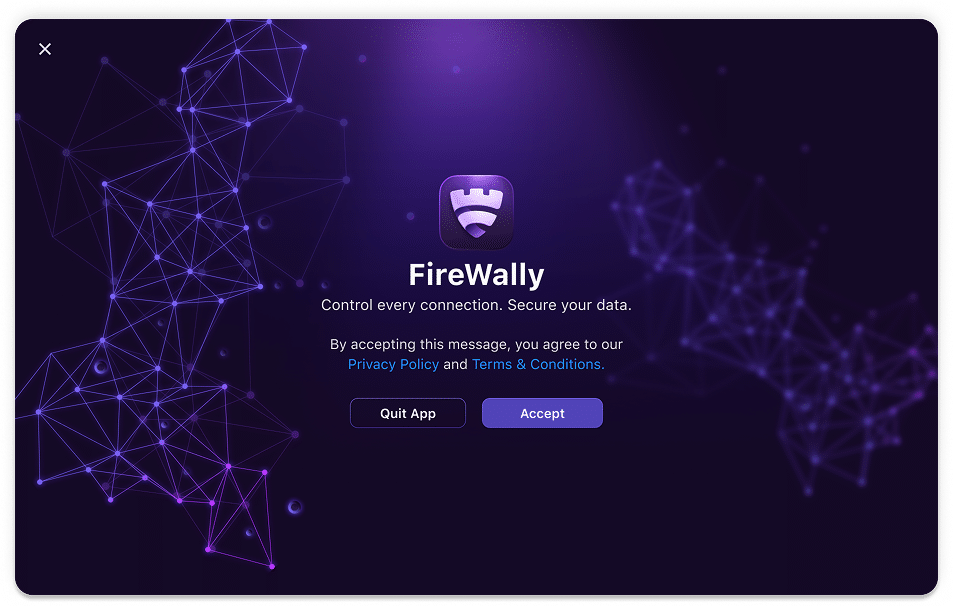
1. Accept Privacy Policy and Terms & Conditions
Upon the very first launch, you will see a welcome screen asking you to accept the application’s terms. Click Accept.
2. Granting Network Permissions
Once you accept the terms, the app requires permission to manage your network traffic by enabling its Network Extension within macOS System Settings.
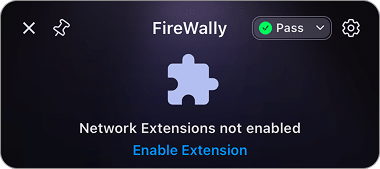
- Open FireWally by clicking its icon in the menu bar → click Enable Extension.

- Authorize Network Filtering by clicking Allow in a system prompt titled “FireWally” would like to Filter Network Content.

- Confirm extension use by clicking OK in the next prompt.

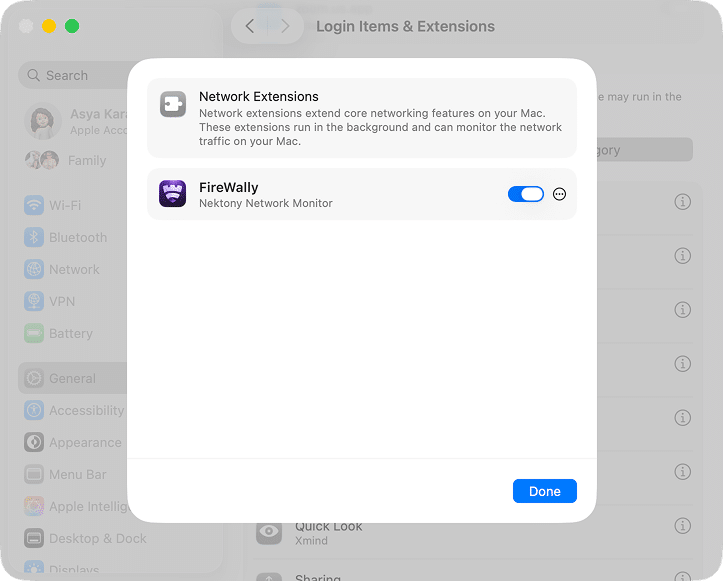
- Navigate to System Settings to give teh app permission to manage network traffic. Simply click the Open System Settings button.

- This action will redirect you to the System Settings → General → Login Items & Extensions → Network Extensions category.
- In the Network Extensions category, locate toggle the switch button to the On position for FireWally (it should turn blue).

- You may need to enter your user password to confirm this change.


Now FireWally is fully enabled and ready to protect your Mac’s network traffic.
How to view and monitor traffic
If you want to clean up your Mac’s storage, switch to the appropriate section in the app’s window:
- Click the FireWally icon in your menu bar.
- See which applications are connected to the internet, along with their real-time data usage.
- Use the tabs to check data usage for the current hour and day.

- Hover your mouse over the circle icon next to each app to see the total incoming and outgoing data.


This is especially useful for staying under data limits when traveling or using mobile connections.
How to control app connections
Toggle internet access for any app with one click. A blue switch means the app is allowed online. Turning it off blocks its internet access.

How to set your protection mode
FireWally’s protection mode decides what happens when a brand-new app tries to reach the Internet. It starts in Pass by default, so you’re covered without setting anything up — and you can switch modes anytime by clicking the mode indicator in the upper-right of the main window.

There are three modes:
- Pass (default) — every app is allowed online. You can still block any individual app whenever you want.
- Ask — FireWally alerts you the first time each new app tries to connect, so you can Allow or Deny it.
- Block — FireWally automatically blocks every new app from the Internet until you allow it.
How to pin the window
If you wish to keep your eye on real-time network activity and data usage, FireWally offers a convenient Pin feature. You can pin the application window, so that it automatically remains visible on top of all other windows, even when you switch applications or desktops.
Simply click the Pin icon (it looks like a small pushpin 📌) located inside the app’s window.

To unpin the window and allow other applications to cover it again, simply click the Pin icon one more time.

