
Help
FireWally
Overview
FireWally is a simple and powerful firewall app for macOS that gives you complete control over your apps’ internet connections.
It allows you to monitor and manage inbound and outbound traffic for every application, helping to protect your privacy, reduce data usage, and identify suspicious network activity with a clear, user-friendly interface.
Granting permission
To get FireWally working fully, you need to enable its Network Extension in your macOS System Settings. This process typically needs to be completed only once after initial installation.
When you launch FireWally and it does not have the necessary access, you will see this message:
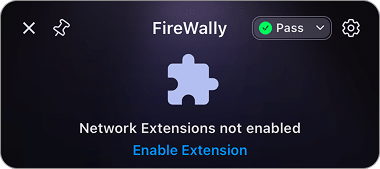
This indicates that the necessary network component is not yet active.
Follow these steps to enable the extension:
- Click Enable Extension in the main firewall window.
- A system prompt will appear titled “FireWally” would like to Filter Network Content. Click Allow.

- Next, you may see a prompt titled “FireWally” that would like to use a new network extension. Click OK.

- After the initial prompts, a window with a guide will appear. Click Open System Settings.

- This action will take you directly to the System Settings → General → Login Items & Extensions → Network Extensions category.
- Enable the switch button for FireWally. If needed, confirm by providing your user password.


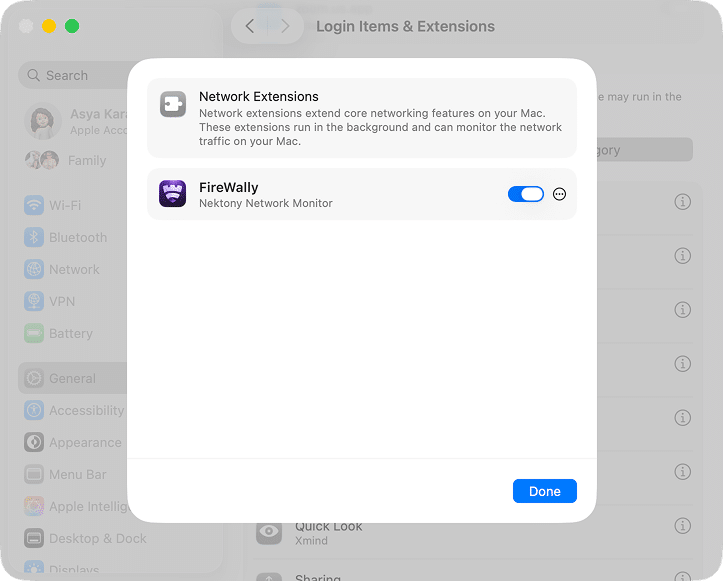
Once the switch is blue and you have clicked Allow, FireWally is fully enabled and ready to protect your Mac’s network traffic.
Monitor network activity
To monitor traffic for a specific application with FireWally, do the following:
- Click the FireWally icon in your menu bar to open its main window.

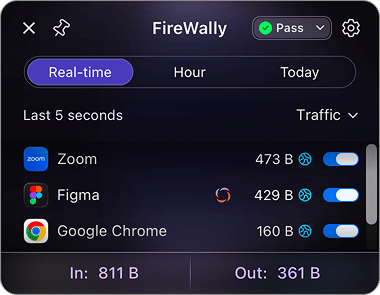
- In the Real-time tab, you can view which apps are currently active on the network. Alternatively, when you switch to other tabs (like Hour or Today), you can see the online status of apps indicated by the spinning blue globe icon next to the traffic amount.
- Hover over the icon next to the traffic indicator to see the incoming and outgoing traffic.
Note: If you are on the Real-time tab, the data displayed represents the traffic for the last 5 seconds. If you are viewing the Hour or Today tab, the breakdown will show the data for the current hour or day.

- View your total data usage at the bottom of the window.


View traffic history
You can view your data usage history by selecting a different time period from the tabs at the top of the main window.

The Real-time tab is useful for quickly identifying which apps are actively using data right now.

The Hour tab shows a detailed overview of traffic statistics for the current hour.

The Today tab shows a comprehensive report of all traffic that has passed through your Mac over the current 24 hours. This gives you a complete picture of your daily data consumption.

These historical tabs provide both the total “In” and “Out” traffic as well as a per-app breakdown, so you can easily see what’s using the most data over time.
See why apps connect
Unlike traditional firewalls that only show an online or offline status, FireWally uses AI (Apple Intelligence is a specific Apple branding term, but the text conflates it with generic AI) to provide concise, plain-language explanations for each app’s network connections. This empowers you to make smarter privacy decisions when blocking apps.
How to access AI Insights:
- Click the AI icon next to the app’s name to open the detailed view.
- Read the AI Insights summary explaining why the app accesses the Internet.
- Decide whether to block or allow the connection.

Control app internet access
FireWally gives you full control over which applications can connect to the internet. To manage an app’s network access, simply locate the toggle switch on the right side of its name in the application list.
- When the switch is blue, the app’s internet access is enabled. The application is free to send and receive data.
- When the switch is gray, the app’s internet access is disabled. The application is blocked from all inbound and outbound network connections.

This one-click control allows you to instantly block any app you find suspicious or to prevent data-heavy applications from consuming bandwidth and data in the background, especially when you are on a limited data plan.
Protection mode
Alongside controlling apps one by one, FireWally lets you set a default rule for what happens when a brand-new app tries to reach the Internet for the first time. This is your protection mode. FireWally starts in Pass mode by default, so you don’t need to set anything up to get going — but you can switch modes at any time by clicking the mode indicator in the upper-right of the main window and choosing an option from the dropdown.

There are three modes:
- Pass (default) — every app’s traffic is allowed by default, so new apps can connect freely. You stay in control by manually blocking anything you don’t want (see Control app internet access).
- Ask — FireWally checks with you about each new app. The first time an app tries to connect, an alert appears where you can click Allow to let it online or Deny to block it.

- Block — FireWally automatically blocks Internet access for every new app that tries to go online, so nothing reaches the web until you allow it.

When you switch to Block, FireWally asks you to confirm with “Turn on automatic blocking for new apps?” — click Turn on to enable it, or Cancel to keep your current setting. Tick Don’t show this message again to skip this confirmation next time.

Pinning the window
FireWally offers a convenient Pin feature. When pinned, the app’s window will always remain on top of other windows, even when you switch to different apps. This is ideal for real-time monitoring, allowing you to keep an eye on your network activity and data usage (In/Out totals) without constantly minimizing and restoring the application.
How to pin the window
- Open FireWally from the menu bar.
- Click the Pin icon (which looks like a small pushpin 📌)

If you manually drag and move the window using your mouse, the pin will be set automatically.
To return the window to normal behavior (allowing other applications to cover it), simply click the Pin icon again.
Uninstallation guide
In case you need to uninstall or reinstall the application, follow these steps:
- Quit FireWally. For this, click the gear icon in the top-right corner of the app’s window and select the Quit option.

- Open System Settings → General → Login Items & Extensions → scroll down and find the Extensions section → choose the By Category tab → find Network Extensions → click the “i” icon → locate FireWally → click the “three dots” icon for it → select Delete Extension.
- Open your Applications folder and move FireWally to the Trash.

- For complete removal, clear related files from the ~/Library folder. For this, press Cmd+Shift+G to open the Go to Folder box.
- Navigate to the following folders and remove from there all files and subfolders related to com.nektony.Firewall:
- ~/Library/Containers/com.nektony.Firewall
- ~/Library/Application Scripts/com.nektony.Firewall
- ~/Library/Group Containers/8dkg…..com.nektony.Firewall.group
- /private/var/db/receipts/com.nektony.Firewall.plist
- /private/var/db/receipts/com.nektony.Firewall.bom
- /private/var/db/receipts/com.nektony.Firewall. (any extensions)

- Empty your Trash.


If you have questions or need assistance, please contact Nektony support. Our team is ready to help you get the most from FireWally.


