April 21, 2026
Duplicate File Finder Free mode vs. Pro mode


Share


Relevant for the version downloaded from the App Store.
This guide provides a detailed comparison between the Free and Pro versions of Duplicate File Finder. Whether you are looking for basic cleanup or advanced file management, understanding these features will help you choose the right tool for your needs.
Table: Free mode vs. Pro mode of Duplicate File Finder
| Options | Free | Pro |
|---|---|---|
| Find duplicates on any drive type (external hard drives, network drives, and even mounted cloud storage) | ||
| Preview duplicates with the Quick Look option | ||
| View the duplicate files directory and quickly open them in the Finder | ||
| Sort duplicates by categories (type, name, count, path and size) for fast and easy search | ||
| Customize the speed of the duplicates search process | ||
| Add any file, folder, or file extension to the Skip List | ||
| Find duplicate and similar pictures in Photos Library | ||
| Remove duplicate folders - delete not only duplicate files but also copies of folders | ||
| Compare folders for duplicate content | ||
| Compare files to check whether they are duplicates or not | ||
| Use Smart Select to quickly select or keep duplicate files in specific folders | ||
| Remove duplicates in similar folders - folders that contain both duplicate and unique files | ||
| Merge Folders - merge the content of scanned folders | ||
| Select Duplicates in Folder - choose where to keep or remove duplicates | ||
| Restore removed duplicates | ||
| Remove files from the compared folders | ||
| Premium support |
Benefits of Duplicate File Finder Free
The Free version of Duplicate File Finder is all you need to easily find and remove duplicate files. It also includes many useful features that make the experience smooth and enjoyable.
Support of any drive type
Duplicate File Finder lets you find duplicate files on any disk or folder – including your local disk, external drives, and network drives.
Note that scanning time depends on your disk speed, connection speed, and drive capacity.
You can also scan individual folders or set a minimum file size to include in the scan.
Quick Look preview option
Analyzing and selecting unneeded duplicates is easy and safe, as you can preview them in each file type category.

Duplicate files directory
In each section, you can view the full folder hierarchy showing where duplicates are located. For the parent folder and its subfolders, you can apply the following actions:
- Select All Copies in the folder
- Keep All Copies in the folder
- Add the folder to the Skip List
- Add the folder to Always Select List
- Add the folder to Never Select List.

Sorting of duplicates by different categories
Use the “Sort by…” option to sort your duplicate files by convenient categories:
- Size
- Name
- Date
- File type
- Count
- Selected

Tuning the speed of duplicates search process
You can speed up the duplicate search by changing the file size threshold to be searched. This allows you to skip scanning the smallest files and find the largest duplicates. This option will help you to quickly free up space on your drive when immediate reductions are needed.

Skip list
If you want to exclude particular folders and files from the scan, go to Settings and add them to the Skip List.
The app will then skip the specified files and folders when scanning for duplicates.

Finding Similar pictures
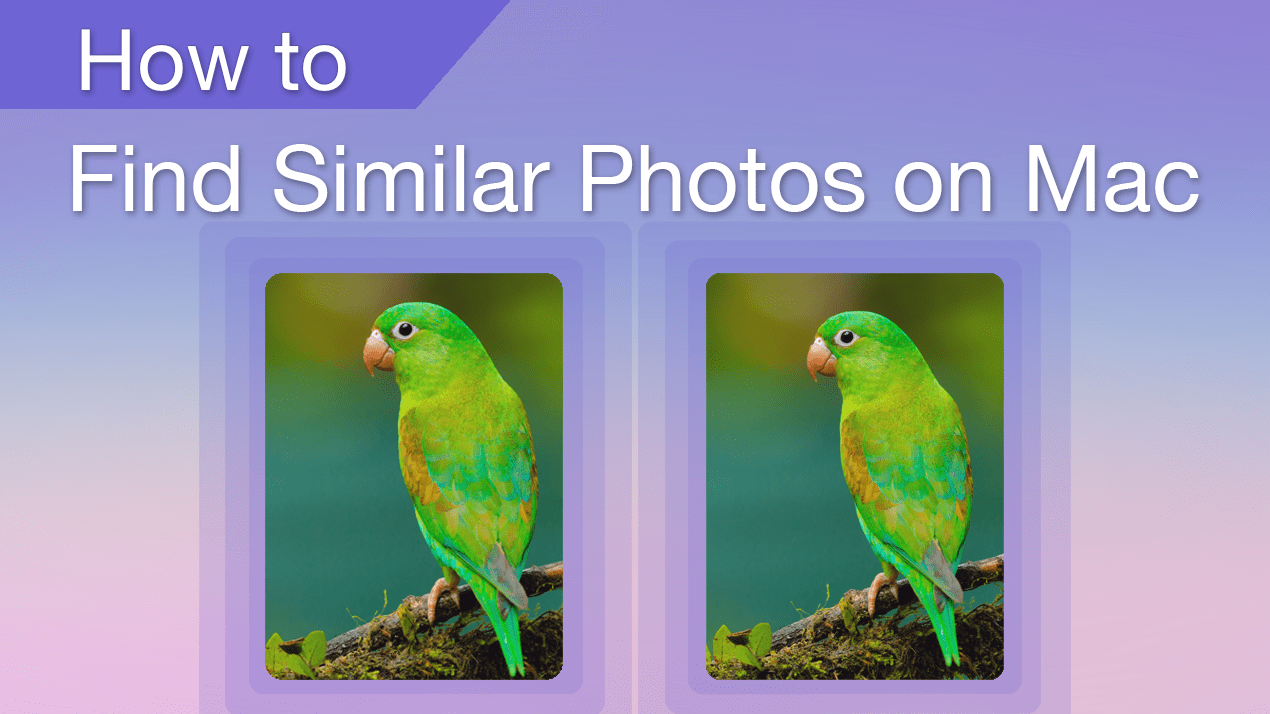
Similar pictures are images that look alike but are not absolutely identical. These files have small differences, imperceptible at first glance.
Manually removing look-alike photos from your Mac may become very time-consuming. Fortunately, if you want to organize or remove similar images, the application will make this task easier and simpler for you. Just go to the Similar Photos tab to find nearly-identical pictures and selfies, which occupy large amounts of disk space.

Searching for duplicates in Photos Library
The Photos app is a default Apple tool that stores all the photos you import from iCloud or iOS devices. Multiple downloads of the same photos or many shots of the same item on your iPhone all have one result - many duplicate and similar images eating up valuable space on your Mac’s storage. But now it’s not a problem because, with Duplicate File Finder, you can scan the Photos Library and find duplicate and similar images.

The Benefits of Duplicate File Finder Pro
While the free mode suits users who don’t have many duplicates, the Pro version is recommended for those with many duplicates and need the most efficient version. Those who upgrade to Pro will find the cleanup process even faster and more useful features available.
Smart Select feature
The Smart Select option allows you to automatically select all duplicate copies in each group of duplicate files and keep only one copy. This means that the app always keeps one file among the duplicates. You can navigate the duplicates group and click the arrow to the right of the Auto Select button. Then choose one of the options:
- Select Oldest duplicates.
- Select Newest duplicates.
Use this feature when you have many folders with duplicates, and it’s not important in which folder to keep a file or from which folders to remove its duplicates.

Remove duplicate folders
You may have different folders that are completely identical. While with the Free mode, you can find and preview duplicate folders, the Pro mode also allows you select and remove them. With this time-saving option, your disk cleanup requires less time and allows you to keep a consistently optimized disk.

Remove duplicates in similar folders
Similar Folders are those that contain not only duplicate files, but also unique files. You can preview all these folders in the Similar Folders tab and compare their content. Another great feature is that you don’t have to worry about your unique files, as the application allows you to select and remove only duplicates in these folders. The unique files stay untouched. Read more about Similar folders.

Merge folders
Sometimes you may face a complicated structure of duplicate files and folders, and need to both remove your duplicates and organize them. In this case, use the Merge feature. When you merge folders, the application moves or copies unique files from one folder to another. As a result, merging similar folders allows you to combine dozens of duplicate files and folders, making the structure a whole lot easier.

Select by folders – Select in bulk
You can choose in which folders you want to select and remove all file copies. With this feature, you save time and do not have to review and select each duplicate file individually. Just tick the checkbox of the folder from which you want to remove duplicates, and mark a folder using the Star icon where you want to keep duplicates.

Recover the removed duplicates from the Trash
Duplicate File Finder stores a log of removed duplicates. You can view groups of duplicates by date and deletion sessions. If the files are still in the Trash folder or in the folder where you moved files using the feature “Move duplicates to a folder,” you can restore them. For this, select the files you want to recover and click Restore.

Premium Support
With Premium Support, you get prioritized responses from our developers as they explore your unique situation. With their help, you can quickly resolve even the most complex issues, should they arise.

How to upgrade to Pro
- Launch the application and click Get Pro in the left panel.
- In a pop-up window that appears, choose the license option.

- Click the Buy Now button.


You will see a default App Store login window. Fill in the fields with your Apple ID information and confirm the purchase by clicking the Sign in button.
Congratulations! Now you can enjoy the full PRO version of Duplicate File Finder.
Note:
If you have previously purchased the app or, after the purchase, the app hasn’t upgraded to Pro, you should restore the app. This may sometimes happen because of an unstable internet connection or Apple Service needing more time to process the transaction. Just reboot your Mac → click again Get Pro → and click the Restore button.