


June 11, 2026
Uninstall Claude Code and Claude Desktop completely on Mac


Share


Dragging Claude.app to Trash skips the most disk-heavy part of the cleanup: its folders remain invisible in the Library and can reach close to 10GB. Claude Code also leaves a separate trail – a config folder, caches, session data, and sometimes multiple binaries. That’s why you have to uninstall the app properly on your Mac.
This guide reveals how to uninstall Claude Desktop and all three Claude Code paths, whether installed via the native installer, npm, or Homebrew, with a fast one-click option and a full manual route for each.
| App | Install method | How to uninstall | ||
|---|---|---|---|---|
| Claude Desktop | Official.dmg (GUI app) | App Cleaner & Uninstaller (auto-scan + full cleanup) | Finder (Trash Claude.app + remove Library leftovers) |
Terminal (Delete Library paths with removal command) |
| Claude Desktop + Claude Code | Both installed | App Cleaner & Uninstaller (auto-scan + full cleanup) | Finder (delete Claude Desktop first, then Claude Code) |
Terminal (delete Claude Desktop first, then Claude Code) |
| Claude Code | Native installer | App Cleaner & Uninstaller (auto-scan + full cleanup) | Finder (Locate and trash all Claude Code directories) |
Terminal (Delete Library paths with removal command) |
| npm | npm uninstall -g @anthropic-ai/claude-code + leftovers cleanup | |||
| Homebrew | brew uninstall claude-code + leftovers manual cleanup | |||
This Article Contains
Skip manual cleanup, go automatic

Video Guide: Uninstall Claude Code fully on Mac
2:11

Claude Desktop vs Claude Code: What are you uninstalling?
Claude’s global user base has grown to nearly 19 million monthly active users as of 2026, which makes it one of the most widely used AI tools. And, it’s important to distinguish between two separate Anthropic products: Claude Desktop and Claude Code. They install and uninstall independently, but may still leave some overlapping files behind.
| Claude Desktop | Claude Code | |
|---|---|---|
| What it is | GUI desktop app | CLI tool (claude command) |
| Sits at | /Applications/Claude.app | Varies by install method |
| Interface | Desktop window | Terminal only |
How to check what’s installed
- Claude Desktop:
- Open Finder → Applications tab → look for Claude.app,
- Check if the Claude icon appears in the Dock, or
- Check in Terminal with:
ls /Applications/ | grep -i claudeCopy
- Claude Code:
- Open Terminal and run:
which claudeCopy
- A returned path means it’s installed.
- Optional: To see the Claude Code’s version, run
claude –versionCopy
- The expected result: the command is executable, and you see Claude Code’s version in the output.
- Open Terminal and run:

How Claude Code determines the uninstall method
which claude
Copy
| If the directory starts with | This means, you installed via | And you can uninstall via |
|---|---|---|
| ~/.local/bin/ | Native installer | Uninstaller, Finder, Terminal |
| /usr/local/bin/ or ~/.nvm/ | npm | npm uninstall command |
| /opt/homebrew/ | Homebrew | brew uninstall command |
If both Claude Code and Claude Desktop are installed
If you have both apps installed, keep a few things in mind. Claude Code and Claude Desktop may interact at the file system level.
Case 1: Uninstalling Claude Desktop only
In particular, the native installer version of Claude Code may store its binary inside Claude Desktop’s support directory:
~/Library/Application Support/Claude/claude-code/VERSION/
Copy
This is where a shared dependency risk arises: removing Claude Desktop can also remove Claude Code (better to know if you remove only Claude Desktop).
In this scenario, you have to reinstall Claude Code via npm or Homebrew. By doing so, you move the binary out of the Desktop folder so that Claude Code stays safe after uninstalling Claude Desktop.
Case 2: Uninstalling Claude Code only
If you want to remove Claude Code only, you are good to go, because its uninstall process is fully independent and does not affect Claude Desktop, its app bundle, or its system data in any way.
Case 3: Uninstalling Claude Desktop and Claude Code altogether
If you are about to uninstall both Claude tools, the recommended order is:
- Uninstall Claude Desktop first.
- Uninstall Claude Code the way you installed it.
- Delete and
~/.claude/Copy
last.~/.claude.jsonCopy
Note:
If you don’t want to overthink the uninstall process, let App Cleaner & Uninstaller remove Claude tools and their leftover files for you.
Uninstall Claude Desktop
Removing the Claude Desktop is possible in three ways:
- Automatically with the uninstaller,
- Manually with Finder, and
- Via Terminal commands.
Remove Claude with the uninstaller
App Cleaner & Uninstaller is a dedicated uninstaller that scans the system, finds all files associated with Claude Desktop and Claude Code, including the CoworkVM bundle, which can take up to 10GB, and removes them together. The flow takes you a few clicks:
- Download and open Nektony’s App Cleaner & Uninstaller.
- Find Claude in the app list and select it.

Optional:
If you want to uninstall all Claude tools, including Claude Code, check the box next to the Anthropic AI Group folder.
- Click Remove → review the Claude files to be deleted → confirm.
Optional:
Click Terminate to stop any remaining Claude processes.
- Finish uninstalling Claude by clicking Empty Trash.


Delete Claude Desktop with Finder
My test environment was: Claude 1.6259.1, MacBook Pro M1, macOS Tahoe 26.0
Step 1: Quit Claude Desktop and stop its processes.
- Press Command+Q inside the app, or
- Open Activity Monitor → search → click X to stop any running Claude or CoworkVM process.
ClaudeCopy


Step 2: Delete Claude.app from Applications.
- Open Finder.
- Go to Applications.
- Locate → right-click it.
Claude.appCopy
- Move to Trash.


Step 3: Delete Claude Desktop Application Support folders.
- In Finder, press Shift+Command+G.
- In the Go to Folder placeholder, copy-paste the path below:
~/Library/Application Support/ClaudeCopy
- Hit Return.

- Right-click the Claude and Claude-3p folders → Move to Trash.


Step 4: Remove the remaining Claude Desktop service files.
Repeat the action for the following directories:
~/Library/HTTPStorages/com.anthropic.claudefordesktopCopy
~/Library/Application Support/com.apple.sharedfilelist/com.apple.LSSharedFileList.ApplicationRecentDocuments/com.anthropic.claudefordesktop.sfl4Copy
~/Library/Caches/com.anthropic.claudefordesktopCopy
~/Library/Caches/com.anthropic.claudefordesktop.ShipItCopy
~/Library/Preferences/com.anthropic.claudefordesktop.plistCopy
~/Library/Logs/ClaudeCopy
~/Library/Preferences/ByHost/com.anthropic.claudefordesktopCopy
Step 5: Clear Claude cache folders, being individual for each user:
- In the Finder’s Go to Folder window, enter the following directory:
/private/var/folders/Copy
- In the search bar, enter .
claudefordesktopCopy
- Narrow down your search to Folders.
- Check the search results → the cache folders should be as follows:
/private/var/folders/*/***/*/com.anthropic.claudefordesktopCopy
/private/var/folders/*/***/*/com.anthropic.claudefordesktop.helperCopy
- Select all Claude Desktop cache folders → right-click → Move to Trash.
Step 6: Empty Trash when done.
Remove Claude app with Terminal
This method removes Claude Desktop and all related files directly from Mac. Terminal removes data immediately, bypassing the Trash. In this case, recovery isn’t possible.
Note:
Before running any command, double-check that the file directories exist on your Mac. Only use the precise locations given below.
Step 1: Force quit Claude.
Open Terminal and run:
killall Claude
Copy
Step 2: Remove the Claude Desktop app.
rm -rf /Applications/Claude.app
Copy
Step 3: Remove the Claude Desktop support files.
Run each command separately:
rm -rf ~/Library/Application\ Support/ClaudeCopy
rm -rf ~/Library/Application\ Support/Claude-3pCopy
rm -rf ~/Library/HTTPStorages/com.anthropic.claudefordesktopCopy
rm -f ~/Library/Application\ Support/com.apple.sharedfilelist/com.apple.LSSharedFileList.ApplicationRecentDocuments/com.anthropic.claudefordesktop.sfl4Copy
rm -rf ~/Library/Caches/com.anthropic.claudefordesktopCopy
rm -rf ~/Library/Caches/com.anthropic.claudefordesktop.ShipItCopy
rm -rf ~/Library/Preferences/com.anthropic.claudefordesktop.plistCopy
rm -f ~/Library/Preferences/ByHost/com.anthropic.claudefordesktop.ShipIt.*.plistCopy
rm -rf ~/Library/Logs/ClaudeCopy
Step 4: Remove the Claude app cache folders.
- Preview what the temp cache command would find:
sudo find /private/var/folders -iname “*claudefordesktop*” 2>/dev/null | headCopy
- If the search output is correct, clear the Claude temporary cache folders:
sudo find /private/var/folders -iname “claudefordesktop” -exec rm -rf {} + 2>/dev/nullCopy
Uninstall Claude Code
Check which installation method you used
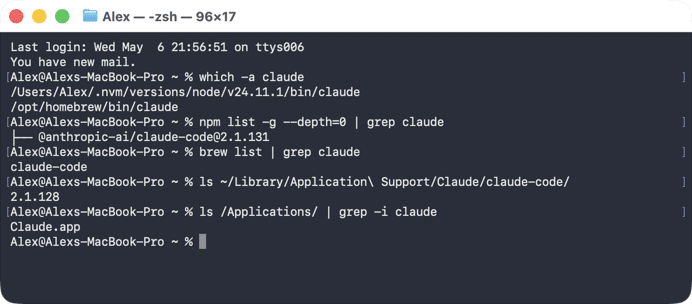
You can install Claude Code in three ways (native installer, npm, and Homebrew). And each requires a different removal. Run these checks in Terminal one by one to see what’s on your Mac:
# 1. Shows npm and Homebrew binaries in PATH (for native installer, shows path)
which -a claudeCopy
# 2. Check npm
npm list -g –depth=0 | grep claudeCopy
# 3. Check Homebrew
brew list | grep claudeCopy
# 4. Check the native installer. This one doesn't appear in which -a
ls ~/Library/Application\ Support/Claude/claude-code/Copy
How to uninstall Claude Code with the uninstaller
If the native installer is your case, the easiest and safest way to get rid of Claude Code is with App Cleaner & Uninstaller. This uninstaller detects Claude Code installed via the native installer, shows all connected files, and removes them when you click Remove.
- Run App Cleaner & Uninstaller.
- Find Claude Code in the app list → select it.
Optional:
To uninstall all Claude tools, including Claude Desktop, check the box next to the Anthropic AI Group folder.
- Click Remove → confirm by clicking Remove one more time.
- Empty Trash to remove Claude Code from your Mac permanently.


Delete Claude Code in Finder
This method also works for the native installer. If you are okay with digging in the Library to chase every Claude Code-related file, you are free to go this way.
Phase 1: Close Claude Code
- Quit the application normally using Cmd+Q or
- If it stops responding, open Activity Monitor,
- Search for Claude-related processes (including CoworkVM),
- Select and terminate them using the Stop (X) button.
Phase 2: Remove the Claude Code main application files
- Go to Finder.
- Open the menu bar and select Go → Go to Folder (Shift+Cmd+G).
- Paste the following path:
~/Library/Application Support/Claude/claude-code/Copy

- Inside this directory, locate a folder labeled with the version number (for example, 2.1.128) containing the claude.app file.
- Remove the entire claude-code directory by moving it to Trash.


Phase 3: Remove the Claude Code leftover configuration and support data
- Return to Go → Go to Folder and enter:
~/.claudeCopy
- Move this folder to Trash.
- Remove any Claude Code remaining components located in:
~/.claude.jsonCopy
~/Library/Caches/claude-cli-nodejsCopy
~/Library/Application Support/Claude/claude-code-vmCopy
~/Library/Application Support/Claude/claude-code-sessionsCopy
~/Library/Application Support/Claude/local-agent-mode-sessionsCopy
~/Library/Application Support/Claude/Session StorageCopy
Note:
~/Library/Application Support/Claude
Copy
Phase 4: Empty Trash
Remove Claude Code in Terminal
One more approach that works for users who installed Claude Code using the native installer and prefer a complete cleanup through Terminal commands.
- Start by opening Terminal.
- Execute the commands below one by one.
# Remove the main application data:
rm -rf ~/Library/Application\ Support/Claude/claude-codeCopy
# Clear cached files and runtime components:
rm -rf ~/Library/Caches/claude-cli-nodejsCopy
rm -rf ~/Library/Application\ Support/Claude/claude-code-vmCopy
rm -rf ~/Library/Application\ Support/Claude/claude-code-sessionsCopy
rm -rf ~/Library/Application\ Support/Claude/local-agent-mode-sessionsCopy
rm -rf ~/Library/Application\ Support/Claude/Session\ StorageCopy
# Delete user-level configuration files:
rm -rf ~/.claudeCopy
rm ~/.claude.jsonCopy
# Optional: remove all shared Claude data. If Claude Desktop is not installed and you want a full cleanup, you can also remove the entire Claude support directory:
rm -rf ~/Library/Application\ Support/ClaudeCopy
Note:
Some projects may store their own local configuration files. To remove them, navigate into each project folder with cd and run there:
rm -rf .claudeCopy
rm -f .mcp.jsonCopy
Claude Code uninstall with npm
This method works for you if you installed Claude Code using this command:
npm install -g @anthropic-ai/claude-code
Copy
- Remove the Claude Code npm package by running this command:
npm uninstall -g @anthropic-ai/claude-codeCopy
- Confirm the binary is gone:
No output means success. If a path still appears, another installation is active; run
which claudeCopy
to find it.which -a claudeCopy
- If you use nvm (Node Version Manager) and have installed Claude Code across multiple Node versions, it may be present in each. In that case, switch between versions and repeat the uninstall process for each one:
nvm use <version>Copy
npm uninstall -g @anthropic-ai/claude-codeCopy
- Delete the remaining Claude Code config and cache:
rm -rf ~/Library/Caches/claude-cli-nodejsCopy
rm -rf ~/.npm/_cacache/Copy
rm -rf ~/.claudeCopy
rm -f ~/.claude.jsonCopy
Uninstall Claude Code with Homebrew
The following steps are applicable if you installed Claude Code using Homebrew.
- Confirm the exact package name:
brew list | grep claudeCopy
- Remove the package:
- , or
brew uninstall claude-codeCopy
- if that’s what
brew uninstall claude-code@latestCopy
returned.brew listCopy
- Clean up unused dependencies and stale download caches:
brew autoremoveCopy
brew cleanupCopy
- Confirm removal:
which claudeCopy
- Delete the Claude Code leftover config and cache.
Homebrew does not remove user-level data, so these need to be cleared manually:rm -rf ~/Library/Caches/claude-cli-nodejsCopy
rm -rf ~/Library/Application\ Support/Claude/claude-code-vmCopy
rm -rf ~/Library/Application\ Support/Claude/claude-code-sessionsCopy
rm -rf ~/Library/Application\ Support/Claude/local-agent-mode-sessionsCopy
rm -rf ~/Library/Application\ Support/Claude/Session\ StorageCopy
rm -rf ~/.claudeCopy
rm -f ~/.claude.jsonCopy
Final decision to uninstall Claude from Mac
The best removal method to clean your Mac from Claude depends on what you have installed and how much manual work you’re willing to do.
Use App Cleaner & Uninstaller if:
- You want the fastest way to remove Claude Desktop and/or Claude Code.
- You installed Claude Code via the native Anthropic installer.
- You don’t want to search through hidden Library folders.
- You want to remove all Claude-related files automatically.
Use Finder if:
- You’re comfortable navigating hidden macOS folders on your own.
- You don’t mind manually checking multiple Library locations for leftovers.
- You installed Claude Code using the native installer.
Use Terminal if:
- You’re familiar with macOS command-line tools.
- You need to remove files that Finder can’t easily locate.
- You’re confident working with removal commands and understand the risks.
- Claude Code was installed with the native installer.
Use npm or Homebrew commands if:
- You installed Claude Code through npm or Homebrew.
- You plan to keep your dev environment clean and properly managed.
Frequently asked questions
Does uninstalling Claude also remove MCP servers?
No, it does not. MCP servers are installed and managed independently from Claude Code. After removing Claude Code, remove each MCP server package separately:
- To list what's installed:
npm list -g --depth=0 | grep mcpCopy
- npm packages:
npm uninstall -g [mcp-package-name]Copy
- Homebrew packages:
brew uninstall [package-name]Copy
Also, delete the config entries manually: the Claude Code MCP config is in
~/.claude.json
Copy
~/Library/Application Support/Claude/claude_desktop_config.json
Copy
Do Claude Desktop and Claude Code share MCP settings?
No, Claude Desktop and Claude Code keep separate MCP server registries.
- Claude Desktop stores its config at
~/Library/Application Support/Claude/claude_desktop_config.jsonCopy
- Claude Code stores its global MCP config at .
~/.claude.jsonCopy
Removing one product doesn't affect the other's MCP setup.
Does removing Claude Desktop or Claude Code delete my Anthropic account?
No, both apps connect to the same Anthropic account at claude.ai and console.anthropic.com. Removing the local app does not affect the account.
To delete the account:
- Visit console.anthropic.com.
- Go to Account Settings.
- Click Delete Account.
By doing so, you permanently remove all projects, API keys, and stored data.