




April 30, 2026
Uninstall Ollama and models on Mac: Complete uninstallation guide


Share


Regular apps keep their files as a single bundle. LLMs do not. Files from 2 GB (Llama 3.2 3B) to 40+ GB (Llama 3.1 405B) stay on your Mac in hidden folders after you remove the app. Another issue is that large models push Macs with 8-16 GB RAM to the edge.
Whether you remove it to reclaim storage, fix performance, or try another model, this guide is for you. It makes it clear how to uninstall a particular model and/or Ollama so that your Mac is free of LLM leftover files and background processes. Check out the ways below and choose which one better fits your case:
| Method | What gets removed | Time effort | Ease |
|---|---|---|---|
| Drag to Trash | Removes app only (leftovers stay) | < 1 min | Very easy |
| ollama rm | Removes selected models only | ~ 2 min per model | Medium |
| App Cleaner & Uninstaller | Everything (app, models, service files) | < 1 min | Very easy |
| Manual (Finder) | Everything (app, models, service files) | > 15 min | Hard |
| Terminal | Everything (app, models, service files) | ~ 10 min | Hard |
This Article Contains
Save your clicks, skip the file hunt

Fun facts and numbers about Ollama and its models
Ollama leads AI agent orchestration frameworks with about 51% adoption among devs. And the number of Meta’s Llama downloads is 1.2 billion, which is huge. A lot of those downloads landed in /Applications/Ollama.app. That part is small because Ollama spreads heavy files across several Library locations, which macOS hides by default.
Ollama has a bunch of folders that start with a dot (~/.ollama) or are located in ~/Library, which are invisible. That’s why dragging Ollama.app to Trash removes about 500 MB. The models you downloaded can be 40 GB or more, and they stay exactly where they are, along with the rest of the orphaned files. That’s the trap most people fall into. That’s why it’s important to know what and where every related file is.
What Ollama actually installs on your Mac
| Path | What it is | Typical size | Hidden? |
|---|---|---|---|
Copy |
Main application bundle | ~500 MB | No |
Copy |
CLI binary (enables ollama run, ollama rm, etc.) | ~50 MB | No |
Copy |
All downloaded LLM model weights - main storage usage | 4–100+ GB | Yes |
Copy |
Binary model files in GGUF format (SHA256 names) | Main volume | Yes |
Copy |
JSON metadata linking model names to blobs | <10 MB | Yes |
Copy |
App support data and configuration | ~50 MB | Yes |
Copy
Copy |
Temporary cache files | Varies | Yes |
Copy
Copy |
Application logs | 1–50 MB | Yes |
Copy |
Launch agent that starts Ollama at login (inside app bundle) | <1 KB | Yes |
Copy |
Service files like history | < 5 MB | Yes |
Copy |
Saved app state (window/session restore data) | <1 MB | Yes |
Copy |
WebKit storage for the Electron shell | ~5 MB | Yes |
A few things to keep in mind
This guide works for macOS 13 Ventura and newer. Apple Silicon and Intel Macs use the same file structure. The difference is performance, not where files are stored. So, the model location is by default in ~/.ollama/models across M1 through M4, and Intel chips.
Note:
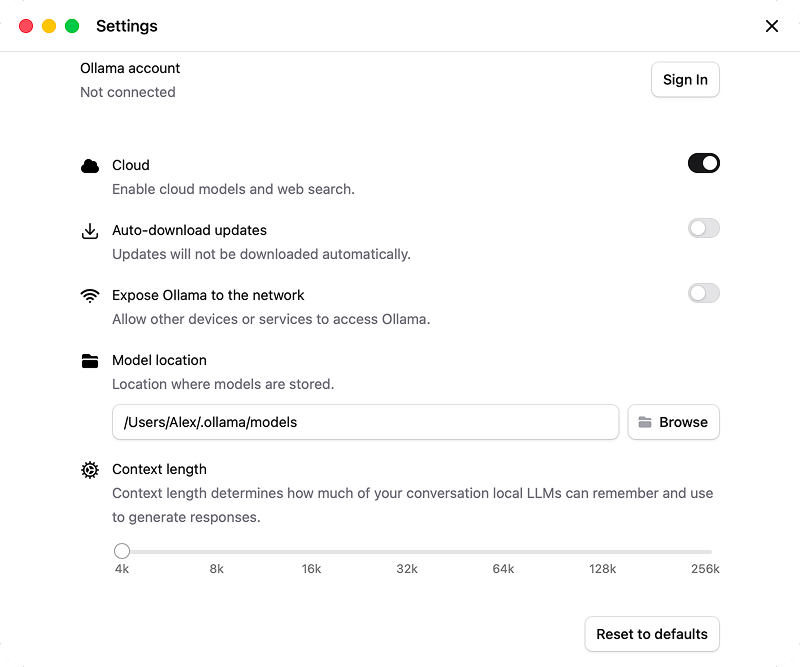
You can also check or change where models are stored in Ollama Settings.
Ollama background service you might miss
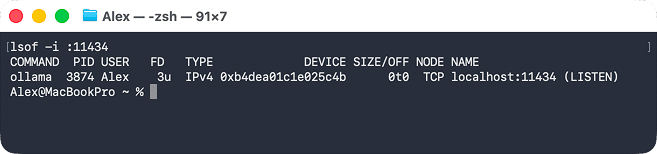
Ollama runs a local server on port 11434 (http://localhost:11434). It keeps working in the background even if you close the app window.
- To check if it’s running: Open Terminal → Type → press Return.
lsof -i :11434Copy
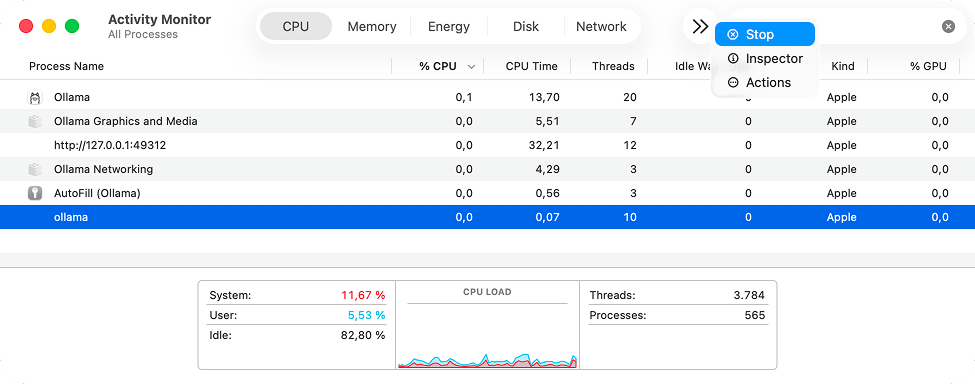
- To stop it: Open Activity Monitor → Search for ollama → Click (x) stop button.
One more valid point to know before uninstalling
Quitting the process and deleting files is not enough. You also need to empty the Trash. If you skip this step at the end, the app can come back after a restart. I saw this on my Mac. I moved Ollama files to Trash and rebooted. The app launched again and tried to restore itself in Applications and reinstall its CLI tool. So, macOS still treats it as available while it sits in Trash.


Uninstall a specific LLM model (keep Ollama)
Use this when you want to free up space but keep Ollama working. Maybe you downloaded a 70B model and realized your Mac can’t run it well. Or you just want to clean up a model you no longer use and switch to another one.
Case 1: Remove an Ollama model in Terminal with ollama rm
Note:
The ollama rm command deletes the model right away with no confirmation prompt. The model is gone the moment you press Return, and there’s no way to undo it. The removal is permanent, so make sure you select the correct model before you run the command.
Steps
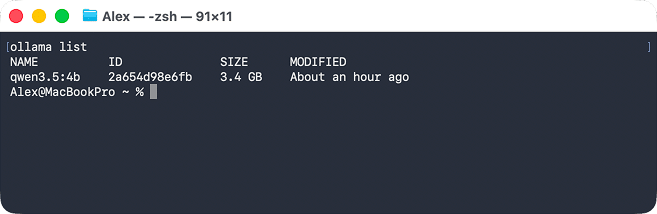
- See the list of what’s installed and how much space each model takes. For this, open Terminal → run the command:
ollama listCopy
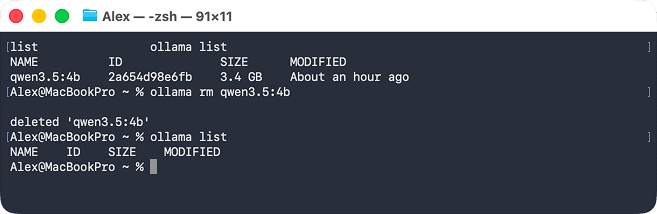
The output shows the model name, ID (hash), size, and when it was last modified:

- Remove the model you want gone with ollama rm NAME, where NAME stands for a specific Ollama model. In my case, I wanted to delete qwen3.5:4b. So, I ran this one:
ollama rm qwen3.5:4bCopy
~/.ollama/models/blobs/Copy
.~/.ollama/models/manifests/Copy
- Check that the model is gone by entering the command you already know:
ollama listCopy
The expected result: the said model is not listed.

Note:
Ollama must be running for this command to work. If the Ollama server isn’t active, you’ll get “Error: could not connect to ollama app, is it running?” Open Ollama from /Applications first.
Case 2: Delete an Ollama model in Finder
Use this method in case:
- Ollama is already uninstalled from your Mac, but the model files are still on disk, or
- You want to wipe all models at once without launching the app.
Steps
- Open the hidden Ollama models folder in Finder:
Open Finder → Press Cmd+Shift+G → Paste ~/.ollama/models → Press Return

- Identify which files relate to each model:
- Open:
~/.ollama/models/manifests/Copy
Inside, you’ll see folders by registry name, for example:This JSON file lists the digests (hashes) of the blob files linked to a respective model.~/.ollama/models/manifests/registry.ollama.ai/library/llama3.2/latestCopy
- Open:
- Delete the blob files:
- Open:
~/.ollama/models/blobs/Copy
Thesubfolder contains the SHA256 hash files, which are not human-readable. To figure out which blob relates to which model, check the manifest inblobs/Copy
since only the manifest shows the link between a model and its files.manifests/Copy
- Find files that match the hashes from the manifest.
- Delete the appropriate blob and manifest files.
- Open:

Note:
This is a high-effort method. For a regular user, the safest manual option is to delete the entire ~/.ollama/models/ folder if you want to remove all models at once. For selective removal, ollama rm is much more reliable. Run ollama list first to see what’s installed and how much space each model takes before you delete anything.
Fully uninstall Ollama and its models
Another scenario is that you may want to uninstall Ollama with its models completely. You can do it in three ways: with a dedicated uninstaller, in Finder, and in Terminal.
Case 3: Delete Ollama with App Cleaner & Uninstaller (a few clicks)
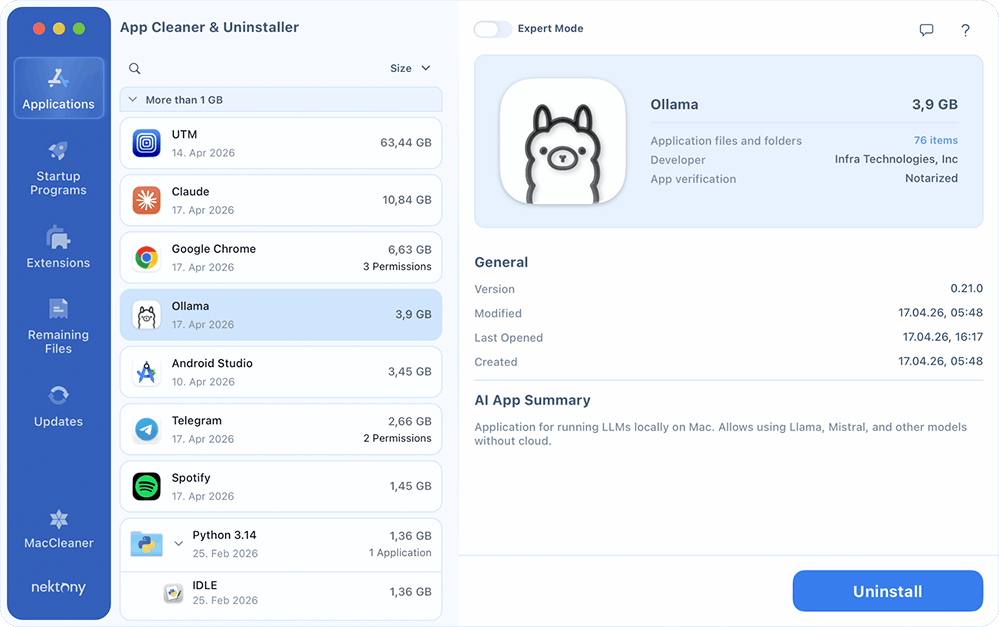
This is the fastest and safest way to remove Ollama. App Cleaner & Uninstaller finds all related files automatically: the models, launch agent, caches, logs, and support files.
Note:
It’s okay to grant Full Disk Access to a dedicated uninstaller to do its job well. You can do it this way: System Settings → Privacy & Security → Full Disk Access and enable App Cleaner & Uninstaller, or open the app’s Settings → Disk Access.
Steps
- Quit Ollama → stop its processes in Activity Monitor.
- Open App Cleaner & Uninstaller.
- Find Ollama in the app list → click on it.

Optional
Enable Expert Mode and review the list of files the app found. You should see /Applications/Ollama.app, the ~/.ollama/ folder with the models, logs, caches, and the launch agent.
- Click Remove → confirm.
- Empty Trash.


Kind reminder
Empty the Trash after removal. As long as Ollama stays in the Trash, it can pull itself back to Applications on the next restart and reinstall the CLI. Once the Trash is empty, the background service stops, and the launch agent is gone, so Ollama won’t try to start on the next login.
Case 4: Remove Ollama manually with Finder
Use this if you prefer a visual approach and want to delete files step by step yourself. Still, it takes more steps. You need to check multiple folders. Missing one can leave the background service or model files behind.
Steps
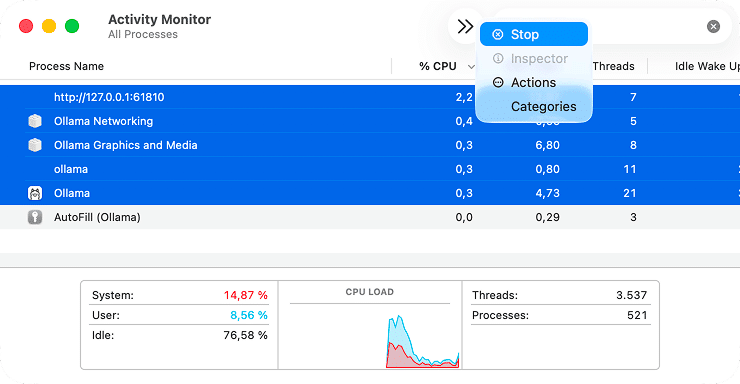
- Quit Ollama and stop its processes:
- Open Activity Monitor
- Type in search
ollamaCopy
- Select all related processes → click (×) to stop

- Remove the app
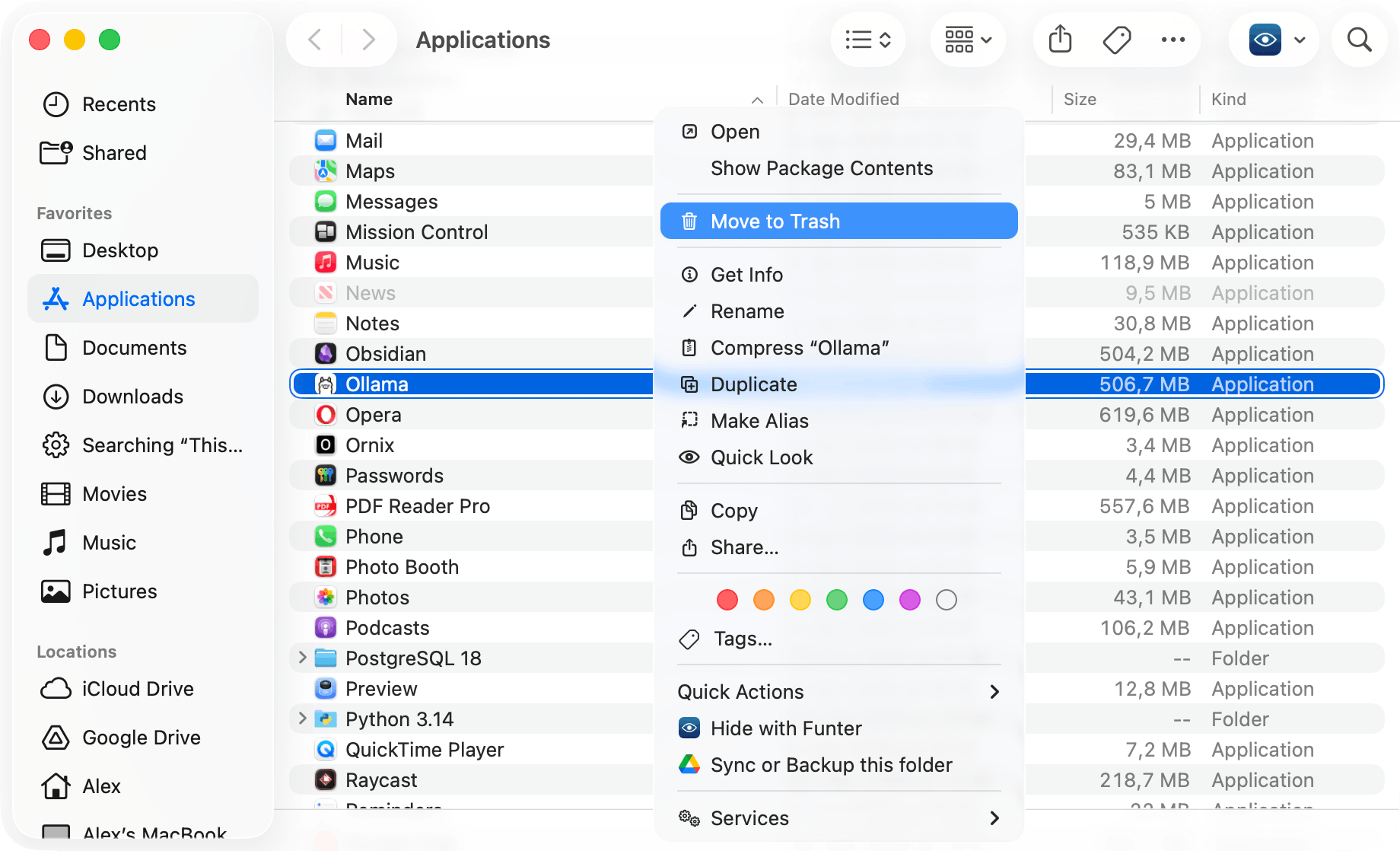
- Open Finder → Applications
- Right-click Ollama.app → select Move to Trash

- Remove the CLI tool
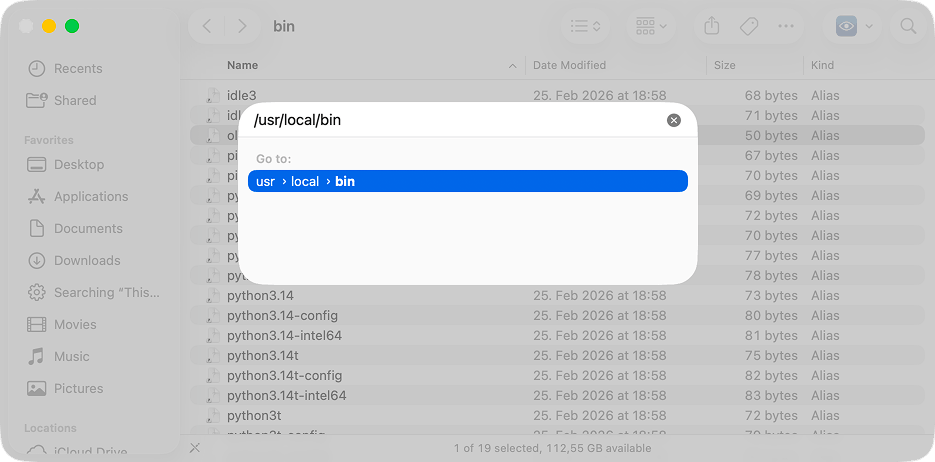
- Open Finder
- Press Command + Shift + G
- Enter:
/usr/local/binCopy
- Find ollama → right-click → Move to Trash
- Enter your admin password if asked


- Delete model files and hidden app data
Repeat these steps for each path:- Press Command + Shift + G in Finder
- Paste the path
- Move the folder to Trash
- Enter your admin password if asked
~/.ollamaCopy
~/Library/Application Support/OllamaCopy
~/Library/Caches/OllamaCopy
~/Library/Caches/com.electron.ollamaCopy
~/Library/Logs/OllamaCopy
~/Library/WebKit/com.electron.ollamaCopy
~/Library/Saved Application State/com.electron.ollama.savedStateCopy
- Remove temporary cache files
- Open Finder
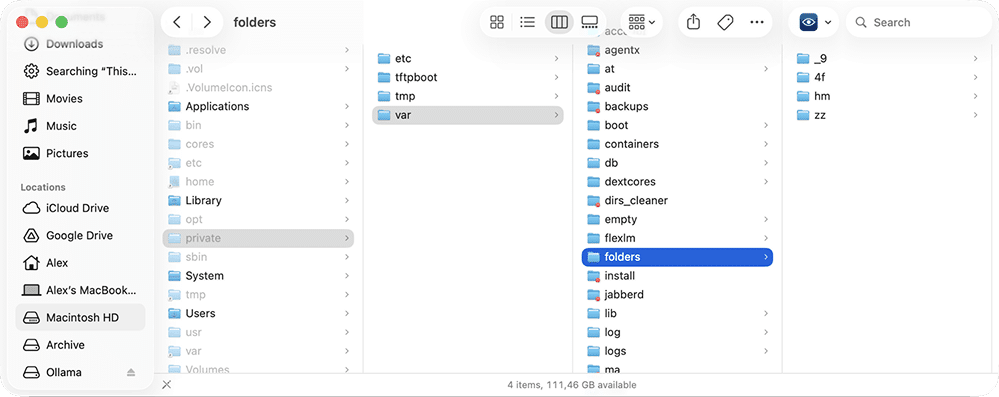
- Go to:
/private/var/folders/Copy
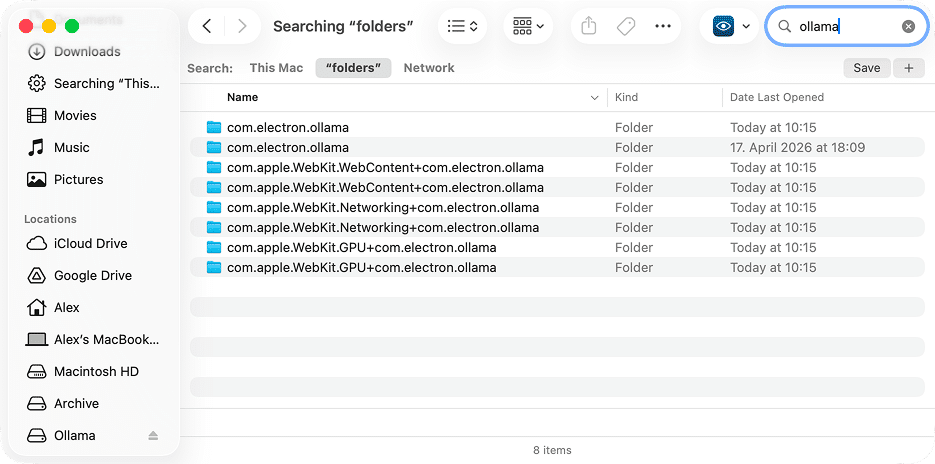
- Use Finder search bar → type ollama
- Set the scope to This Folder
- Trash everything found
The files should be like these:
/private/var/folders/*/***/*/com.electron.ollamaCopy
/private/var/folders/*/***/*/com.apple.WebKit.WebContent+com.electron.ollamaCopy

- Empty Trash.
- Check that no Ollama leftover is left:
- Open Activity Monitor → no process
ollamaCopy
- Open Finder → Library → search , or
ollamaCopy
- Run in Terminal:
ollama listCopy
- Open Activity Monitor → no

Case 5: Uninstall Ollama with Terminal
Each command below removes files permanently, bypassing Trash. Double-check every path before running rm -rf. Make sure the specified paths exist on your Mac.
Ollama’s official uninstall instructions are better than nothing, but they skip a few steps. That’s why I checked each command below on my own and can say for sure this is a complete removal set based on actual files found on a Mac after installation.
Steps
- Stop Ollama
killall OllamaCopy

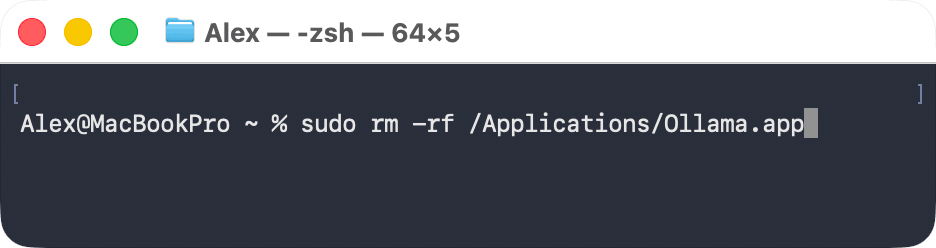
- Remove the app
sudo rm -rf /Applications/Ollama.appCopy

- Remove the CLI tool
sudo rm /usr/local/bin/ollamaCopy
- Delete models and app data
rm -rf ~/.ollamaCopy
rm -rf ~/Library/Application\ Support/OllamaCopy
rm -rf ~/Library/Caches/OllamaCopy
rm -rf ~/Library/Logs/OllamaCopy
rm -rf ~/Library/Caches/com.electron.ollamaCopy
rm -rf ~/Library/WebKit/com.electron.ollamaCopy
rm -rf ~/Library/Saved Application State/com.electron.ollama.savedStateCopy
- Remove temporary system caches
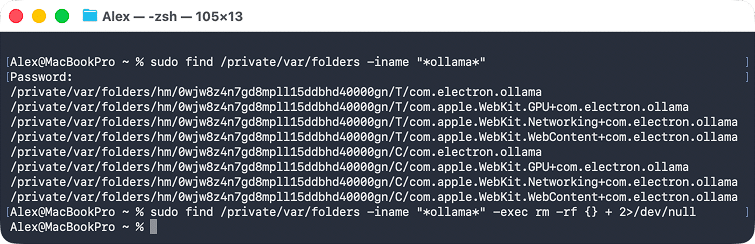
Preview files first:sudo find /private/var/folders -iname “*ollama*”Copy

sudo find /private/var/folders -iname “*ollama*” -exec rm -rf {} + 2>/dev/nullCopy

What this command does:
Command part Description sudo Runs the command with admin rights, as required for /private/var/folders. You’ll need to enter your password. find /private/var/folders Searches inside the system temp folders -iname “*ollama*” Finds anything with ollama in the name (case-insensitive) -exec rm -rf {} + Deletes all the files and folders found 2>/dev/null Hides permission errors for protected system files - Check nothing is left:
ollama listCopy
The expected result: Ollama is not listed.


Final takeaways
- Ollama isn’t a typical macOS app. App removal ≠ full uninstall.
- Dragging Ollama to Trash removes the app bundle only. Models and service files stay on disk.
- Models are in a hidden folder , which can store tens of GB even after the app is gone.
~/.ollama/modelsCopy
- ollama rm removes one model at a time and keeps Ollama intact.
- The Finder method gives full removal without a Terminal or third-party tool, but requires manually checking each folder and takes time and effort.
- The Terminal method is full removal, permanent, no undo. For advanced users.
- Uninstalling Ollama with a dedicated uninstaller like App Cleaner & Uninstaller automates the entire process, which makes it a reliable and quick way.
Frequently asked questions
Why is Ollama still running after I deleted it?
After you delete Ollama.app via Finder (move to Trash), it leaves the launch agent (com.electron.ollama.plist) active. On the next restart, it tries to bring the app back by moving itself out of the Trash, restoring it to /Applications, and reinstalling the CLI tool.
To stop this:
- Quit all Ollama active processes in Activity Monitor or Terminal (pkill ollama).
- Repeat the complete removal of Ollama.
- Empty the Trash immediately after removal.
Why can't I find the Ollama models folder on my Mac?
Ollama keeps its models in the hidden folder: ~/.ollama/models.
To access it, you must use:
- Cmd + Shift + G in Finder,
- Paste ~/.ollama/models, or
- Show hidden files in Finder with Cmd + Shift + . (period)
What is the first step to correctly uninstall Ollama?
Stop Ollama and its background processes before deleting anything.
Do not run rm -rf ~/.ollama while Ollama is still running. If the ollama serve process is active during deletion, it can:
- corrupt partially used model (blob) files.
- leave broken logs and references
- cause errors in future installs
To safely proceed, quit any running processes with pkill ollama.
Why is manual deletion in Finder tricky?
Ollama stores model data in:
~/.ollama/models/blobs/.
These files are named using SHA256 hashes (e.g. sha256-abc123...) and have:
- no extensions
- no readable names
- no direct link to a specific model in Finder
The mapping between models and files exists only in manifest JSON files, which makes manual selection difficult. Because of this structure:
- It is easy to delete the wrong files
- Partial deletions can break models
- Full cleanup requires CLI or a dedicated uninstaller
That's why manual Finder removal is high-risk and not recommended for selective cleanup.