



August 14, 2026
How to uninstall Pinokio on Mac: Three full removal methods


Share


- Pinokio.app alone weighs about 380 MB. Drag it to Trash and your disk barely moves.
- Every AI tool installed through it is a different story: ComfyUI, Fooocus, Stable Diffusion, and similar apps each pull down their own Python environment, conda packages, and model weights into in your home directory.
~/pinokioCopy
- That gap between the app’s size and its real footprint is the whole problem with removing the app properly from Mac.
In this guide, I’ll explain three ways to get rid of Pinokio for good:
- Automatic one‑step removal with App Cleaner & Uninstaller,
- A complete Terminal approach with verified commands, and
- A manual Finder walk‑through.
| Method | What it removes | Time | Difficulty |
|---|---|---|---|
| App Cleaner & Uninstaller | ✓ All files: App, Library files, data folder | < 30 sec | Easy |
| Terminal commands | ✓ Everything, if paths are correct | 5-10 min | Hard |
| Finder (manual) | ✓ Everything, if you find every folder | 10-15 min | Medium |
This Article Contains
Stop guessing where AI files are
Pinokio’s biggest leftovers aren’t in the prominent folders you’d normally check, and manual cleanup means confirming a series of paths on your own. App Cleaner & Uninstaller finds the app, its data folder, configs, caches, and the rest of the files automatically, then removes all of it in a single click safely.

What Pinokio installs
Pinokio’s disk footprint is split across multiple locations. The app bundle is the smallest part. The AI apps, models, and environments it manages can add anywhere from a few GB to 50+ GB, and Pinokio’s own settings guidance cites up to 100 GB combined for a fully loaded setup. None of that is inside the app bundle.
After I ran a full scan of Pinokio 8.0.8 on my MacBook Pro M1 (Tahoe 26), what turned up was this:
| Item | Location | Contents | Typical size |
|---|---|---|---|
| App bundle | /Applications/Pinokio.app | Electron shell | ~380 MB |
| App data | ~/Library/Application Support/Pinokio | Config, Local Storage, sessions, IndexedDB | hundreds MB |
| Home folder | ~/pinokio (default, or custom path set in Settings) | AI apps, shared binaries, package cache, shared models | 1-50+ GB |
| Hidden home folder | ~/.pinokio | Alternate data path | 1-50+ GB |
| Preferences | ~/Library/Preferences/computer.pinokio.plist | App settings | < 1 MB |
| Saved state | ~/Library/Saved Application State/computer.pinokio.savedState | Window positions | < 1 MB |
| System caches | /private/var/folders/…/C/computer.pinokio | Electron GPU cache (path uses a per‑user random hash, not reachable via the standard ~/Library/Caches/ shortcut) | Tens of MB |
Before you start removing Pinokio: check the data folder’s location
If you deal with a manual path via Finder or Terminal, open Pinokio → Settings and check the path shown next to Home Directory.

- By default it’s , but if you moved it to another location to store large models there, the default path will be empty, and your actual data is elsewhere.
~/pinokioCopy
- Pinokio’s creator described the app as self‑contained and suggested simply deleting the app folder, but that description doesn’t account for Application Support, Preferences, or a relocated home directory.
- Which is why users report leftover folders after removal and developers have confirmed that conda environments and installed packages are not touched by Pinokio’s own uninstall flow.
How to uninstall Pinokio with uninstaller
App Cleaner & Uninstaller sidesteps this by scanning for the app-related files and folders directly rather than assuming a fixed path. The flow is simple and takes a few clicks.
- Get and open App Cleaner & Uninstaller.
- The Applications list loads automatically on the left.
- Locate and select Pinokio from the list.

- Optional: Turn on Expert Mode to see all Pinokio files/folders, their paths and sizes.
- Click Uninstall or Remove in Expert Mode.
- If Pinokio is still open, App Cleaner & Uninstaller will prompt you to terminate all Pinokio processes directly within the tool, so you can finish removing without interruption.
- Review Pinokio files to be removed and confirm by clicking Remove.
- By default, App Cleaner & Uninstaller removes files to the Trash.
- Empty the Trash.


How to remove Pinokio in Terminal
At this level, you’ll remove Pinokio with commands, all of which I checked myself. What’s important here is to quit the processes first, then remove files.
Note:
Removal commands do not ask for confirmation and cannot be undone. Go this way if you are confident in Terminal.
- Quit Pinokio and any background processes it started by running this command:
osascript -e ‘quit app “Pinokio”‘Copy

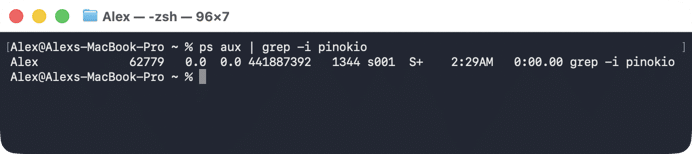
Confirm no child processes are still running (Node, Python, or conda tasks started by installed AI apps don’t always stop automatically). The command to enter is:
- Remove the Pinokio app bundle:
sudo rm -rf /Applications/Pinokio.appCopy
- Remove the Pinokio config and service files (bundle ID: computer.pinokio) by entering these commands one at a time:
rm -rf ~/Library/Application\ Support/PinokioCopy
rm -rf ~/Library/Preferences/computer.pinokio.plistCopy
rm -rf ~/Library/Saved\ Application\ State/computer.pinokio.savedStateCopy
- Remove Pinokio system cache files. The path uses a per‑user random hash, these commands resolve it automatically:
rm -rf “$(getconf DARWIN_USER_CACHE_DIR)computer.pinokio” “$(getconf DARWIN_USER_CACHE_DIR)computer.pinokio.helper.GPU”Copy
Clear Session temp files as well:
rm -f “$(getconf DARWIN_USER_TEMP_DIR)”.computer.pinokio.*Copy
- Clear the Finder recent-documents entry:
rm -f ~/Library/Application\ Support/com.apple.sharedfilelist/com.apple.LSSharedFileList.ApplicationRecentDocuments/computer.pinokio.sfl4Copy
- Remove the Pinokio data folder. Use the path from Settings (Pinokio → Settings) if you moved it; otherwise, run both options:
rm -rf ~/pinokioCopy
rm -rf ~/.pinokioCopy

ps aux | grep -i pinokioCopy
How to delete Pinokio manually in Finder
- Open Activity Monitor → quit Pinokio and its processes. If any AI apps are running inside it, i.e., ComfyUI, Fooocus, or similar, quit those processes too. They run independently and don’t always stop when Pinokio closes.
- Trash the Pinokio app. Finder → Applications → drag Pinokio.app to the Trash.
- Delete the Pinokio Application Support folder. Finder → Go menu → Go to Folder (Cmd+Shift+G). Paste . Enter → move the folder to the Trash.
~/Library/Application Support/PinokioCopy


- Remove other Pinokio‑related remnants by using the same Cmd+Shift+G method for each of the following directories:
~/Library/Preferences/computer.pinokio.plistCopy
~/Library/Saved Application State/computer.pinokio.savedStateCopy
~/Library/Application Support/com.apple.sharedfilelist/com.apple.LSSharedFileList.ApplicationRecentDocuments/computer.pinokio.sfl4Copy
~/pinokioCopy
~/.pinokioCopy
- Empty the Trash.


Final options to remove Pinokio
- Pick App Cleaner & Uninstaller if you want the Pinokio data folder and every config file caught in one action without manual path‑hunting.
- Pick Terminal or Finder if you’d rather verify paths yourself, confirm the data folder location in Pinokio → Settings first if you ever moved it.
- Either way, a full removal is one more step toward speeding up your Mac.
Frequently asked questions
What's the fastest way to uninstall Pinokio completely?
The fastest and safest way to remove Pinokio with all remaining files is to uninstall it with App Cleaner & Uninstaller. The tool automatically finds all Pinokio footprints in your home and Library folders and removes everything together.
How to remove an AI app installed through Pinokio?
In this case, there is a Delete button in the Pinokio interface:
- Open Pinokio.
- Locate an app in the left panel → click it.
- Click Delete.
By doing so, you remove that one app and its content entirely.
Why does "pinokio is damaged and can't be opened" appear on Mac?
It's macOS Gatekeeper quarantining a downloaded app it hasn't verified, not file corruption, and it's common right after a fresh download or a reinstall.
Fix it in Terminal with this command:
xattr -dr com.apple.quarantine /Applications/Pinokio.appCopy
Open Pinokio again.