

April 24, 2026
Easy cleaning tips to free up MacBook storage


Share


A MacBook that is running low on storage also slows everything down - I see this on test machines all the time. macOS needs free room to manage virtual memory, write cache files, and install updates. When that cushion disappears, you get spinning wheels, failed updates, and a laptop that feels years older than it actually is.
The good news is that most MacBook owners can reclaim tens of gigabytes without losing anything important. This guide covers the fastest ways to clean up your Mac, from a one-click automatic approach to step-by-step manual methods.
I tested every step on macOS 26.3 Tahoe running on a MacBook Pro 13″ M1 with 8 GB RAM.
This Article Contains
Speed up your MacBook cleanup with MacCleaner Pro

Why your MacBook needs a digital cleanup
MacBook Pros ship with fast SSDs, but the base models still start at 256 GB or 512 GB. That fills up quickly once you factor in developer tools, photo libraries, and cached data from browsers and apps. On my test MacBook Pro, a fresh macOS install with basic apps already used over 30 GB before I opened a single project. And the mysterious System Data category in Storage settings can quietly consume hundreds of gigabytes with files that are hard to identify with built-in macOS tools alone.
When free space drops below roughly 10-20% of total capacity, macOS starts struggling with everyday tasks. It uses free disk space for swap memory, so a nearly full drive can cause apps to freeze or crash, and system updates will fail to install.
A regular cleanup keeps your MacBook fast, lets macOS updates install without errors, and extends the practical life of your SSD.
Manual vs. automatic cleanup: which is better?
You have two paths: clean everything by hand, or let a dedicated tool do the heavy lifting. Here is how they compare:
| Manual cleanup | Automatic (MacCleaner Pro) | |
|---|---|---|
| Time needed | 30-60 minutes | Under 5 minutes |
| Technical skill | Moderate - you need to navigate hidden Library folders | Low - guided interface |
| Risk of deleting wrong files | Higher if you remove system caches by mistake | Lower - safe defaults with review step |
| Finds app leftovers | Only if you know where to look | Automatically scans known locations |
| Cost | Free | Paid (free trial available) |
The manual path gives you full control and costs nothing. The automatic path saves time and reduces the chance of accidentally deleting something important. I usually combine both - run MacCleaner Pro for the bulk cleanup, but check specific folders by hand when I want to make specific chores.
How to clean a MacBook automatically with MacCleaner Pro
MacCleaner Pro scans your MacBook for junk files, caches, unused apps, and large forgotten files. Here is how to use it:
- Open MacCleaner Pro and go to the Clean Up section from the sidebar.

- Review the list of found items - it groups files by type (caches, logs, language files, mail attachments, and more).
- Select the categories you want to remove.
- Click Review to Clean Up and confirm the removal.
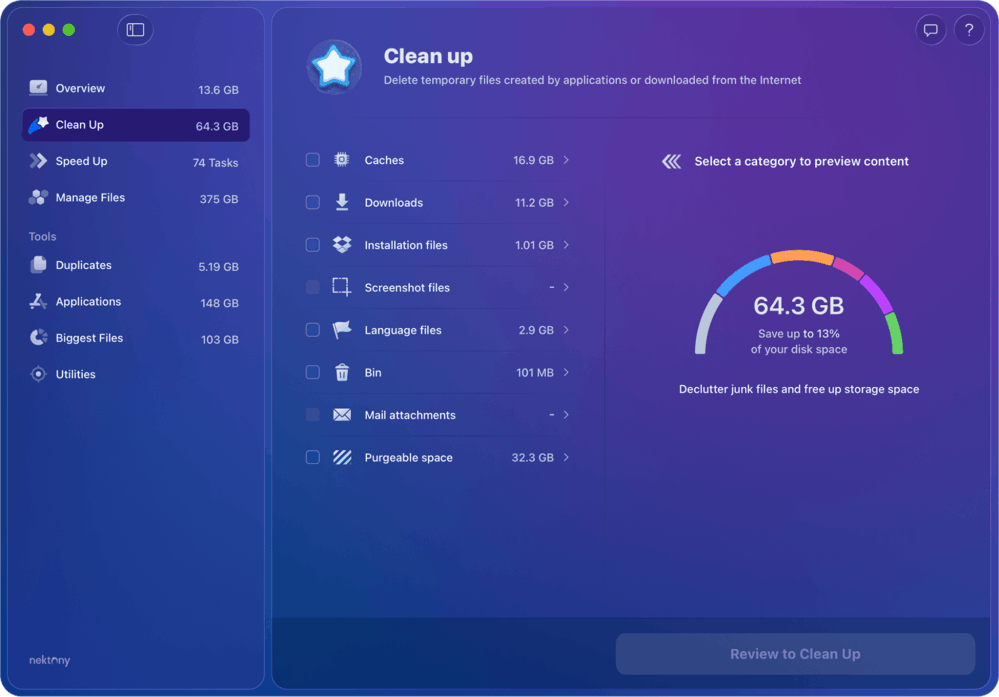
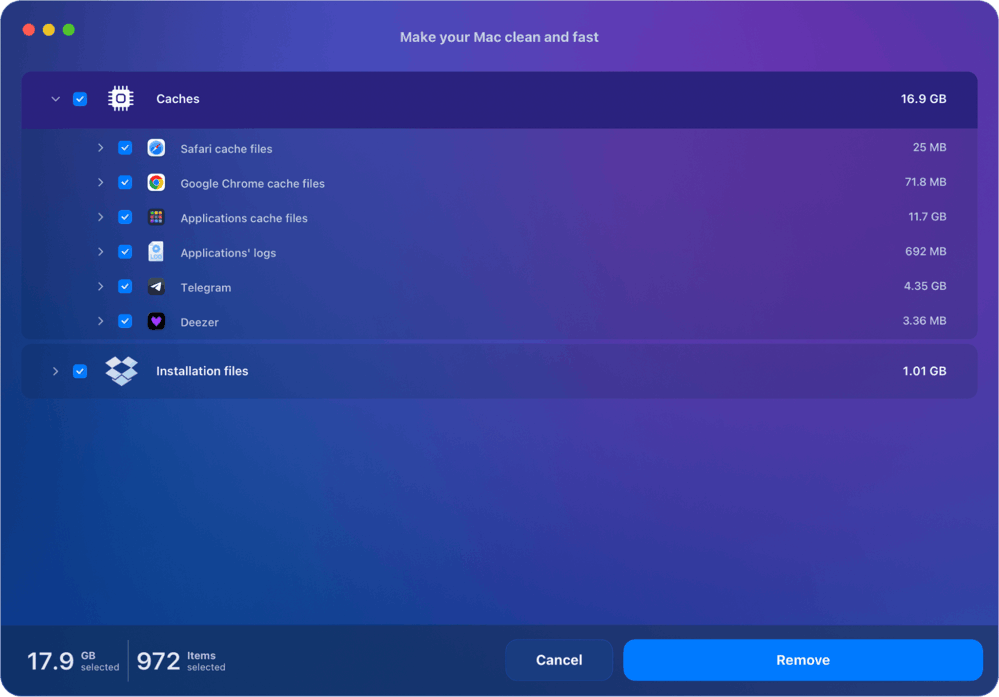
MacCleaner Pro also includes a Speed Up section that helps disable unnecessary startup items and browser extensions, and a dedicated Uninstaller that removes apps along with all their leftover files.
How to clean a MacBook manually
If you prefer doing things by hand, work through the steps below in order. Each one targets a different source of wasted space.
Check what is using your storage
Before deleting anything, see where your space is going. Apple provides a built-in storage breakdown:
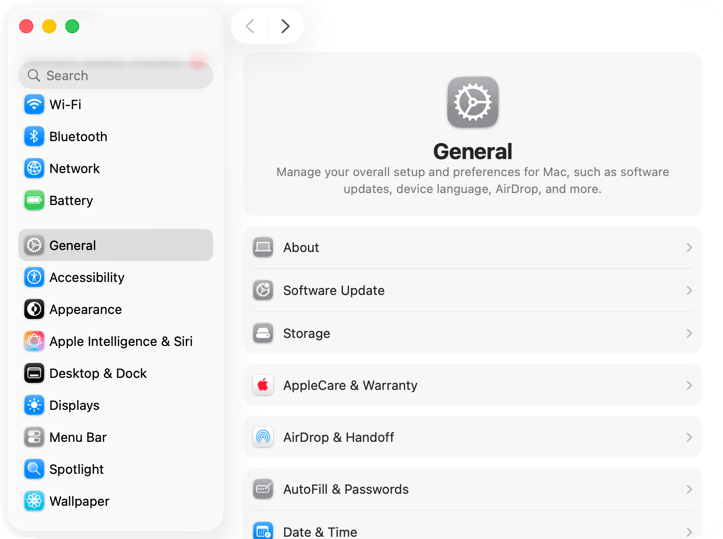
- Open System Settings.
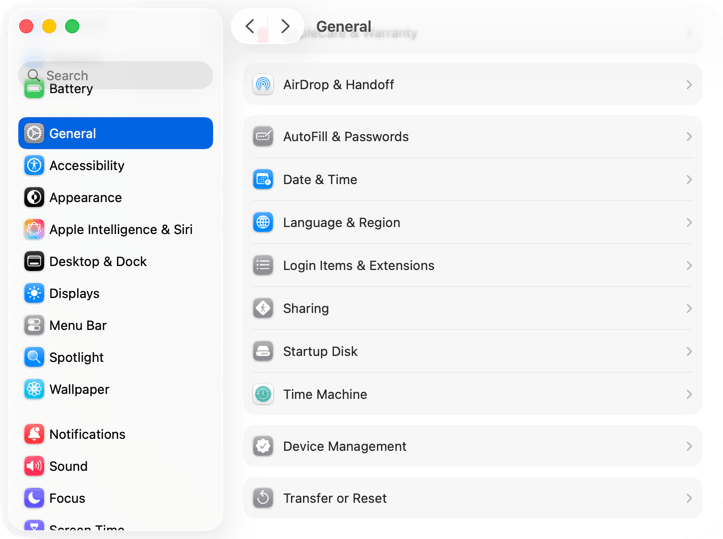
- Click General in the sidebar.

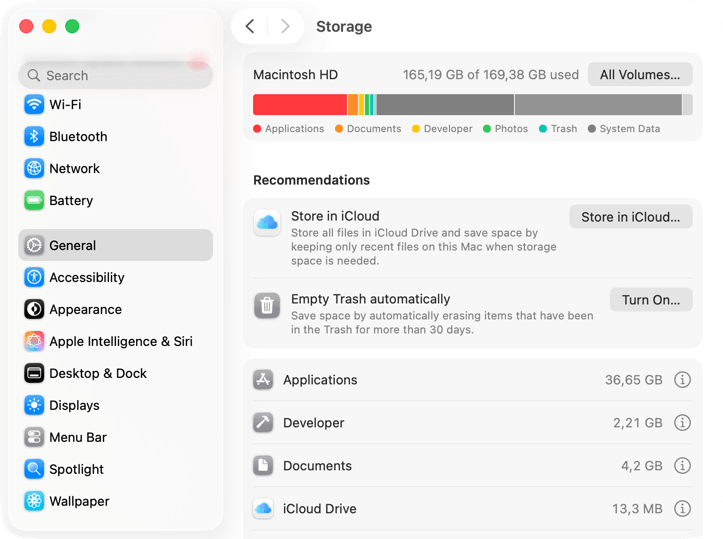
- Click Storage.
Important
On macOS Monterey and earlier, the path is different: click the Apple menu → About This Mac → Storage.
The color-coded bar at the top shows how your space is divided between Applications, Documents, Photos, System Data, and other categories. Pay attention to which category is the largest - that is where to start cleaning.
Important
The System Data category includes Time Machine snapshots, system logs, and caches. It can grow to tens or even hundreds of gigabytes. The steps later in this guide cover how to reduce it.
Clear browser and system caches
Caches are temporary files that apps create to speed up repeat tasks. Over time, they pile up and can consume several gigabytes. On my test Mac, browser caches alone accounted for over 4 GB. Clearing them is safe because apps will simply rebuild the caches they need.
To clear system and app caches manually:
- Open Finder.
- Press Shift+Command+G to open the Go to Folder dialog.
- Type and press Return.
~/Library/CachesCopy
- Review the folders inside. You can safely delete the contents of most cache folders.
Warning
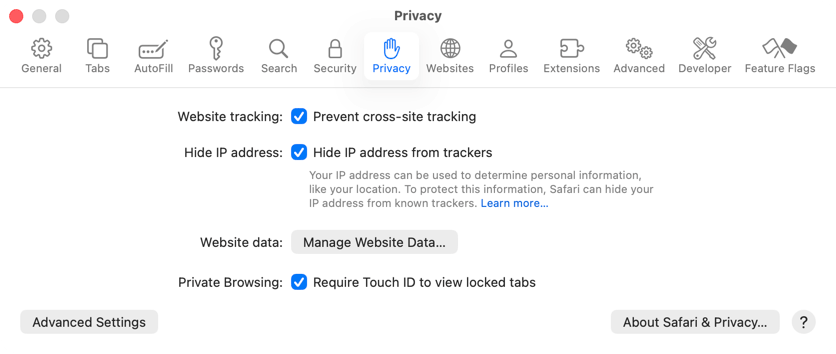
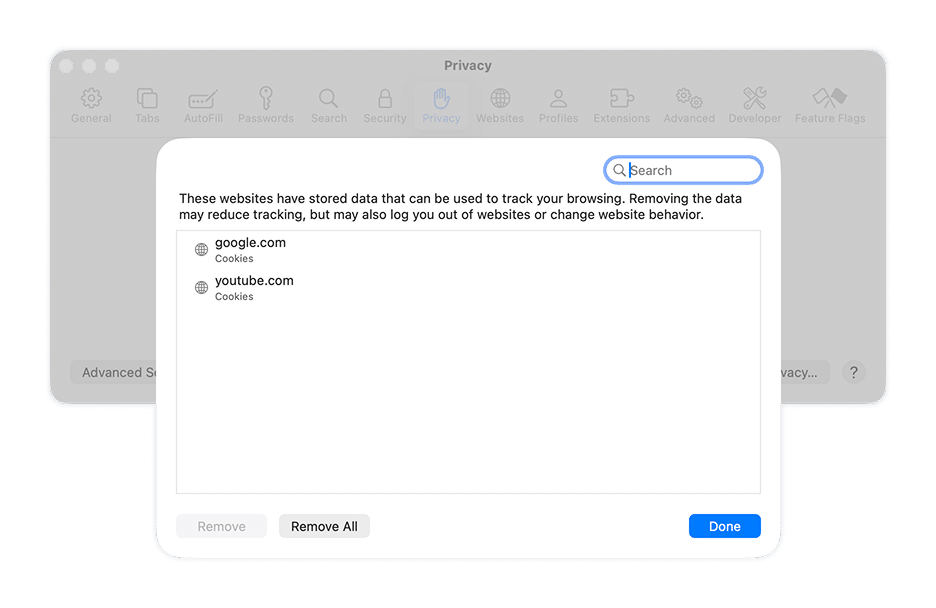
You can also clear browser caches directly from the browser. In Safari, go to Safari → Settings → Privacy and click Manage Website Data, then click Remove All.
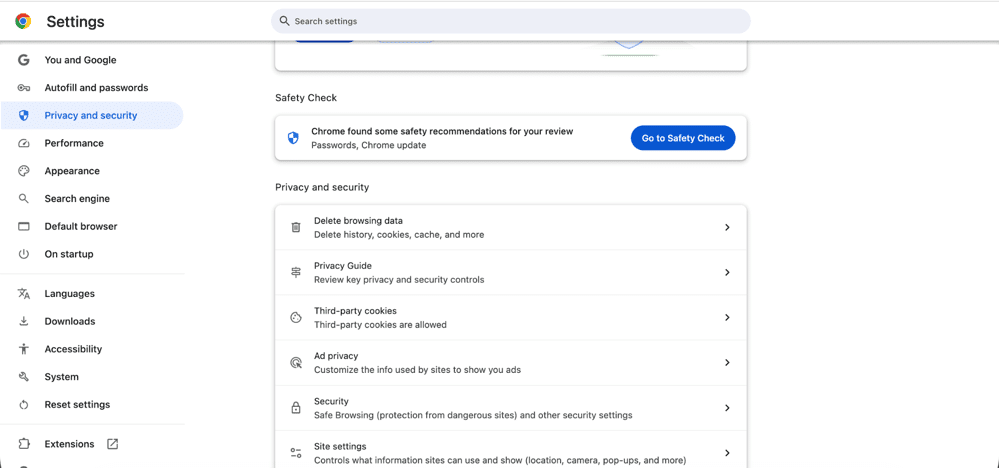
In Chrome, go to Chrome → Settings → Privacy and security and click Delete browsing data.
Find and delete large unused files
Old videos, forgotten .dmg installers, and archived projects are common space hogs. Finder has a built-in way to surface them:
- Open Finder and press Command+F to start a search.
- Set the search scope to This Mac.
- Change the first dropdown from Kind to Any.
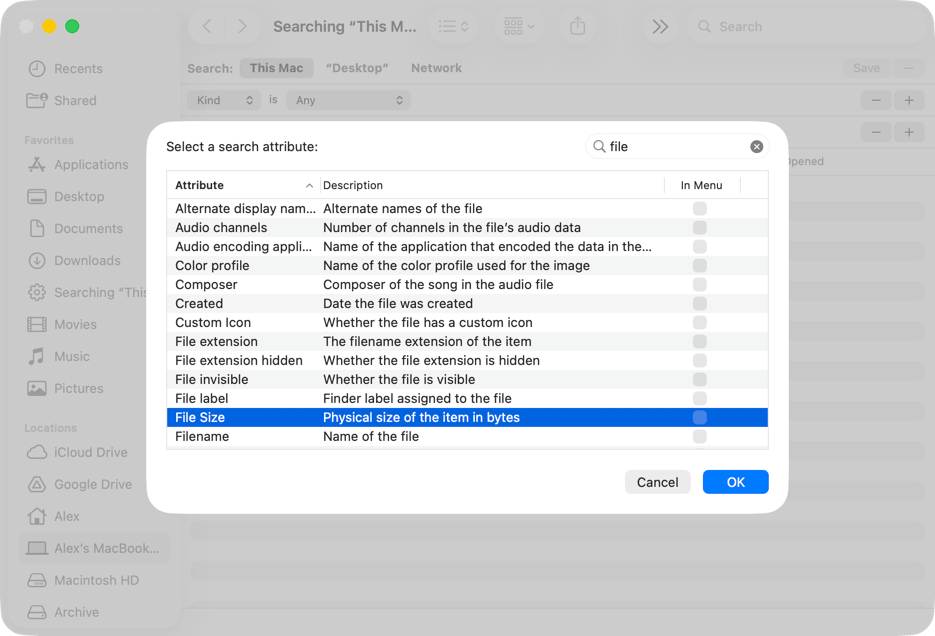
- Click the + button, then select File Size from the attribute list.
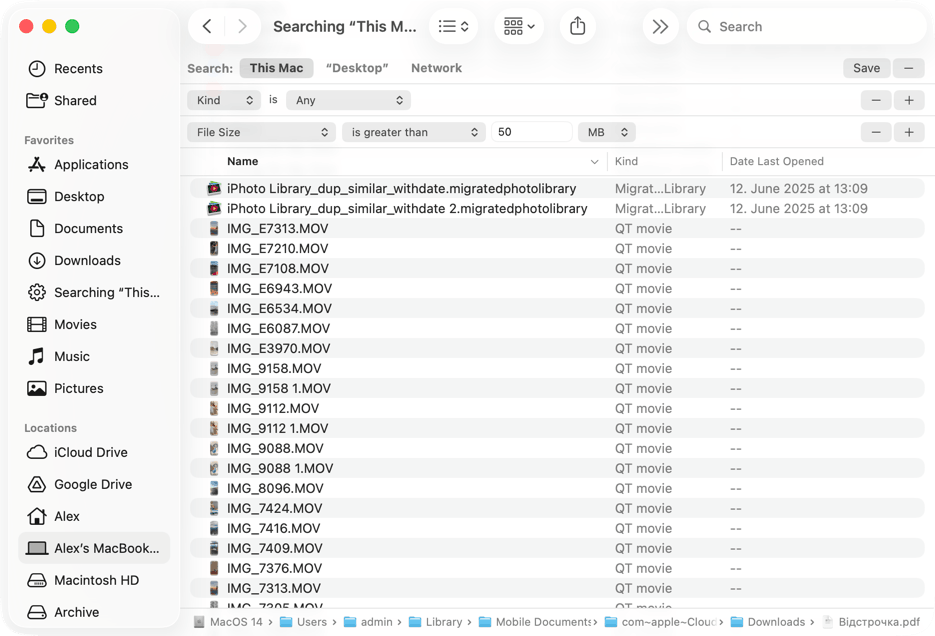
- Set the condition to is greater than and enter 50 MB.

Finder will list every file on your Mac larger than 50 MB. Sort by size and look for old videos, disk images, Final Cut or iMovie projects, and anything you no longer need. What stood out to me was how many forgotten .dmg installers were still sitting in my Downloads folder.
Uninstall apps completely
~/Library/Application Support
Copy
~/Library/Preferences
Copy
~/Library
Copy
Remove duplicate files and photos
Duplicate photos, downloaded files, and copied documents can waste a surprising amount of space. Start with the Photos app, which has a built-in duplicate finder:
- Open Photos.
- In the left sidebar, scroll down to Utilities and click Duplicates.
- Review the duplicate groups. Click Select All if you want to merge everything, or merge them individually.

- Click Merge to keep one copy and delete the rest.
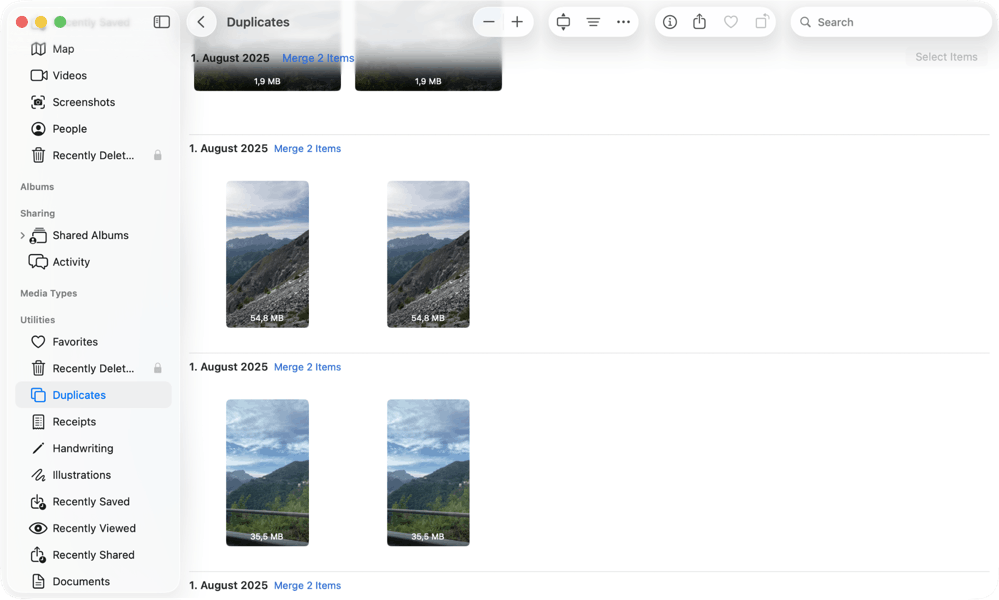
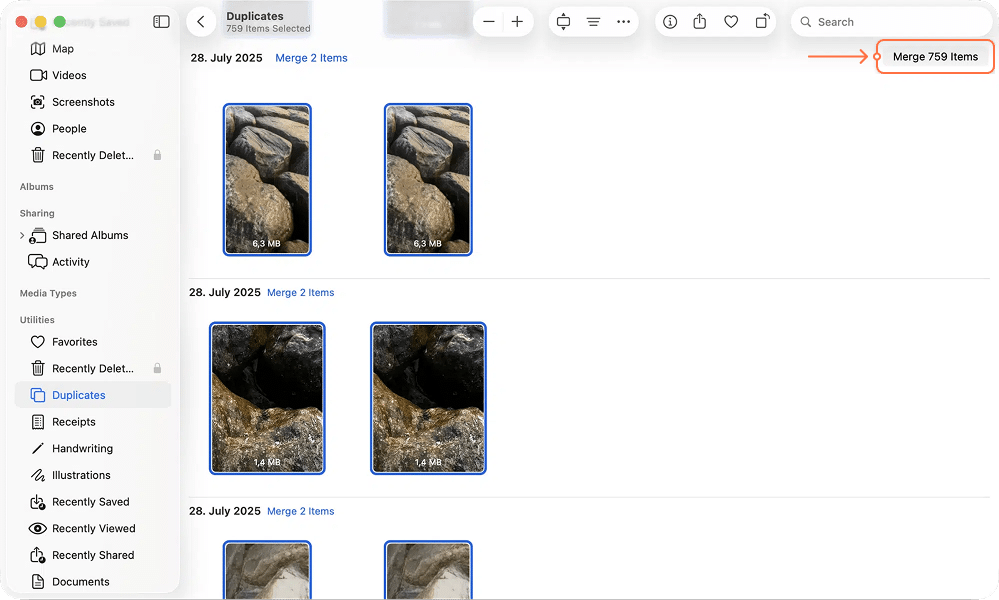
For duplicates outside the Photos library - in Downloads, Documents, and other folders - you can use Duplicate File Finder within the MacCleaner Pro bundle to scan your entire drive.
Delete old iOS and iPhone backups
Local iPhone backups can take up 10 GB or more per device, and old backups from devices you no longer own tend to be forgotten. To check and remove them:
- Open System Settings → General → Storage.
- Look for iOS Backups (or iPhone Backups) in the category list.
- Click the (i) button next to it to see individual backups.
- Delete backups for devices you no longer use.
You can also manage backups through Finder: connect your iPhone, select it in the Finder sidebar, and click Manage Backups.
Clean up email attachments
The Mail app stores downloaded attachments in a local folder that can grow over time. To find and clean it:
- Open Finder and press Shift+Command+G.
- Type and press Return.
Containers/com.apple.mail/Data/Library/Mail Downloads/Copy
- Review the files inside and delete what you do not need.

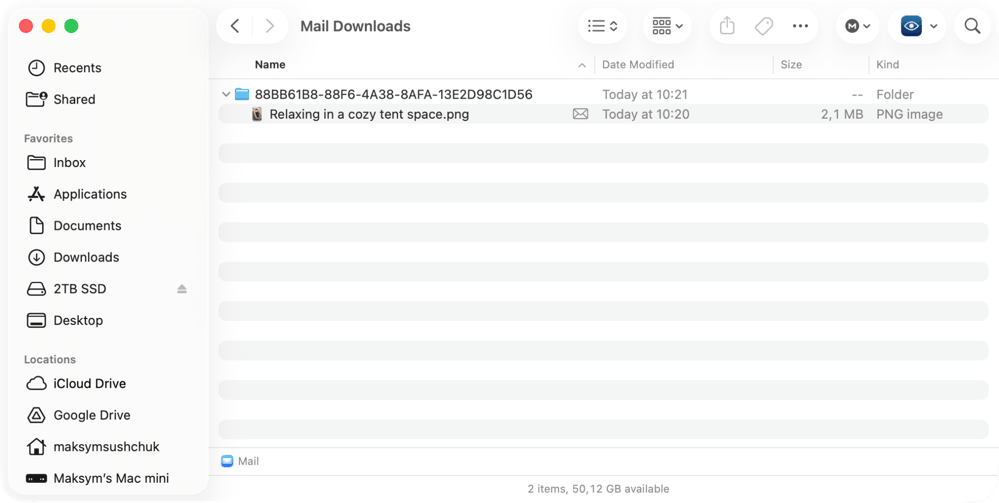
Deleting files from this folder is safe - the original emails and their attachments on the mail server remain untouched.
Clear Time Machine local snapshots
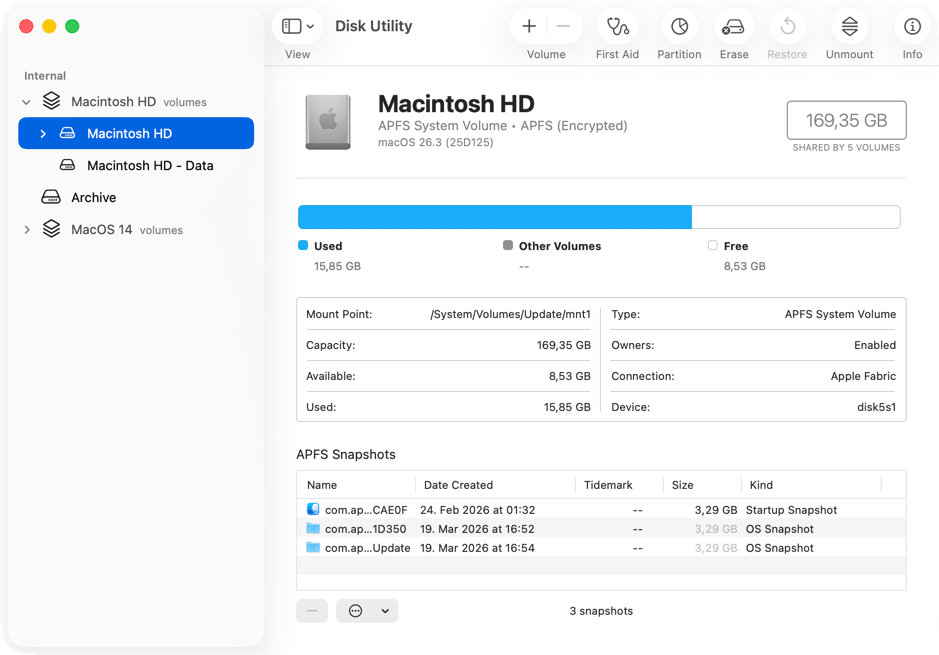
If you use Time Machine, macOS stores local snapshots on your boot drive so you can restore files even when the backup disk is disconnected. These snapshots can quietly consume hundreds of gigabytes. On my MacBook Pro, I found three snapshots taking up over 10 GB of space that I had no idea existed.
To check for local snapshots, open Terminal and run:
tmutil listlocalsnapshots /
Copy
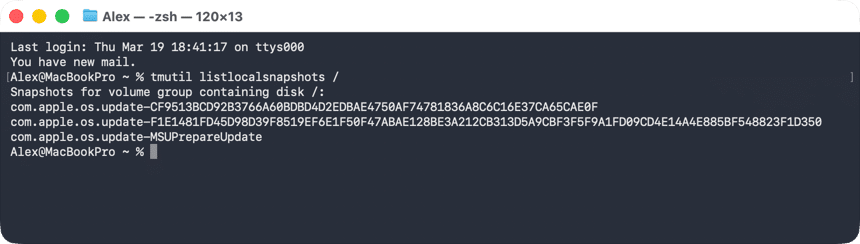
To delete a specific snapshot, run:
tmutil deletelocalsnapshots [snapshot-date]
Copy
You can also view and delete snapshots in Disk Utility. Select your boot drive (usually Macintosh HD) and look at the APFS Snapshots section at the bottom of the window.
Alternative tip
If you do not want to delete snapshots one by one, temporarily disable Time Machine in System Settings → General → Time Machine. macOS will automatically remove local snapshots when the drive runs low on space.
Empty the Trash
This sounds obvious, but it is easy to forget. Everything you have deleted in the steps above is still sitting in the Trash, taking up space, until you empty it. Right-click the Trash icon in the Dock and select Empty Trash.
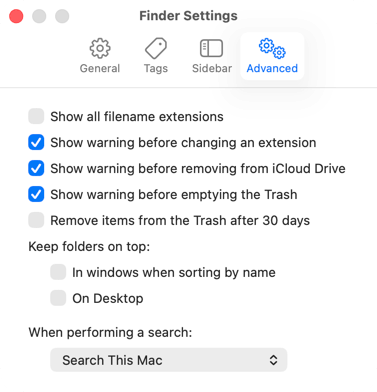
To avoid this in the future, you can set macOS to empty the Trash automatically after 30 days. Open Finder → Settings → Advanced and check Remove items from the Trash after 30 days.
Note:
After a large cleanup, restart your Mac. macOS recalculates free space and releases purgeable storage on reboot, so you may see even more free space after a restart.
The bottom line
From my experience, a full Mac storage slows down your entire system, not just file saving. The fastest fix is to run MacCleaner Pro and let it handle caches, logs, app leftovers, and large files in one pass.
If you prefer manual control, start with the Storage panel in System Settings to see where space is going, then work through caches, large files, duplicates, old backups, and Time Machine snapshots. Either way, finish by emptying the Trash and restarting your Mac.