


October 30, 2025
Mac running slow? Here’s how to fix it


Share


Remember the days when a slow computer meant listening to the hard drive physically grind while you waited for a single webpage to load? Or when we actually had to schedule time to defragment our machines? We buy modern Macs to escape that exact feeling. So, when your premium Apple hardware suddenly starts acting like a 20-year-old processor, it is incredibly frustrating.
The good news is that your Mac usually is not dying. More often than not, it is simply bogged down by a heavy application, a hidden background process, or a physical issue like thermal throttling.
In this guide, I will look under the hood to figure out exactly why your Mac is running slow. I will walk through the most common culprits, from memory pressure to invisible system clutter, and show you exactly how to get your speed back.
Manual vs. automatic Mac optimization: which one to choose?
When it comes to fixing these issues and speeding up your Mac, you generally have two paths: doing it manually, or letting a dedicated app handle it.
The manual way involves digging into hidden system folders, interpreting Activity Monitor graphs, and hunting down forgotten service files. It is completely free, and we will walk you through exactly how to do it in the sections below.
The automatic way is for those who value their time. You can go hunting for hidden bloatware and cache files manually, but if you prefer to spend that time not digging through folders, there is a much faster way. Using a dedicated optimization tool like MacCleaner Pro allows you to clear out gigabytes of junk, manage startup items, and free up RAM with just a few clicks.
It ultimately comes down to whether you want to spend your afternoon playing IT technician, or if you just want your fast Mac back right now.
System resources: When your Mac is overworked
When my Mac gets slow, I immediately check whether it’s simply being pushed beyond its limits. Let’s look at how your Mac’s core hardware handles heavy loads.
Note:
All the tips here are applicable to macOS Tahoe 26. For earlier versions, the instructions might differ slightly, as Apple has made several changes to macOS settings over the last few years.
High CPU usage from heavy apps
A single poorly optimized app can monopolize your processor. When your CPU is maxed out, everything else grinds to a halt. You might even hear the fans spinning up like a jet engine.
How to fix it: You can use the built-in Activity Monitor to find the culprit and shut it down.
- Open Activity Monitor.
- Go to the CPU tab.
- Click the % CPU column to sort the list from highest to lowest.
- Select the app consuming the most power and click the Stop (X) button at the top to quit it.


Insufficient RAM and “Memory Pressure”
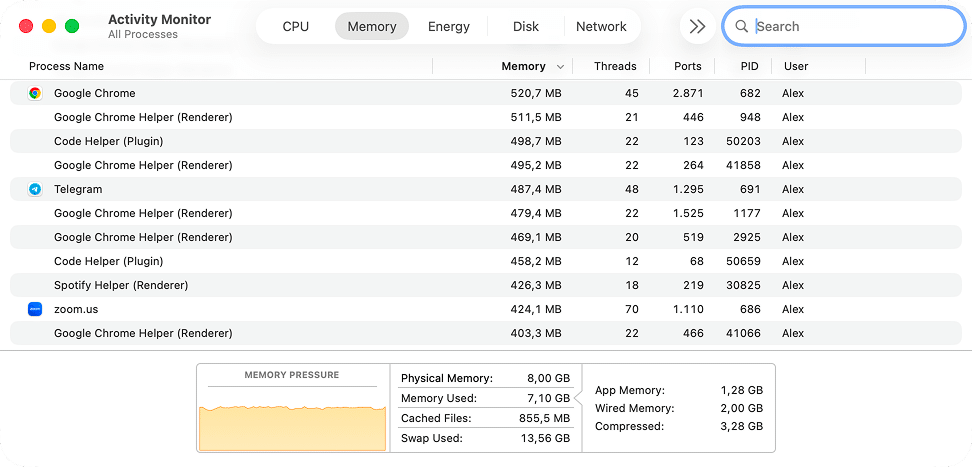
When your Mac runs out of physical RAM, it starts writing data directly to your SSD to keep things running. This process is called “swap memory”. Since an SSD is much slower than RAM, this swap process is one of the primary reasons modern Macs suddenly feel sluggish.
How to fix it: You can check your memory status to see if your Mac is struggling.
- Open Activity Monitor and go to the Memory tab.
- Look at the Memory Pressure graph at the bottom of the window.
- If the graph is red, your Mac critically lacks memory. You will also likely see a high number next to Swap Used.
- To relieve the pressure, close heavy applications you are not currently using or restart your Mac.
Overheating and thermal throttling
If your Mac gets too hot, the processor intentionally lowers its clock speed to prevent physical damage. This is known as thermal throttling, and it is a very frequent cause of lag. It often happens if you work with your MacBook on a soft surface – like a bed or a pillow – which blocks the ventilation. Dust buildup inside the vents is another common physical cause.
How to fix it: Check your CPU load in Activity Monitor. If no heavy apps are running (the case we already covered above), but your CPU is sitting at 80–100%, your Mac is likely throttling.
- Move your laptop to a hard, flat surface.
- Clean out any visible dust from the ventilation ports.
- Give your Mac a few minutes to cool down completely.
Spotlight reindexing in the background
Did you just update to macOS Tahoe or copy a massive folder of files? Your Mac’s search feature, Spotlight, needs to index all that new data. This background process sometimes consumes 80–100% of your CPU for several hours, making the whole system lag.
How to fix it: You can verify if Spotlight is the true cause of the slowdown.
- Open Activity Monitor.
- Type or
mdsCopy
into the search box in the top right corner.mdworkerCopy
- If these processes are highly active, Spotlight is indexing.

The best fix is usually just to wait for it to finish. If it seems permanently stuck, you can force a reindex using an optimization tool like MacCleaner Pro.
Software clutter: hidden files slowing you down
Even when you are not actively running heavy applications, your Mac might be carrying unnecessary weight. Apps love to leave behind hidden files and background helpers that quietly consume resources over time.
Too many startup login items
This is one of the biggest reasons for a slow boot time and sluggish background performance. Many applications automatically add themselves to your startup sequence during installation. Before you know it, your Mac is trying to launch a dozen hidden helpers the moment you turn it on.
How to fix it:
- Open System Settings.
- Go to General → Login Items & Extensions.
- Review the list and turn off any unnecessary or suspicious items that you do not need running all the time.


Bloated system and app caches
Applications create temporary cache files to help them load faster. However, if you have not cleaned your Mac in a while, or if you recently deleted apps without a dedicated uninstaller, these files pile up and become dead weight.
How to fix it: You can clear these files manually from the hidden Library folder.- Open Finder.
- Press Command+Shift+G on your keyboard to bring up the “Go to Folder” search box.
- Type and hit Return.
~/Library/CachesCopy

- Look through the folders, find the caches you no longer need, and move them to the Trash.

Leftover files from deleted apps
When you drag an application to the Trash, you are only deleting the main app file. It leaves behind a trail of service files, such as preferences and application support data. Over time, these orphaned files clutter your hard drive.
How to fix it: To remove app leftovers manually, you need to check two specific locations in your hidden Library folder.
- Open Finder and press Command+Shift+G.
- Type and hit Return.
~/Library/Application SupportCopy
- Find any folders with the name of the app you previously deleted, right-click them, and select Move to Trash.

- Repeat this exact process for the folder to catch the remaining files.
~/Library/PreferencesCopy

Resource-draining browser extensions
If your Mac only feels slow when you are surfing the web, the system itself might be fine. The problem could be too many browser extensions. They can heavily impact the speed of Safari, Google Chrome, or Firefox.
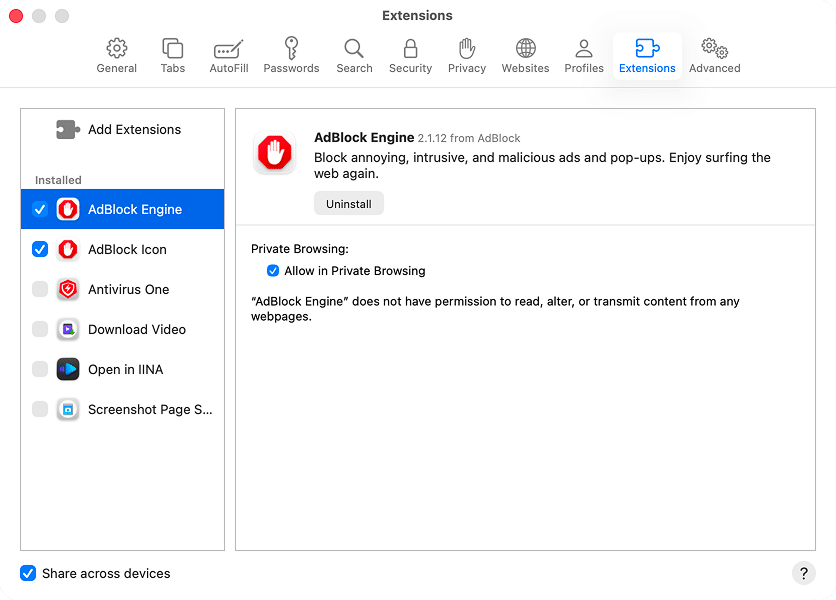
How to fix it: Turn off or completely remove the extensions you no longer use. Here is how to do it in Safari:
- Open Safari.
- In the top menu bar, click Safari → Safari Extensions.
- Select the extension you do not need and click Uninstall.
Note:
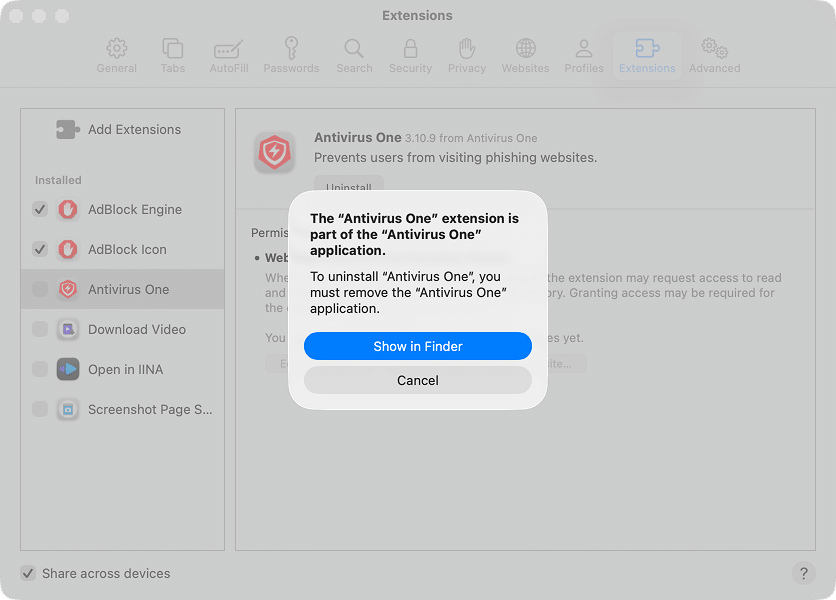
Some extensions are actually part of a larger Mac application. These specific extensions will only be removed when you completely uninstall the parent application from your Mac.
To clean up the extensions for other browsers, read “How to delete browser extensions on Mac.”
Hardware health and hidden settings
Beyond apps and cache files, your Mac’s physical components and hidden power preferences play a huge role in its speed. Let’s check if a failing drive or a well-meaning battery setting is secretly slowing you down.
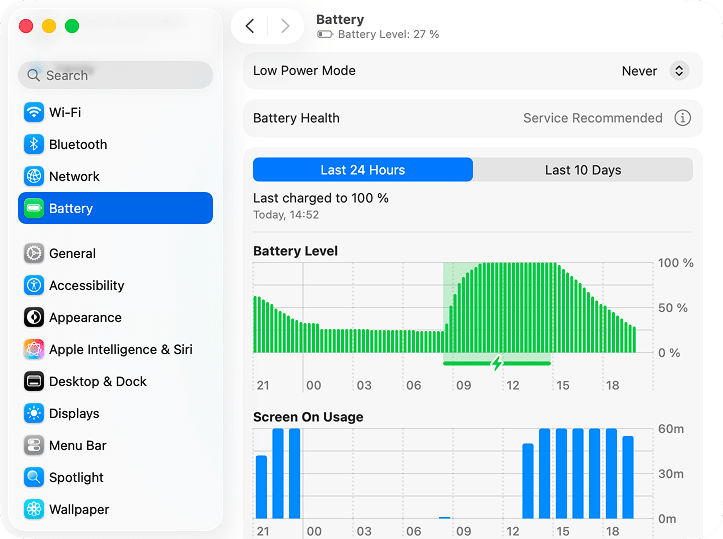
Low power mode is active
Starting with macOS Monterey, Apple introduced a feature to help stretch your battery life on MacBooks. It works by intentionally lowering your processor’s performance. Many users turn this on during a long flight and completely forget to turn it off, leaving their Mac feeling artificially sluggish.
How to fix it:- Open System Settings.
- Go to the Battery section.
- Look for the Low Power Mode option near the top.
- Change the dropdown menu to Never, or set it to Only on Battery if you still want the power savings when unplugged.
Failing SSD health
Flash storage does not last forever. If your SSD has heavily worn-out memory cells or “bad blocks,” your Mac will struggle to read and write data. This causes severe, system-wide lag that no amount of software cleaning will fix.
How to fix it: You can check the built-in diagnostic status of your drive to see if it is physically failing.- Hold down the Option key on your keyboard and click the Apple logo in the top left corner of your screen.
- Click on System Information.
- In the left panel, scroll down to Hardware and select Storage.
- Look for the S.M.A.R.T. Status line. If it says Verified, your drive is functioning normally. If it shows an error, your drive is likely failing.


For a more detailed look, you can also check this through Disk Utility:
- Open Disk Utility.
- Select your drive from the panel.
- Click the Info (or i) button in the top right corner of the window.
- Scroll down in the pop-up window and look for the S.M.A.R.T. Status field.


Hidden malware or adware
While macOS is generally very secure, it is not completely immune to malicious software. Adware, infostealers, and background trojans can slip past Apple’s built-in protections like Gatekeeper and silently consume your system resources. If your CPU is constantly maxed out, your browser homepage changed, or you see weird pop-up ads, you might have an infection.
How to fix it: Prevention and scanning are your best tools here.
- Never ignore Gatekeeper warnings when opening a new app.
- Avoid installing software from untrusted third-party sites.
- If your Mac is acting strangely, run a dedicated anti-malware scan to find and remove the hidden threats.
Sometimes you just need a quick restart
It sounds almost too simple, but it is true. We often leave our MacBooks asleep for weeks without ever actually shutting them down. More often than not, the absolute best way to fix a slow Mac is to simply click the Apple logo and select Restart. This clears out temporary memory glitches and gives your operating system a fresh slate.
Legacy quirks: why older Intel Macs run slowly
The transition to Apple Silicon completely changed how Macs operate. If you are still using a Mac with an older Intel Core processor, your machine handles memory, graphics, and system resets differently than the newer M1 through M5 models. Here are a few fixes that apply exclusively to your hardware.
Corrupted PRAM
Parameter RAM (PRAM) stores core system settings like display resolution and startup disk selection. When this memory gets corrupted, it can cause bizarre performance glitches and slow boot times on Intel Macs.
How to fix it: You can reset the PRAM using a specific keyboard shortcut during startup.- Shut down your Mac.
- Turn it on and immediately press and hold Option+Command+P+R.
- Hold the keys for about 20 seconds, or until you hear the startup sound a second time.
Note:
If you have a modern Mac with an M-series processor, this shortcut literally does nothing. Apple Silicon Macs do not have PRAM in the classic sense.
Visual effects and widgets overload
Modern Apple Silicon chips do not break a sweat rendering transparent windows or desktop widgets. However, if you are running an older Intel machine, these UI animations consume valuable processing power that could be used elsewhere.
How to fix it: Turning off visual effects and removing unnecessary widgets from your Notification Center or desktop can give an older Intel Mac a noticeable, immediate speed boost.Physical RAM limitations
If your Mac is constantly running out of memory, you might wonder if you can just buy more. If you have an M-series Mac (2020 or newer), the answer is no - the memory is soldered directly to the chip. However, if you have certain Intel models (like specific iMacs or Mac minis from 2015 to 2020), upgrading your physical RAM is actually a viable way to speed up your system.
Unseen hardware issues (Apple Diagnostics)
If you have tried everything and your Mac still feels sluggish, you might have a failing thermal sensor, a bad battery, or a dying logic board. Running Apple Diagnostics will not fix the problem, but it will give you an error code so you know exactly what is wrong before you head to the repair shop.
How to check it: The process depends entirely on your processor type.
- For Intel Macs: Turn on your Mac and immediately press and hold the D key on your keyboard until the diagnostic screen appears.
- For Apple Silicon Macs: Press and hold the power button until you see the startup options screen. Then, press and hold Command+D.
The smarter way to fix Mac issues
You can spend your Saturday afternoon digging through hidden Library folders, deciphering Activity Monitor graphs, and manually hunting down leftover application files. But if you would rather and prefer to spend that time actually using your Mac, there is a much faster way.
Using a dedicated tool like MacCleaner Pro takes the tedious chores out of the equation. Instead of blindly clicking around your system settings, you can safely clear out gigabytes of old caches, disable hidden startup items, and free up your RAM with just a few clicks. It even has a built-in tool to force a Spotlight reindex if that background process gets permanently stuck.
Here is how easily you can get your speed back:
- Download and open MacCleaner Pro.
- Wait for the initial scan to complete.
- Proceed to the Speed Up tab.
- Review the suggestions on speeding up your Mac and tick the ones you’re OK with.

- Click Review to speed up, then confirm your intentions by clicking Speed Up.

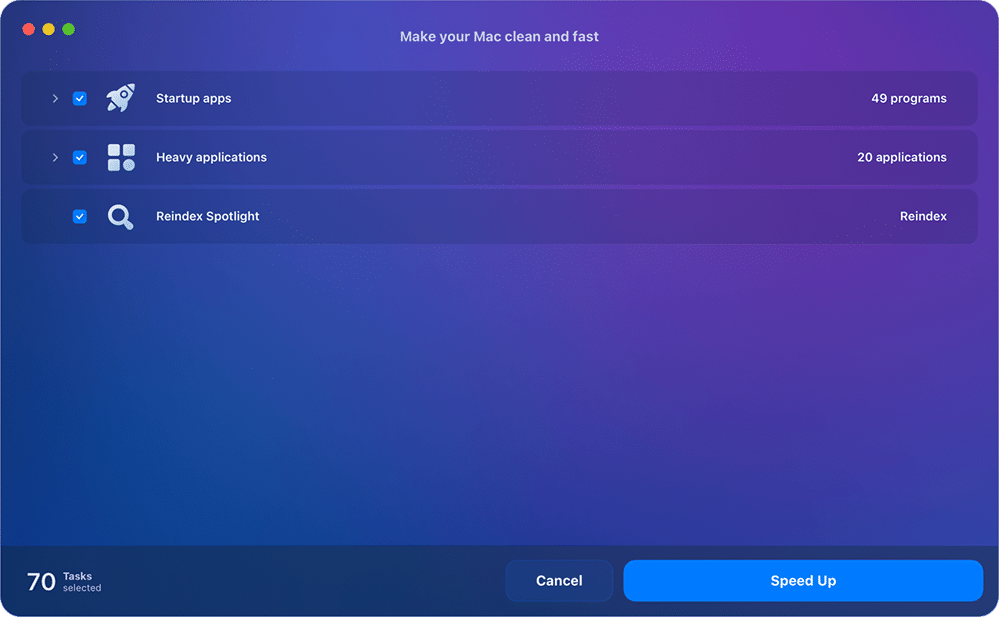
In no time, the speed-up will be completed, and you will be able to review the details of the procedure.
It is the logical choice for keeping your machine fast without the headache.
The bottom line
A slow Mac does not automatically mean you need to buy a new computer. Nine times out of ten, it is simply a sign that your system is starved for physical resources or bogged down by leftover software clutter. By keeping an eye on your memory pressure, managing what opens at startup, and keeping your SSD clean, you can easily breathe new life into your machine.
And if you want to see what is slowing you down right now, you can always run a free diagnostic scan with MacCleaner Pro and instantly locate heavy apps and hidden junk files.