January 16, 2026
Little Snitch vs FireWally vs macOS built-in firewall – senseful comparison


Share


Every Mac, even a clean one, generates a surprising amount of network traffic. In a year where the Global Threat Landscape Report recorded a 500% spike in infostealer malware logs, 97 billion exploitation attempts, and a 42% growth in stolen credentials, ignoring that traffic isn’t an option anymore. Because Macs are not that immune.
And firewalls remain one of the simplest, most effective guardrails for your system, but their capabilities vary wildly. In this article, I’ve tried to compare Little Snitch, FireWally, and the macOS native firewall without exaggeration – focusing on real-life usage and practical differences, so you can decide which firewall matches your Mac and workflow.
This Article Contains
Video Guide: Little Snitch vs. FireWally
2:48

Principles of comparing Mac firewalls
Before comparing features, prices, or UI screenshots, I wanted to answer one simple question: how do these firewalls behave on a real Mac, during real work, over time.
Not on a clean test machine that never sees Slack, Chrome, Xcode, or game launchers. Not synthetic benchmarks. Not five-minute demos. Just everyday usage that reflects how people actually live with a firewall running quietly in the background.
Firewall testing criteria
To keep results objective, I evaluated each firewall using core and extended criteria.
Core criteria
- Price & licensing: free or paid, trial availability
- Feature scope: number of essential filtering and monitoring features
- Real-time control: how fast the firewall reacts to new connections
- User experience (UX): clarity, learning curve, and overall interface flow
Extended criteria
Type of test data
- Real user workflows: browsers, IDEs, sync tools, messengers, media apps
- Long-term usage (not just first-launch impressions)
- Network-heavy scenarios: cloud sync, updates, background services
- Idle scenarios: letting the Mac ‘just sit’ and watching traffic
Traffic visibility tests
- Identifying which apps talk most frequently
- Checking if the firewall reveals domains, IPs, protocols
- Detecting hidden background processes
Performance tests
- CPU usage during heavy traffic
- Delay before changes apply
- Responsiveness of real-time indicators
Workflow flow check
- How fast can I block an app?
- Do I need multiple steps or one switch?
- Is real-time monitoring readable at a glance?
I did all the tests on a MacBook Pro M3 running on macOS Tahoe.
macOS firewalls brief overview table
| FireWally | Little Snitch | macOS built-in firewall | |
|---|---|---|---|
| Price | Free | One-time €59 | Free (built-in) |
| Trial | Free | No | Free |
| macOS compatibility | 13.0+ | 14.0+ | Since 2007 (OS X) |
| Traffic filtering | Incoming & outgoing | Incoming & outgoing | Incoming only |
| Key features set | Core inbound/outbound filtering, real-time monitor, traffic history, AI. | Full rule engine, runtime alerts, monitoring, blocklists, DNS encryption. | Basic inbound firewall, stealth mode. |
FireWally is better for simple monitoring and instant blocking
FireWally is a free, brand-new, modern firewall that makes network activity understandable without turning your Mac into a complex operations hub.
Instead of flooding you with alerts or asking you to make networking decisions every five minutes, it shows what’s happening and lets you act when you decide it matters. Open it, and you immediately see which apps are using the internet, how much data they’re sending and receiving, and whether that traffic makes sense.
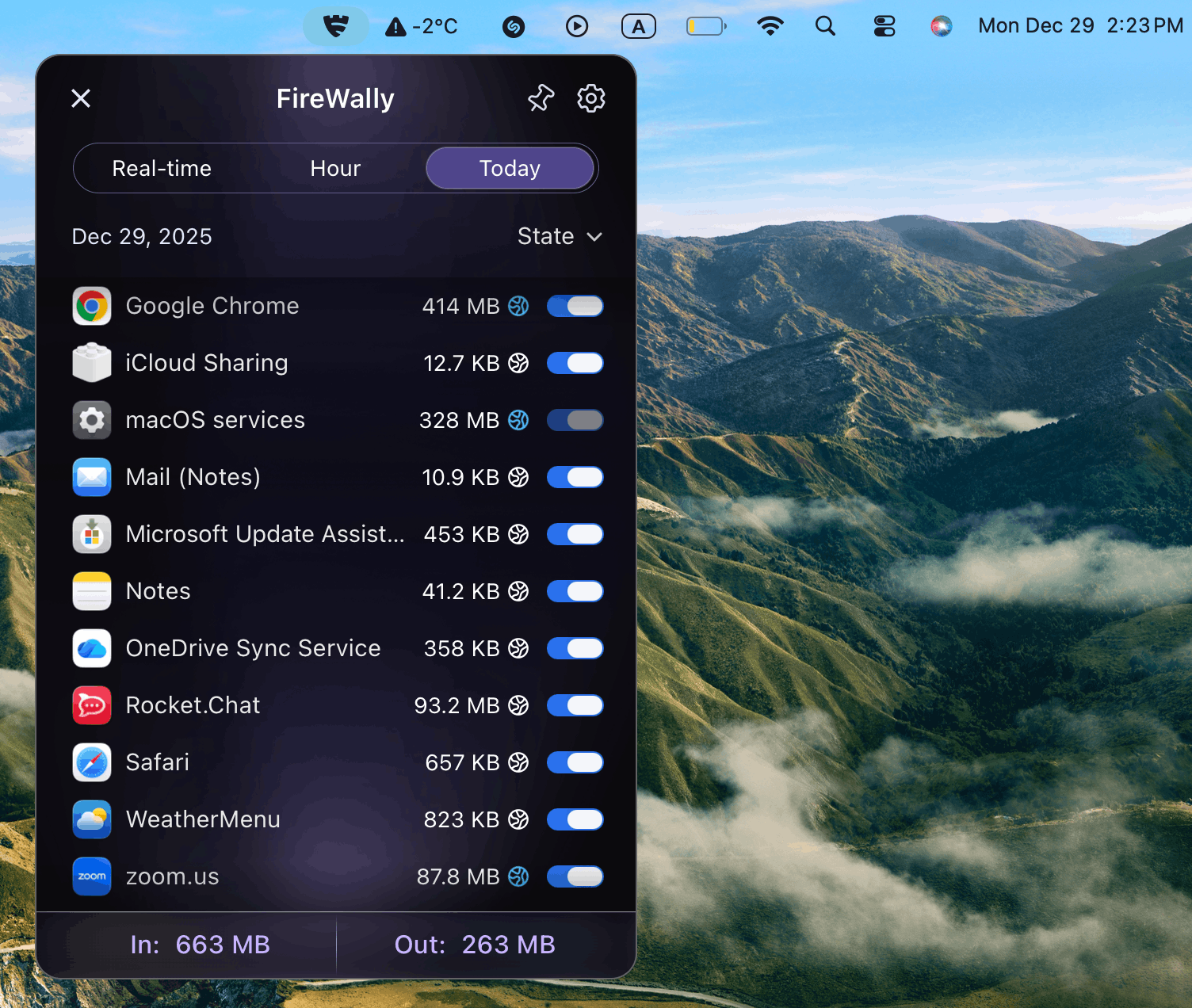
What sets FireWally apart is how it explains network behavior. Using Apple Intelligence (on supported systems), it doesn’t just say an app is connecting, it explains why. When you understand whether an app is syncing, checking for updates, or doing something else, blocking or allowing traffic becomes a confident decision instead of a guess.
In daily use, FireWally feels light and unobtrusive. It runs quietly in the menu bar, doesn’t interrupt your workflow, and gives you just enough historical context (real-time, hourly, today) to spot anomalies. It’s not designed to replace a rule-based firewall for power users, but for monitoring and quick control, it does its job exceptionally well.
Another thing is, developers say you can expect more perks from this firewall soon.
Strengths
AI app summary & clear traffic stats
Real-time, hourly, and daily traffic views
Lightweight (62MB RAM usage)
Free and actively maintained
Limitations
No traffic reports yet
No advanced rule logic (domains, IPs, ports)
Less detail than pro-level firewalls
Little Snitch is better for advanced users & rule-based control
Little Snitch has long been the ‘power user firewall’, famous for its precision and extensive control. It’s built for people who want to see everything happening in their network stack: domains, ports, protocols, endpoints, and live traffic mapped across the globe.
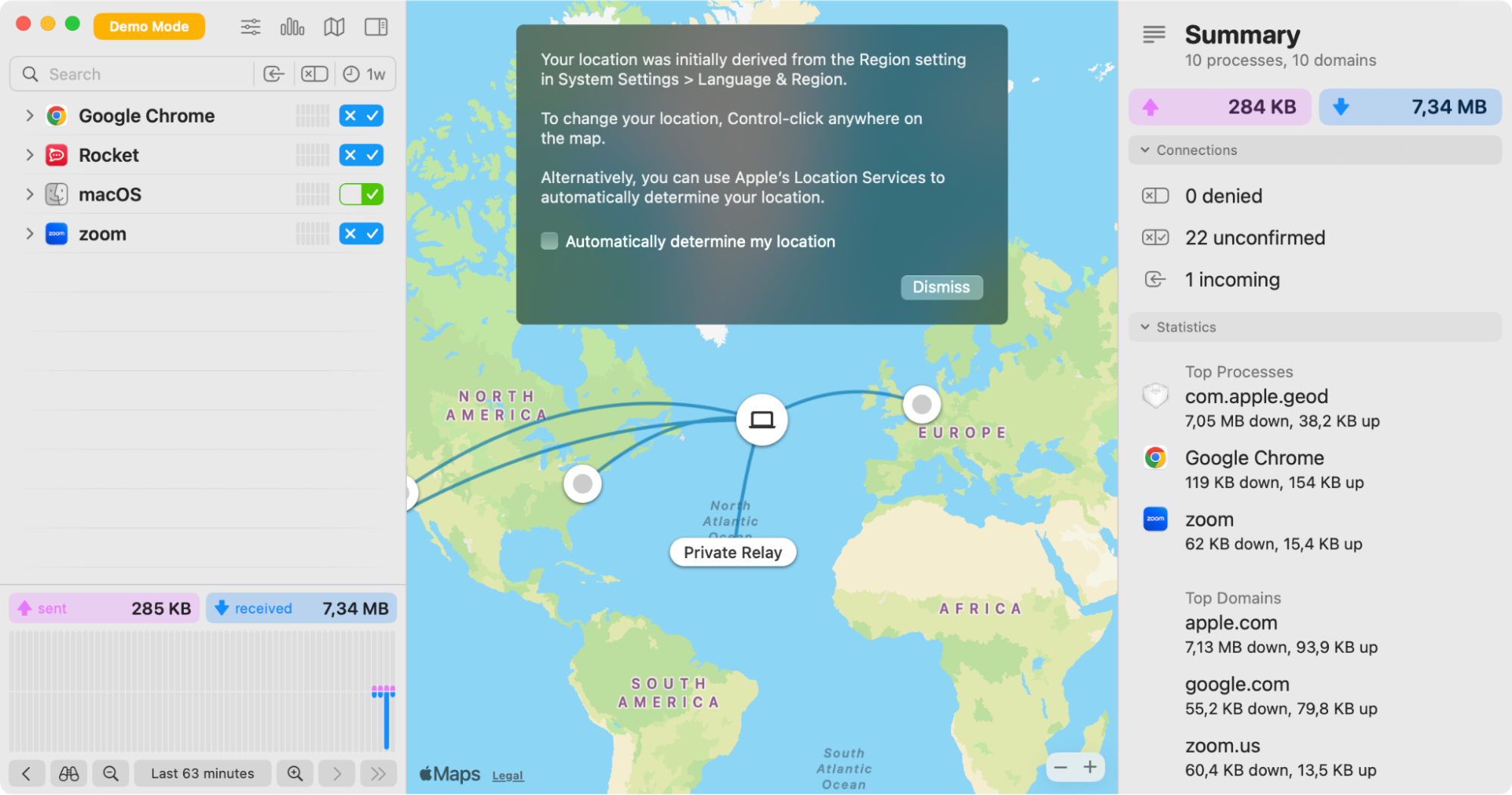
Every new connection triggers a clear alert where you can allow or block it, temporarily or permanently. This granular rule-building and the ability to group rules by profile (home, work, public) make Little Snitch ideal for anyone who lives inside network-sensitive apps.
Its feature set goes beyond basic firewalling: DNS encryption, curated blocklists (ads, trackers, malware), historical logs, filters, and a full Network Monitor with charts and maps. But with great power comes complexity.
Little Snitch can feel overwhelming for newcomers, especially when multiple apps spam alerts during the first days of usage. It’s also a paid tool, and some users mention higher CPU usage on large rule sets. Still, for in-depth traffic visibility, it remains a solid one.
Strengths
DNS encryption and blocklists
Advanced traffic visualization and history
Real-time connection alerts & Silent Mode
Profiles and filters for different networks
Limitations
Paid (€59 one-time)
Occasional CPU spikes with large rule lists
Can feel noisy without a proper rule setup
Needs privileged rights to some components
Mac built-in firewall is better for basic inbound protection
The macOS built-in firewall is a basic system-level tool focused on incoming connections. It lets you block apps from accepting network traffic, enable Stealth Mode to hide your Mac from scans, and block everything entirely.
It integrates directly into System Settings and works silently in the background. Because it’s part of macOS, it requires no additional installation, has virtually zero performance impact, and benefits from Apple’s system-level security model.
Note:
Mac native firewall is off by default. Enable it in System Settings → Network → Firewall.
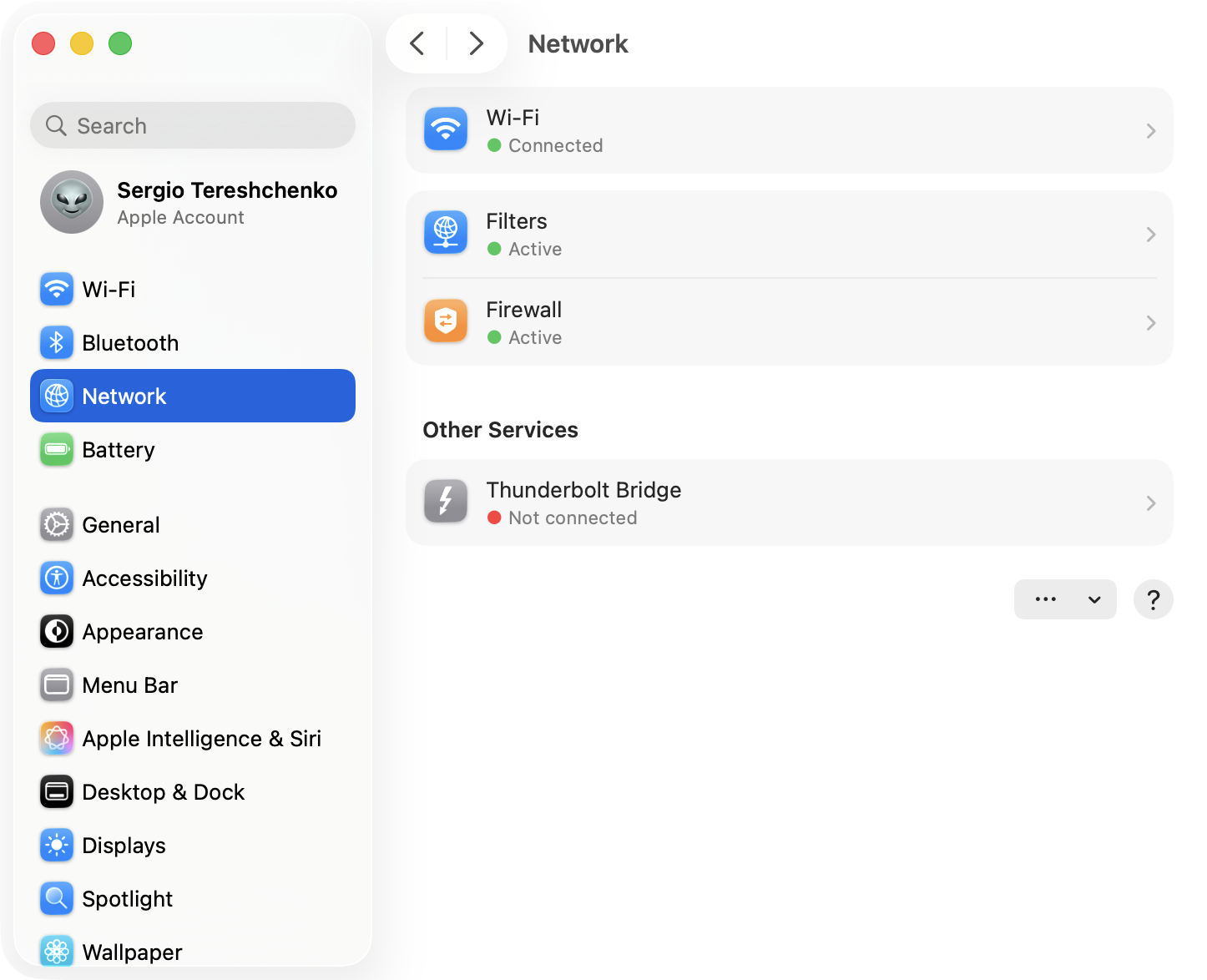
That said, it’s also the most limited. You won’t see which apps are sending data out, why they’re doing it, or how much traffic they generate. There are no alerts, no analytics, and no fine-grained controls. It’s reliable for basic protection, but not suitable for monitoring or privacy analysis.
Strengths
Stealth Mode for hiding from scans
Option to block all incoming connections
Built into macOS and free
Good inbound protection
Limitations
No outbound filtering at all
Feature growth depends on macOS updates
No per-app/domain/port/IP rules
No alerts or analytics
Choosing a firewall for macOS: Detailed versus table
| Parameter | FireWally | Little Snitch | Built-in firewall |
|---|---|---|---|
| CPU usage | ~62 MB | ~450 MB | Very low |
| Safety model | Sandboxed | Privileged extensions | System component |
| AI assistant | ✅ Yes | ❌ No | ❌ No |
| Update frequency | Active releases & fixes | Active releases & fixes | With macOS updates |
| Rule configuration | ❌ No | ✅ Yes | ❌ No |
| Real-time control | ✅ Yes (no alerts) | ✅ Yes (alerts) | Minimal |
| Reports | Reports | Advanced | System-level |
| Processing speed | ⚡ Fast, unnoticeable | 🕒 May be slow with many rules | ⚡ Fast, unnoticeable |
| UX level | User-friendly | Advanced user | Basic |
| Localization | ✅ Yes | ✅ Yes | ✅ Yes |
| Extra features | – Filtering by Traffic/Name/State – Real-Time/Hour/Today monitoring – AI App Summary |
– DNS encryption – curated blocklists – Interactive traffic control – Alerts (including audio) – Quick search and filters – Silent mode |
– Stealth mode hiding from network scans – Feature to block all incoming connections – Integration with profiles (good for corporate users) |
After comparing these firewalls side by side, here’s how they rank for me:
- FireWally: 5/5 – Free, fast, intuitive. Minimalism done right: easy traffic monitoring, instant blocking, and AI helping you understand what’s going on.
- Little Snitch: 5/5 – Packed with features and a great traffic monitor, backed by active support. It’s paid and can take some setup, but the level of control is hard to beat.
- Apple native firewall: 3/5 – Great to have for basic inbound protection. It’s simple and dependable, but lacks the flexibility and insight needed for deeper traffic control.
Final choice
In the end, the right firewall depends on how much control you actually want to manage. Some users need visibility without complexity, others want full analytical power, and some just want a reliable safety net that stays out of the way.
| Tool | Better for | Number of features |
|---|---|---|
| FireWally | Users who need simple control over incoming and outgoing connections with an easy-to-use interface | Focused, essential |
| Little Snitch | Users who want detailed inbound and outbound control, dynamic rules, alerts, and traffic analytics | Very rich |
| Apple firewall | Users who need basic inbound protection and simplicity; not suitable for advanced outbound control | Minimal |