

March 11, 2026
Comparison guide: Top Mac app updaters in 2026.


Share


Many Mac users have 100+ apps installed, with about 20 of them in daily usage. I’m not far behind — it’s closer to 90 apps living on my Mac. Now do the math: an ordinary app gets an update once a month. That’s easily 25+ updates waiting for your attention.
And let’s be honest, updates always pop up when you are mid-task, mid-call, or mid-flow. You click Later, and then forget. And suddenly you’re running outdated apps that are slower, buggier, and less secure than they should be. I’ve been there. The way out?
Software to update apps on Mac. It centralizes all those updates into one dashboard, making it a fast, controlled workflow. I picked five widely used updaters, plus one newcomer that has been getting a lot of attention since MacUpdater shut down.
This overview will show what tools for updating Mac apps exist, what role each tool plays, and what kind of user it fits, so you can decide what to opt for. As a perk, you’ll get some tips on updating apps on Mac without third-party tools.
This article contains:
MacUpdater alternatives: the best tools to update Mac apps
3:01

Why do you need to update apps on a Mac?
Outdated apps aren’t just annoying with lots of pop-ups. It’s like leaving the door half-open for bugs to slip in, for performance to drop, and for malware to sneak into your Mac. Here are more reasons to consider why updating apps is important:
- Improved performance. Keep your Mac running smoothly through updates that optimize app performance, prevent crashes or slowdowns, and increase stability.
- Optimized battery usage. Extend your MacBook’s battery life with app updates to reduce energy consumption.
- Reduced storage usage. Free up space on your Mac by accepting updates, as some of them shrink file sizes or clear redundant data.
- Enhanced security. Protect your Mac from hackers, malware, and cyber threats by staying updated, which blocks known security exploits targeting older versions.
- Preventative maintenance. Update apps regularly and avoid potential issues by addressing vulnerabilities or bugs early before they cause bigger problems.
- Access to new features. Get new functionalities and tools with updates improving user experience and productivity.
The way I tested updaters for Mac apps
In order for you to pick the right tool for updating Mac apps, I tried six well-known Mac app updaters on a MacBook Pro M1 running on macOS Golden Gate 27. I aimed to get you familiarized with what each tool feels like before installing it.
In my analysis, I paid attention to the following aspects:
- Price and trial options. How much it costs and if there’s a free trial to test.
- Scan speed. How fast the app detects outdated software.
- Updates found. How many apps each tool spotted as outdated.
- Ease of use. How many clicks it takes and how clear the interface is.
- Extra features. What else the tool can do, such as uninstall, clean, or protect a Mac.
- User experience. Whether the workflow feels smooth or cluttered.
- Target audience. Who this or that tool is for.
Comparison table of top Mac app updaters

|
 CleanMyMac
 |
 MacUpdater
 |
 Floodtide
 |
 Latest
 |
 Updatest
 |
|
|---|---|---|---|---|---|---|
| Price | $14.95/year | $40.20/year | $0 | £10.99/one-time | $0 | $0 or $12.99 per year |
| Rate | 4.8 (Trustpilot) |
4.7 (Trustpilot) |
4.9 (AlternativeTo) |
n/a New tool |
n/a Open-source |
n/a New tool |
| Trial |
Yes
2 days
|
Yes
7 days
|
Yes
(free)
|
Yes
14 days
|
Yes
(free)
|
Yes
(free)
|
| Scan speed (for 88 apps) |
4 seconds | 18 seconds | 30 seconds | 11 seconds | 4 seconds | 9 seconds |
| Apps found to update | 42 | 19 | 45 | 39 | 15 | 16 |
| Minimal clicks |
Yes
|
No
More complex
|
Yes
No
Depends on app
|
Yes
|
Yes
|
No
More complex
|
| Delete apps and residuals |
Yes
|
Yes
|
No
|
No
|
No
|
No
|
| Reset apps |
Yes
|
Yes
|
No
|
No
|
No
|
No
|
| Manage apps (startup & extensions) |
Yes
|
Yes
|
No
|
No
|
No
|
No
|
| See app permissions |
Yes
|
Yes
|
No
|
No
|
No
|
Yes
|
| Check app notarization |
Yes
|
No
|
No
|
No
|
No
|
Yes
|
| Set default app to open files |
Yes
|
No
|
No
|
No
|
No
|
No
|
| Block apps from the Internet |
Yes
|
No
|
No
|
No
|
No
|
No
|
| Total | Affordable app manager, updater, and cleaner | System optimizer with app updates | Dedicated Mac app updater only | Updater-only tool with rollback | Free lightweight Mac app updater | Updater-only tool with advanced controls |
App Cleaner & Uninstaller: Best for all types of users
|
|
Subscription: $14.95/year or $34.95/one-time |
|---|---|
| Compatible with: macOS 11.0 -27 | |
| Update frameworks: AppStore, Sparkle, Electron, Squirrel, Homebrew, GitHub apps |
App Cleaner & Uninstaller is more than just an updater; it’s an award-winning full app manager designed for efficient app management. From updating and uninstalling to checking how safe an app is and which apps go online, it gives you a clearer picture of what’s running on your Mac.
It combines the everyday tasks of managing apps into one simple workspace. And its intuitive design simplifies the flow, so you can easily:
- update apps, Homebrew command-line tools, and Safari extensions
- uninstall apps with all leftover files
- reset apps and clear their caches
- manage startup items & app extensions
- see which apps use the Internet and block the ones you don’t want online
- check if an app is notarized
- see what permissions the app uses and revoke them
- get a short AI summary of what an unfamiliar app does
It’s famous for the few-click way to update, manage, and uninstall applications on Mac.

While its core functionality is to delete applications along with remaining files, this tool has a strong performance in detecting updates and is capable of updating all applications in one batch.
The list splits updates into Mac App Store and developer-site groups, and brew-installed items get a Homebrew badge. Tick Select all, and the bottom bar shows how many items and how much data the batch will pull before you start.
A key advantage of App Cleaner & Uninstaller is the way it handles App Store apps. With macOS Tahoe 26.1, most updaters can only redirect to the App Store instead of installing updates themselves. App Cleaner & Uninstaller still performs App Store updates inside its own interface, which simplifies large update batches.
As the final flourish, the menu bar helper lets you see how many updates are waiting through the menu bar helper without opening the app. It stands out by also allowing you to control which apps talk to the web, manage startup apps, extensions, and even set default apps for different file types. Simple, impressive, outcome-oriented.
Pros:
User-friendly interface
Extra features: app and leftovers deletion, cache clearance, internet access blocking
Affordable price
Cons:
Updates come with trial or paid license
No alerts when new updates are available
Only a 2-day free trial
CleanMyMac: Best for bundled Mac maintenance
|
|
Subscription: $40.20/year |
|---|---|
| Compatible with: macOS 11 or newer | |
| Update frameworks: AppStore and Sparkle-based apps |
CleanMyMac is one of the most popular Mac optimization suites, with app updates being just one part of its toolbox. It’s designed to do a bit of everything: cleaning junk files, improving performance, protecting against malware, and more.
The tool spreads its features across eight tabs. And you have to scan each category. That makes it detailed, but not as effortless as tools built just for updates, which adds one more move to each feature flow. One thing that stands out about this tool is its visual design.
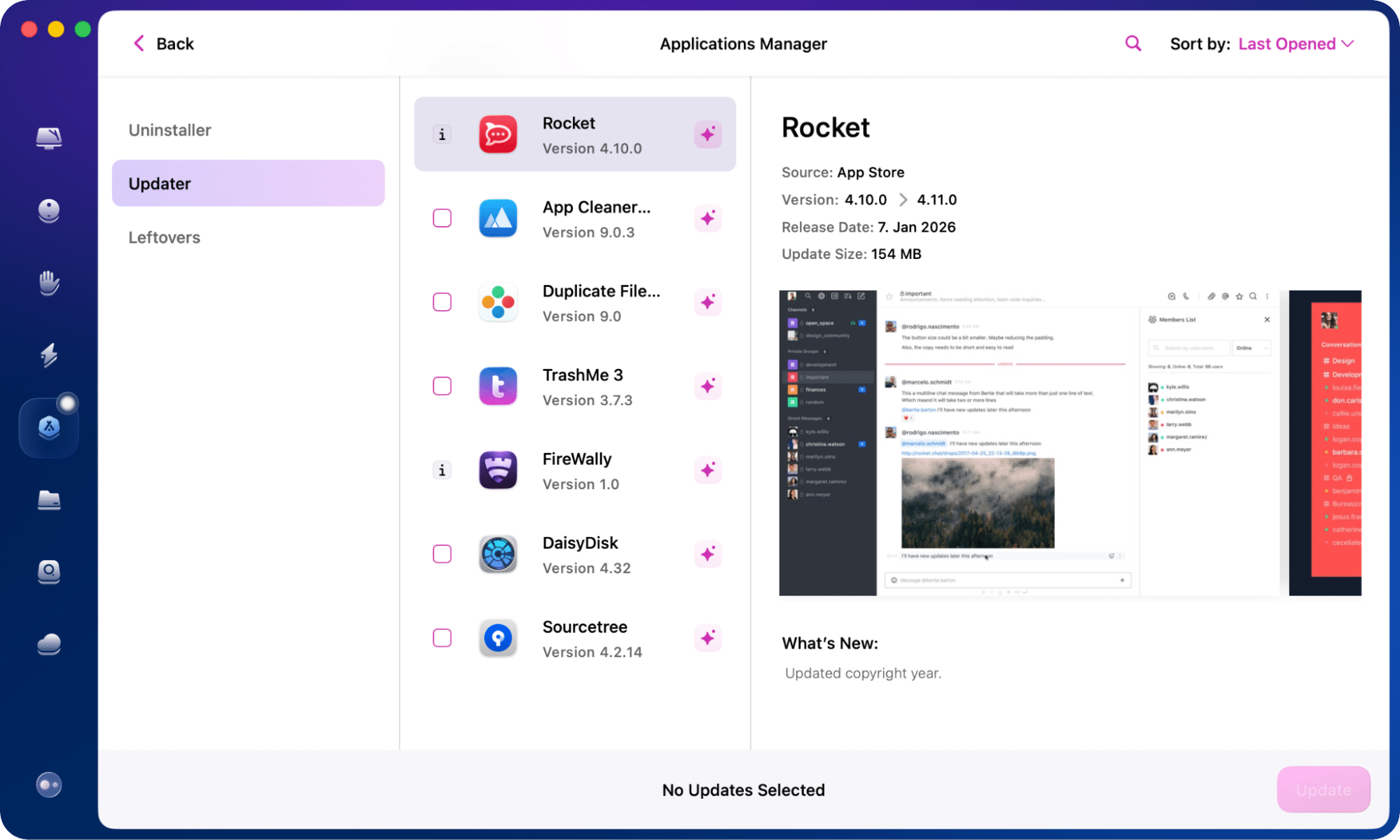
The updater is part of a broader system optimizer. So, it’s not its strength. Beyond updates, it frees up RAM, deletes applications, and bundles it with junk cleaning, speed optimization, and malware removal. Holistic, complex, efficient.
Pros:
Good looking design
Rich in optimization, protection, and clearance utilities
Cons:
Pricey compared to others
Workflow can feel heavier - you often need to scan each section separately
The least number of apps found to update
MacUpdater (discontinued): Best for legacy update workflows
|
|
Subscription: Free |
|---|---|
| Compatible with: macOS 13.0 or newer | |
| Update frameworks: AppStore, Sparkle, Electron, Squirrel, Homebrew, GitHub apps | |
| Status: ❌ discontinued on 01-01-2026 |
MacUpdater used to be a prime ‘do one thing well’ app. Its single purpose was to find outdated apps and help you install updates without distractions or extra features.
Using it felt old-school in a good way. One window, one list, and a progress bar. The scans weren’t that fast, but the results were often deeper than expected, catching updates other tools missed.
As of January 1, 2026, that story ends. MacUpdater officially discontinued support and maintenance, leaving long-time users to look elsewhere. The final release, version 3.5.0, is still available and now free to use indefinitely.
Still, it runs without updates and relies on a limited database (the last update was on December 31, 2025). And based on the version history, the update database will remain active until December 31, 2026, after which the app will likely no longer find updates. Even now, it already gives false update results, e.g., agent updates that can’t be updated.

I’m going to miss that tool for its straightforward one-click or automatic updating, and hope for its comeback soon.
Pros:
Free final version
Simple, distraction-free interface
Historically strong update detection
Cons:
Discontinued and unsupported (will be active until 12/31/2026)
Outdated update database + false updates (last database update on 12/31/2025)
Slower scan times
Floodtide: Best for rollback-ready updates
|
|
Subscription: £10.99/one-time (3 Macs) |
|---|---|
| Compatible with: macOS 13 or newer | |
| Update frameworks: AppStore, Sparkle, Electron, Homebrew, GitHub apps |
Floodtide is the newest name on the list. Version 1.0 came out in September 2026. It’s pitched with one key difference: it has no central version database. Floodtide reads each app’s own update source, be it a Sparkle feed, a Homebrew cask, a GitHub release, or the App Store.

What I like is how honest it is about coverage. If there’s no reliable source for an app, Floodtide puts it under Uncovered instead of calling it up to date. Apps handled by Setapp, Microsoft AutoUpdate, or their own updaters are marked as managed elsewhere, and Floodtide opens the right updater for them.
Each download is checked by checksum, and the new version has to pass Gatekeeper and carry the same developer Team ID as the copy it replaces. Turn on backups, and Undo Last Update takes one click. Sparkle and GitHub apps can even roll back to any earlier version.
But here’s the catch. For password-free updates and App Store updates inside the app, you have to set up the Floodtide installer, a background helper with admin rights, and approve it in System Settings. Without it, macOS asks for your admin password once per batch, and App Store apps go to the App Store.
And it’s an updater only plus a Homebrew manager, with no uninstalling or cleanup. Cautious, transparent, still young.
Pros:
Scanning stays free after the trial
Checksum, signature, and Team ID checks with one-click rollback
Uncovered list instead of a false positives
Cons:
Very young, one-developer project
Password-free and App Store updates need an admin background helper
No extra features, only updates
Latest: Best for free app updates and casual users
|
|
Subscription: $0 |
|---|---|
| Compatible with: macOS 10.15 or newer | |
| Update frameworks: AppStore and Sparkle-based apps |
Latest is the lightweight option. It’s totally free, minimal, and focuses only on updates. Open the tool, select an app, and click update. No pop-ups, no extra clutter.
During my tests, the scan speed was lightning quick - the fastest of all five tools. But the number of apps found to be updated was in the middle. The control panel looks clean.

So, that simplicity is also its weakness. It won’t detect as many updates as the paid apps, and you won’t find any additional features like uninstalling or cleaning. But if you want something quick and simple without spending a dime, Latest delivers exactly that. Free, fast, simple.
Pros:
100% free
Fastest scan
One simple window - no confusion
Cons:
No extra features
May miss updates compared to paid tools
Interface is bare-bones
Updatest: Best for Terminal-friendly workflows
|
|
Subscription: Free • Updatest Network: $1.99/month or $12.99/year |
|---|---|
| Compatible with: macOS 15.0 or newer | |
| Update frameworks: AppStore, Sparkle, Electron, Squirrel, Homebrew, GitHub apps |
Updatest feels like a tool built for developers or people who don’t panic when they see Terminal. The first time I launched it, the app asked me to install two utilities via the command line.
It detects updates well, but for many apps, you still have to open the app itself or use Terminal to complete the update. App Store updates also require switching to the App Store instead of happening inside the app.

If you’re comfortable tweaking filters, updating logic, and system paths, Updatest gives you a lot of flexibility. It’s actively maintained, and currently in beta, which already hints at its target audience.
Since October 2026, the Updatest app is free. Wider coverage comes from Updatest Network, a paid add-on at $1.99/month or $12.99/year that gathers update data from users’ Macs. Updatest can also adopt your apps into Homebrew for fuller coverage and update your Brew packages.
Pros:
Free app
Advanced filters and customization
Supports multiple update frameworks
Frequent developer updates
Cons:
Network coverage is a paid feature
Terminal setup may freak out new users
Lot of updates need manual steps
Complex settings may be overwhelming
Bonus: How to update apps on Mac without additional software
You don’t always need third-party tools to keep apps fresh. macOS itself gives you ways to handle updates. Some apps are tied to System Settings, some live in the App Store, and others have their own Check for Updates button built in. It’s a bit scattered, but it works if you prefer the native way.
How to check updates in System Settings
Before macOS Mojave (10.14) in 2018, software updates for the operating system were handled through the Mac App Store. In September 2018, with the release of macOS Mojave, Apple moved software updates back to System Preferences
In System Settings, you’ll only see updates for macOS itself and the built-in apps that ship with it. This includes Safari, Mail, Notes, FaceTime, Calendar, Contacts, and system frameworks that other apps rely on. Security patches also come through here. Here’s how to update this way:
- Open System Settings.
- Select General in the left sidebar → Software Update.
- Click the button that shows up - it could be Check for Update, Update Now, Update Tonight, or Restart Now, depending on what’s ready.

How to check updates in the software menu
Some apps you install from the web have a built-in updater. You’ll usually find it in the menu bar.
- Open the app you want to update.
- In the menu bar, click App Name next to the Apple logo.
- Select Check for Updates.
- Follow the prompts to install the new version.

How to check updates using App Store
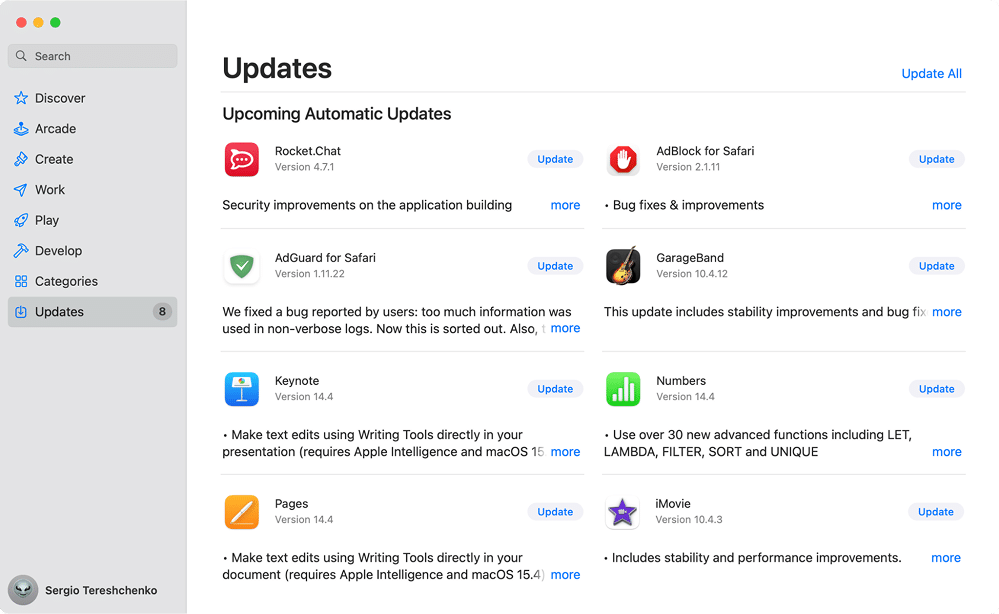
All apps you downloaded from the Mac App Store stay connected to it. Updates appear automatically, or you can install them on demand.
- Launch the App Store.
- Sign in with your Apple ID, if you haven’t already.
- Select Updates from the sidebar.
- Click the Update button in the respective app to update individual apps one by one, or click Update All to cover them all in one shot.
Final update
So, you saw the spectrum - from free little helpers to heavy hitters that keep your entire system fresh. They all take the pain of updating apps manually away and deal with apps from the App Store and developer sites. But different tools, different vibes, you know.
Each tool plays its part in its own way.
| Tool | Best for users who |
|---|---|
| App Cleaner & Uninstaller | Want one tool to manage, clean, and update apps. |
| CleanMyMac | Want a full Mac optimization suite with updates included. |
| MacUpdater | Are okay using a discontinued tool, which gave best update results in its prime. |
| Floodtide | Appreciate a transparent updater with rollback and Homebrew control. |
| Latest | Want a free, lightweight, no-frills app updater. |
| Updatest | Want a free, powerful scanner and don’t mind Terminal and manual steps. |
Frequently asked questions
How often should I update my apps?
Aim for at least once a month. Some apps update more often, especially security-focused ones. Skipping updates can slow your Mac, create glitches, or leave you exposed to security risks. A tool that automates updates makes this painless.
What to consider when choosing a tool to update Mac apps?
- Purpose: Do you want to update apps, or also clean, uninstall, and manage them?
- Support: Is the tool actively maintained and supported by its developer?
- Coverage: Does it handle App Store apps, web apps, or both?
- Compatibility: Is it compatible with your macOS version and Apple Silicon Macs?
- Cost: Is the tool free or paid, and does it include a trial and the features you need?
- Usability: Is the interface intuitive and easy to use for your workflow?
- Bulk Updates: Can it update multiple apps at once, or only one at a time?
- Speed: Does it perform updates efficiently without slowing down your Mac?
Can I update my Mac for free?
Yes, you can update your Mac and its apps for free in several ways:
- Via the App Store:
Open the App Store → go to the Updates tab → click Update or Update All for apps downloaded from there.
- Using Mac System Settings:
Go to Mac System Settings → General → Software Update → click Update Now, Update Tonight, Restart Now, or Check for Update.
- Inside the app itself:
Open your application → click the menu with the app's name in the menu bar → choose Check for Updates from the dropdown list.
- With a free updater:
Latest and Updatest are free to use, and MacUpdater's final version stays free until its update database shuts down at the end of 2026.