



January 23, 2026
How to uninstall Logi Options+ from Mac


Share


The recent Logitech certificate outage made a lot of people reinstall Logi Options+ just to get their mouse working again. Others took it as a sign to move to another mouse solution instead. Either way, you need to reinstall or uninstall Logi Options+ permanently.
Here you’ll find two reliable ways to completely uninstall Logi Options+ from your Mac – not just the main app, but all its background files, agents, and leftovers. As a bonus, you’ll find workarounds for certificate issues.
Contents:
Before we start

What is Logi Options+ and should I uninstall it from my Mac?
When it works, it’s great. When it breaks, it can turn your Mac into a paperweight with a cursor. Which is usually when you end up doing something about it – reinstalling the driver or removing it altogether. You also might be here because:
- Logitech’s developer certificate expired, causing the app and background services to stop working or fail to launch.
- The fixed version won’t download – it just spins forever, leaving users stuck with a broken setup.
- You switched to Better Mouse, SteerMouse, or another driver that does the same job with less drama.
- You replaced your Logitech gear (e.g., with Razer Viper) and no longer need Logitech’s software at all.
- Logi Options+ keeps running background agents, eating CPU or interfering with macOS input, even when you’re not using it.
- Logitech devices feel poorly integrated on macOS, which can be frustrating for users who expect premium performance for the price they pay.
Before you uninstall: here are quick fixes for the Logitech outage
If you’re not ready to delete Logi Options+ just yet, these workarounds, tested among Redditors, have helped many users survive the certificate disaster:
- Downgrade to an older version
Older builds still use a valid certificate and can bring your mouse back to life. - Use the firewall + date trick
- Downgrade your Mac’s date at least to January 5, 2026
- Block these with a firewall (FireWally works and it’s free):
- Logitech G Hub
- G Hub Updater
- Logitech G Hub Agent
- Restore the correct date & time
- Use Better Mouse or SteerMouse temporarily
While waiting for a reliable version, it can replace most of Logi Options+ features and keep your mouse usable while Logitech sorts itself out.
Note:
Uninstalling Logi Options+ may result in loss of settings and return of devices to standard functionality. But if you don’t use any settings or feel you don’t need the program, then uninstalling Logi Options+ will not affect the basic operation of your Logitech devices. What’s more, getting rid of unnecessary programs and freeing up disk space helps optimize your Mac and keep it fast for years of use.
How to manually uninstall Logi Options+ on a Mac
If you prefer doing things the hands-on way, manual removal is absolutely possible – just don’t fall into the classic macOS trap of dragging the app to Trash and calling it a day. Logi Options+ installs background agents, launch items, caches, logs, and helper components that stick around long after the main app is gone.
Leftovers like these don’t just waste disk space. Over time, they can slow down your Mac, cause conflicts with other mouse drivers, or even keep broken Logitech services running in the background. So if you go manual, go all the way.
Below is a step-by-step guide to fully uninstall Logi Options+ along with its hidden files.
Step 1. Quit Logi Options+ completely
Before deleting anything, make sure nothing related to Logitech is running.
- Quit Logi Options+ from the menu bar or Dock (if it’s active).
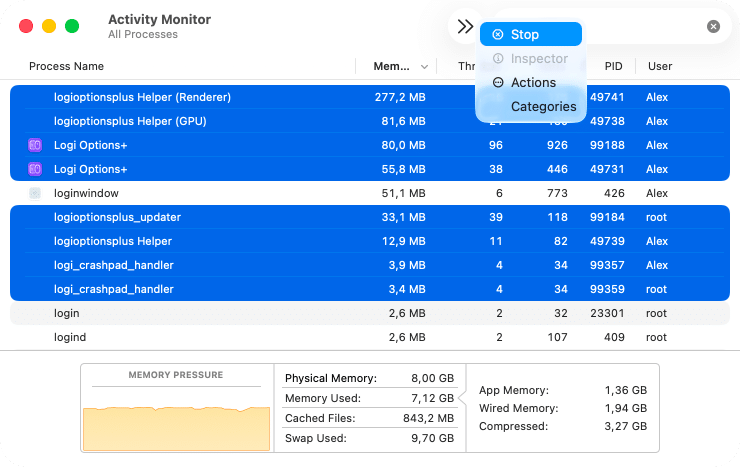
- Open Activity Monitor.
- In the search bar, type .
LogiCopy
- Select any related processes → click the Stop ✕ button.
Step 2. Delete the main application
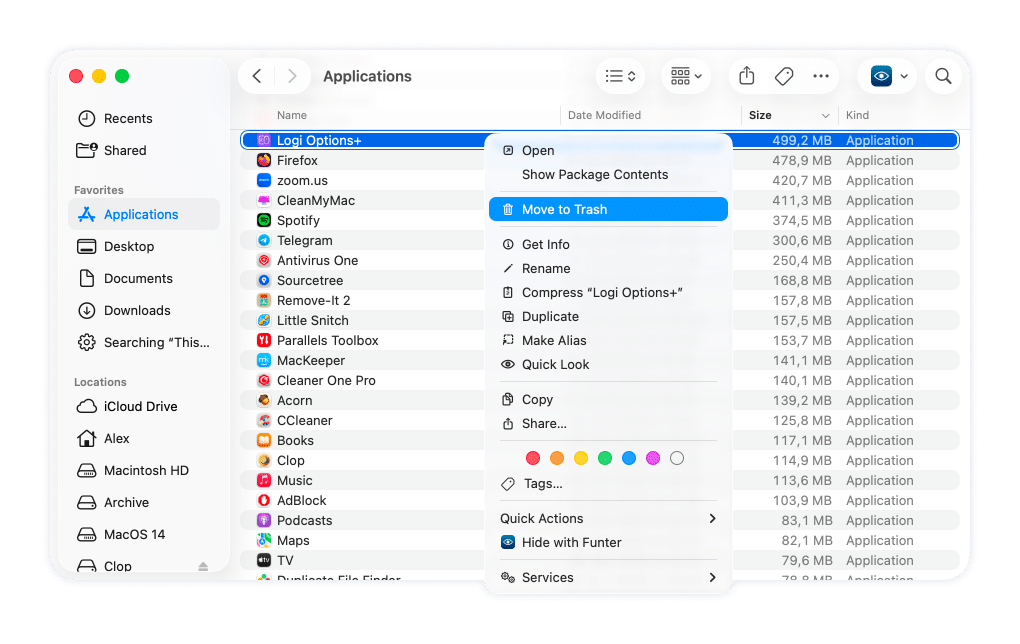
- Open Finder → Applications.
- Locate Logi Options+.app.
- Right-click → Move to Trash.
So far, this is the easy part, but you’re only halfway done.
Step 3. Remove Logi Options+ support files from Library
Most Logitech components are inside Library folders, both user-level and system-wide.
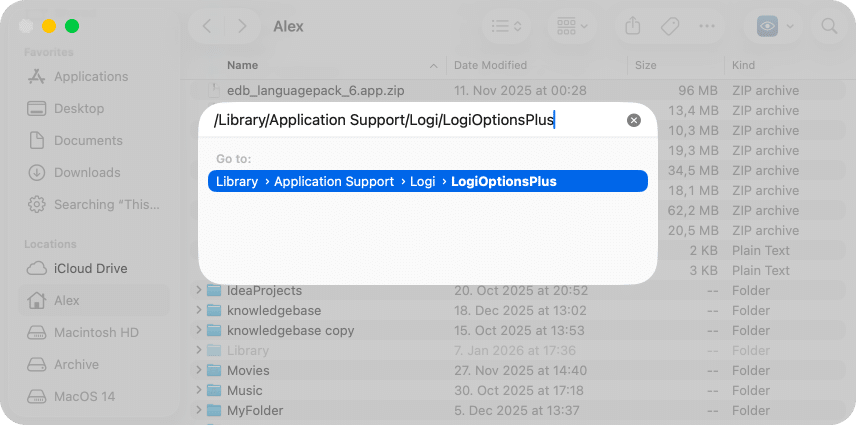
- In Finder’s top menu, click Go → Go to Folder.
- Type → press Return.
~/LibraryCopy
- In the search bar, hunt down for and remove instances containing ,
logiCopy
,logitechCopy
, orcom.logiCopy
. In my case, I found the following directories:com.logitechCopy
Application Support:
/Library/Application Support/Logi/LogiOptionsPlusCopy
/Library/Application Support/Logitech.localizedCopy
/Library/Application Support/Logi/LogiPluginServiceCopy
~/Library/Application Support/LogiOptionsPlusCopy
~/Library/Application Support/com.logitech.logiaipromptbuilderCopy
Caches:
/private/tmp/logitech_kiros_updaterCopy
~/Library/Caches/com.logi.optionsplus.installerCopy
~/Library/ApplicationCopy
Support/com.apple.sharedfilelist/com.apple.LSSharedFileList.ApplicationRecentDocuments/com.logi.optionsplus.driverhost.sfl4Copy
~/Library/ApplicationCopy
Support/com.apple.sharedfilelist/com.apple.LSSharedFileList.ApplicationRecentDocuments/com.logi.optionsplus.sfl4Copy
/private/var/db/receipts/com.logitech.LogiRightSightForWebcams.pkg.bomCopy
/private/var/db/receipts/com.logitech.LogiRightSightForWebcams.pkg.plistCopy
/private/var/folders/**/***/*/Copy
* means temporary folders, which are different for each user. To locate Logi Options+ files there:
- Go to Finder → Shift + Cmd + G → enter /private/var/folders.
- Enter com.logi, com.logitech, logirightsight, logioptionsplus, ai_prompt_builder_tmp in the search box.
- Make sure you search in /private/var/folders/.
- Move to Trash all the files related to Logitech.
Preferences:
~/Library/Preferences/com.logi.cp-dev-mgr.plistCopy
~/Library/Preferences/com.logi.optionsplus.driverhost.plistCopy
~/Library/Preferences/com.logi.optionsplus.plistCopy
~/Library/Preferences/com.logitech.logiaipromptbuilder.plistCopy
Shared:
/Users/Shared/logiCopy
Logs:
/private/tmp/logi.optionsplus.updater.logCopy
Login Items:
/Library/LaunchDaemons/com.logi.optionsplus.updater.plistCopy
/Library/LaunchAgents/com.logi.optionsplus.plistCopy
/Library/LaunchAgents/com.logitech.LogiRightSight.Agent.plistCopy
Crash Reports:
~/Library/Caches/SentryCrash/Logi AI Prompt BuilderCopy

Alternative:
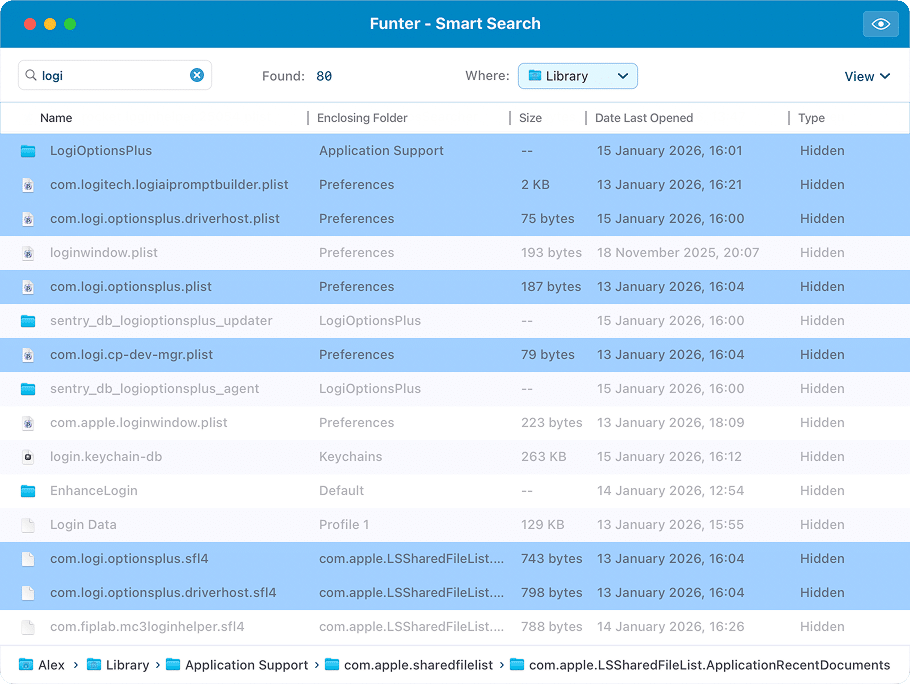
To locate those files faster, use a free tool, Funter, by Nektony. Type the respective Bundle ID to get findings for instant deletion. Better yet, it’ll offer to remove these instances then.
Step 4. Empty the Trash and restart your Mac
- Empty the Trash.
- Restart your Mac to unload any remaining services.
This clears cached launch items and finalizes the removal.
How to delete Logi Options+ with a few clicks
If manual cleanup feels like overkill (or you just want certainty), App Cleaner & Uninstaller does the same job automatically without hunting through the Library. It detects every file linked to Logi Options+, including hidden agents, caches, and leftovers from failed installs.
Here’s how it works:
- Have App Cleaner & Uninstaller installed and opened.
- Find Logi Options+ in the app list.
- Click Uninstall.
- Confirm removal.
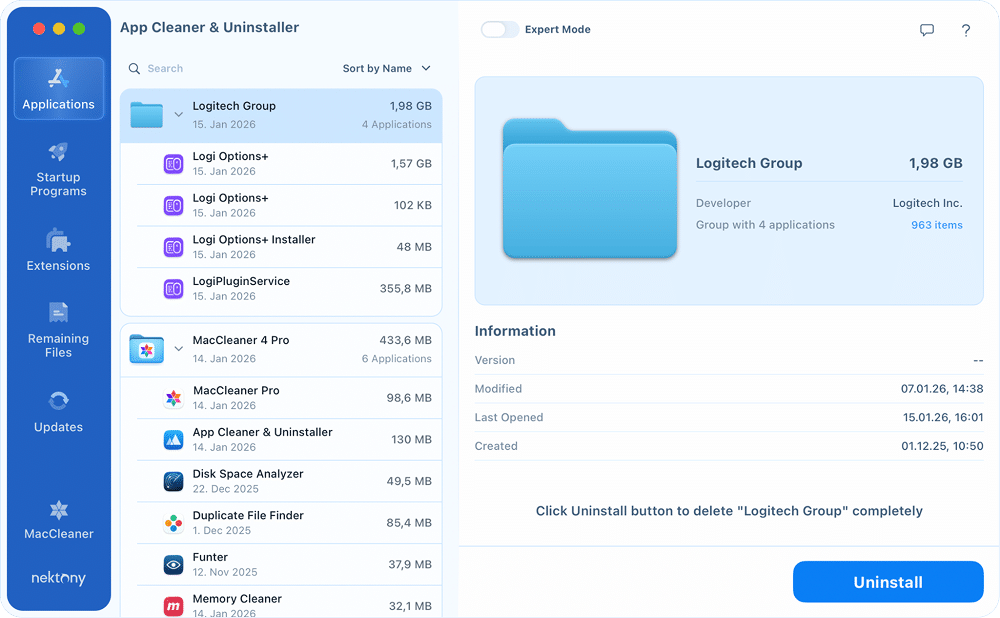
That’s it. No guessing, no missed files.
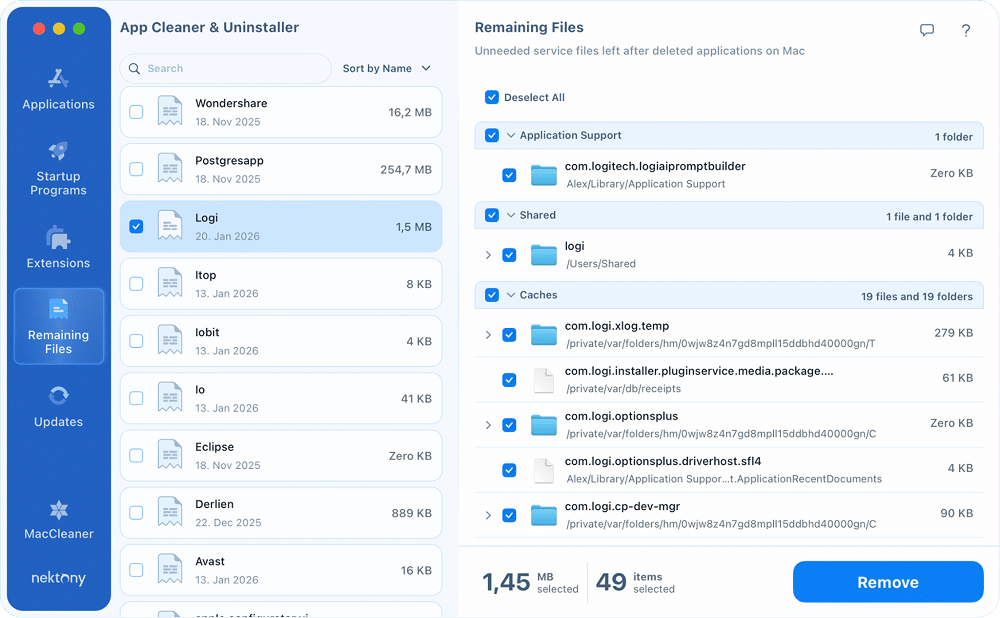
Note:
If you already dragged Logi Options+ to Trash before, open the Remaining Files section in App Cleaner & Uninstaller. It will show all hidden leftovers so you can remove them easily.
How to uninstall Logitech G Hub
Logi Options+ isn’t the only Logitech app that installs background services. Logitech G Hub does the same and can be removed quickly using App Cleaner & Uninstaller.
Just select Logitech G Hub in the app list and uninstall it the same way as Logi Options+.
Final click
Uninstalling Logi Options+ is a matter of how much time and patience you want to invest.
- Manual removal takes about 10-15 minutes. It’s free, gives you full control, and suits users who are okay with digging through Library folders and double-checking system files. The risk? It’s easy to miss a cache, agent, or launch item.
- Automatic removal with App Cleaner & Uninstaller takes under a minute. It’s built for users who value time, accuracy, and certainty. One click removes the app and every related file – no searching, no leftovers, no second guessing.
The right choice depends on whether you prefer doing things yourself or letting a dedicated tool do a fast, foolproof cleanup.