


April 10, 2026
Best disk space analyzers for Mac in 2026


Share


If your Mac is low on storage, the real problem usually is not just “too many files.” It is that macOS makes it surprisingly hard to see which folders, caches, backups, and hidden items are actually eating the space. In this guide, I compare the best disk space analyzers for Mac so you can choose the right app faster instead of poking around Finder one folder at a time.
I tested these apps with the same comparison criteria on macOS Tahoe 26.1, focusing on scan depth, interface clarity, safety, speed, and how easy each tool makes it to remove bulky data. Some apps are clearly better for beginners, some are better for visual exploration, and some are really cleanup utilities wearing a disk-analyzer label.
Why you need a disk space analyzer on Mac
Finder and System Settings can show broad storage categories, but they are not great at exposing deeply nested folders, old project files, cloud placeholders, developer junk, or unusually large packages. That is where a dedicated analyzer helps: it shows the structure of your storage visually and lets you drill down faster.
Apple’s own storage management guidance is useful for basic cleanup, but it does not replace an app that can map a whole drive and show the biggest space hogs at a glance. That difference matters most when your issue is not obvious, such as bloated ~/Library data, forgotten archives, or oversized media folders.
Where to start based on your goal
Use this table if you do not want to read the whole article from top to bottom.
| If your goal is… | Go straight to… |
|---|---|
| The best overall balance of scan depth, safety, and usability | Disk Space Analyzer |
| The most polished visual experience | DaisyDisk |
| Advanced cleanup tools and reporting | WhatSize |
| A free option that stays simple | OmniDiskSweeper |
| A treemap-first workflow for advanced users | GrandPerspective |
| A cleaner that also handles disk junk | Disk Diag |
How I tested these disk space analyzers
I used the same test logic across all apps: source availability, price model, trial limitations, scan scope, UI clarity, extra cleanup features, scan speed, memory use, safety behavior, update cadence, and overall trustworthiness on modern macOS. Although this logic is already sophisticated enough, if you want to make your own end-to-end evaluation of any tool, check out our 360-degree methodology covering 54 criteria to make your own conclusion about any disk space analyzer on the market.
The comparison also looked at whether each app can analyze system, user, hidden, and external storage; whether it handles package sizes correctly; and whether it helps with real cleanup tasks instead of just showing a pretty chart. For safety, I paid close attention to how each app behaves around protected folders, hidden files, and admin prompts.
Although this logic is already sophisticated enough, if you want to make your own end-to-end evaluation of any tool, check out our 360-degree methodology covering 54 criteria to make your own conclusion about any disk space analyzer on the market.
Comparison table of the best disk space analyzers
This is the decision table I would use first if I needed to choose one app quickly.
 Disk Space Analyzer
 |
 WhatSize
 |
 DaisyDisk
 |
 OmniDiskSweeper
 |
 GrandPerspective
 |
 Disk Diag |
 Disk Analyzer Pro
 |
 Disk Inventory X
 |
|
|---|---|---|---|---|---|---|---|---|
| Trial | 2-day trial | 30-day trial | No(feature-limited free version) | No | No | No | No | No |
| Price | 9.95$/year or 19.95$/one-time |
16.99$/one-time | One-time purchase, 9.99$ | Free | Free from the developer site or 2.99$ on the App Store | Free app with paid in-app upgrades | 5.99$/one-time | Free |
| macOS compatibility | macOS 10.13+ | macOS 13.0+ | macOS 10.13+ | macOS 10.14+ | macOS 11.0+ | macOS 12.0+ | macOS 10.13+ | macOS 10.13+ |
| Primary visualization | Sunburst + tab list | List-heavy browser, outline, and pie chart views | Sunburst + side panel | Finder-style list | Treemap | Category cleanup panels | Grouped summaries | Treemap + list |
| External drive support | Yes Yes | Yes Yes | Yes Yes | Yes Yes | Yes Yes | Limited full-analysis focus | Yes Yes | Yes Yes |
| Hidden/system detail | Strong | Strong | Strong, with trial limitations | Basic but useful | Strong | More cleanup-oriented than full analysis | Good | Strong, but dated |
| Biggest file grouping | Yes | Yes | Yes | Yes | Yes | Yes | Yes | Yes |
| CSV export | Yes | No | No | No | No | No | No | No |
| Extra tools | Yes Deletes/ moves/copies files Yes Hidden items |
Yes Cleaner Yes Export Yes Advanced filters |
Yes Cleanup flow Yes Hidden items Yes Cloud scan limits in trial |
Yes Trash and reveal in Finder | Yes Visualization tuning | Yes Cache /log/download cleanup | Yes Duplicate and obsolete file grouping | Yes Very few modern extras |
| Safety posture | Strong warnings and protected-folder behavior | Mixed; less explicit system-protection messaging | Strong | Basic but straightforward | Acceptable, but requires care | Acceptable for a cleaner | More uneven warning behavior | Weakest trust profile here |
| Localizations | 8 languages | English only | 14 languages | English only | 11 languages | English only | English only | English only |
Detailed review of the best disk space analyzers
1. Disk Space Analyzer by Nektony - Best for a fast and intuitive learning curve
|
|
Compatibility: macOS 10.13 or newer |
|---|---|
| Localization: 8 languages | |
| Rating: 4.8/5 (Trustpilot) |
Disk Space Analyzer was the most complete package in this comparison. On my test Mac, it balanced fast scanning, clear navigation, useful visuals, and safer deletion behavior better than the rest of the field.
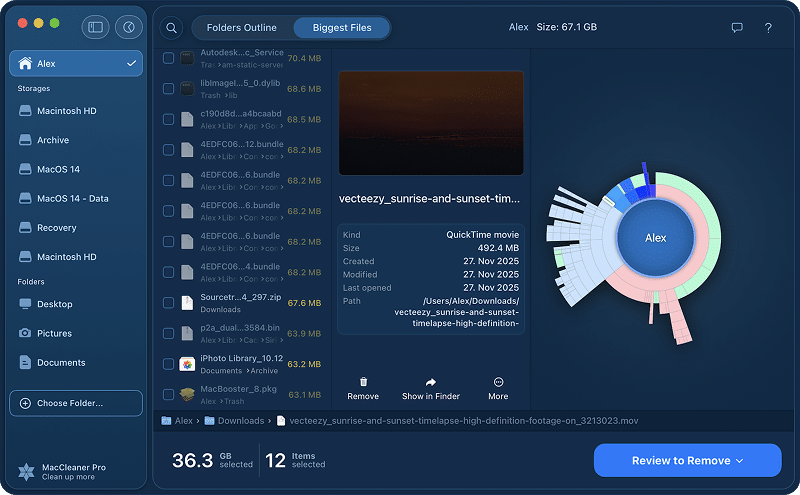
What stood out to me was the combination of a sunburst view with a practical tab list. That gave it a faster learning curve than tools that rely almost entirely on charts, while still making it easy to spot bulky folders and jump to the files that matter.
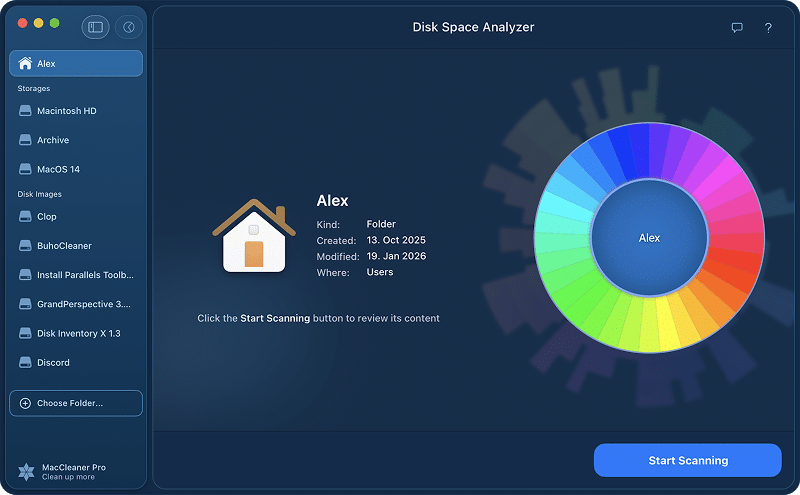
The app also supports external drives, cloud storage mounted in Finder, quick entry points for common folders, and grouped views such as the biggest files. That makes it feel like a real workspace for disk cleanup, not just a visual report.
Pros:
Best overall balance of usability and scan depth
Fast system-disk scan in the test
Helpful visual plus list-based navigation
Safer handling around protected areas
Cons:
The free trial is short
The advanced cleanup value depends on whether you need ongoing use
Some users may still prefer a fully free tool
Trial expiration gates some cleanup actions
2. WhatSize - Best for granular file-level analysis
|
|
Compatibility: macOS 13.0 or newer |
|---|---|
| Localization: English only | |
| Rating: N/A |
WhatSize is more powerful than it first appears, but it is not the easiest app in this group to learn. It offers multiple views, advanced filtering, duplicate finding, cleanup tools, and export options, which makes it attractive if you want more than a simple “what is large?” answer.
The downside is the UX. In testing, the interface felt closer to a technical utility than a beginner-friendly Mac app. I would not recommend it to someone who just wants a clean visual overview and a quick delete flow.

That said, WhatSize earns its place because it does more than most competitors. If you care about CSV exports, duplicate cleanup, granular filters, and the option to work more like a system utility than a dashboard app, it is one of the strongest tools here.

Pros:
Rich toolset for power users
Strong scan depth
Duplicate and cleanup features
Good export options
Cons:
Harder to learn than the leaders
High RAM usage
Less intuitive interface
3. DaisyDisk - Best for the smoothest visual workflow
|
|
Compatibility: macOS 10.13 or newer |
|---|---|
| Localizations: 14 languages | |
| Rating: 4.3/5 (Trustpilot) |
DaisyDisk is the most polished app in this roundup. If you care about visual clarity and want an analyzer that feels immediately pleasant to use, this is the strongest alternative to Disk Space Analyzer.
Its circular map is fast to read once you understand the drill-down pattern, and the whole app feels more refined than older list-first tools. The tradeoff is that the trial limits several actions, so you do not get the full cleanup experience without paying.
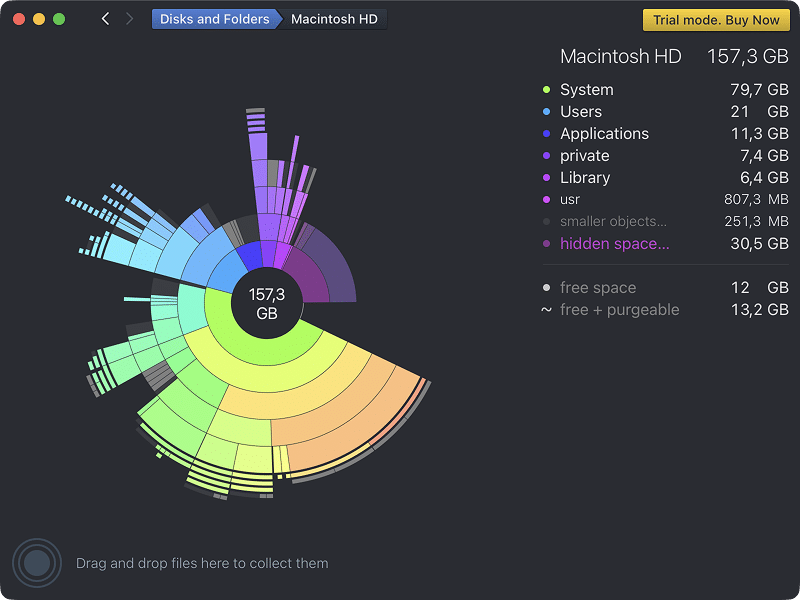
I would rank DaisyDisk just behind Disk Space Analyzer because the UX is excellent, but the app gives you less flexibility around sorting, grouping, and preview-style context. It is a great fit if your brain works better with a clean radial map than with heavier list controls.

Pros:
Excellent visual design
Very approachable for most users
Strong scan support for system, external, and mounted storage
Actively maintained
Cons:
Trial limits key actions
Less flexible than WhatSize for advanced filtering
No previews or grouping depth like Disk Space Analyzer
You drag and drop files to the deletion zone instead of selecting them
4. OmniDiskSweeper - Best for a simple and free no-frills experience
|
|
Compatibility: macOS 10.14 or newer according to the test set |
|---|---|
| Localization: English only | |
| Rating: 4.0/5 (MacUpdate) |
OmniDiskSweeper is the best fully free choice here if you want something simple and direct. It does not try to impress you with charts. Instead, it shows files and folders from largest to smallest and lets you work through them quickly.
That sounds basic, but basic can be good. In a Reddit discussion about free Mac storage visualizers, users still point toward simple approaches for exactly this reason: sometimes you do not need a glossy map, you just need the biggest items in order.

I would still put OmniDiskSweeper behind the leaders because it has almost no extra tools, very few settings, and a much narrower workflow. But for free software, it remains surprisingly useful.
Pros:
Free
Very easy to understand
Good for quick size-based cleanup
Low-friction workflow
Cons:
No rich visual map
Almost no extra tools
Fewer safeguards and conveniences than premium options
5. GrandPerspective - Best for a treemap-first data visualization
|
|
Compatibility: macOS 11.0 or newer |
|---|---|
| Localization: 11 languages | |
| Rating: 4.5/5 (App Store) |
GrandPerspective is powerful, but it is not friendly. If you already know that you prefer treemap visualization over radial charts or list navigation, it can work well. If not, the app may feel confusing from the first few minutes.
The review notes lined up with the common complaint I see around treemap-heavy tools: they can be effective for raw size comparison, but directory context and deletion flow are not always as intuitive. A Reddit discussion about building and using native disk analyzers reflects the same tradeoff, with users contrasting treemap efficiency against the stronger path context that radial views can provide.
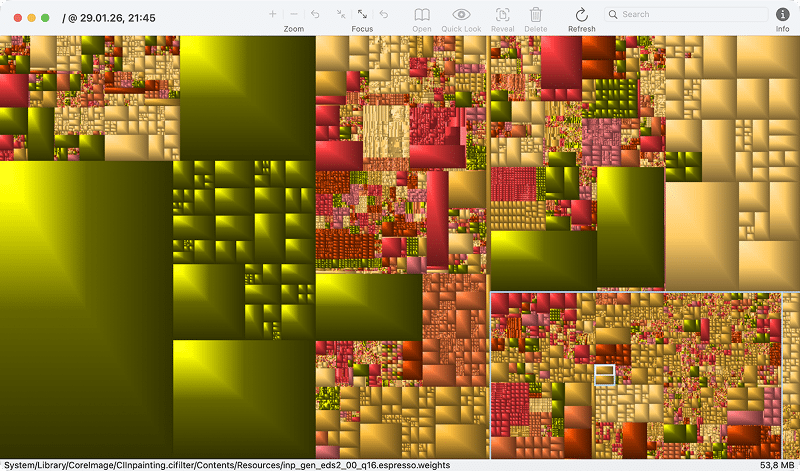
This app is best treated as a niche favorite, not a universal recommendation. It can absolutely help advanced users, but it is not where I would start a beginner.
Pros:
Free or very cheap
Strong if you specifically want treemap visualization
Useful scan depth
Cons:
Steep learning curve
Less intuitive deletion flow
Can feel unstable and repetitive around permissions
6. Disk Diag - Best for a cleaner-first storage utility
|
|
Compatibility: macOS 12.0 or newer |
|---|---|
| Localization: English only | |
| Rating: 4.3/5 (App Store) |
Disk Diag is here because many people searching for a disk analyzer are really looking for a fast way to reclaim storage, not for the most precise map of their file system. That is where Disk Diag fits better than its name suggests.
Instead of acting like a full visual analyzer first, it behaves more like a cleanup utility for caches, logs, downloads, browser data, and developer leftovers. That makes it practical for some users, but it also means it is not the best direct alternative to tools like Disk Space Analyzer or DaisyDisk.
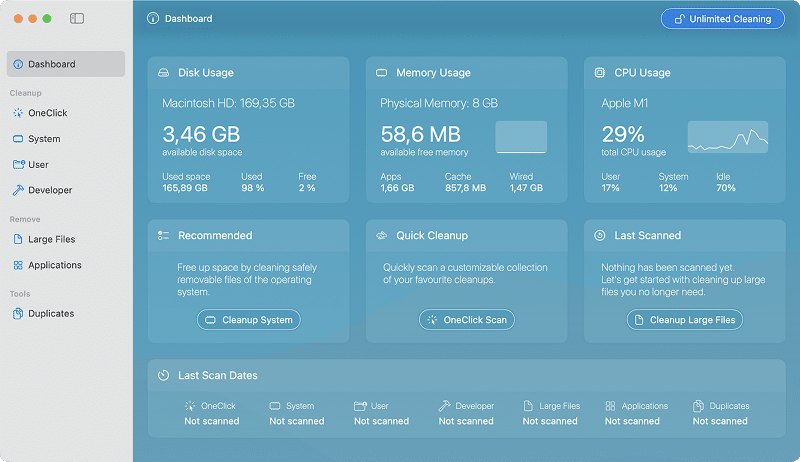
If your goal is “free space quickly,” Disk Diag can be more relevant than its ranking might suggest. If your goal is “understand the whole drive visually and safely,” it is not the strongest choice.
Pros:
Good cleanup-oriented workflow
Useful for caches, logs, and developer junk
Simple enough for many users
Cons:
Not a true full disk analyzer
Free version is heavily limited
Less useful if you need full-drive visualization
7. Disk Analyzer Pro - Best for grouping files by type and size summaries
|
|
Compatibility: macOS 10.13 or newer |
|---|---|
| Localization: English only | |
| Rating: 3.6/5 (App Store) |
Disk Analyzer Pro sits in the middle of the pack. It offers many grouped views, can identify large and old files, and supports file operations directly inside the app. That gives it more practical cleanup value than some legacy free tools.
What held it back for me was the overall polish. The interface is workable, but not as elegant or as efficient as the top options, and the safety behavior felt less reassuring than I would want from an app that encourages direct cleanup actions.

If you want a low-cost utility with many report views, it may still be worth a look. I just would not choose it over Disk Space Analyzer, DaisyDisk, or WhatSize unless one of its grouped cleanup panels especially fits how you work.
Pros:
Low one-time price
Several useful grouped views
Built-in file operations
Cons:
Slower and less polished than the leaders
Warning behavior is not as strong as it should be
Overall UX is only average
No trial
8. Disk Inventory X - Best for straightforward drive mapping without extras
|
|
Compatibility: macOS 10.13 or newer according to the test set |
|---|---|
| Localizations: English only | |
| Rating: N/A |
Disk Inventory X still does the core job, but it feels dated in almost every way. My biggest concerns are high memory use, lack of active development, an unsigned and non-notarized trust profile, and visible UI issues.
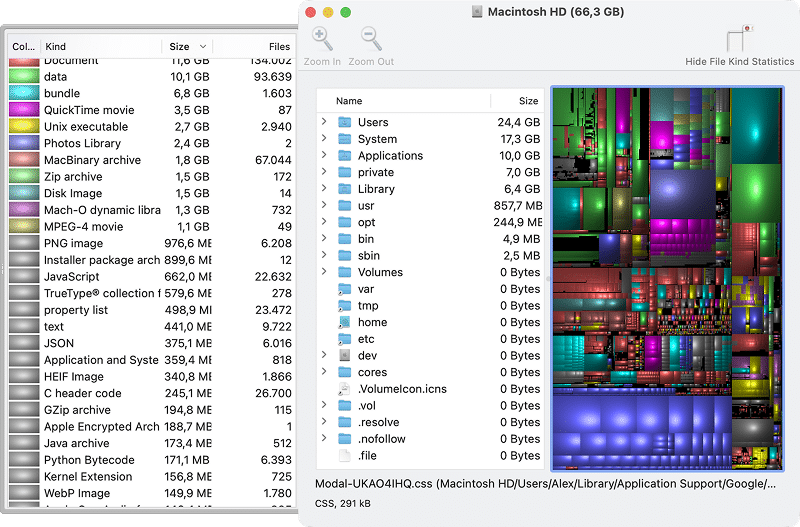
Because of that, I do not think it belongs on a default recommendation list for typical users anymore. It is more of a historical Mac utility that some experienced users may still tolerate, not a tool I would actively point a beginner toward in 2026.
Pros:
Free
Still provides a usable scan and treemap
Can work for experienced users
Cons:
Not actively maintained
Not notarized by Apple
Weakest trust profile in this roundup
Very high memory usage in testing
Outdated UX and visible bugs
Which disk analyzer is best for your workflow?
If you want one recommendation for most people, choose Disk Space Analyzer by Nektony. It gave me the best balance of scan depth, speed, visual clarity, and safer cleanup behavior.
Choose DaisyDisk if a polished visual experience matters more to you than advanced filters. Choose WhatSize if you are comfortable with a more technical interface and want a broader toolset. Choose OmniDiskSweeper if your main requirement is “free and simple.”
Use Disk Diag when your real goal is blind cleanup, not file-system analysis. Treat GrandPerspective as a niche choice for treemap fans, and Disk Inventory X as legacy software unless you know exactly why you want it.
The bottom line
The best disk space analyzer for Mac is not automatically the one with the prettiest chart or the longest feature list. The best one is the tool that helps you understand your storage quickly, delete safely, and avoid getting lost in system folders you should not touch.
For most users, that means Disk Space Analyzer or DaisyDisk. For more advanced workflows, WhatSize can justify its steeper learning curve. If you just want a free utility that lists large files clearly, OmniDiskSweeper is still the simplest answer.
Frequently asked questions
How to check disk usage manually in Finder and System Settings?
Start with System Settings → General → Storage to see the main storage categories and whether apps, documents, or system data are taking the most space. That view is useful for a quick high-level check, but it will not show the full folder structure in enough detail for serious cleanup.
For a manual Finder check, open your Home folder or a large folder such as Downloads, switch to list view, then use View → Show View Options and enable size-related columns so you can sort by the largest items. You can also right-click a folder and choose Get Info, but this gets slow and repetitive once you need to inspect many nested folders.
What is the best app to see what is taking up space on Mac?
For most people, Disk Space Analyzer and DaisyDisk are the easiest answers because they combine full-drive scanning with visual navigation. If you prefer a simple free list instead of a visual map, OmniDiskSweeper is still a good option.
Does Apple have a built-in disk space analyzer?
macOS has storage views in System Settings and broad category reporting, but it does not offer the same drill-down mapping that dedicated analyzer apps provide. That is why third-party tools are still useful when you need to find large files, hidden clutter, or deeply nested folders faster.
Are disk space analyzers safe to use on Mac?
Usually yes, but safety depends on the app and on how you use it. I trust tools more when they clearly block or warn around protected folders, explain destructive actions, and behave correctly with admin permissions. That is one reason I ranked Disk Space Analyzer and DaisyDisk above weaker options in this area.
What is the difference between free and paid disk analyzers?
The biggest differences are usually UX, cleanup convenience, and safety polish. Free tools can absolutely work, but paid apps often offer better visuals, more helpful grouping, stronger deletion workflows, and better long-term maintenance.
Do disk space analyzers work on external drives?
Many of them do, including the strongest tools in this roundup. That is useful if your large files live on external SSDs, backup drives, or removable media rather than only on your internal Mac storage.
Can disk space analyzers help with System Data?
They can help you locate the folders that contribute to what macOS groups under System Data, but they do not magically clean that category with one button. The main value is visibility: finding caches, archives, old backups, and application leftovers that are otherwise hard to spot.