


May 12, 2026
How to clear disk space on Mac: the ultimate guide


Share


A full Mac is more than an inconvenience. Once the drive drops below a healthy threshold, macOS loses room for swap files, apps start freezing, and the “System Data” category can grow into a runaway 100+ GB mystery. This guide walks you through exactly what eats space on modern Macs and five tested ways to reclaim it without breaking anything.
Every single one of them was checked on my macOS Tahoe 26.3 (MacBook Pro, Apple M1, 8 GB RAM) in April 2026. I first decided to manually find large and no longer needed files, and it took me half an hour to find several GB of data. Not only did the automated approach turn out to be blazingly quicker, but it also helped me find significantly more files I had not noticed.
Read on to find out the details of my disk space cleanup journey.
Automate the file-hunting chore with Disk Space Analyzer
Drilling into every category by hand works, but it’s slow – and the macOS storage interface won’t show you what’s living inside hidden folders, mounted external drives, or buried cache directories. Disk Space Analyzer by Nektony scans the entire drive and builds a visual map of every folder by size, so you can spot 20 GB of forgotten iOS simulators or a runaway cache in seconds.

How to check disk space on a Mac
Before you start cleaning, see where the space is actually going. Modern Macs use SSDs, and unlike spinning HDDs, SSDs slow down significantly when they’re nearly full – that’s why keeping free space matters. As a rule of thumb, Apple’s own storage guidance recommends keeping at least 10–15% of your drive free for optimal performance.
On macOS Ventura and newer:
- Open System Settings.
- Click General in the left sidebar.
- Click Storage in the right panel.
- Wait a few seconds – the color-coded chart takes a moment to populate.

Quick alternative from Finder: right-click your startup drive in the Finder sidebar and choose Get Info to see capacity, used, and available space without opening System Settings.

Keep free space visible all the time: open any Finder window, then choose View → Show Status Bar from the menu bar. Finder will show available space at the bottom of every window.

What the storage categories actually mean
The chart splits your drive into categories. The ones you’ll see on macOS Ventura and newer:
- Applications – the .app bundles in . Does not include caches or support files – those fall into System Data.
/ApplicationsCopy
- Developer – Xcode-derived data, iOS/watchOS/tvOS simulators, device support files, and Xcode caches. Only appears if Xcode is installed. The folder alone can run into tens of GB.
~/Library/DeveloperCopy
- Documents – files in ,
~/DocumentsCopy
,~/DesktopCopy
, and other user documents macOS could classify. Splits into four tabs: Large Files, Downloads, Unsupported Apps, and File Browser.~/DownloadsCopy
- Photos – the local Photos.app library.
- Music – Music.app downloads and your personal library.
- TV – downloaded movies and shows from the Apple TV app. macOS can auto-remove watched titles when space runs low – configure it under Optimize Storage.
- Podcasts – downloaded podcast episodes.
- Mail – messages, cached attachments, and Mail app data.
- Messages – iMessage history and media (photos, videos, audio) sent or received through Messages. These can only be managed from inside Messages itself, not via Finder.
- iOS Files – iPhone and iPad backups created through Finder. A single backup can run from 5 to 50+ GB.
- iCloud Drive – iCloud Drive files stored locally on this Mac. Only appears if iCloud sync is on.
- System Data – everything that doesn’t fit elsewhere: app and browser caches, local Time Machine snapshots, logs, temp files, virtual memory swap files, and app support files. The most opaque category and often the largest. Usually 12–25 GB; anything above 50 GB is worth investigating. Before macOS Monterey this was called Other.
- Trash – files already deleted but not emptied from the bin.
- Other Users – data from other user accounts on this Mac.
- macOS – the operating system itself. macOS Tahoe is roughly 15–20 GB, Sequoia 14–16 GB, Sonoma 13–15 GB. If you use Apple Intelligence, add another ~13 GB on top.

Note:
Desktop AI apps are a modern culprit behind a bloated System Data category. Claude Desktop, Ollama, and LM Studio create hidden folders inside your home directory that don’t show up anywhere in Finder by default. One user reported a hidden folder on Apple community with 472 GB of debug data. Ollama stores models in
~/.ollama/models
Copy
~/.lmstudio/models
Copy
Capacity, Used, Available, Purgeable – what’s the difference?
These four numbers cause a lot of confusion when you see the storage chart:
- Capacity – the drive’s physical maximum, never changes.
- Used – what’s actually occupied by files right now.
- Available – what’s free for writing right now.
- Purgeable – occupied, but macOS can reclaim it automatically when needed: caches, local copies of iCloud files, and Time Machine snapshots. It’s counted inside Used but is technically recoverable.
When your drive fills up, macOS can’t create swap files for virtual memory – that’s the real mechanism behind apps freezing or crashing on a full disk.
Find the biggest files inside the storage interface
On macOS Ventura and later, the old Manage button is gone. Instead, an ⓘ (More Info) icon appears next to each category. Click it to drill into individual files, sort by size, and delete or move them.
Warning
This interface only manages user files. It won’t let you delete system files, and that’s intentional.

Manual vs. automatic: choosing the right cleanup approach
As you have probably figured out by now, there are two ways to free up space, and they solve different problems:
- Manual cleanup – use Finder, System Settings, and Terminal to sift through Downloads, caches, and backups yourself. Full control, no extra tools, but tedious and easy to miss hidden folders.
- Automatic cleanup with a disk analyzer or uninstaller – a dedicated app scans the entire drive, groups files by size or category, and removes related service files in one pass.
If you’re doing a one-off cleanup and the problem is obviously a full Downloads folder or a few old iOS backups, manual is fine. If “System Data” has crept past 50 GB or you want to uninstall dozens of apps without leaving leftovers, an analyzer saves hours and catches files the Finder can’t see.
The five methods below cover both approaches.
Find and delete large and old files
Start with the folder where most Macs hoard disk space: Downloads. Everything downloaded from a browser or email lands here by default and often never leaves.
- Open Finder.
- Select Downloads from the sidebar.
- From the menu bar, choose View → Sort By → Size to put the heaviest files at the top.
- Typical heavy candidates: .dmg installers, .zip archives, videos, and large .pdf files.
- Select what you don’t need, right-click, and choose Move to Trash (or press Command+Delete).

Mail attachments are hidden Mail Downloads folder
If you use Mail.app, old message attachments can quietly accumulate gigabytes.
From inside Mail:
- Open Mail.app.
- In the search field, type and pick Messages with Attachments from the dropdown.
AttachmentsCopy
- From the menu bar, choose View → Sort By → Size to find the heaviest messages.
- Select and delete them. Deleting the email deletes the attachment.
From Finder:
- Open Finder.
- Press Shift+Command+G to open Go to Folder.

- Paste and press Return.
~/Library/Containers/com.apple.mail/Data/Library/Mail Downloads/Copy
- Sort by Size and delete the bulky attachments.

Pro Tip
Mail can stop downloading attachments automatically. Open Mail → Settings → Accounts, pick your account, and set Download Attachments to Recent (last 15 months) or None.

Go beyond Downloads with Disk Space Analyzer
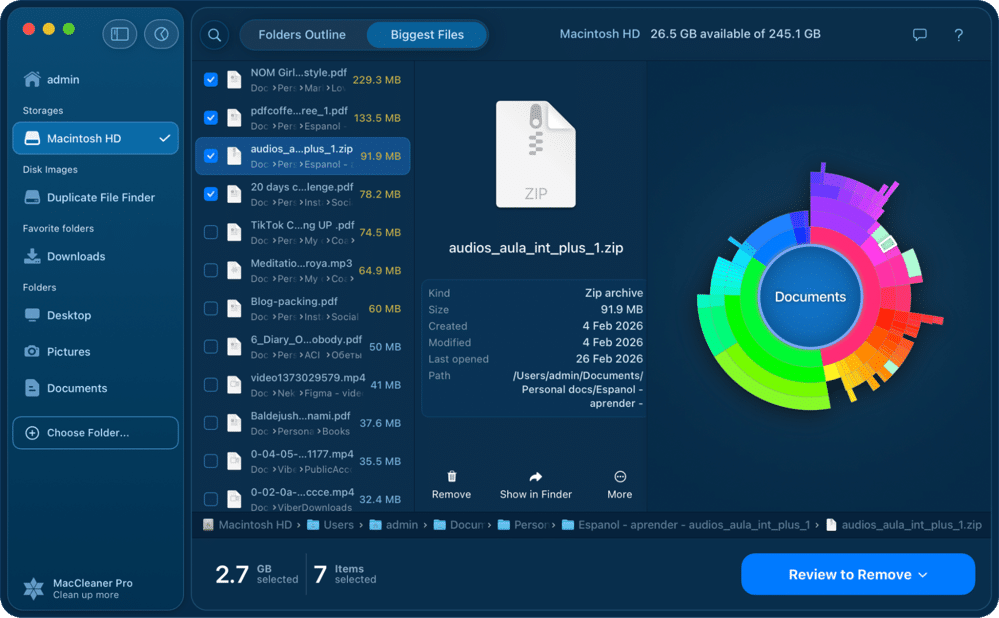
Downloads is the obvious target, but large files live everywhere – project folders, Movies, old backups on external drives. Disk Space Analyzer by Nektony scans the whole disk and lists the heaviest items regardless of location.
- Download and install Disk Space Analyzer.
- Select your drive and run a scan.
- Open the Biggest Files tab.
- Review, select, and delete what you no longer need.
Warning
After any bulk delete, empty the Trash. Files in the bin still occupy disk space until you do.
Empty the Trash bin (and check app-specific bins)
Moving files to Trash does not free space. You have to empty the bin.
- Right-click the Trash icon in the Dock.
- Choose Empty Trash.
- Confirm.
Warning
If your disk is completely full, macOS sometimes can’t empty the Trash because the delete operation itself needs temporary space. This catch-22 is a known issue reported on MacRumors forums. The fix: Restart into Safe Mode (hold Shift during boot on Intel, or hold the Power button and pick Safe Mode on Apple Silicon), then empty the Trash from there.
Apps with their own Trash: Photos, Mail, and Notes each keep a separate “Recently Deleted” folder. Open the app and empty that folder too – otherwise deleted photos and emails keep occupying space for up to 30 days.
Note:
Freed space sometimes doesn’t update immediately. A restart often resolves the lag. If Time Machine is on, deleted files can also stay inside a local snapshot for up to 24 hours before macOS reclaims the space – see Method 5 for how to clear those.
Clear system junk, cache, and the “System Data” category
System Data is the most confusing category on any modern Mac. It bundles caches, logs, iOS backups, local Time Machine snapshots, Spotlight indexes, and temp files. The official Apple guidance recommends tackling it in pieces, not as one block. Here’s what to clear and how.
App caches
App caches usually eat 5–30 GB depending on how many apps you have and how long it’s been since your last cleanup.
- Open Finder.
- Press Shift+Command+G and type , then press Return. (Alternatively, hold Option while clicking the Go menu – the Library option will appear.)
~/Library/CachesCopy

- Look for folders named after third-party apps you no longer use (for example, ,
com.spotify.clientCopy
). Select and move them to Trash.com.google.ChromeCopy
- Empty the Trash.

Warning
Safely delete folders named after third-party apps. Avoid anything prefixed with com.apple – those are system caches macOS manages automatically. Also, leave /Library/Caches and /System/Library/Caches alone.

Note:
After clearing caches, apps may load a little slower on first launch while the cache rebuilds. That’s expected.
Tip
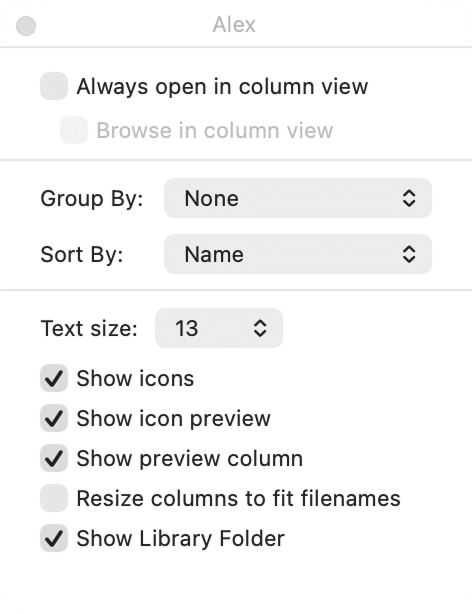
To keep the Library folder permanently visible, open Finder, select your home folder, then View → Show View Options in the menu bar, and tick Show Library Folder.
Browser cache
Safari (macOS Tahoe):
- Go to Safari → Settings → Privacy → Manage Website Data.
- Click Remove All.
Warning
Safari’s Remove All also clears cookies – you’ll be logged out of every site.

On macOS before Tahoe, the path was Safari → Settings → Advanced → Show features for web developers → Develop → Empty Caches.
Chrome:
- Click the three-dot menu → Settings.
- Go to Privacy and Security → Clear browsing data.
- Check Cached images and files, then click Clear data.

System logs
- In Finder, press Shift+Command+G and go to .
~/Library/LogsCopy
- Delete folders named after apps you no longer use.
- Leave system-level logs alone.
Logs are usually small – expect 100 MB to 2 GB of cleanup here, not gigabytes.
Old iOS backups
If you sync an iPhone or iPad with your Mac through Finder, old backups can eat 5–50 GB each.
From System Settings:
- Open System Settings → General → Storage.
- Scroll to iOS Files and click the ⓘ icon.
- Select an old backup and click Delete Backup.
From Finder:
- Connect your iPhone or iPad.
- Select the device in the Finder sidebar.
- Click Manage Backups, right-click an old backup, and choose Delete.

Pro Tip
Switching to iCloud Backup moves iOS backups to the cloud so they never use Mac disk space again.
Uninstall unused applications completely
Dragging an app from Applications to Trash removes the .app bundle but leaves behind service files scattered across ~/Library. Leftover files from a single app can range from a few MB to several GB – Adobe Creative Cloud, Xcode, and Microsoft Office are the worst offenders.
What gets left behind
When you drag an app to Trash, these folders typically keep its files:
- – app data
~/Library/Application Support/[AppName]Copy
- – cached files
~/Library/Caches/[AppName]Copy
- – settings
~/Library/Preferences/[AppName].plistCopy
- – log files
~/Library/Logs/[AppName]Copy
- – background processes
/Library/LaunchAgents/Copy
To find them manually, open Finder, press Shift+Command+G, and navigate to each path above with the app name substituted.
Manage local Time Machine snapshots
Local Time Machine snapshots are one of the single biggest reasons a Mac’s System Data balloons without warning. When Time Machine is enabled but the backup drive isn’t connected, macOS quietly saves snapshots to the internal drive. They’re invisible in Finder, they show up only as part of System Data, and each one can run 20–60 GB.
Check whether you have them
- Open Disk Utility.
- Select Macintosh HD in the sidebar.
- Choose View → Show APFS Snapshots from the menu bar.
A list of dated entries means snapshots are taking up space. An empty list means you’re clear.
Delete them via System Settings
- Open System Settings → General → Storage.
- Scroll to System Data.
- If snapshots are listed there, delete them from that pane.
Delete them via Terminal
Warning
Deleting snapshots is safe – Time Machine creates fresh ones next time your backup drive is connected. The trade-off is that you can’t restore files from snapshots once they’re gone.
For finer control, open Terminal:
tmutil listlocalsnapshots /Copy
This prints every local snapshot with its date. To delete a specific one:
tmutil deletelocalsnapshots 2026-04-15-120000Copy
Replace the date string with the one from the list.
Clearing old snapshots can free 20–100+ GB, depending on how long Time Machine has been running without its external drive. Some users have reported storage fluctuating by tens of gigabytes per day because of snapshot create-and-purge cycles – this method stops that behavior.
What’s safe to delete, what isn’t
A quick reference before you delete anything:
| Safety level | What it covers | Examples |
|---|---|---|
| Safe to delete | User-generated or app-rebuildable content | Downloads folder, Trash, browser cache, third-party app caches in ~/Library/Caches, old iOS backups, Time Machine local snapshots |
| Delete with care | App files and system-managed copies | Individual files in ~/Library/Application Support, unused .plist files, local copies of iCloud files, mail attachments |
| Do not touch | Core system resources | Anything in /System, /Library/Caches or /System/Library/Caches, files prefixed with com.apple, macOS itself |
The bottom line
Most reclaimable space on a Mac lives in five places: Downloads, the Trash, app and browser caches, old iOS backups, and local Time Machine snapshots. Work through the five methods above in order and you’ll recover the majority of what a full disk can give back – often 20 to 100+ GB in a single afternoon.
For the ongoing case, run a scan with Disk Space Analyzer and clean up unneeded files every couple of months. That rhythm keeps System Data in its normal 12–25 GB range and spares you the emergency cleanup next time macOS flashes a “startup disk is almost full” warning.