


January 9, 2026
How to uninstall Logi Options+ from Mac


Share


The recent Logitech certificate outage made a lot of people reinstall Logi Options+ just to get their mouse working again. Others took it as a sign to move to another mouse solution instead. Either way, you need to reinstall or uninstall Logi Options+ permanently.
Here you’ll find two reliable ways to completely uninstall Logi Options+ from your Mac – not just the main app, but all its background files, agents, and leftovers. As a bonus, you’ll find workarounds for certificate issues.
Contents:
Before we start
If you don’t have time to explore the guide, check out the quickest method to uninstall Logi Options+, Logitech G Hub, and any app you want to delete. It stands for using a special tool, App Cleaner & Uninstaller, which automatically detects all support files of any app and uninstalls apps in less than a minute.
What is Logi Options+ and should I uninstall it from my Mac?
Logi Options+ is software that allows you to customize the functions of Logitech keyboards and mice. It provides the ability to assign special commands to buttons, create macros, change key functions, and even configure the behavior of some devices depending on the use of certain programs.
When it works, it’s great. When it breaks, it can turn your Mac into a paperweight with a cursor. Which is usually when you end up doing something about it – reinstalling the driver or removing it altogether. You also might be here because:
- Logitech’s developer certificate expired, causing the app and background services to stop working or fail to launch.
- The fixed version won’t download – it just spins forever, leaving users stuck with a broken setup.
- You switched to Better Mouse, SteerMouse, or another driver that does the same job with less drama.
- You replaced your Logitech gear (e.g., with Razer Viper) and no longer need Logitech’s software at all.
- Logi Options+ keeps running background agents, eating CPU or interfering with macOS input, even when you’re not using it.
- Logitech devices feel poorly integrated on macOS, which can be frustrating for users who expect premium performance for the price they pay.
Before you uninstall: here are quick fixes for the Logitech outage
If you’re not ready to delete Logi Options+ just yet, these workarounds, tested among Redditors, have helped many users survive the certificate disaster:
- Downgrade to an older version
Older builds still use a valid certificate and can bring your mouse back to life. - Use the firewall + date trick
- Downgrade your Mac’s date at least to January 5, 2026
- Block these with a firewall (FireWally works and it’s free):
- Logitech G Hub
- G Hub Updater
- Logitech G Hub Agent
- Restore the correct date & time
- Use Better Mouse or SteerMouse temporarily
While waiting for a reliable version, it can replace most of Logi Options+ features and keep your mouse usable while Logitech sorts itself out.
Note:
Uninstalling Logi Options+ may result in loss of settings and return of devices to standard functionality. But if you don’t use any settings or feel you don’t need the program, then uninstalling Logi Options+ will not affect the basic operation of your Logitech devices. What’s more, getting rid of unnecessary programs and freeing up disk space helps optimize your Mac and keep it fast for years of use.
How to manually delete Logi Options+ from Mac
It’s important to note that when you manually delete apps from your Mac they usually leave behind their leftover files. These files can accumulate over time and take up a significant amount of space, reducing the speed of your Mac. This is why it is critical that you erase any files related to Logi Options+.
Please, carefully follow the step-by-step instructions below to entirely uninstall Logi Options+ with all of its support files:
- Quit Logi Options+.
- Open Activity monitor and check if there are any background processes related to the app. If there are, select them and click the “X” button to close them.
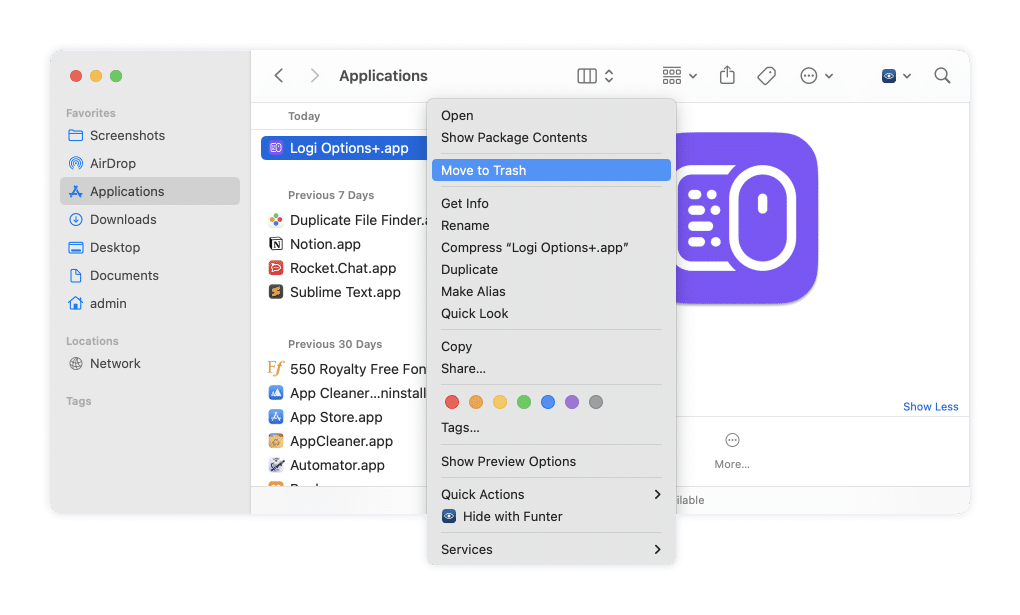
- Go to the Applications folder in Finder and remove Logi Options+ to the Trash.

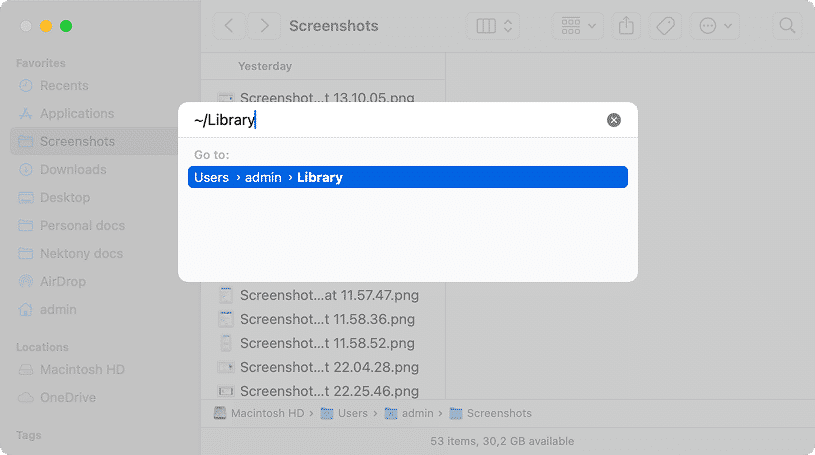
- In the Finder menu, click Go and choose Go to Folder to open the search panel.
- Here, type and press Enter.
~/LibraryCopy

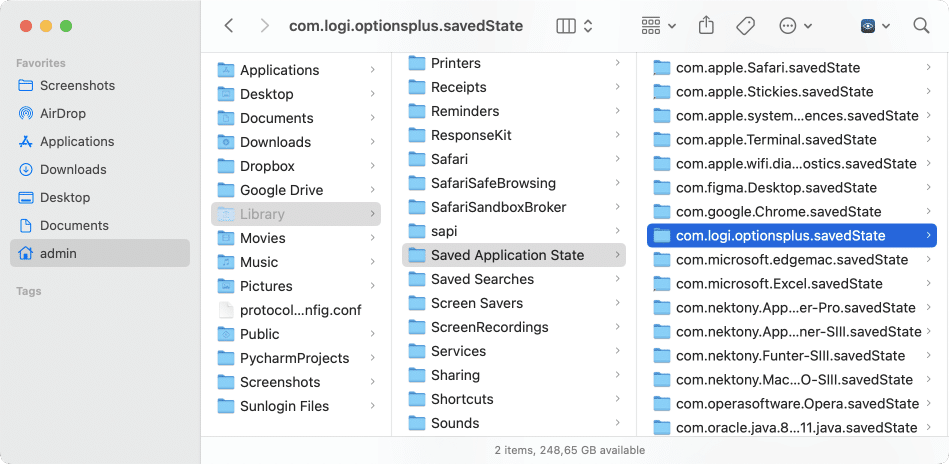
- In the Library folder, you need to locate and clean up all files and folders associated with Logi Options+. They may have the bundle ID . Check the following subfolders for them:
com.logi.optionsplusCopy
~/Library/Application SupportCopy
~/Library/CachesCopy
~/Library/ContainersCopy
~/Library/PreferencesCopy
~/Library/LogsCopy
~/Library/LaunchDaemonsCopy
~/Library/LaunchAgentsCopy

- Once you remove all the app’s support files, empty your Trash.
- Restart your system.
Note:
Please keep in mind that apps may distribute their files in macOS’s deep system folders. Here’s an example of one such file we discovered for this app:
SSD/~private/var/folders/ws//private/var/folders/ws/6fpx23ks44n_2jfzvlch2csw0000gn/T/.com.logi.optionsplus.gKY7eB
Copy
To avoid missing some files while manually deleting an app, we recommend utilizing Nektony’s App Cleaner & Uninstaller. This uninstaller detects all residual files automatically and doesn’t allow you to miss any leftover files.
How to remove Logi Options+ on a Mac using App Cleaner & Uninstaller
App Cleaner & Uninstaller was designed to help you delete any program from a Mac entirely and in a few seconds. It automatically finds all support files of the programs installed on your system and also the leftovers of already deleted apps.
Here’s how to use it:
- Quit Logi Options+.
- Download and launch App Cleaner & Uninstaller.
- Once all your programs are scanned, locate and select Logi Options+ apps.
- Click the Uninstall button and confirm deletion.
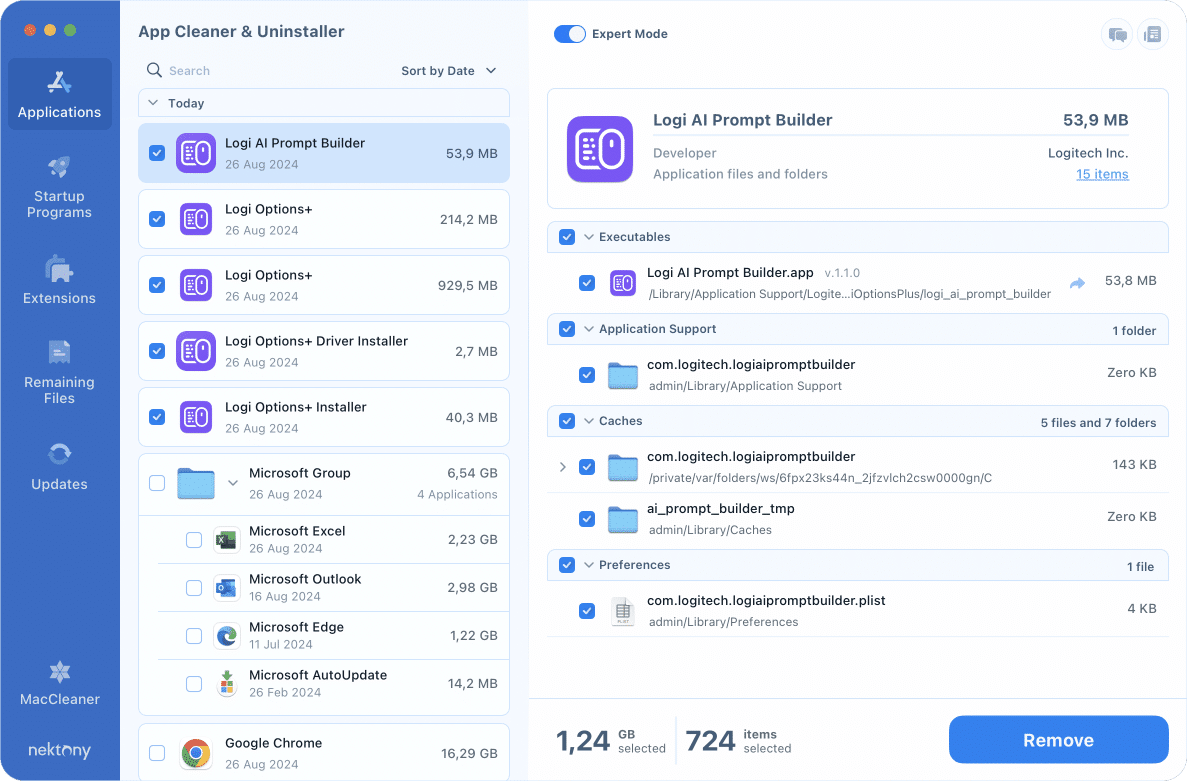
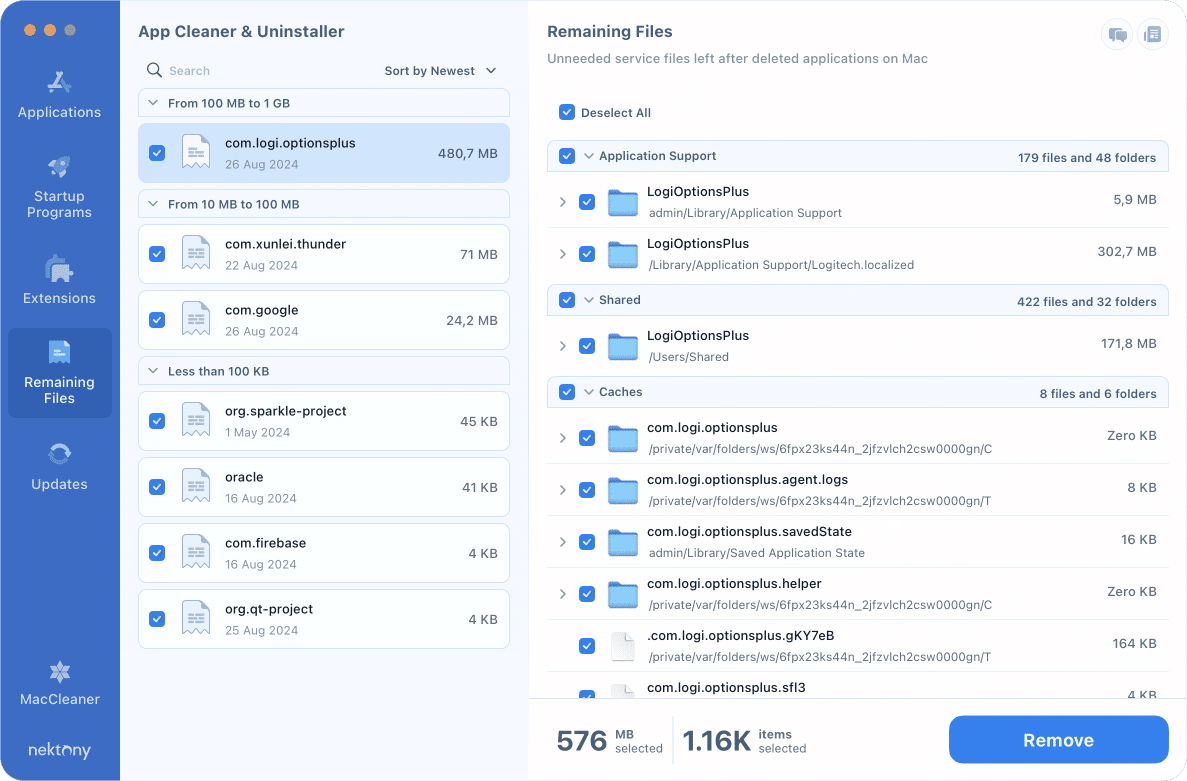
App Cleaner & Uninstaller also provides the option to find the leftovers of apps that you have manually removed by just dragging them to the Trash. Simply switch to the Remaining Files section from the sidebar to select and delete them.
To sum up
Uninstalling Logi Options+ from your Mac is a simple process that can be done in two ways: via the standard uninstall method or by using specialized software to completely remove all files associated with the program.
The first method is free but it can leave residual files. The second method includes using special utilities like App Cleaner & Uninstaller, that ensure complete removal of the application along with all its components.