


January 6, 2026
How to find (lost) screenshots on Mac


Share


Have you ever frantically searched for a screenshot of a YouTube short containing a useful link that you saved three weeks ago and suddenly need right now? Or maybe you just hit the shortcut keys, heard the shutter sound, but the file is nowhere to be found.
We’ve all been there. Whether it’s a glitch you captured five minutes ago or a receipt you saved five months ago, that file often feels like it has vanished into the digital void. The good news is that your screenshot isn’t hiding too far away. Here is how to track down your missing image files and take control of where they land in the future.
This Article Contains
Skip the digital detective work

Where do screenshots go by default?
By default, macOS is designed to save every screenshot directly to your Desktop.
If you haven’t changed any settings, you should see files named something like
Screenshot 2025-11-05 at 09.41.12.png
Copy
However, if your Desktop is looking suspiciously empty, one of two things usually happened:
1. The “Clipboard Trap”
This is the mistake I made numerous times as I was trying to memorize the Shift + Command hotkeys (if you don’t know about them yet, check out the official Take a screenshot on Mac guide by Apple). If you hold the Control key while taking a screenshot (e.g., Control + Shift + Command + 3), your Mac doesn’t create a file. Instead, it copies the image to your universal clipboard.
If you want to save the image you have in your clipboard, Open Preview → File → New from Clipboard (or press Command + N). If your screenshot pops up, just save it from there. If not, this most probably means you’ve copied something else into the clipboard since making a screenshot, and I’m afraid that image is gone for good.
2. The iCloud “Helper”
If you have “Desktop & Documents Folders” syncing turned on in iCloud, your files might not be physically on your local desktop in the way you expect. They might be queued for upload or moved to the cloud to save space.
To check, Open Finder and look at the iCloud Drive section in the sidebar. Check the Desktop folder there for the screenshot you’re looking for.
How to find lost screenshots on Mac
Note:
The methods below work for virtually all modern versions of macOS starting with High Sierra. The interface might look slightly different, but the logic is the same.
First, a quick reminder: if you had it in clipboard, it is most probably gone; if you could have deleted it, check the Trash. If none of these describe your situation (which, as Reddit shows, is perfectly common), let’s proceed to the detective work.
Here are the three methods to find your screenshots on Mac. Pick the one you like most.
Method 1: The Spotlight Search
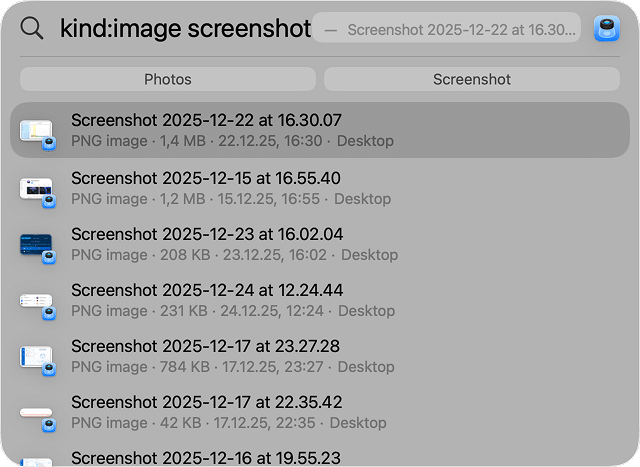
If you know the file name still contains “Screenshot,” Spotlight is your best friend.
- Press Command + Space to open Spotlight.
- Type and look at the list.
kind:image screenshotCopy

- This filters the search to show only images that contain the word “screenshot” (change it for the translation of this word if your macOS language is different).
Note:
If you renamed your screenshot “Receipt.png” and can’t remember the name, standard Spotlight searches might fail. Try typing this into Spotlight:
kMDItemIsScreenCapture:1
Copy
This is a system-level metadata flag that identifies a file as a screen capture, regardless of what you renamed it.
Method 2: Smart Folders in Finder
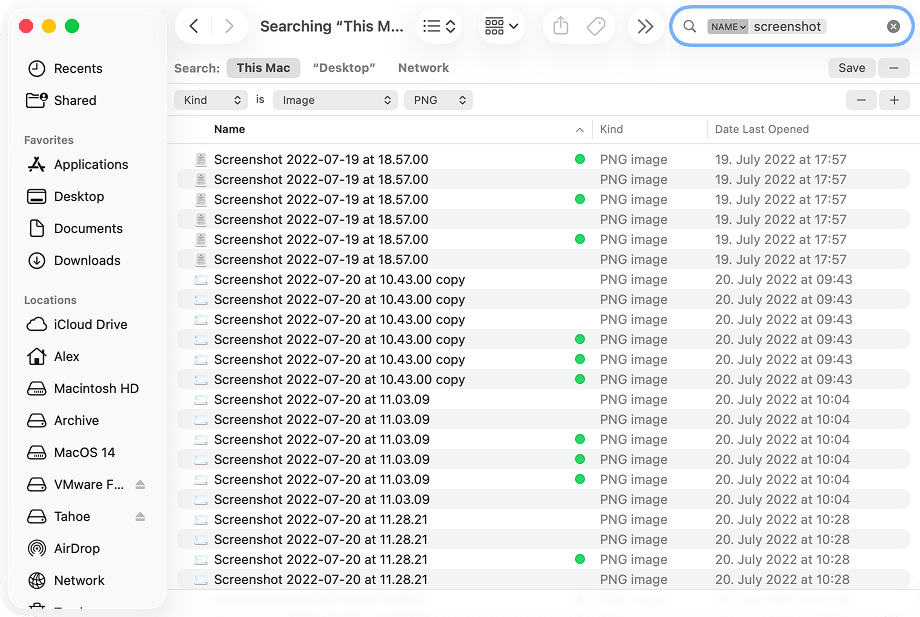
If you renamed the file or moved it ages ago, searching by name won’t help. We need to search by file type.
- Open a new Finder window.
- Press Command + F to start a search.
- Make sure This Mac is selected in the search bar.
- Click the Kind filter and select Image.
- Add a second criterion: click the + button, select Name, choose contains, and type (or your local equivalent of this word).
ScreenshotCopy

- Select Save in the top right corner to keep this as a “Smart Folder” so you never have to set this up again.
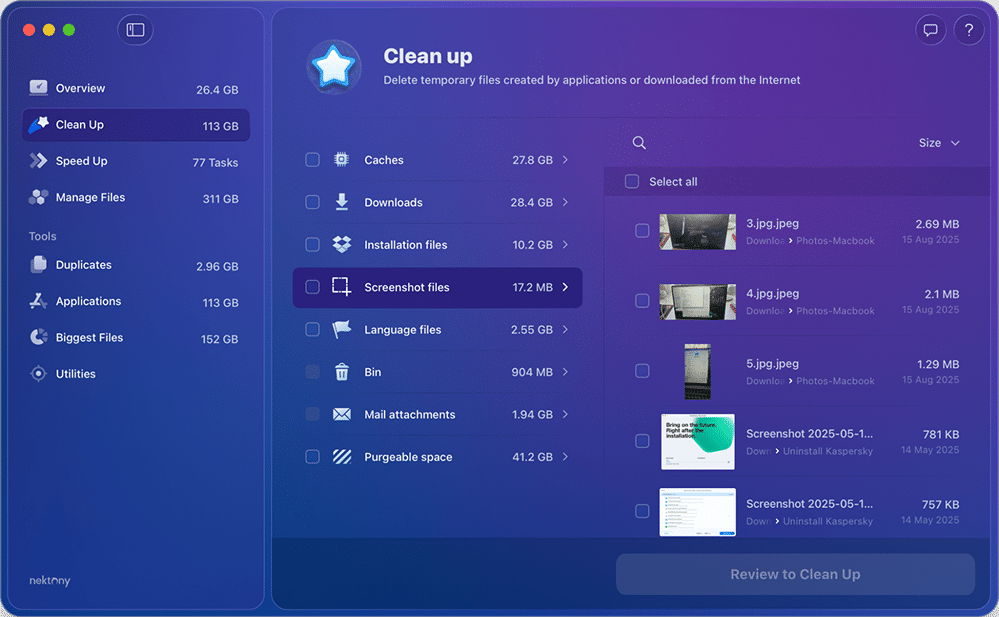
Method 3: The MacCleaner Pro Way
You can go hunting for these files manually using the methods above. But if you are like me and prefer to spend that time not digging through filter menus, there is a much faster way.
MacCleaner Pro scans your entire drive and groups files by type. It doesn’t care if you renamed the file or hid it three layers deep in a subfolder. It will find it.
- Download and launch MacCleaner Pro.
- Go to the Clean Up section.
- Select Screenshot files.
- You will see a complete list of every screenshot on your drive, organized by size and date. You can preview them, move them, or delete the ones you don’t need.
How to change where screenshots are saved
By default, macOS treats your Desktop like a physical desk. It dumps everything there until you run out of space. If you prefer a cleaner workspace, you can tell your Mac to send screenshots directly to a specific folder.
Change screenshot location via the Options menu
This is the quickest method and works for most users.
- Press Shift + Command + 5 to open the Screenshot utility.
- Click on Options in the floating control bar.

- Under the Save to section, choose a preset location (like Documents or Clipboard) or click Other Location… to pick a specific folder.

The Terminal Way
If you are comfortable with the command line (or just want to feel like a hacker for a minute), you can use Terminal to create a dedicated folder and set it as the permanent home for your screenshots.
- Open Terminal (find it in Applications → Utilities).
- Copy and paste the following command to create a new “Screenshots” folder in your Pictures directory:
mkdir -p ~/Pictures/ScreenshotsCopy
- Next, tell macOS to use this new folder as the default location:
defaults write com.apple.screencapture location ~/Pictures/ScreenshotsCopy
- Finally, restart the system interface to apply the changes:
killall SystemUIServerCopy

Now, your Desktop stays clean, and all your captures go exactly where they belong.

Note:
You can also change the file format from PNG (which is high quality but large) to JPG (smaller, easier to share). Just type this into Terminal:
defaults write com.apple.screencapture type jpg
Copy
killall SystemUIServer
Copy
Final note
I usually take screenshots only to copy them into my project’s folder or document. Naturally, after some time, they start piling up in different nooks and crannies of my hard drive, which is obviously not the best way to manage them.
Organizing those images into a Smart Folder is a great way to have them at hand whenever you need them. Yet if your goal is to have a Mac clean of outdated screenshots and other junk and leftovers, tools like MacCleaner Pro do a much better job without any extra hassle.
Frequently asked questions
Why are my screenshots disappearing?
First, make sure you don’t press Control, when using commands to make screenshots (Shift+Command+3 or Shift+Command+4). Holding Control will send screenshots to the clipboard, not to your disk.
If you hear the camera sound but see no file, check your iCloud settings. If you have iCloud Desktop & Documents enabled, macOS might be moving your files from your local Desktop to the cloud to save space. Check Finder → iCloud Drive → Desktop.
Where is the clipboard on my Mac?
The clipboard isn't a specific folder you can browse; it's a temporary storage space in your Mac's memory. It only holds the last thing you copied. If you took a screenshot to the clipboard (using Control) and then copied a piece of text, that screenshot is overwritten and likely gone forever.
If your screenshot is still in the clipboard, open Preview and in the menu bar, select File → New from Clipboard.
What if I took a screenshot with a third-party app?
Apps like Snagit, Lightshot, or CleanShot X have their own settings. They do not follow the macOS system defaults. You will need to open that specific app's Settings or Preferences menu to see where it is saving your files.
Can I find screenshots by date?
Yes. Open Finder, press Command + F, and select Kind is Image. Then, click the + button to add a second row, select Created Date, and specify the range (e.g., "within last 30 days").