
January 6, 2026
Time Machine couldn’t complete the backup: Top reasons and fixes


Share


Time Machine usually operates in the background, unobtrusively saving your files while you work. But sooner or later, something goes wrong. I assume it’s not only me who gets anxious when they see the notification “Time Machine couldn’t complete the backup”. Nobody likes it when things get broken for no obvious reason.
Luckily, while the Time Machine error messages can look intimidating, the solutions are usually straightforward. In this guide, I’ll walk you through why these errors happen and how to fix them, from simple cable checks to resetting the backup settings. In the end, you will get that reassuring green “Backup Complete” icon back.
This Article Contains
Looking for a faster way?

Why does Time Machine fail?
Before diving into the fixes, it helps to understand why this is happening. Time Machine is robust, but it isn’t magic. It relies on a stable connection and a healthy file system. Usually, the error boils down to one of these three problems:
- The drive is out of space: Time Machine is supposed to delete the oldest backups automatically to make room for new ones, but sometimes it gets stuck or the backup file is simply too large for the drive.
- The backup is corrupted: If a previous backup was interrupted — for instance, one Mac Forums user had a power outage caused by a hurricane – the backup database .backupdb can get corrupted.
- Connection or Permission issues: A loose cable, a glitchy USB hub, or a network drop (if you use a NAS) can cut the connection mid-backup.
Preliminary checks (Don’t skip these)
It is tempting to jump straight to solutions, but 90% of the time, the issue is physical or simple. Try these quick checks first:
- Restart your Mac: It’s the oldest advice in the book for a reason. A restart clears system caches and resets background processes that might have stalled the backup.
- Check the cables and ports: If you are using an external drive, make sure the cable is secure. If you are using a USB hub, try plugging the drive directly into your Mac. Cheap hubs often struggle to provide enough consistent power for a spinning hard drive, causing it to disconnect momentarily.
- Check your network (for NAS users): If you back up wirelessly to a Time Capsule or NAS, try connecting via an Ethernet cable for the first attempt. Also, ensure your NAS is using the SMB protocol, as Apple has moved away from the older AFP protocol. In general, if the problem comes from your NAS, troubleshooting it is a completely different rabbit hole (as this Macrumors user proves) that is not covered here.
- Check for macOS updates: Go to System Settings → General → Software Update. In some rare cases, a bug in the operating system itself is the culprit, and Apple often patches these quietly.

Advanced troubleshooting
If the simple fixes didn’t work, the issue is likely deeper. Possibly, a corrupted file system, “ghost” backups taking up space, or a stuck configuration file. These steps require a bit more digging, but they are often the only way to fix Time Machine without wiping the drive.
3. Run First Aid
Run a health check for your external hard drive and system drive. If the file system has errors (which can happen if the drive was unplugged incorrectly), Time Machine won’t be able to write new data to it.
- Open Disk Utility (Cmd + Space and type ).
Disk UtilityCopy

- Select your Time Machine backup drive from the sidebar.
- Click First Aid in the top toolbar.
- Click Run and wait for the process to finish.
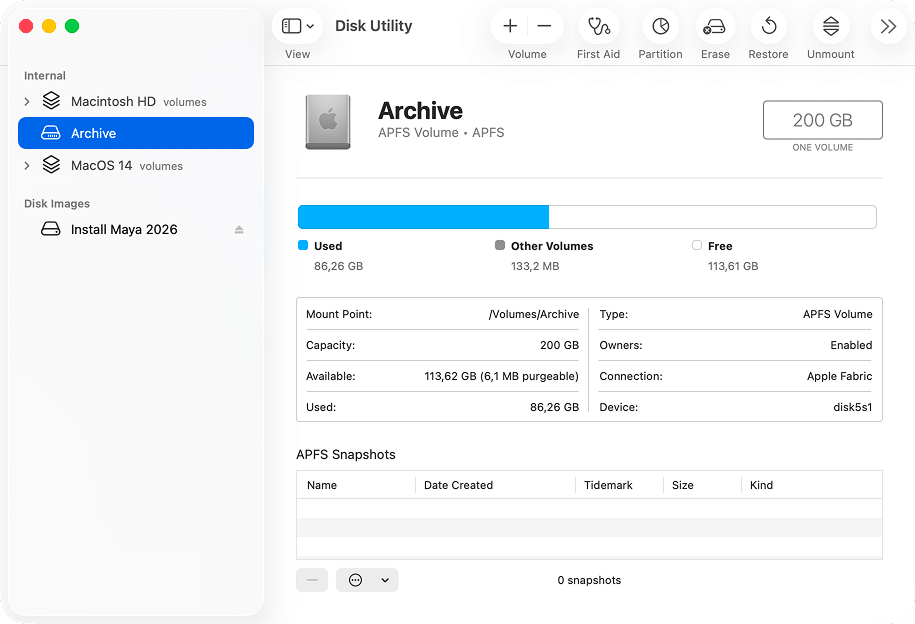
For your system drive, you need to launch Disk Utility from the Recovery Mode:
- Turn off your Mac.
- When starting it again, hold the Power button on your Mac if you have an Apple Silicon Mac. Keep holding it until you see “Loading startup options”. If you have an Intel-based Mac, turn it on and immediately press Command (⌘) + R. Hold it until you see the Apple logo or a spinning globe.
- Select Options.

- Open Disk Utility.
- Run First Aid for your system drive.

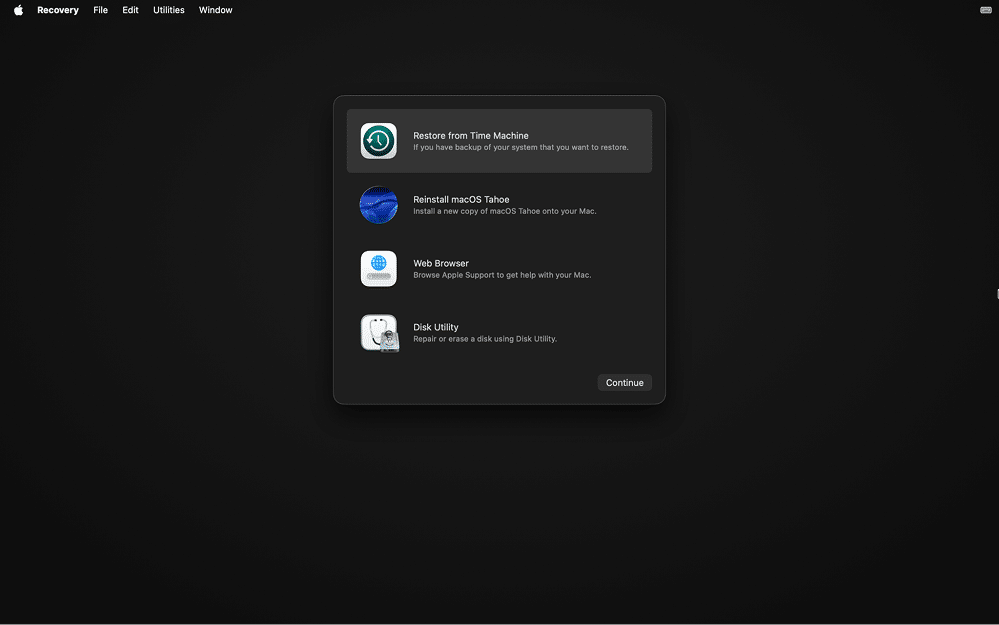
Note:
If First Aid reports errors it cannot repair, your drive might be physically failing. In that case, it is safer to replace the drive than to trust it with your data.
4. Delete “Local snapshots”
Time Machine creates “local snapshots”, i.e., mini backups stored on your actual Mac when your external drive isn’t connected. Sometimes, these snapshots get corrupted (as in this case of the Apple Discussions user) or take up so much space that the system chokes when trying to move them to the external drive.
We need to clear these out manually using Terminal.
- Open Terminal (you can find it in your Applications folder, or type in Spotlight).
TerminalCopy
- Type the following command and hit Enter to see a list of snapshots:
tmutil listlocalsnapshots /Copy
- You will see a list of dates. To delete a specific snapshot, type:
(Replace <date> with one of the dates listed, e.g., 2023-10-01-123456).
sudo tmutil deletelocalsnapshots <date>Copy
5. Exclude heavy or complex folders
node_modules
Copy
If you suspect a specific folder is causing the hang:
- Go to System Settings → General → Time Machine.
- Click Options.
- Click the + button and select folders you don’t need to back up (like your Downloads folder, or specific developer folders like ~/Library/Developer/Xcode/DerivedData).
6. Reset Time Machine settings
If nothing else works, your Time Machine preference file might be corrupted. Deleting it forces your Mac to create a fresh settings file.
- Disconnect your external backup drive.
- Open Finder, click Go in the menu bar, and select Go to Folder…
- Type: and hit Enter.
/Library/Preferences/com.apple.TimeMachine.plistCopy

- Drag the file to the Trash.
com.apple.TimeMachine.plistCopy

- Restart your Mac, reconnect your drive, and set up Time Machine again.
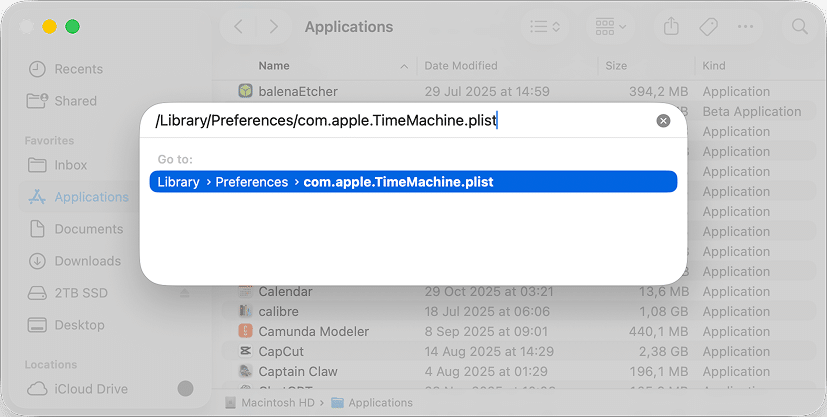
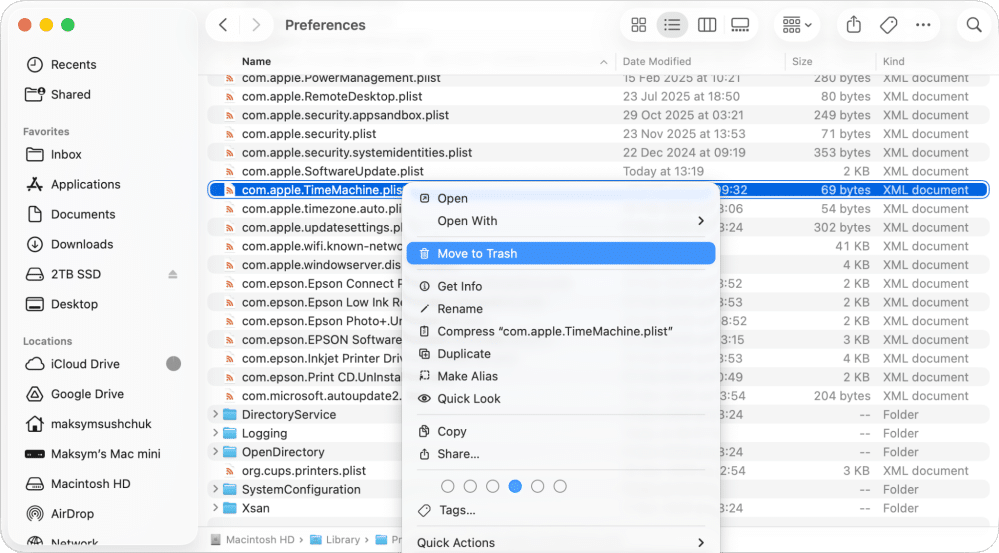
Danger zone: Delete the corrupted backup
If you have tried everything and Time Machine still refuses to finish, the backup file itself might be corrupted beyond repair. In this case, your best bet is to surgically remove that specific incomplete backup file so Time Machine can start fresh.
Warning
This is permanent.
- Open Terminal (Cmd + Space, type Terminal).
- List your backups: Type the following command and press Enter:
tmutil listbackupsCopy
- Delete the specific backup: Locate the backup date that seems to be causing the error (usually the most recent incomplete one). Type the following command:
(Replace /Volumes… with the actual path to your backup file and <name> with the specific backup name).
sudo tmutil deletebackup /Volumes/TimeMachine/Backups.backupdb/Copy
If even this doesn’t work, the only remaining option is to format your external drive using Disk Utility and start your backup history from scratch. It might be painful to lose the history, but it’s better than having a backup system that doesn’t work at all.
Personal note
In most Time Machine-related problems, the initial issue is simply a lack of free space. And then this insufficient free space causes all kinds of secondary problems – corrupted settings, unrepairable backups, read-only drives, and so on.
Basically, as long as both your Mac and the backup drive have enough free space and are in good health, Time Machine should have no issues making backups. And if you want to keep an eye on your free space, MacCleaner Pro is a convenient way to do so.
Frequently asked questions
Why is Time Machine stuck on 'Preparing Backup' or taking forever?
This often happens for two reasons. First, if you haven't backed up in a while, Time Machine is doing a 'deep scan' to compare the changes. Second, and more annoying, is the 'millions of small files' problem. If you are a developer or have huge caches, Time Machine chokes on processing thousands of tiny files.
- Fix: Exclude folders like or
node_modulesCopy
in Time Machine options.~/Library/DeveloperCopy
Why do I get the 'Backup disk not available' error?
This is almost always a connection issue.
- External Drives: It could be a faulty cable or a cheap USB hub that isn't providing enough power, causing the drive to disconnect momentarily.
- NAS/Network: Your network drive might have temporarily dropped the Wi-Fi connection. Also, ensure your NAS uses the SMB protocol, not the outdated AFP.
What does the generic 'Time Machine couldn’t complete the backup' error mean?
If it doesn't say "disk full," the issue might actually be on your Mac, not the external drive. This error often points to:
- Corrupted Source Files: You have files on your Mac with invalid characters or permission errors (ACLs) that Time Machine can't read.
- APFS Metadata Issues: The file system on your Mac needs a check-up.
In both cases, run Disk Utility’s First Aid on your internal Mac drive (boot into Recovery Mode to do this properly).
What happens when the Time Machine backup disk is full?
Ideally, Time Machine automatically deletes the oldest backups to make room. However, if your new backup is larger than the available space (even after deleting old ones), it will fail. This is why keeping your Mac free of junk files with MacCleaner Pro is the smartest way to prevent this loop.
Why isn't Time Machine creating local snapshots?
Local snapshots are mini-backups stored on your Mac when the external drive is unplugged. If they aren't being created, it's usually because your Mac's internal drive is running low on space. macOS automatically stops creating snapshots to prevent your system from clogging up.