
May 13, 2026
How to set the default browser on Mac


Share


Every Mac ships with Safari as the default browser, but you are not locked in. Whether you prefer Chrome for its extension ecosystem, Firefox for its privacy features, or one of the newer AI-powered browsers like Dia, switching your default takes less than a minute. The catch is that Apple has moved the setting around over the years, and some users run into a frustrating bug where links keep opening in Safari even after the change.
This guide walks you through every method for setting a default browser on macOS - from System Settings to in-app options - and covers what to do when the switch does not stick. We verified each step on macOS 26.3 Tahoe running on a MacBook Pro 13″ M1.
This Article Contains
If you're having problems with your browser

Why change your default browser on Mac
Your default browser is the app that opens every time you click a link in Mail, Messages, Slack, or any other application. If you prefer a browser other than Safari, changing the default saves you from constant app-switching and copy-pasting URLs.
The browser landscape has shifted significantly. According to StatCounter, Chrome currently holds about 68.9% of the global browser market, followed by Safari at 16.5%, Edge at 5.4%, and Firefox at 2.3%. AI and privacy features are reshaping the competition as well - Chrome now includes an AI Mode for search, Edge integrates Copilot, Brave blocks trackers by default, and Dia (the successor of Arc) is built around AI-assisted browsing. If you have found a browser that fits your workflow better than Safari, making it the default ensures every link respects that choice.
On the privacy front, it is worth noting that Safari in macOS Tahoe now enables advanced anti-fingerprinting protection by default in all tabs, not just Private Browsing. That is a strong argument for keeping Safari if privacy is your priority. But if your work depends on Chrome extensions or cross-platform sync, the right default is the one you actually use.
How to set the default browser via System Settings
This is the universal method that works for any browser installed on your Mac.
macOS Ventura (13.0) and later
Apple moved the default browser setting in macOS 13.0 Ventura. Here is where to find it in Ventura, Sonoma, Sequoia, Tahoe, and any future release that follows this layout:
- Open System Settings.
- Click Desktop & Dock in the sidebar.
- Scroll down to find the Default web browser dropdown.
- Click the dropdown and select the browser you want to use.

That is it - the change takes effect immediately. Every link you click in other apps will now open in your chosen browser.
How to set the default browser from the browser itself
Most browsers include a built-in button to claim the default role. This method is handy if you are already inside the browser you want to switch to.
Google Chrome
Chrome is the most widely used browser, largely because it syncs bookmarks, passwords, and tabs across every device tied to your Google account.
- Open Google Chrome.
- Go to the Menu Bar, click Chrome → Settings.
- Click Default browser in the sidebar.
- Click Make default.

- In the macOS confirmation dialog, click Use “Chrome”.


You can also reach Chrome settings by clicking the three-dot menu icon in the top-right corner and selecting Settings.
Mozilla Firefox
Firefox often prompts you to set it as the default on first launch. If you see the Make Firefox your primary browser popup, click Set as primary browser and you are done.

If you missed the pop-up or want to change it later:
- Open Firefox.
- Go to the Menu Bar, click Firefox → Preferences (or press Command+,). You can also open settings through the hamburger menu (three horizontal lines) in the top-right corner, then scroll down and click Settings.
- In the General section, find the message “Firefox is not your default browser.”
- Click Make Default….

- In the macOS confirmation dialog, click Use “Firefox”.


Microsoft Edge
Edge often asks to become the default on its first launch. If you see the welcome screen, select Set Edge as default browser and click Start browsing.
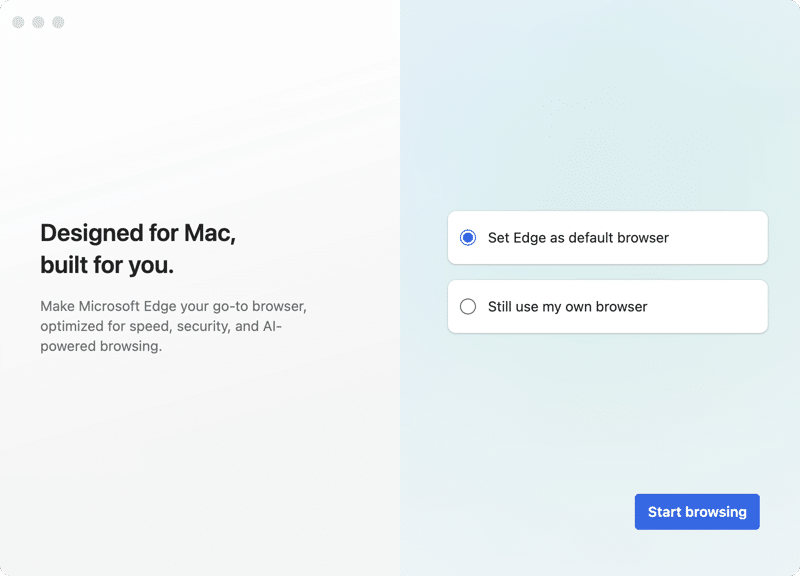
If you did not set it during setup:
- Open Edge.
- Go to the Menu Bar, click Edge → Set Edge As Your Default Browser.

- In the macOS confirmation dialog, click Use “Edge”.


Alternatively, go to Edge → Settings, click Default browser in the sidebar, and click Make default.

Opera
- Open Opera.
- Go to the Menu Bar, click Opera → Settings (or press Command+,).

- Click Default browser in the sidebar.
- Click Make default.


Brave Browser
Brave usually prompts you to set it as the default on first launch. Click Set Brave as default browser on the welcome page.

If you missed the prompt:
- Open Brave.
- Go to the Menu Bar, click Brave → Settings (or press Command+,).
- In the Get started section, find Default browser and click Make default.
- In the macOS confirmation dialog, click Use “Brave”.


Dia Browser
Dia prompts you to set it as the default on first launch. Check Set Dia as default browser and click Get started.

If you skipped that step:
- Open Dia.
- Go to the Menu Bar, click Dia → Set as Default Browser.
- In the macOS confirmation dialog, click Use “Dia”.


Alternatively, go to Dia → Settings, open the Account tab, and click Set Dia as Default.

What to do if links still open in Safari
Some users on Reddit find that links in Mail, Messages, or other apps keep opening in Safari even after changing the default browser. This is a known issue that appears in many community threads. Here are the most reliable fixes.
- Restart your Mac. The simplest solution. Close all browsers, restart your Mac, and check whether links now open in the correct browser. macOS sometimes needs a reboot to fully register the change.
- Re-apply the default browser setting. A workaround that several users have confirmed: set the default back to Safari first, click a link to verify it opens in Safari, then switch back to your preferred browser. This resets the internal link handler and often resolves the issue.
- Check .webloc files. If specific .webloc bookmark files keep opening in Safari, the fix is different from the system default. Right-click the file → select Get Info → change the Open With dropdown to your preferred browser → click Change All to apply it to every .webloc file.
- Check individual app settings. Some apps override the system default and use their own browser settings. Check the preferences of the specific app that keeps opening Safari.
Note:
If your preferred browser does not appear in the Default web browser dropdown, try these steps: reinstall the browser, open it at least once, then restart your Mac. The browser should now appear in the list.
Tips to speed up your new default browser
Once you have set your new default browser, you want it to run fast. Over time, browsers accumulate cache, outdated extensions, and background processes that slow them down. Here is a quick overview of what helps:
| Action | What it does |
|---|---|
| Clear browser cache | Removes stored site data that can bloat disk usage and slow page loads |
| Update the browser | Gets you the latest performance optimizations and security patches |
| Remove unnecessary extensions | Stops background scripts from consuming CPU and memory |
| Disable sync for unused features | Reduces network requests and background activity |
Clear browser cache with MacCleaner Pro
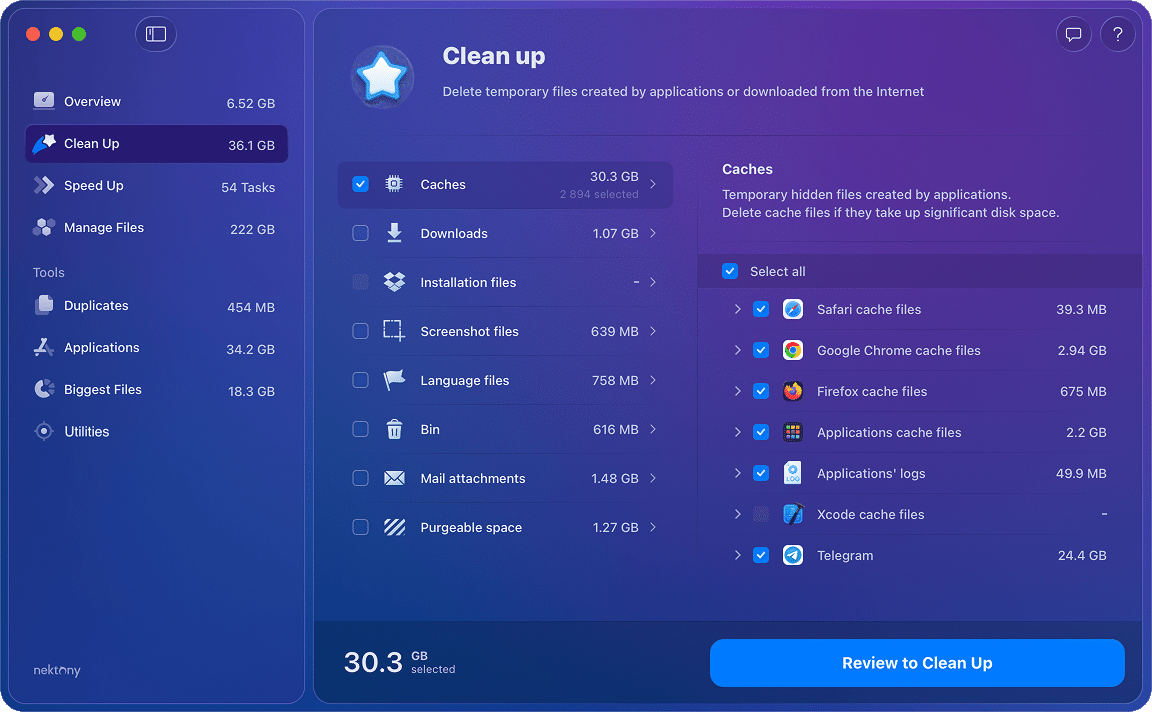
You can manually dig through each browser’s settings to clear caches, but MacCleaner Pro by Nektony finds and removes cache files from all your browsers in one pass.
- Open MacCleaner Pro and go to the Clean Up section from the sidebar.
- Select the cache files of your browsers.

- Click Review to Clean Up and confirm the removal.
Update your browser
Outdated browsers miss out on performance improvements and security fixes. For Chrome:
- Open Chrome.
- Go to the Menu Bar, click Chrome → About Google Chrome.
- Chrome will check for updates automatically. If an update is available, click Relaunch to apply it.


Other browsers follow a similar pattern - look for an About section in the browser’s main menu.
Get rid of unnecessary extensions
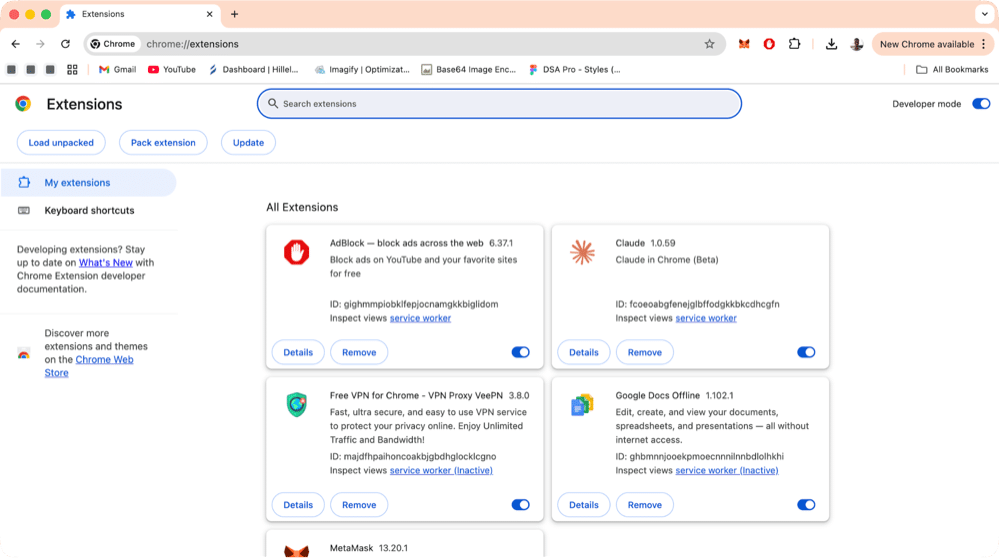
Too many extensions slow down any browser. For Chrome:
- Open Chrome and click the three-dot menu icon in the top-right corner.
- Select Extensions → Manage Extensions.
- Click Remove under any extension you no longer need. Or you can at least disable it.
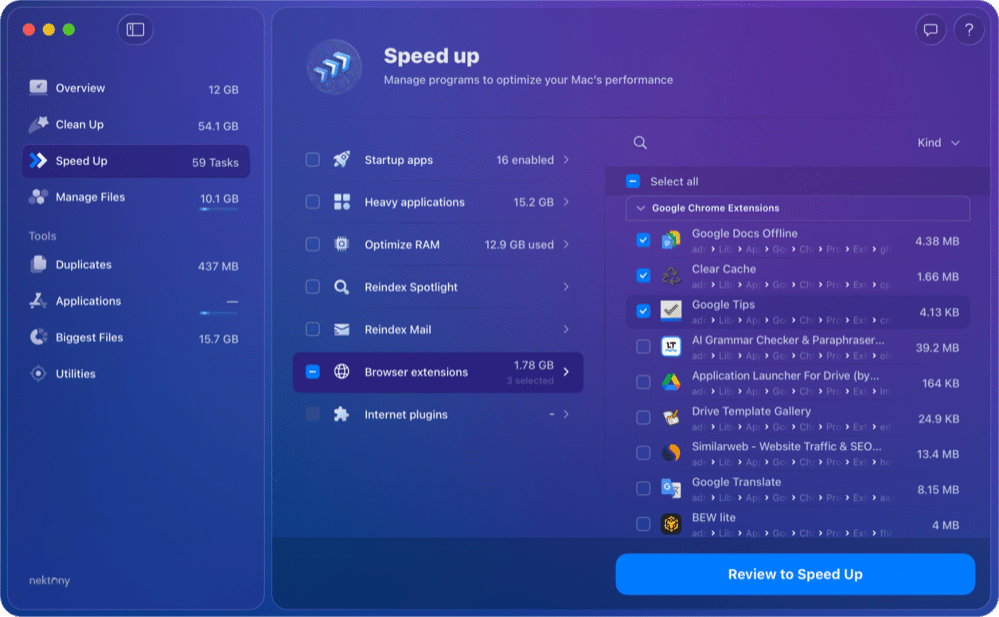
Alternatively, you can manage extensions from all your browsers at once with MacCleaner Pro:
- Open MacCleaner Pro and go to the Speed Up section.
- Choose Browser extensions.
- Select unneeded extensions and click Review to Speed Up to disable them.
Note:
To manage Chrome extensions with MacCleaner Pro, you need to disable Google account sync for extensions first. Also, Safari extensions are often part of standalone Mac apps - they can only be removed by uninstalling the parent app.
The bottom line
Changing the default browser on Mac is straightforward - either use System Settings → Desktop & Dock → Default web browser, or look for the Make default button inside your browser of choice. If links still open in Safari after the switch, restart your Mac or try the reset-and-reapply trick.
And once your new default is in place, keep it fast by clearing out old caches and unused extensions with a tool like MacCleaner Pro.