



January 14, 2026
How to Uninstall Adobe Creative Cloud from Mac


Share


Adobe Creative Cloud is the hub for managing your Adobe subscriptions and apps on a Mac. But when it comes time to uninstall it, things often don’t go as smoothly as you’d expect. In my case, even after removing every visible Adobe app, the Creative Cloud uninstaller insisted I still had products installed and stubbornly refused to go away.
If this sounds familiar, you’re not alone. That’s why in this guide, I’ll walk you through three proven ways to completely uninstall Adobe Creative Cloud, clear its leftover files, and free your Mac from unwanted clutter.
This Article Contains
Skip the headache

Comparing ways to uninstall Creative Cloud
Adobe Creative Cloud gives you a few options for uninstallation. Each method has pros and cons depending on whether you want a quick cleanup, a thorough removal, or just a reset to fix problems.
Below is a comparison table to help you choose the right approach:
| Method | What it does | Advantages | Drawbacks | Easiness |
|---|---|---|---|---|
| Official Uninstaller | Runs Adobe’s built-in removal process through the Creative Cloud app. |
|
|
★★☆ Moderate |
| Manual File Removal | You search for and delete every related Adobe file and folder yourself. |
|
|
★☆☆ Very Hard |
| Automatic File Removal | Uses a dedicated uninstaller app (like App Cleaner & Uninstaller) to find and delete Creative Cloud files. |
|
|
★★★ Easy |
Note:
Even though Adobe has improved the Creative Cloud uninstaller in recent versions, it still doesn’t catch everything. Because the software relies on many “micro programs” with unique identifiers and shared components, manual cleanup can feel like untangling a giant web.
When should you Remove Creative Cloud?
Some users want to remove Creative Cloud simply because they no longer need it. They cancel their subscription, switch to alternatives, or tidy up their Macs for someone else to use.
Others, however, run into errors or performance issues and just want to fix the problem so they can keep using Adobe apps. This section explains when uninstalling can help restore normal operation.
Here are the most common reasons to uninstall (and reinstall) Adobe Creative Cloud:
- Performance and storage Issues
Creative Cloud installs more than a hundred separate components. Each major app and helper process has its own identifier (BundleID), and together they leave files in over a thousand different locations on your Mac. This clutter can slow your system down and use up gigabytes of disk space. - Persistent errors and glitches
If you see repeated prompts to reinstall, missing tabs (for example, when the Apps tab disappears), or problems syncing files with CoreSync, a clean uninstall followed by a reinstall often fixes the issue. - Incomplete uninstallations
The official Adobe uninstallers in Creative Cloud do not always remove every file. Even after running it, you may find configuration leftovers and hidden folders that can trigger new errors or prevent a fresh installation. - Fresh start after migration
When you move data from an old Mac, you might bring over broken or outdated Creative Cloud components. This can cause apps to fail to launch or keep asking you to reinstall. Removing everything first ensures you start clean. - Account and subscription changes
If you have canceled your subscription or switched to fewer Adobe apps, removing Creative Cloud helps ensure no services or auto-start processes remain active.
There are also common roadblocks during the official uninstallation process:
- Warnings that other Adobe apps are still installed (such as Fonts, Media Encoder, Bridge, or XD)
- Background processes that won’t quit, like CoreSync or CCXProcess
- “Permission denied” errors in Terminal
- System Integrity Protection blocking deletion of some files
In this article, we’ll suggest alternative ways to properly uninstall Creative Cloud. And if you just want your problem fixed, the Frequently Asked Questions section might just help you.
Note:
Your personal projects might sit in the same folders as system files. If you plan to uninstall, take time to separate your working documents from service files, especially in locations like Documents/Adobe.
Method 1: Uninstall Creative Cloud with the official uninstaller
The most straightforward way to remove Creative Cloud is to use Adobe’s built-in uninstaller. This method works well if you only need a basic cleanup or plan to reinstall Creative Cloud later. However, it sometimes requires extra steps to deal with leftover processes and hidden files.
Follow these instructions carefully:
1. Remove all Adobe apps
Creative Cloud will not uninstall if you still have other Adobe applications on your Mac. Make sure to delete everything first:
- Open the Creative Cloud app.
- Go to the Apps section.
- Uninstall all listed apps, including:
- Adobe Photoshop
- Adobe Illustrator
- Adobe Fonts (if shown)
- Adobe Media Encoder
- Adobe XD
- Adobe Bridge
Note:
Even one leftover app can block removal
2. Quit all Adobe processes
Creative Cloud runs several background services that must be stopped before uninstalling.
Open Activity Monitor and search for these processes:
- Creative Cloud
- CCXProcess
- Adobe Desktop Service
- CoreSync
- Adobe Installer
Select each one and click Quit.
If some processes keep coming back automatically, you need to stop them from launching at startup.
Open Terminal and run these two commands:
sudo rm -rf /Library/LaunchAgents/com.adobe.*Copy
sudo rm -rf /Library/LaunchDaemons/com.adobe.*Copy
These commands remove Adobe’s auto-start instructions. In simple terms, they tell your Mac to forget about launching Adobe helper tools in the background.
After running them, return to Activity Monitor and quit any Adobe processes still open.
3. Launch the uninstaller
Navigate to this folder:
/Applications/Utilities/Adobe Creative Cloud/Utils/
Copy
Double-click Creative Cloud Uninstaller.app and follow the instructions.
If you don’t see the uninstaller, you can download it on Adobe’s official site:
Download Creative Cloud Uninstaller
4. Restart your Mac
After removal, restart your computer to clear any remaining background processes.
Troubleshooting common problems
Even with the official uninstaller, you can run into errors. Here are some common issues and how to fix them:
- Creative Cloud keeps asking for repair or reinstall after reboot
This often happens when some files are corrupted or incomplete. Adobe provides a special tool called the Cleaner Tool to reset Creative Cloud components. - System Integrity Protection (SIP) blocks file deletion
MacOS has a security feature called System Integrity Protection, or SIP. SIP prevents any user (even the root user) from modifying or deleting files in certain protected areas of the system, like /System or parts of /Library.
Adobe sometimes places components in these protected directories. If this happens, you might see errors saying the files cannot be removed.
Most users do not need to disable SIP, but if you run into stubborn files that cannot be deleted any other way, you can temporarily turn off SIP. For detailed instructions and important warnings about disabling SIP, see this guide: How to Remove Protected Apps.
Method 2: Remove Creative Cloud manually
Note:
This method was tested with Creative Cloud Desktop App v. 6.7.0.278 on macOS 15.5.
Manual removal is the most thorough method but also the most time-consuming. Adobe software installs hundreds of files and folders across your Mac, including hidden components, launch agents, receipts, and logs.
Note:
Before uninstallation, remember to back up any personal files and projects you created with Adobe tools.
Follow these steps carefully:
1. Quit all Adobe processes
Open Activity Monitor, search for these processes, and quit them:
- Creative Cloud
- CCXProcess
- CoreSync
- Adobe Installer
- Adobe Desktop Service
If processes restart automatically, you can stop them by removing them from the list of items launching at startup:
- Go to System Settings → General → Login Items → Background Items.
- Look for Adobe entries and turn them off.
- Also, check System Settings → Extensions and disable any Adobe helpers.
After doing this, return to Activity Monitor and quit the processes again.
Note:
This same operation, done via Terminal, is explained in the first uninstallation method involving the official uninstaller.
2. Remove Adobe applications
In Finder:
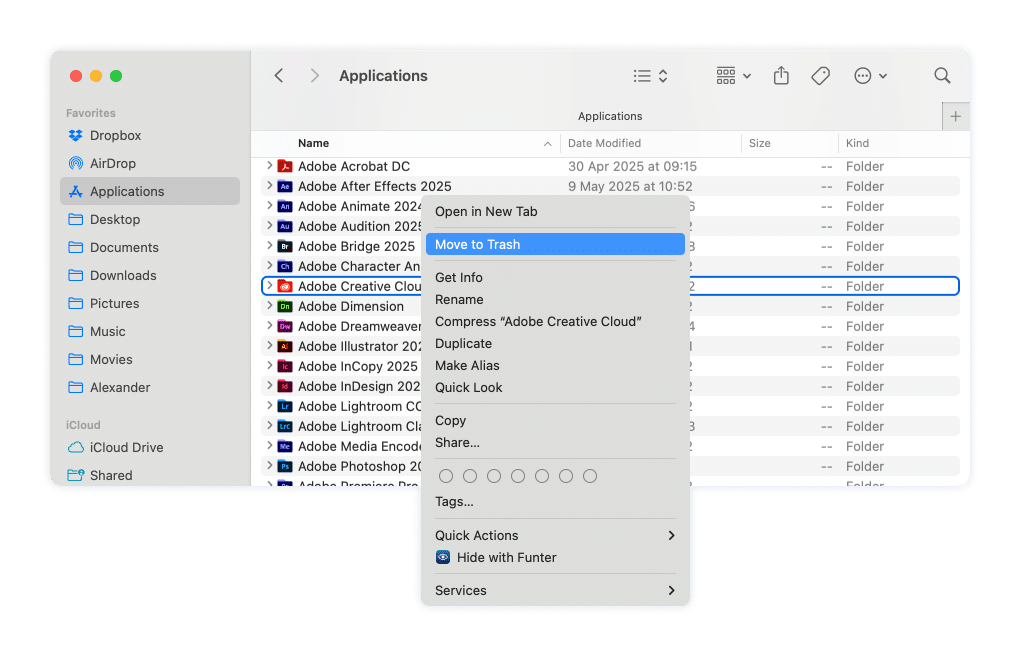
- Open the Applications folder.
- Move all Adobe apps and folders to Trash.

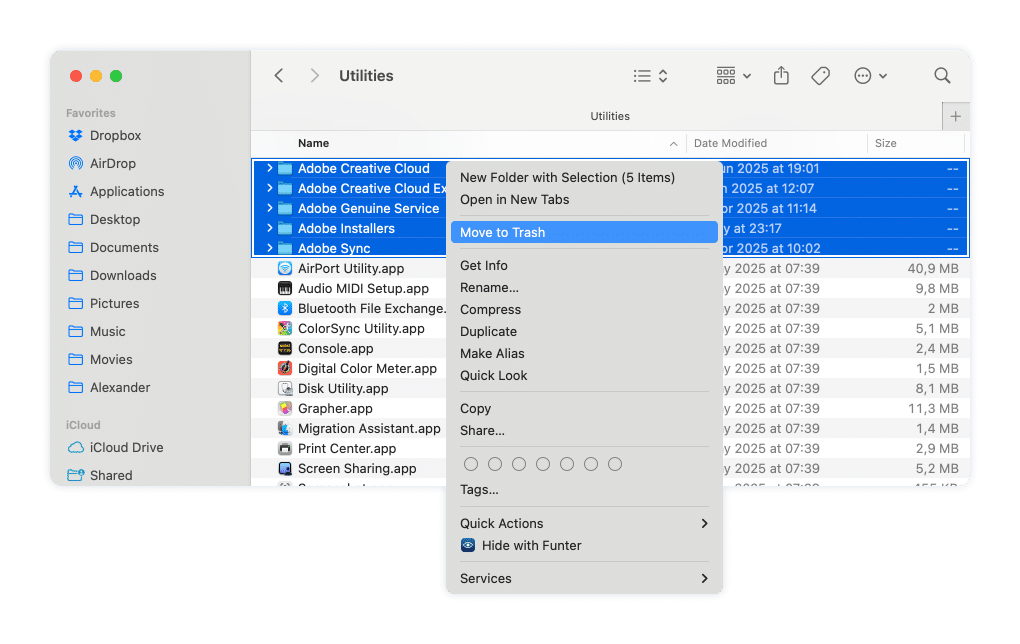
- Then open /Applications/Utilities.

- Delete all Adobe folders (for example: Adobe Application Manager, Adobe Sync, Adobe Genuine Service).
3. Delete all leftover files
Adobe scatters files across many folders. Follow each step below:
3.1 Open your personal Library folder
In Finder, hold Option, click the Go menu, and choose Library.

Delete these folders if they exist:
~/Library/Caches/CSXSCopy
~/Library/Logs/CSXSCopy
Now remove other Adobe-related folders and files. In your ~/Library folder, look for and delete:
~/Library/Caches/AdobeCopy
~/Library/Caches/com.adobe.*Copy
~/Library/Logs/AdobeCopy
~/Library/Logs/CreativeCloudCopy
~/Library/Logs/CoreSyncInstall.logCopy
~/Library/Application Support/AdobeCopy
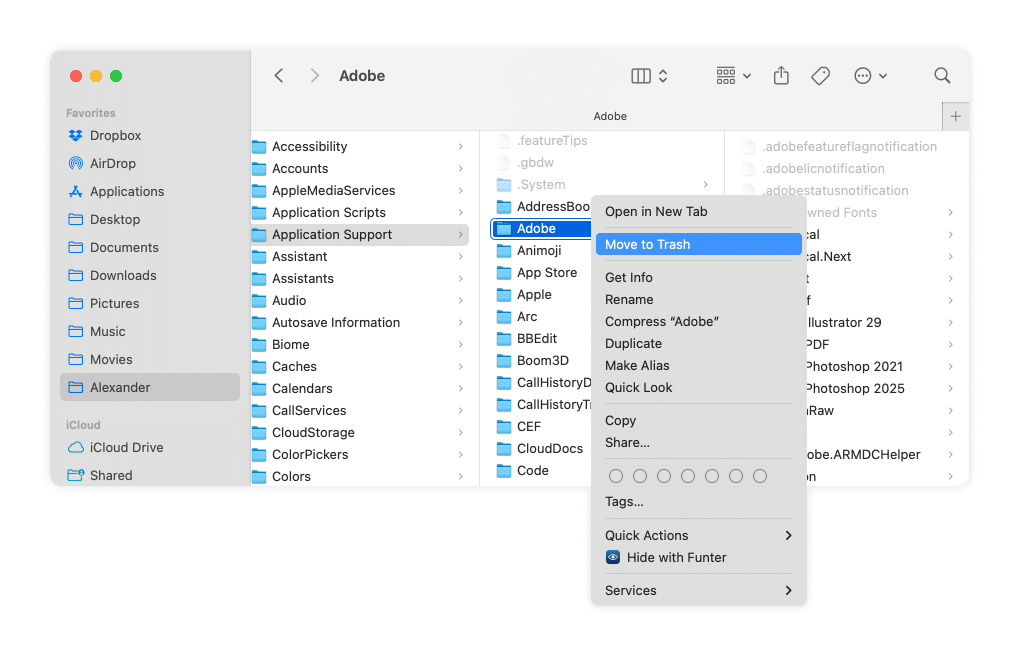
In rare cases, this folder might contain some of your previously saved Adobe projects. Make sure you back up the important files before removing this folder.
~/Library/Application Support/.CCH_GrowthSDKHelper_LockCopy
~/Library/Application Support/.COSY_LockCopy
~/Library/Application Support/.ADCS_LockCopy
~/Library/Preferences/AdobeCopy
~/Library/Preferences/com.adobe.*Copy
~/.adobeCopy
Tip
To see hidden files like ~/.adobe, press Command + Shift + Period (.) in Finder.
3.2 Open the system Library folder
/Library
Copy
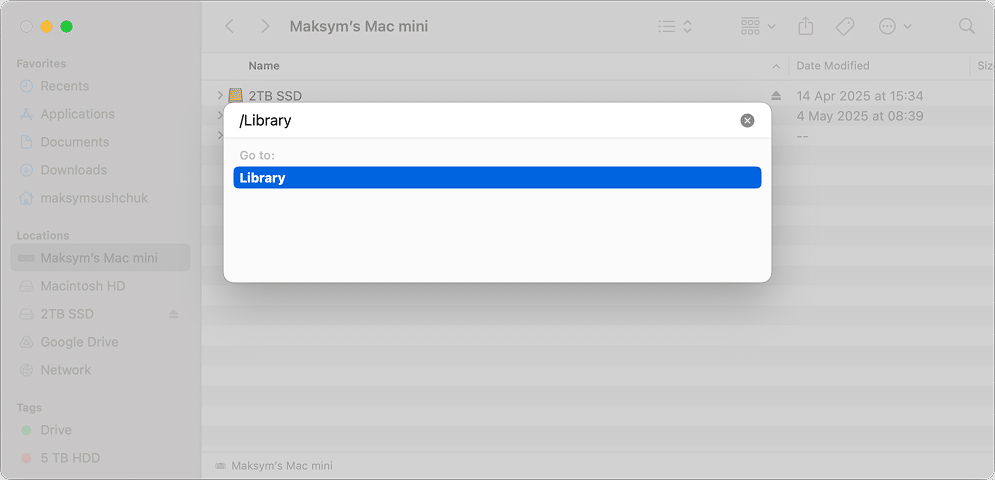
Delete these folders and files in /Library:
/Library/Application Support/AdobeCopy
/Library/Preferences/com.adobe.*Copy
/Library/PrivilegedHelperTools/com.adobe.*Copy
/Library/Internet Plug-Ins/AdobeAAMDetect.pluginCopy
/Library/ScriptingAdditions/Adobe Unit Types.osaxCopy
3.3. Remove receipts and temporary Files
Receipts record installed components. To delete them:
Option A: Use Terminal (faster)
In Terminal, enter:
sudo rm -rf /private/var/db/receipts/com.adobe.*Copy
Option B: Use Finder
- In Finder, press Command + Shift + G and go to
/private/var/db/receipts/Copy

- Search for items containing “adobe”
- Delete them (Finder may ask for your password)

Temporary files may store logs and helper data. To remove them:
- Navigate to (use the Go to screen via Command + Shift + G as was already explained above, or you can enable the visibility of hidden files via Command + Shift + . (dot) in Finder and proceed to this location from the root of your drive)
/private/tmp/Copy
- Delete any files and folders containing “adobe”
Note:
Be cautious. Deleting unrelated (non-Adobe) files in these locations can affect your system.
3.4. Remove shared folders
Check if these folders exist and delete them if they do:
/Users/Shared/AdobeCopy
/Users/Shared/AdobeGCDataCopy
/Users/Shared/AdobeGCInfoCopy
4. Restart your Mac
Restart your Mac to make sure no background processes remain active.
That’s it, the Creative Cloud app is completely removed from your Mac!
Why manual removal is so complex
Adobe installs many small helper apps, receipts, and hidden files, each with unique identifiers. Even careful deletion may leave behind some traces. If you prefer a faster cleanup, consider using the automatic removal method.
Method 3: Remove Creative Cloud automatically
If you prefer a faster and safer way to uninstall Creative Cloud, you can use a dedicated uninstaller app. App Cleaner & Uninstaller by Nektony automatically finds and deletes all related files (except your personal files and projects!) in just a few clicks.
This method works for three situations:
- Completely removing Creative Cloud and all its components
- Deleting leftover files after a partial uninstall
- Resetting the app to fix errors without removing everything
Select the desired action and proceed with the instruction that follows.
A. Completely uninstall Creative Cloud
Use this option if you have Creative Cloud installed and want to remove it fully.
- Download and open App Cleaner & Uninstaller.
- In the main window, find Creative Cloud (and other Adobe apps, if necessary) in the list of applications.
- Select it. The tool will scan and, if the Expert mode in the upper part of the screen is toggled, show all related support files, caches, logs, and hidden items.

- Feel free to review the list to make sure no personal documents are selected.
- Click Remove and confirm your action in the next screen.
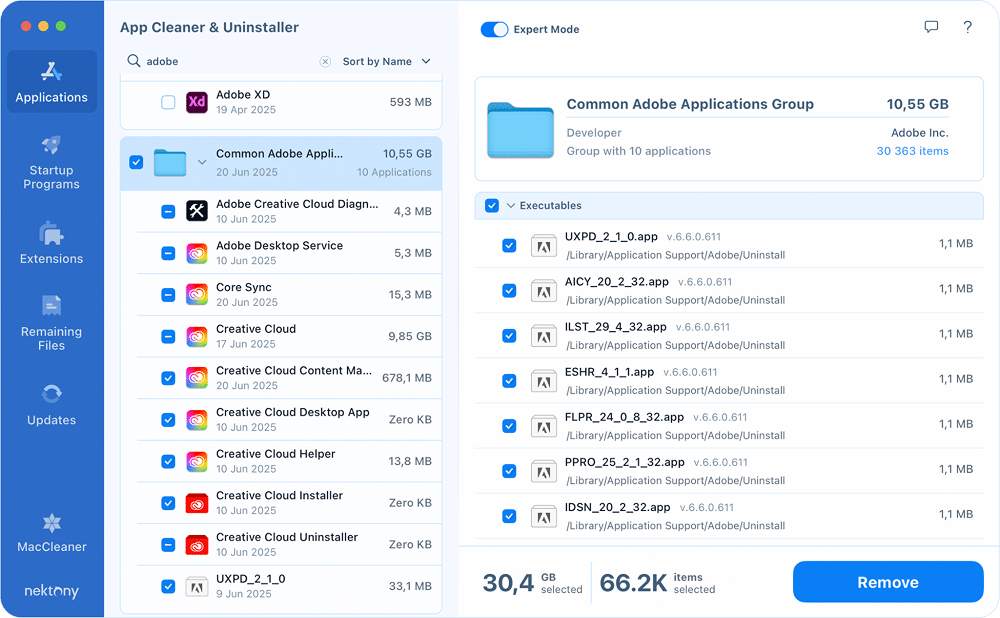
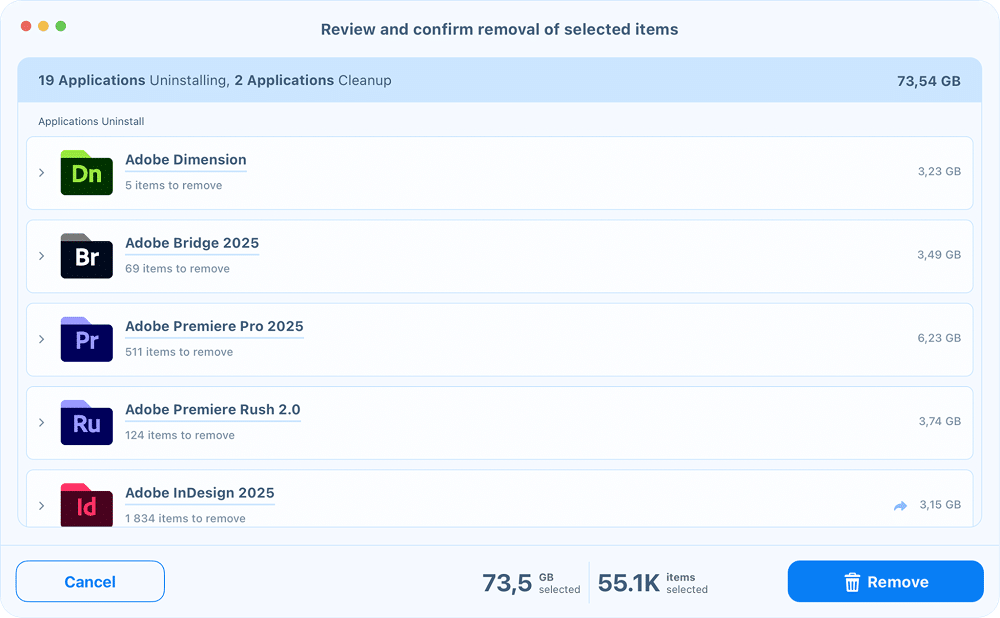
This process deletes:
- The main app
- All helper tools and background services
- System files and receipts
- Cached data and logs
Tip
Restart your Mac after removal to stop any remaining background processes.
B. Remove leftovers after manual uninstall
If you have already removed Creative Cloud manually or with the official uninstaller, residual files may still be scattered across your system. App Cleaner & Uninstaller can find and remove them.
- Open App Cleaner & Uninstaller.
- Switch to the Remaining Files tab.
- Look for entries related to Adobe Creative Cloud.
- Select them and click Remove.
This helps you clean up old caches, receipts, and hidden components without reinstalling anything.
C. Reset the app to factory defaults
If you are experiencing errors or glitches but don’t want to uninstall Creative Cloud entirely, you can reset it.
Resetting deletes all related support files but keeps the app installed so you can start fresh.
- Launch App Cleaner & Uninstaller.
- In the list of applications, find Adobe Creative Cloud.
- Right-click it and choose Reset Application.

- Confirm the reset.
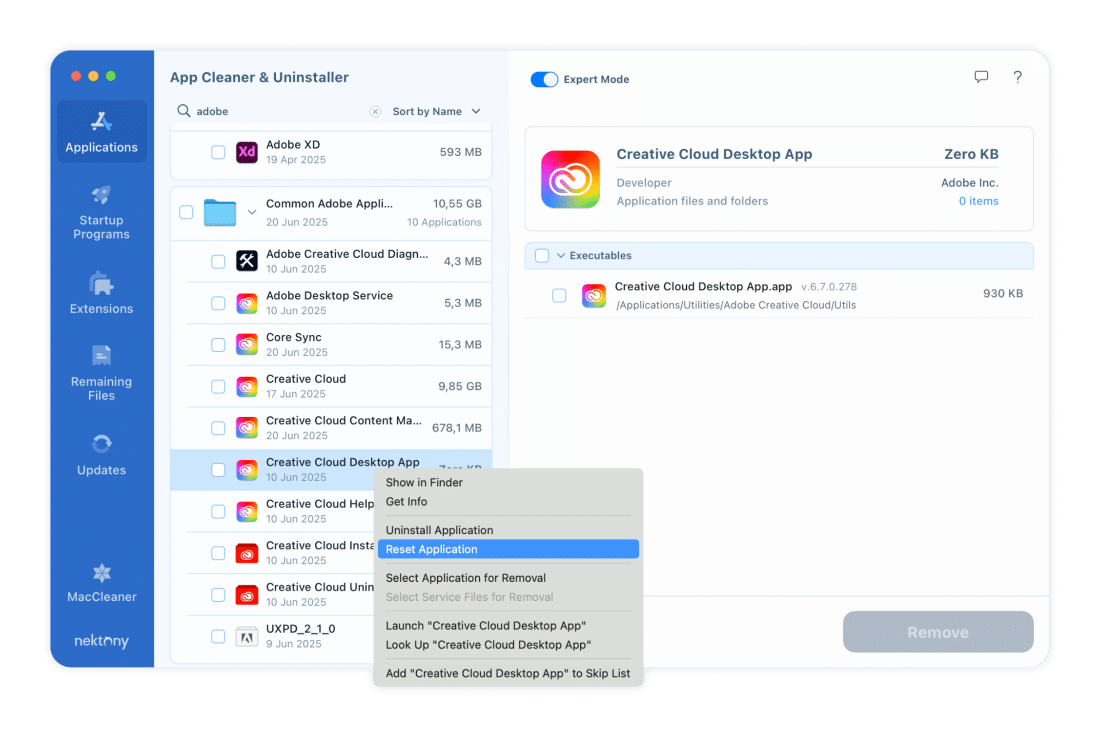
After this, Creative Cloud will launch as if you just installed it, with no saved settings or caches.
Why choose automatic removal?
- Saves Time: No need to search hundreds of folders manually.
- Safer: Reduces the risk of deleting the wrong system files.
- More Thorough: Finds hidden components even experienced users may miss.
Before you finish: important things to check
Before you consider the job done, here are a few things worth double-checking to avoid surprises later.
1. How will you open your files after uninstalling?
If you uninstall Creative Cloud, remember that many Adobe project files (like PSD, AI, or INDD) still require Adobe apps to open or edit them fully. Even though some third-party tools can view or convert these files, advanced editing often won’t be possible without reinstalling the original software.
You might want to think about the following things:
- Which Adobe formats you still need to access
- Whether you have alternatives installed (like Affinity Photo or Pixelmator Pro for PSDs and some Illustrator files)
- If you need to export your projects to more universal formats (PDF, SVG, JPEG)
This way, you won’t find yourself stuck later if you need to tweak an old project.
2. Review your Adobe account
Even after you uninstall Creative Cloud, your subscription and Adobe ID remain active. If you don’t plan to use Adobe products again, consider:
- Canceling your subscription to avoid further charges.
- Deleting your Adobe account if you want all personal data removed.
On the other hand, if you still use a few tools online (for example, Adobe Acrobat web services), you might keep your account active without reinstalling the desktop apps.
3. Decide whether you want to reinstall later
Adobe has been on the market for decades, and its tools remain the industry standard in many fields. Still, I often find lightweight alternatives and online tools such as Canva work better for my needs. Before reinstalling, think about whether you really need the full suite on your Mac or if simpler options can do the job.
Once you’ve handled these details and removed Creative Cloud, your Mac will feel lighter and more responsive. There’s nothing better than a system that works just the way you want it to.