
May 13, 2026
Can you delete default Mac apps? What you need to know


Share


Apple ships every Mac with a set of stock apps – Safari, Mail, Chess, Stocks, GarageBand, Siri, and more – and most of them cannot be dragged to the Trash the way third-party apps can. Users hit a Finder block, open a forum thread, and fall into a rabbit hole of Terminal commands, SIP toggles, and Recovery Mode screenshots that may or may not work on modern macOS.
In this article, I’ll share what is and is not possible if you want to delete any of those apps. The tips were carefully tested on macOS Tahoe 26.4, with Intel-side checks on macOS 15.5 Sequoia. Where the interface or the protection mechanism changed recently, we call out which macOS version the step actually applies to.
This Article Contains
Delete vs. hide vs. reset: three different operations
Most people land on this topic because a default app is annoying them – it’s cluttering Launchpad, misbehaving, or they simply never use it. Before you touch Terminal, it helps to separate three operations that look the same on the surface but are very different in practice.
| Operation | Effect |
|---|---|
| Delete | Permanently removes the app’s .app bundle from /System/Applications. On modern macOS, this requires disabling system protections, and on Apple Silicon, it’s effectively blocked. |
| Hide | The app stays installed but disappears from the Dock, Launchpad, or Home Screen. Reversible in seconds, and the right answer for roughly nine out of ten reasons people ask about deleting. |
| Reset | The app stays installed, but its preferences, caches, containers, and support files are cleared. The fix when Mail stops sending, Safari won’t load, or Notes won’t sync. |
This guide covers all three in that order of safety. If you’re a newer Mac user and a stock app is in your way, start with hiding. If an app is broken, try reset. Only reach for delete if you’re experienced with Terminal, have a Time Machine backup, and understand that the operation can brick your boot on a bad day.
Warning
On Apple Silicon Macs (M1-M5 processors), permanently deleting core default apps is not reliably possible with any method available in May 2026, including commands that work on Intel Macs. See the Apple Silicon note further down.
Why you might want to remove default Mac apps (and why you usually shouldn’t)
Before going any further, take a moment to look at what problem you’re actually trying to solve. Most of the time, deletion is the wrong tool.
The real reasons people want them gone:
- Free up disk space. In practice, this rarely pays off. Most stock apps are tiny – Chess is about 10 MB, Stocks and Stickies are a few MB each, and even Safari and Mail together are under 200 MB. If storage is the problem, cleaning caches, old iOS backups, and local Time Machine snapshots frees far more space than any delete.
- Reduce clutter in Launchpad or Dock. This is the top real motivation, and it doesn’t need a delete – hiding the icon solves it.
- Fix a misbehaving app. Mail, Safari, Notes, and Messages can break in small ways that a reset fixes in seconds.
- Replace a stock app with a third-party alternative. You don’t have to remove Mail to use Spark, or Safari to use Chrome – just change the default handler in System Settings.
- Managed environments. Some corporate or educational deployments require a locked-down set of installed apps. These are usually handled with MDM profiles, not manual deletion.
Why Apple makes deletion hard on purpose:
- Hidden dependencies. Safari ships with WebKit, the engine macOS uses to render HTML in Help, Mail messages, some system dialogs, and several third-party apps. Removing Safari can break parts of the OS that never mention it by name.
- Tight inter-app integration. Mail, Calendar, Contacts, Reminders, and Notes share frameworks. Pulling one out can leave another with dead links or broken features.
- Restore-on-update behavior. On macOS Monterey and later, even if you manage to remove a stock app with SIP disabled, a later macOS update will often put it back during Software Update’s integrity pass. Various Apple Discussions threads collect real cases of this happening after routine updates.
- System integrity. Since macOS Big Sur, the system volume is cryptographically signed. Writing to it without the exact recovery procedure can leave the Mac unable to boot.
In short: if your goal is a clean-looking Launchpad or a working app, deletion is a heavy, risky tool for a job that has a lighter one.
Comparing ways to remove or manage default Apple apps
Five approaches show up in forum threads and how-to guides. They split into three different jobs – hiding the icon, resetting a misbehaving app, or actually removing the .app bundle – so the table starts with what each method does, then compares them on difficulty, risk to the system, how reversible the change is, and which macOS versions it works on.
| Method | What it actually does | Difficulty | Risk to the system | Reversible? | macOS support |
|---|---|---|---|---|---|
| Hide from Launchpad or Dock | Removes the icon from view; app stays installed and functional | Very low | None | Instant – drag back or unhide | All versions |
| Screen Time restrictions | Blocks the app from launching; app stays installed | Low | None | Toggle off in Settings | All versions |
| Reset the app | Clears preferences, caches, and containers; app stays installed | Low | Minimal – you lose that app’s settings and local data | Reopen the app, sign in again | All versions |
| Terminal with SIP disabled | Permanently deletes the .app bundle from /System/Applications | High | High – can break dependent apps; macOS updates may restore the app | Hard – Time Machine restore or macOS reinstall | 10.14–10.15 |
| Terminal with SIP + SSV disabled | Permanently deletes the .app bundle from the sealed system volume | Very high | Very high – bad sequence can leave the Mac unbootable | Very hard – full reinstall in many cases | 11–15 (Intel only) |
The important line to draw: hide and reset are safe and instant. Terminal-based deletion is for advanced users and does not work on Apple Silicon for the permanent removal of core apps.
What you can and cannot remove
Not all default apps are equal. Apple protects some strictly, others less so, and a handful come as optional downloads that behave like regular third-party apps.
Relatively safe to remove when allowed:
- Chess, Photo Booth, Stickies – no system dependencies and rarely referenced by other apps.
- GarageBand, iMovie – distributed through the Mac App Store and not installed by default on modern macOS. When they are installed, they can be uninstalled like any App Store app and re-downloaded for free later.
Risky to remove:
- Safari – ships the WebKit engine used by Help, Mail’s HTML rendering, and some system dialogs. Removing it can break features that never mention Safari.
- Mail – shares frameworks with Calendar, Contacts, and Reminders. Mail also uses WebKit to render HTML messages.
- Photos – tied to iCloud Photo Library, Photo Library framework, and system media pickers.
- Notes – synced through iCloud and surfaced by Siri and Spotlight.
- FaceTime, Messages – removable on managed work machines, though the process still requires SIP changes and is rarely worth it outside enterprise setups.
Effectively impossible to remove, even with SIP off:
- Finder – not a normal app; it’s the desktop shell.
- System Settings (called System Preferences before Ventura) – required for a usable macOS session.
- Core XPC services and default frameworks bundled with the OS.
Apps that Apple restores automatically: On macOS Monterey and later, re-enabling SIP or applying a macOS update often reinstalls default apps you removed earlier. Reddit’s r/MacOS threads are full of users discovering a deleted Safari or Mail back in /System/Applications after a point update.
How to uninstall default Apple apps manually
csrutil status
Copy
Variant 1: macOS 10.14–10.15 (Mojave and Catalina)
Works on Intel Macs of that era. The system volume isn’t cryptographically sealed yet, so disabling SIP alone is enough.
- Restart into Recovery Mode by holding Command+R during boot.

- From the menu bar, choose Utilities → Terminal and run . Confirm with
csrutil disableCopy
and press Return.yCopy
- Reboot normally.
- On Catalina only, remount the system volume read-write: .
sudo mount -uw /Copy
- Navigate to the system applications folder: .
cd /Volumes/[VOLUME_NAME]/System/ApplicationsCopy
- Remove the target app: .
sudo rm -rf APP_NAME.appCopy
- Reboot back into Recovery and run to re-enable SIP.
csrutil enableCopy
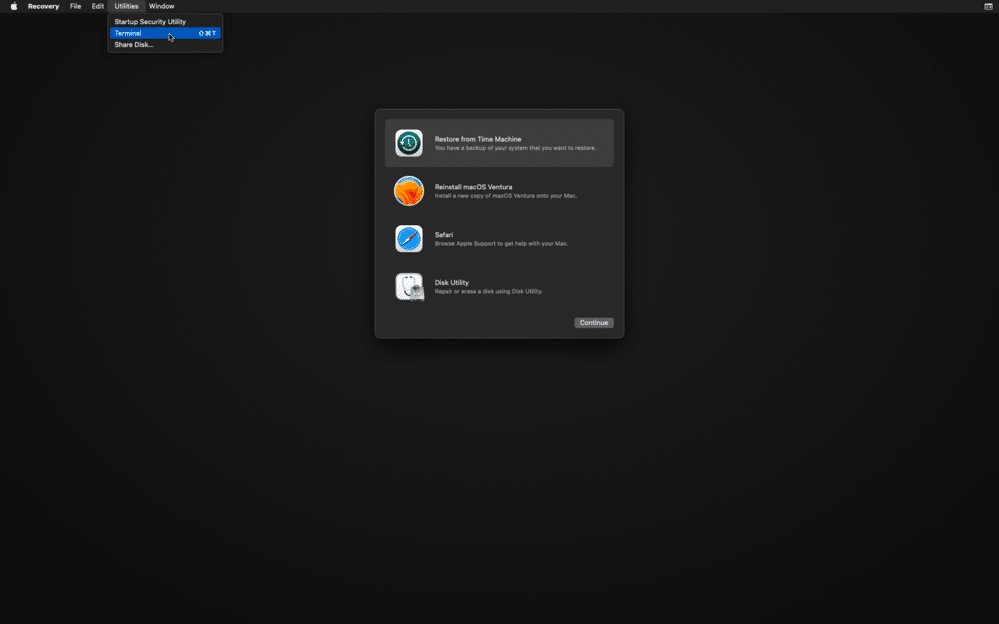

Variant 2: macOS 11–15 (Big Sur through Sequoia) – Intel Macs only
This is where Signed System Volume (SSV) enters the picture. The system volume is cryptographically sealed, and simply disabling SIP is no longer enough – you have to also disable authenticated-root, mount the volume by hand, and re-bless the snapshot.
Procedure verified on a 2018 MacBook Pro (Intel Core i7) running macOS 15.5 Sequoia.
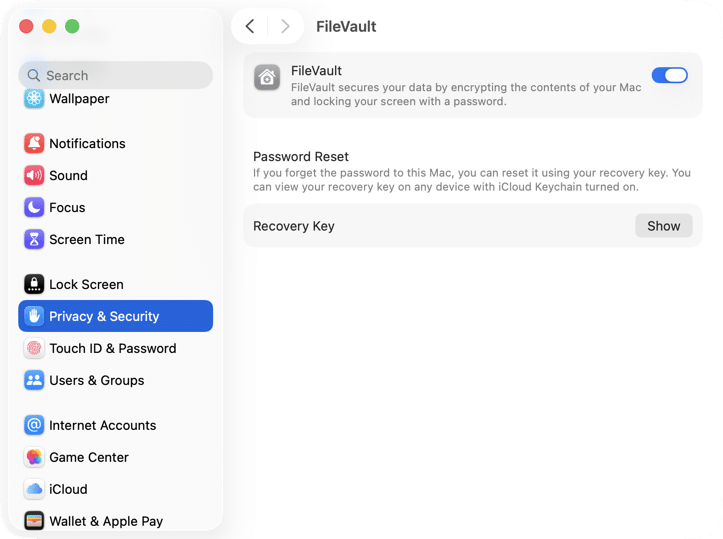
- Turn off FileVault from System Settings → Privacy & Security → FileVault and wait for the decryption to finish.

- Boot into Recovery Mode and open Terminal.
- Run both commands, confirming each: and then
csrutil disableCopy
.csrutil authenticated-root disableCopy
- Reboot to the normal desktop and open Terminal.
- Create a mount point: .
mkdir -p -m777 ~/mountCopy
- Run and find your system device. A line like
mountCopy
means the underlying volume is/dev/disk1s5s1Copy
– drop the trailing/dev/disk1s5Copy
.s1Copy
- Mount it read-write: .
sudo mount -o nobrowse -t apfs /dev/disk1s5 ~/mountCopy
- Switch into the mounted apps folder: .
cd ~/mount/System/Applications/Copy
- Remove the target app: . Note that Safari on Ventura lives under a Cryptex path and is not at this location.
sudo rm -rf ~/mount/System/Applications/APP_Name.appCopy
- Re-bless the modified system volume and create a new boot snapshot:
sudo bless --folder ~/mount/System/Library/CoreServices --bootefi --create-snapshotCopy
Warning
Skipping - the bless --create-snapshot call - can leave the Mac unable to boot, because the system detects a mismatch between the signed snapshot and the modified volume.

- Reboot back into Recovery and re-enable both protections: and
csrutil enableCopy
.csrutil authenticated-root enableCopy


If anything goes wrong, boot into Recovery and select an older APFS snapshot from Startup Security Utility, or restore from your Time Machine backup.
A note on Apple Silicon (M-processors)
This procedure does not work on Apple Silicon Macs in any form that gives you a permanent deletion. I tested it on a virtual macOS 26.4 Tahoe install running on Apple Silicon and hit two dead ends.
bless
Copy

sudo rm -rf ~/mount/System/Applications/Chess.app
Copy
The practical takeaway
On any M-series Mac in 2026, you cannot permanently remove the core default apps. The only operations that actually produce a result are hide and reset.
How to reset default Apple apps with App Cleaner & Uninstaller
If your reason for deleting was that a stock app is broken – Mail won’t send, Safari won’t open a specific site, Notes won’t sync – what you actually need is a reset, not a delete. A reset clears every service file the app writes into your user Library while leaving the protected .app bundle in /System/Applications alone. After a reset, the app behaves like a fresh install on first launch.
App Cleaner & Uninstaller by Nektony is built for exactly this operation on stock apps, because Apple doesn’t expose a “reset this app” button anywhere in System Settings.
- Download and open App Cleaner & Uninstaller.
- Go to Settings → General and enable Show system applications.

- In the main window, select the default app you want to reset – for example, Mail or Safari – then right-click and choose Reset Application.

- In the new Review and Confirm window, click Remove. Only the service files are deleted in this case; the app itself stays in place.


What application reset actually covers
A reset clears every file the app has written into your user Library except ~/Library/Application Support. App Cleaner & Uninstaller walks through these locations:
~/Library/Application ScriptsCopy
~/Library/HTTPStoragesCopy
- (the .plist files)
~/Library/PreferencesCopy
~/Library/CachesCopy
~/Library/LogsCopy
~/Library/ContainersCopy
~/Library/Group ContainersCopy
~/Library/CrashReportsCopy
The .app bundle under /System/Applications is never touched. On next launch, the app rebuilds its data from scratch – you’ll sign back into iCloud accounts, reconfigure preferences, and re-import any local data from your iCloud copy.
When a reset fixes the actual problem
- Safari won’t open, crashes on a specific site, or forgets all its settings.
- Mail refuses to send or receive on one account.
- Notes won’t sync across iCloud after an OS update.
- Messages shows attachments stuck mid-upload or missing thread history.
- Siri stops responding to voice input after a region change.
The bottom line
For ninety percent of people who reach this page, the right answer is not to delete anything. If you want a cleaner Launchpad, hide the icon. If an app is broken, reset its service files with App Cleaner & Uninstaller. Both take seconds and cannot damage your system.
If you’re sure you want a permanent delete, it’s only realistic on Intel Macs running macOS 10.14 through macOS 15, and even then, the trade-off is a complex Terminal procedure, a temporarily unprotected system volume, and the real chance that a future macOS update quietly puts the app back. On Apple Silicon, permanent deletion of core default apps is not reliably possible in 2026. Start with the safe options – they almost always fit the reason you wanted to delete in the first place.

Peculiar article, just what I was looking for.|