





December 19, 2025
Uninstall Postman on Mac (Two ways)


Share


There’s hardly an IT-guy today who doesn’t deal with APIs in some way. And Postman is exactly the tool that pulls product, dev, or QA into one place to design, test, and debug APIs faster, contributing to developer time savings of up to 75% in API design.
But if you’ve moved your workflow elsewhere, want to reclaim storage space, or don’t use Postman as often, you might be ready to uninstall it. And as with most dev tools, it’s not just about dragging the app to the Trash, you’ll want to make sure to properly handle your workspaces, collections, synced data, and CLI components.
In this guide, you’ll learn how to completely uninstall Postman on a Mac, manually and automatically, how to reset the app, clean its cache, back up your API collections, delete a workspace, Postman account, and even Postman CLI if you’ve installed it.
This Article Contains
Uninstall Mac apps like a pro

Video guide: Delete, reset Postman, and clean its cache on Mac
1:32

Two ways to uninstall Postman on Mac
I tested Postman v11.68.0 on my Mac Pro M3 (26.0 Tahoe) to compare both approaches: the traditional manual removal and the automated cleanup with App Cleaner & Uninstaller.
| Method | Difficulty | Time | Pros | Cons | Best for |
|---|---|---|---|---|---|
| Manual (Finder) | Medium | ~12 min | Free; full control | Risk of missing hidden files; more steps | Experienced users comfortable with Finder and Library folders |
| App Cleaner & Uninstaller | Easy | < 30 sec | Quick; automatically removes all leftovers | Requires downloading an extra tool | Those wanting a one-click complete cleanup |
How to uninstall Postman manually
Step 1. Quit Postman and stop background processes
- Open Activity Monitor.
- Type Postman in the search bar.
- Select all Postman-related processes → click the ✕ button → Force Quit.

Step 2. Delete the Postman app
- Open Finder.
- In the left sidebar, select Applications.
- Find Postman.app → right-click → Move to Trash.

Step 3. Remove Postman leftovers from Library
Even after deleting the app, Postman leaves multiple support files. To remove them:
- In Finder, click Go → Go to Folder.
- Type and press Return.
~/Library/Copy
- In the search bar, type Postman.
- Open Name Contains.
- Double-check you search within the Library, not This Mac.
- Select all Postman-related files → right-click → Move to Trash.
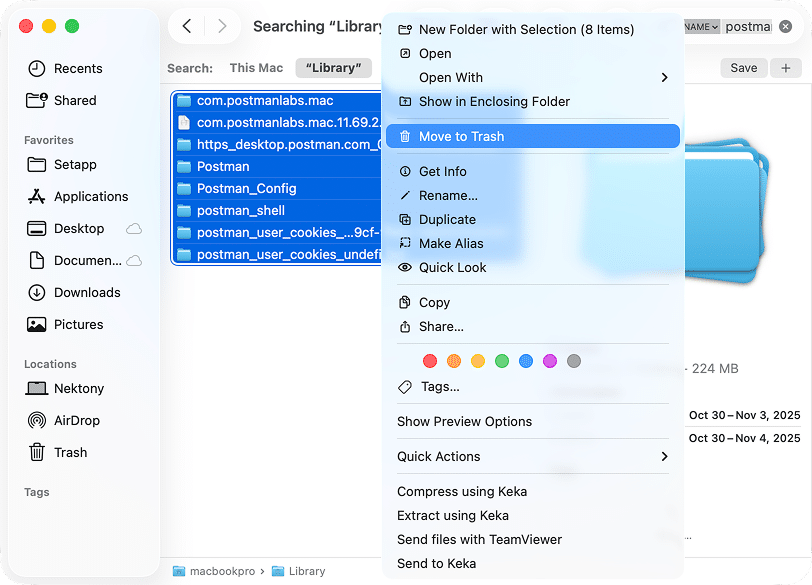
I found the following directories that contain Postman data:
~/PostmanCopy
~/Library/Application Support/PostmanCopy
~/Library/Application Support/com.apple.sharedfilelist/com.apple.LSSharedFileList.ApplicationRecentDocuments/com.postmanlabs.mac.sfl4Copy
~/Library/HTTPStorages/com.postmanlabs.macCopy
~/Library/Preferences/com.postmanlabs.mac.plistCopy
There were also files starting with com.postmanlabs.mac in these folders:
~/Library/Caches/Copy
/private/var/folders/***/***/***/Copy
*** denotes temporary folder names that differ per user. To quickly locate them:
- Open Finder → press Shift + Cmd + G → go to /private/var/folders.
- Type com.postmanlabs in the search box.
- Double-check the result is for /private/var/folders/ path.
- Delete all results related to Postman.
Depending on the way you used Postman, checking two more paths wouldn’t hurt:
~/Library/LogsCopy
~/Library/Launch AgentsCopy
Alternative tip
If you’re unsure whether everything’s gone, use Funter by Nektony – a free tool that reveals hidden files. What’s more, you can delete them from this tool. To that end:
- Download for free and launch Funter.
- Type Postman in the search field.
- Review, select, and delete all Postman-related files.

Step 4. Empty the Trash and restart
Once you’ve removed all related files, empty your Trash and restart your Mac.
How to remove Postman automatically
If manual deletion feels like too much effort, App Cleaner & Uninstaller does the same job automatically and faster. It finds all hidden files in a matter of seconds. Here is the flow:
- Download App Cleaner & Uninstaller → open it.
- Look up Postman among the Applications.
- Select it → click Uninstall.
- Confirm the removal of Postman and all associated files.

That’s the way. Easy as I said. The good news is, this tool has a free trial for two days.
Plus, if you already dragged Postman into the Trash earlier, App Cleaner & Uninstaller is a helper here, too. Just open the Remaining Files tab. It’ll detect all leftovers of Postman and all other apps you can safely remove in one click.

How to delete Postman cache and reset it
If Postman starts lagging, crashing, or showing errors, clearing the cache or resetting it might fix the issue. You can do so by using App Cleaner & Uninstaller, as well. You only shall:
- Open App Cleaner & Uninstaller.
- Search for Postman → select it.
- Turn on Expert Mode.
- Choose Caches in the right sidebar → click Remove → confirm.
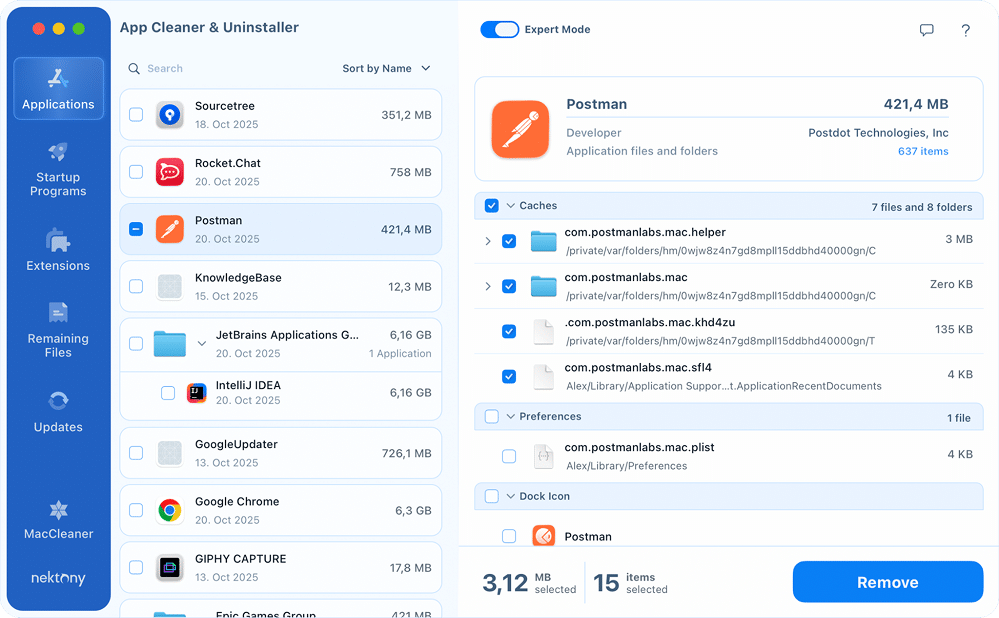
Resetting Postman restores it to its default state without uninstalling it completely.
To do a total reset of Postman:
- Right-click Postman in App Cleaner & Uninstaller.
- Choose Reset Application → confirm.

Final request
From my experience, uninstalling apps on a Mac is rarely as simple as dragging them to the Trash. There are always traces left behind – hidden caches, logs, or settings. Postman is not an exception. That’s why I keep App Cleaner & Uninstaller on hand. It takes care of everything automatically, so you get a clean, complete uninstall without the extra steps.
With easy-to-use features for managing, uninstalling, resetting, removing the remaining files, and cleaning cache, App Cleaner & Uninstaller ensures your Mac stays optimized and clutter-free. So, find out from Nektony what benefits your Mac can gain with this utility.