


January 14, 2026
How to uninstall Razer Synapse from your Mac


Share


I love gaming, but as a busy dad, I rarely have time to sink several hours into a marathon session. Still, that doesn’t stop me from wanting to try new gear.
That’s exactly what happened with a new Razer mouse. I installed Razer Synapse to see what all the customization features were about, and after a few days, I passed the mouse to my son. I went to uninstall the app and… that’s when I found the problem. It leaves quite a bit of digital clutter behind in your system folders.
It’s not a huge deal, but why keep junk files you don’t need? In this guide, I’ll show you how to uninstall Razer Synapse completely so it doesn’t leave a trace on your Mac.
This Article Contains
Before we start
A quick heads-up before you dive into the manual methods: the official uninstaller is incomplete, and the full manual hunt is a file-hunting chore. If you’d rather skip the digital detective work and be done in about 30 seconds, you can jump straight to the easy, one-click method.

Why uninstall Razer Synapse and how to do it right
It’s not always just about tidying up. While I removed Synapse simply because I was done testing the hardware, many users are looking to uninstall it for other, more frustrating reasons.
Common reasons to remove Razer Synapse
For years, Mac users were left out when Razer discontinued support, which made some of them extremely frustrated. But for others, the 2025 announcement of the new Razer Synapse for macOS was big news. However, maybe because it’s so new, the software isn’t perfect.
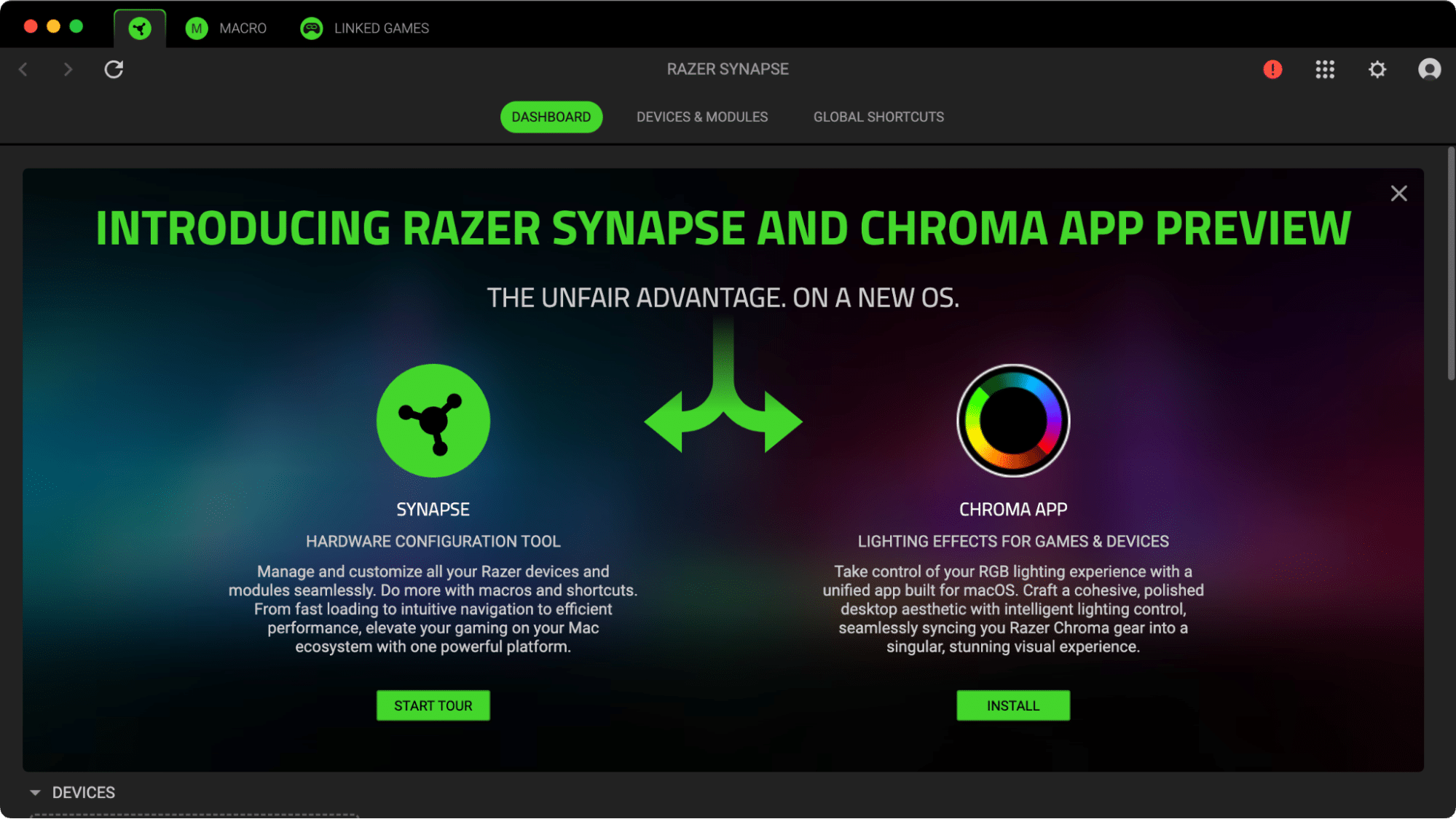
Many users are uninstalling it because:
- It’s buggy: Users in the official forums report the app does not recognize Razer peripherals, has overly broad permission requests, and even spams key presses.
- It uses resources: Synapse is known for running in the background, which can lead to higher CPU usage even when you’re not actively configuring your mouse or keyboard.
- It has limited features: You might be disappointed to find that the macOS version is missing key features, settings, or even firmware updaters (which are often .exe files) that are available on Windows.
- It has limited device support: The new software only works with a specific list of Razer devices. If your peripheral isn’t on that list, the app is just taking up space.
Why is it so tricky to remove?
This is the core of the problem. Synapse isn’t a simple, self-contained app. To control your hardware, it has to hook deep into your system.
It installs multiple background processes, launch agents, and scatters configuration files and caches in hidden system folders. Just dragging the app to the Trash leaves all this “digital dust” behind. As we’ll see, even the official uninstaller is known to be incomplete.
A quick comparison of your uninstall options
Now that you know what you’re up against, here are the three ways to tackle the job. You can choose the one that best fits your needs.
| Method | Time Taken (Approx.) | Files Left Behind? | Best For… |
|---|---|---|---|
| Official Uninstaller | ★★☆ ~3-5 minutes |
Yes | A quick first try (but needs cleanup) |
| Full Manual Hunt | ★☆☆~ 7–10 minutes |
No (if you’re thorough) | Users who want to control every step |
| App Cleaner & Uninstaller | ★★★ ~30 seconds |
No | The fastest, easiest, & most complete removal |
Feel free to select the method you like most and scroll to it below.
How to uninstall Razer Synapse with the official uninstaller
This is the method Razer wants you to use. In theory, it should be simple. In our testing, we found it’s a good first step, but an incomplete one.
Note:
These steps were tested on macOS Tahoe with Razer Synapse v4.
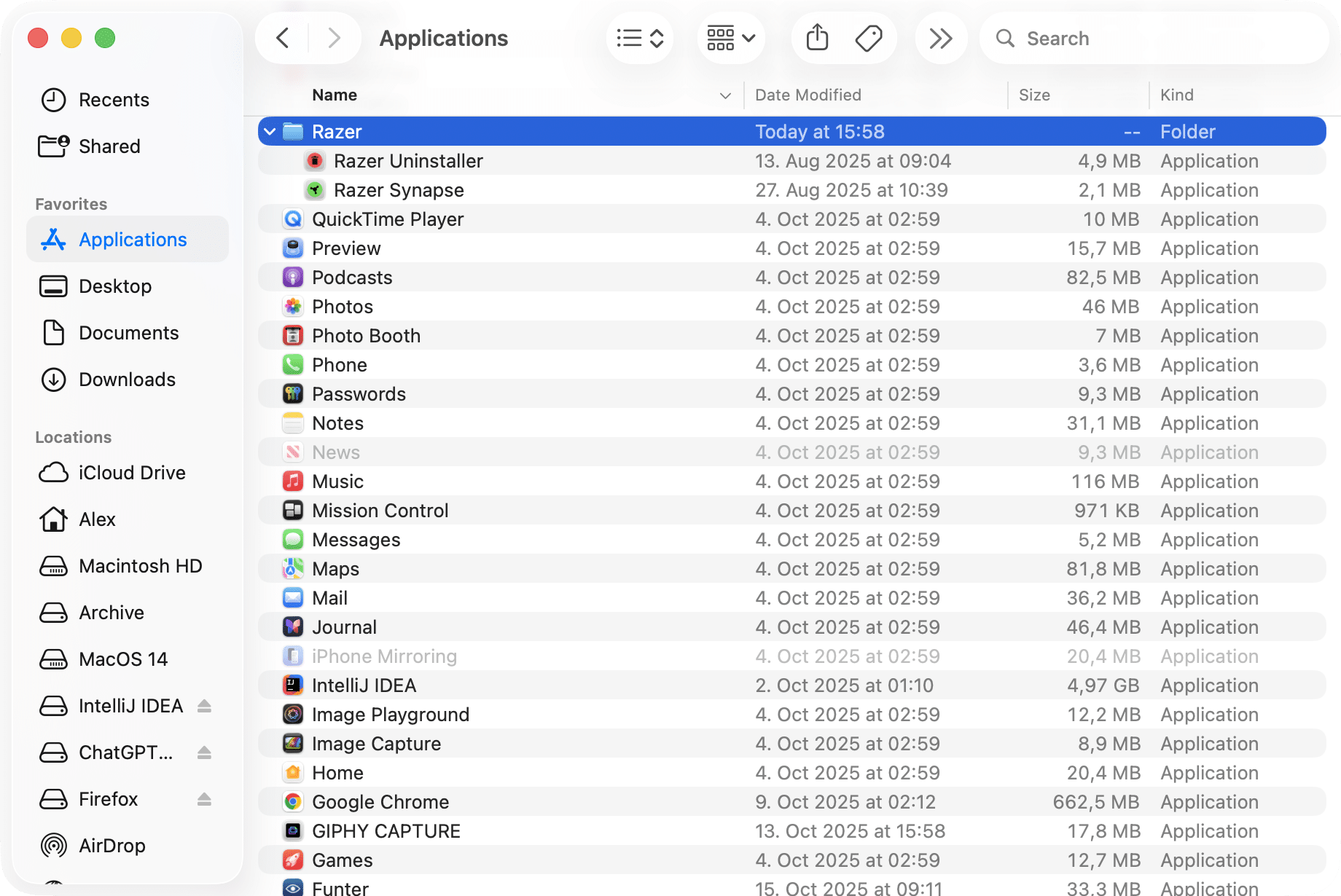
- Open Finder and go to your Applications folder.
- Look for a folder named Razer and open it.

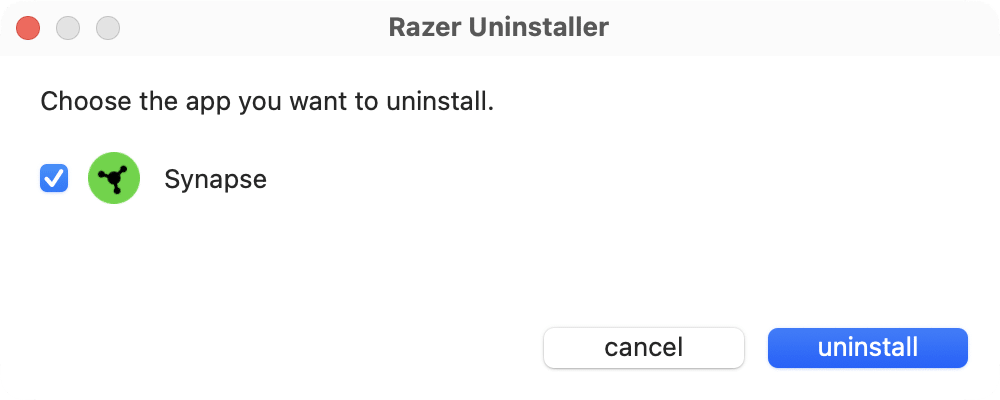
- Inside, you should find Razer Uninstaller. Double-click it to run.
- A window will pop up asking which product you want to remove. Select Razer Synapse and follow the on-screen instructions, entering your password if prompted.

What the official uninstaller misses
This is the “gotcha” that led me to write this guide. After running the official uninstaller and restarting, I did a manual check. I was surprised to find a long list of leftover files and folders still scattered across my system.
When we tested this, we found Razer’s own uninstaller left all of this behind:
~/Library/HTTPStorages/com.razer.SynapseCleanupUtilityCopy
/Users/Shared/Razer_LogsCopy
~/Library/Caches/com.razer.SynapseCleanupUtilityCopy
~/Library/Preferences/com.razer.appengine.app.plistCopy
~/Library/Preferences/com.razer.synapse.plistCopy
- Receipt files in (like
/private/var/db/receipts/Copy
andcom.razer.install.EngineInstall.bomCopy
)com.razer.install.SynapseInstall.plistCopy
- Various temporary files in
/private/var/folders/Copy
You could go and find all of these manually (see Step 3: Remove all associated service files in the manual uninstallation method lower in this article), but that brings us to the next method.
How to uninstall Razer Synapse manually from your Mac
Alright, if you’re skipping the official (and incomplete) uninstaller, this is the full manual method. It’s a thorough deep-clean that requires digging into your Mac’s hidden system folders, so follow the steps closely.
Note:
If you have already used the Official Uninstaller from the previous method, you can skip Step 1 and Step 2. The app is already gone. You can jump straight to Step 3: Remove all associated service files to clean up the leftovers.
Step 1: Quit all Razer processes
Before you can delete the app, you need to make sure no parts of it are still running in the background.
- Open Activity Monitor (you can find it in Applications → Utilities).
- In the search bar at the top-right, type .
RazerCopy
- You’ll see a list of any active processes. Quit them all by selecting them and clicking the (X) icon in the toolbar.
- Choose Force Quit to shut it down.


Step 2: Move the Razer app to the Trash
This is the simple part, but as we know, it’s not the last step.
- Open Finder and go to your Applications folder.
- Find the Razer folder (or the Razer Synapse app).
- Drag the entire folder to the Trash (or select Move to Trash in the right-click menu).

Step 3: Remove all associated service files
This is the technical part where we find all the files the app left behind. Open Finder, click Go → Go to Folder… from the menu bar (or press Shift+Cmd+G), and we’ll visit a few key locations.
Location 1: Your User Library Folder (~/Library)
- In the Go to Folder box, type and press Enter.
~/LibraryCopy

- Once the folder opens, type into the search bar at the top-right.
razerCopy
- Click the “Library” button (next to “This Mac”) to make sure you are only searching inside this folder.
- Select all the files and folders that appear and move them to the Trash.

- Repeat this search for .
com.razerCopy


Location 2: The Shared Folder
- Use Go to Folder and type .
/Users/SharedCopy
- Look for the folder and move it to the Trash.
Razer_LogsCopy
Location 3: System Receipts (Private)
- Use Go to Folder and type .
/private/var/db/receiptsCopy
- Look only for files mentioning ‘Razer’ in their name and move them to the Trash (e.g., ,
com.razer.install.EngineInstall.bomCopy
).com.razer.install.SynapseInstall.plistCopy
A quick tip
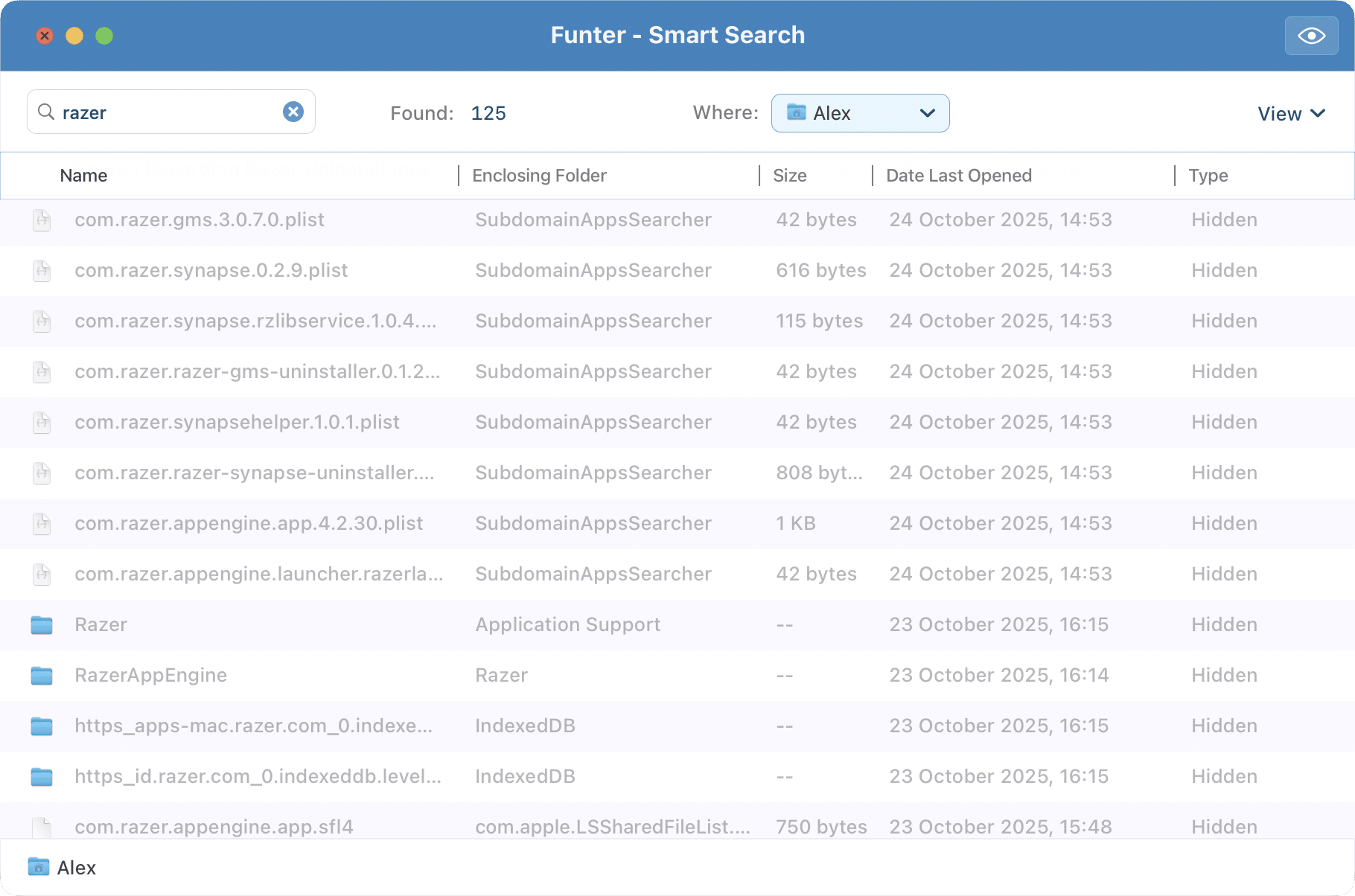
We also have this free app called Funter that is designed to perform a search through files hidden in Finder. You can download and use it to find and remove those files more quickly.
Step 4: Empty the Trash and restart your Mac
Once you’ve moved all those files, right-click your Trash icon in the Dock and select Empty Trash.
Finally, restart your Mac. This is a crucial last step, as it fully clears out any temporary files or cache data that may still be lingering in the system.
How to completely uninstall Razer Synapse (The easy way)
If you’d rather not spend your time digging through system folders or worrying if you missed a stray file, there’s a much faster way.
This is the method I personally use for any app I’m removing. It uses a dedicated tool, App Cleaner & Uninstaller, which finds and removes all of an app’s associated files in about 30 seconds. It does the entire “deep-clean” we just covered, but in just a few clicks.
- Download and launch App Cleaner & Uninstaller.
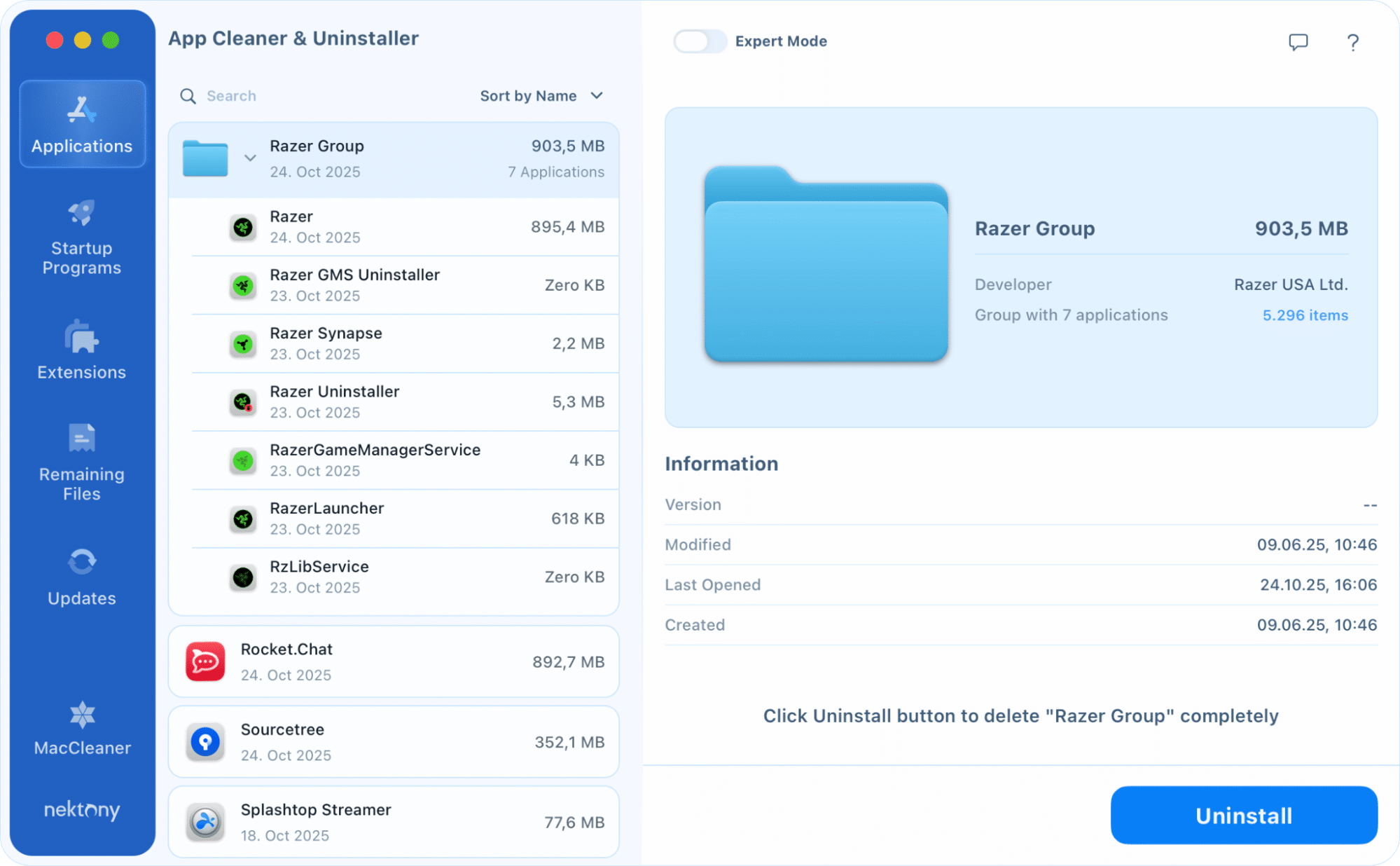
- Type “Razer” into the search bar or just find it in the list of apps.
- Select Razer Synapse and click the Uninstall button. You can also select the whole Razer Group folder to uninstall all Razer apps at once. (Tip: By toggling the Expert mode at the top, you can select several apps for removal at once.)

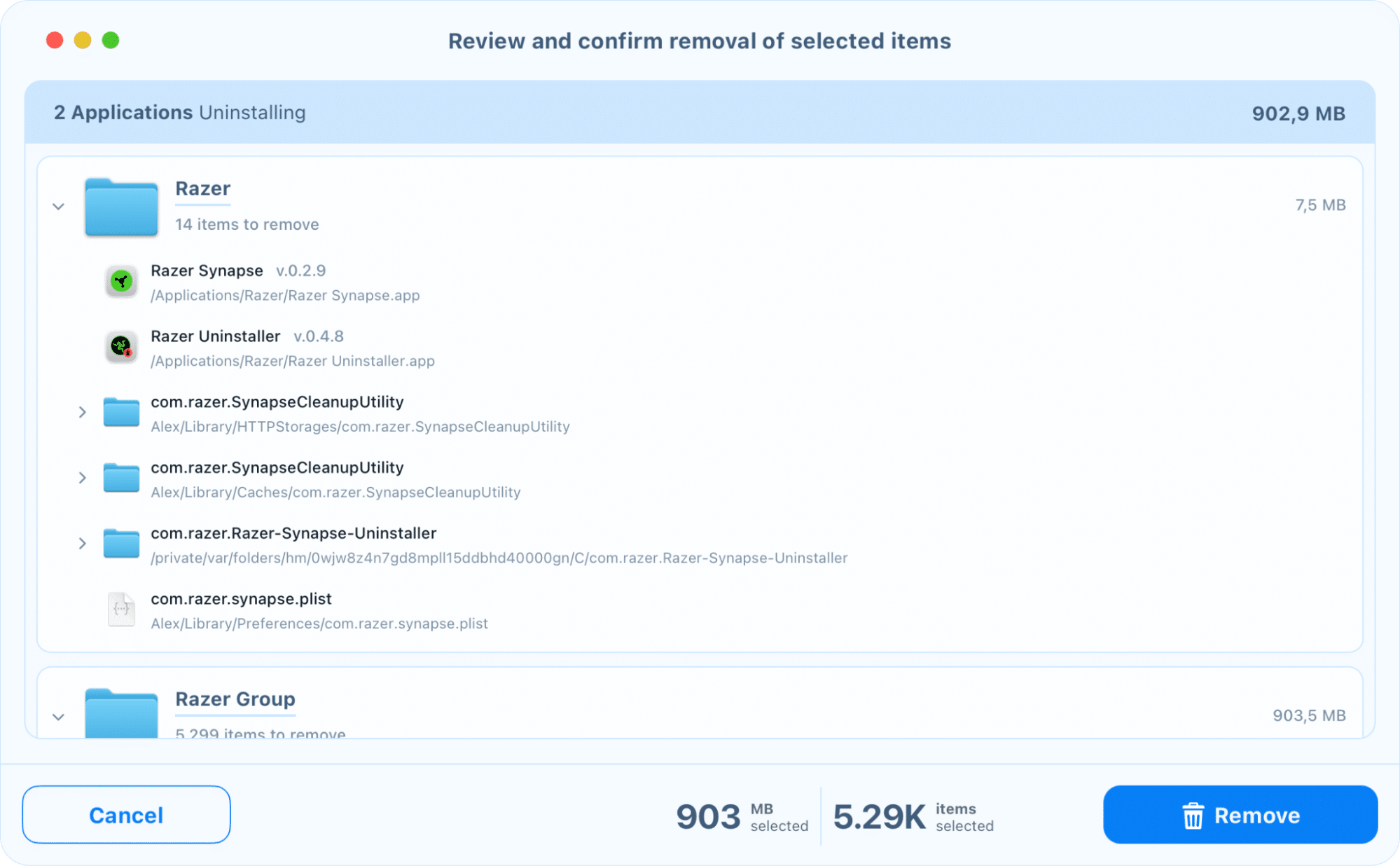
- A confirmation window will pop up showing you every single file it found (including all those hidden ones from the manual method). Just click Remove.
- Once done, empty the Trash and you can also restart your Mac for peace of mind.
And that’s it. Every file – the app, the caches, the logs, and the preferences – is gone for good.
Closing note: The “chore” vs. the “smart” way
As a tech enthusiast, I’m always reading about new gadgets and gizmos. Razer, to their credit, provides plenty of news to follow. Just the other day, I was looking at their Razer Kiyo V2, a 4K webcam with AI features. It’s so cool I almost want one, even though I’m not a streamer and have no real need for it.
That’s the fun part of tech – exploring what’s new. The part that isn’t fun is the digital housekeeping that comes with it.
As this guide shows, you can absolutely uninstall Razer Synapse manually. But it’s a cumbersome process. It requires you to dig through hidden system folders, play digital detective, and double-check your work, all to clean up files the official uninstaller should have caught in the first place. Honestly, it’s just not worth the time.
I’d much rather use an automatic solution like App Cleaner & Uninstaller, get the entire job done in 30 seconds, and spend the time I saved doing something else. Like reading more reviews of that 4K webcam.