



January 2, 2026
The ultimate guide to uninstalling Splashtop on Mac


Share


Splashtop does its job well. It lets you step into your Mac from afar or help someone on theirs, then… life moves on. Weeks later, you open Applications, spot Splashtop, and think, “That was handy, but I don’t need it anymore.”
If that is you, this guide is for a calm cleanup. I will walk you through removing Splashtop completely, not only the app icon but the small support files it leaves behind. By the end, your Mac will be as it was before the remote session, tidy and light.
This Article Contains
A quicker solution to get rid of Splashtop

Things to know before removing Splashtop
Splashtop is a family of apps:
- Splashtop Streamer lives on the Mac you connect to.
- Splashtop Business/Personal is what you use to connect.
Note:
Since Splashtop Business is the functionally extended version of Splashtop Personal for commercial use, the instructions for deleting both of them are the same.
When an app provides remote access to your Mac, you want to make sure it does not leave any traces or leftovers after being removed. Hence, the questions on various forums like Apple Discussions and guides by service companies like Addigy on how to remove Splashtop.
It is easy to get confused because, actually, there are three ways to uninstall Splashtop. Here they all are side by side:
| Method | What you get | Time |
|---|---|---|
| Native uninstaller | Runs the app’s own remover. It takes care of the main app but usually leaves service files behind, so a short manual cleanup is still needed. | ★★☆ (medium) |
| Finder (manual) | Drag the app to the Trash, then hunt down support files in Library folders yourself. It can be thorough if you find everything, but it takes a bit of patience. | ★☆☆ (slowest) |
| App Cleaner & Uninstaller | Scans for the app and all related files, including agents and daemons, then removes them in one go. Clear and friendly for any skill level. | ★★★ (fastest) |
Proceed to the method you prefer to remove Splashtop below.
Note:
If your goal is to fix Splashtop by reinstalling it, check the Frequently Asked Questions at the very end of this article first. Some known issues have quick fixes that do not require a full uninstall.
How to uninstall Splashtop
The native uninstaller method
This route follows Splashtop’s own removal script. It is quick and tidy for the main app, and we’ll finish with a short manual check for one known leftover folder.
Note:
The method should work on macOS 10.13 or later (according to the installer’s note).
First, let’s uninstall the app properly.
- Quit Splashtop
In the Dock, right-click the Splashtop icon and choose Quit. - Open the original installer (.dmg)
Download the official installer if you don’t have it.
- If you have Splashtop Business, click here to get it.
- If you have Splashtop Personal, download the installer via this link.
- Run the built-in uninstaller
In the mounted window, double-click Uninstall Splashtop Business/Personal.
- Confirm any prompts and enter your administrator password when asked.
Wait for the uninstaller to complete. - Empty the Trash
In Finder, choose Finder → Empty Trash…, then confirm. - Restart your Mac

com.splashtop.ScriptEditor.Uninstall-Splashtop-Business
Copy
/private/var/folders
Copy
The manual uninstallation method via Finder
If you prefer a hands-on cleanup, this path gives you full control. We will quit running processes, remove the app, then clear leftover files from your Library folder.
1. Quit Splashtop processes
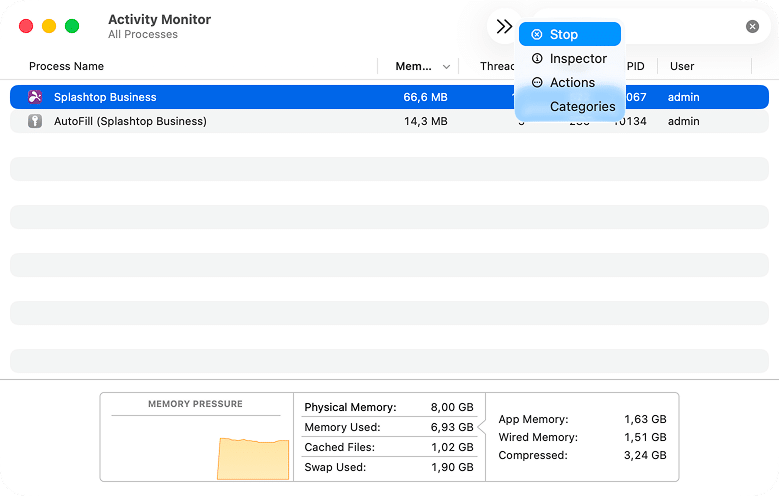
- Open Activity Monitor (Spotlight → type “Activity Monitor”).
- In the search field, type Splashtop.
- Select each matching process individually and click the Stop button (×).
Note:
If you see a » menu instead of the stop icon, click it to find the Stop button.

- Close Activity Monitor.
2. Remove the app from Applications
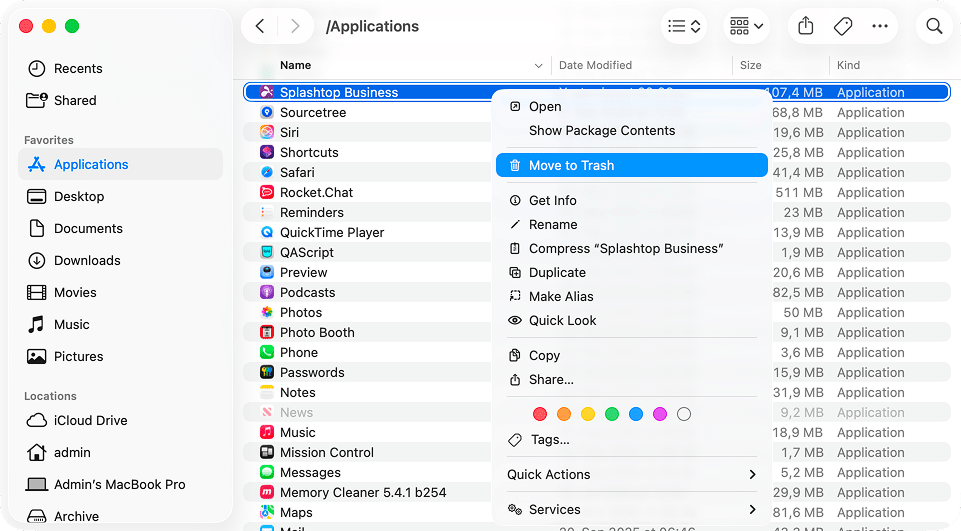
- Open Finder → Applications.
- Find your Splashtop Business/Personal app.
- Right-click and choose Move to Trash.
3. Remove leftovers from your user Library
You will use the “Go to Folder” dialog and targeted search so you do not miss hidden support files.
- In Finder, press Shift + Command + G and type in . Then hit Enter to open this folder.
~/LibraryCopy

- In the top-right search field, type . (You can click Name and choose Name contains for the most precise results.)
com.splashtopCopy
- Select found items, right-click, and Move to Trash.

4. Empty the Trash and restart your Mac
A restart clears the rest of the temporary files and folders Splashtop may have generated during this session.
Note:
If manual searches in Finder feel tedious, try Funter by Nektony to find all files by keyword (for example, splashtop) across visible and hidden locations, then remove them in one go.
How to uninstall Splashtop Streamer
The native uninstaller method
This guide follows Splashtop Streamer’s own removal script. It takes care of the main service, and we will finish with a quick sweep for a few known leftovers.
Note:
The method should work on macOS 10.13 or later (according to the installer’s note).
Step 1: Execute the uninstallation script from Splashtop
- Quit Splashtop Streamer
- In the menu bar, click the Splashtop Streamer icon and choose Quit.
- Open Activity Monitor (In Spotlight, type “Activity Monitor” to find it) and search for Splashtop. If you see Splashtop Streamer, click Stop.
- Open the original installer (.dmg)
Download the installer for Splashtop Streamer Personal via this official link if you don’t have it. (And here’s the link for Splashtop Business users.)
In Finder, go to Downloads or the folder where you saved the installer.
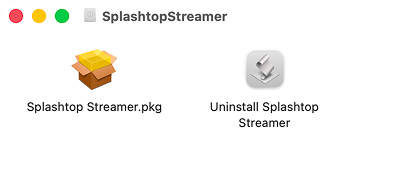
Double-click the Splashtop Streamer .dmg to mount it. - Run the built-in uninstaller
In the mounted window, double-click Uninstall Splashtop Streamer.
Confirm prompts and enter your administrator password if asked. Wait for the script to finish.
- Empty the Trash
In Finder, choose Finder → Empty Trash… and confirm. - Restart your Mac
A short restart removes any temporary files.
Step 2: Manually remove known Splashtop Streamer leftovers
On some systems, the uninstaller leaves a few small folders and logs. You can remove them safely.
For that, you will need to press Shift + Command + G – this will open the Go to Folder dialog – enter the location below and search for the mentioned files. If you find any, move them to Trash.
| Location to look in | Files to search for and remove |
|---|---|
Copy |
com.splashtop.stb.macosx |
Copy |
Splashtop Streamer-*.ips (* means you need to remove all files that start with “Splashtop Streamer-” and have the “ips” extension) |
Copy |
Splashtop Streamer_*.plist (* means you need to remove all files that start with “Splashtop Streamer_” and have the “plist” extension) |
Then, restart the Mac and empty your Trash.
The manual removal method (via Finder)
This is the hands-on route. We will stop Streamer processes, remove the app, then sweep Library folders for leftovers so nothing keeps running in the background.
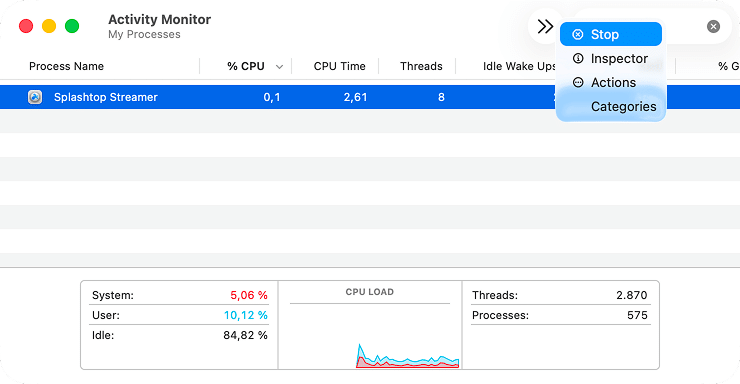
1. Quit Splashtop processes
- Open Activity Monitor (In Spotlight, type “Activity Monitor”).
- In the search field, type .
SplashtopCopy
- Select any matches (for example, Splashtop Streamer) and click Stop. Confirm Quit or Force Quit if needed.
2. Remove the app from Applications
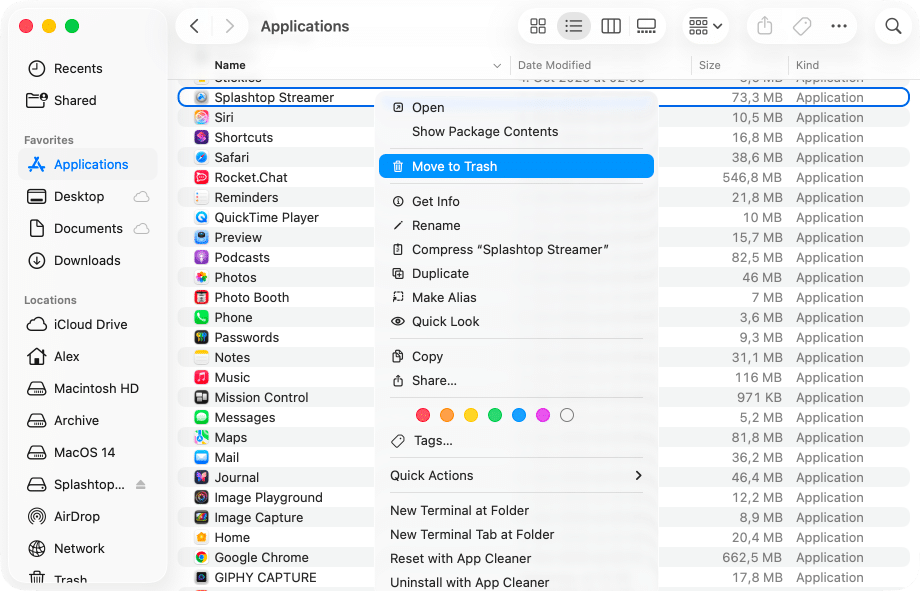
- Open Finder → Applications.
- Find Splashtop Streamer.
- Right-click → Move to Trash.
3. Remove leftovers in your user Library
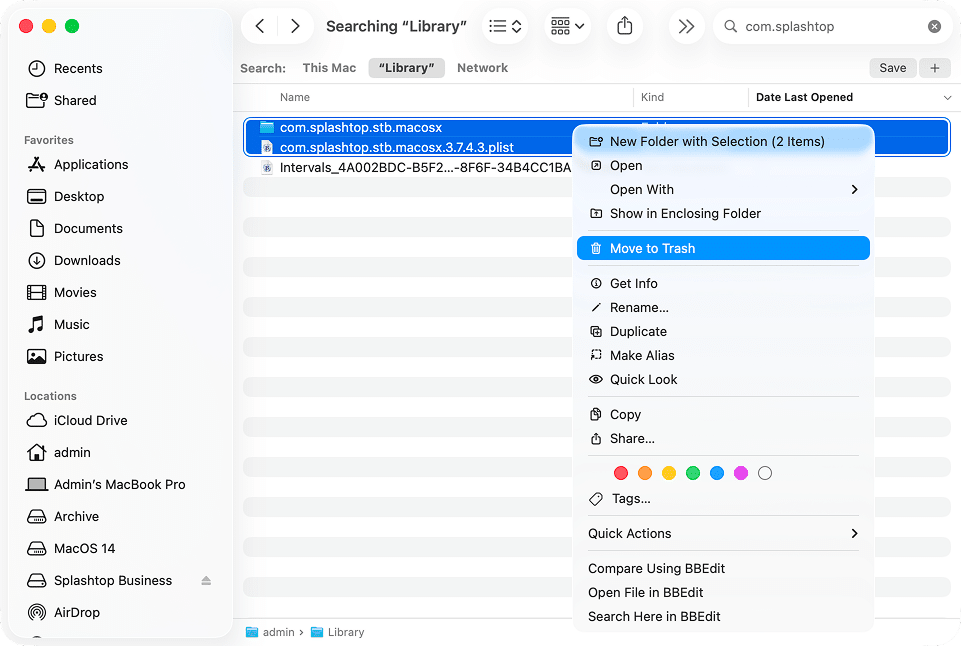
Here, you’ll need to check only one location for Splashtop leftovers.
~/Library
Copy
com.splashtop
Copy
4. Empty the Trash and restart your Mac
/private/var/folders
Copy
The quickest way to uninstall Splashtop and Splashtop Streamer (with App Cleaner & Uninstaller)
This is the fastest, simplest route. The app finds Splashtop and all its related files (caches, preferences, launch agents, and daemons) and removes them in one go.
Before you start:
- Quit Splashtop Business/Splashtop Streamer if it is running.
- Download App Cleaner & Uninstaller by Nektony if you haven’t yet.
Now, let’s proceed with the removal.
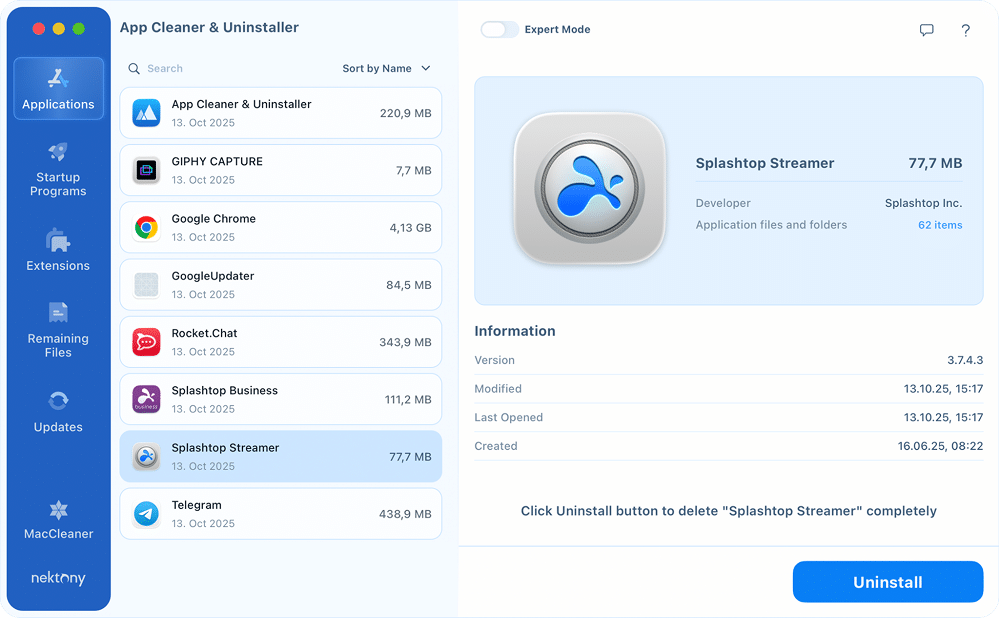
- Open App Cleaner & Uninstaller.
- Find Splashtop.
Type Splashtop into the search field or scroll the Applications list. Select the Splashtop app you want to uninstall (or, if you toggle the Expert mode, you can select all Splashtop apps you have installed to remove them all at once). - Click Uninstall.
App Cleaner & Uninstaller finds the app and all its associated files automatically.
- Review & confirm.
In the Review window, click Remove.
If prompted, confirm closing running processes and enter your administrator password.
Then, your Splashtop app will be removed in a matter of seconds.
- Empty the Trash and restart your Mac.
This clears any temporary files and finalizes removal.

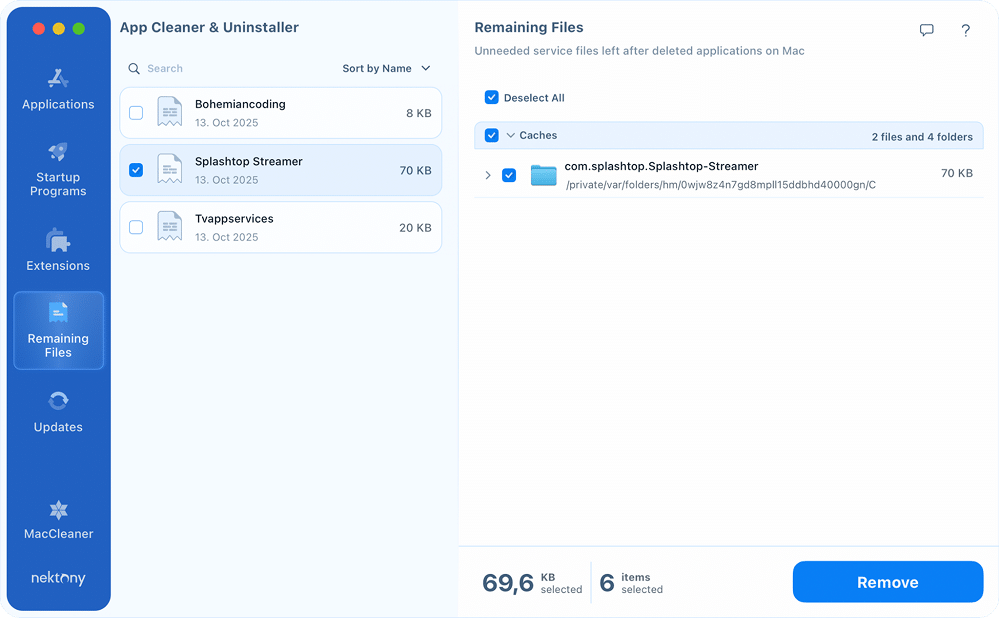
If you have already deleted your Streamer app
No worries! In this case, proceed to the Remaining Files tab in App Cleaner & Uninstaller and find Streamer leftovers there. Then, select them and click Remove. That’s it!
Final note
Apps that enable remote control, like Splashtop, plug into the system at many points to work securely. That depth leaves behind extra files and services tucked into Library folders and temporary paths. You can hunt them down one by one, but for most people, the effort is not worth it.
App Cleaner & Uninstaller by Nektony keeps a curated database of leftovers for hundreds of Mac apps, including Splashtop. It spots related agents, daemons, caches, and preferences in a single scan and removes them altogether. If you care enough about a tidy Mac to be reading this section, you will likely appreciate using it to clean other apps and their remnants.