May 1, 2026
DaisyDisk vs. Disk Space Analyzer: which tool owns it in 2026


Share


Your Mac says storage is full, and you need to figure out what is eating your disk. DaisyDisk and Disk Space Analyzer by Nektony both cost $9.99, both use a sunburst diagram, and both promise to help you reclaim space fast. This article breaks down where the two apps actually differ so you can pick the one that fits your workflow.
I tested both apps on the same Mac, scanning the same drives, and compared scan speed, file-management options, accuracy, safety, and resource usage. The results were closer than expected in some areas and surprisingly different in others.
| DaisyDisk | Disk Space Analyzer | |
|---|---|---|
| Price model | One-time purchase | Subscription or one-time purchase |
| Best for | Users who want a quick visual overview and simple drag-and-drop cleanup | Users who need a full file manager with move, copy, and export options |
| Biggest practical downside | Cannot move or copy files, only delete. Trial locks key features. | Slightly higher memory usage after scanning. |
This Article Contains
Why you need a disk space analyzer on Mac
Macs accumulate hidden clutter faster than most people expect. Caches, logs, iOS backups, old downloads, and leftover files from deleted apps can quietly consume tens of gigabytes. The built-in Apple menu → System Settings → General → Storage view gives a rough category breakdown, but it does not let you drill into individual folders or act on what you find. That gap is exactly what disk space analyzers fill.
The problem gets worse when macOS labels a large chunk of your drive as “System Data” or “Other.” These categories are notoriously vague, and users regularly turn to Apple community forums looking for tools that can reveal what is actually stored there. A dedicated analyzer with a visual map makes the invisible visible and helps you decide what to keep, move, or delete.
Both DaisyDisk and Disk Space Analyzer approach this job through a sunburst diagram that maps your entire disk as nested rings. The concept is the same, but the workflows around that diagram are where the two tools diverge.
DaisyDisk vs. Disk Space Analyzer at a glance
This is the side-by-side comparison I would want to see before buying either app. Every row comes from hands-on testing, not marketing pages.
|
|
|
|---|---|---|
| Price | $9.99 one-time | $9.95/year or $19.95 one-time |
| Trial | Unlimited duration, but feature-limited (no deleting, no cloud scan, no admin scan) | 2-day full-feature trial |
| Sunburst diagram | ||
| Biggest files panel | ||
| Tab list / outline navigation | ||
| File preview | ||
| Delete files | ||
| Move or copy files | ||
| Export scan report to CSV | ||
| Show hidden files | with a dedicated toggle and deletion warning | |
| Scan external drives | ||
| Scan cloud storage | (in paid version only) | (mounted volumes in Finder) |
| Quick access to common folders | Desktop, Pictures, Documents, Downloads | Desktop, Pictures, Documents, Downloads, plus Choose folder |
| Settings depth | Minimal | Theme customization, hidden-item deletion permissions |
| Scan speed (system disk) | ~19 seconds | ~14 seconds |
| RAM usage after scanning | ~272 MB | ~325 MB |
| Notarized and sandboxed | ||
| App Store rating | 4.7 | 4.7 |
| Localizations | 14 languages | 8 languages |
The headline takeaway: both apps are well-rated, safe, and fast. The practical split is what you can do after the scan.
How the features differ in real use
Both apps scan your disk and show the result in a sunburst diagram. The core visualization is comparable. What matters is the workflow that surrounds it.
DaisyDisk keeps it minimal
DaisyDisk opens with a clean window showing your connected volumes. I click Scan, wait 19 seconds for a system disk scan, and then navigate through nested rings. Clicking a ring segment highlights that folder in the sidebar list on the right. To delete something, you drag it into a collector area below the diagram and then click Delete.

What I liked was the speed of the visual feedback. The diagram renders fast, and the color palette makes large segments obvious at a glance. What I liked less was the limited action set. DaisyDisk only lets you delete files. There is no option to move a large folder to an external drive or copy files before removing them. For users who work with video, design assets, or archives, that is a real limitation because you often want to offload rather than destroy.
The navigation also felt slightly unintuitive to me. The list is on the right, the diagram on the left, and going back to a parent folder requires more clicks than I expected. There is no file preview, no search, and no sorting beyond the default size order.

The trial version is also worth noting. It runs without a time limit, but it locks the most useful actions: you cannot delete anything, scan cloud storage, or run an admin-level scan. That makes the trial more of a preview than a real test drive.
App reviews on the App Store page are generally positive; users love to report how much space they freed with DaisyDisk.

AppStore

DaisyDisk is great. […] Using DaisyDisk, I found almost 100GB of files that I no longer need but had no idea were storing data in places other than my user profile directory structure.
Disk Space Analyzer gives you a file manager alongside the diagram
Disk Space Analyzer by Nektony opens to a similar volume-selection screen with quick-access buttons for Desktop, Pictures, Documents, and Downloads. Scanning the same system disk took about 14 seconds in my test, which was noticeably faster than DaisyDisk.

The bigger difference is what happens after the scan. Disk Space Analyzer displays the sunburst diagram alongside an Outline list and a Biggest Files panel. You can select any file or folder and choose to Delete, Move, or Copy it directly from the toolbar or context menu. That move-and-copy capability is what separates it from DaisyDisk in everyday use.

On my test Mac, the ability to move large files to an external SSD instead of just deleting them saved real time. If you work with video editing projects, iOS backups, or large archives, this workflow avoids the need to open Finder, locate the file again, and drag it manually. The app also offers CSV export for scan reports, which is useful if you want to document what is consuming space before making changes.
The hidden-files toggle is another practical detail. Both apps can show hidden items, but Disk Space Analyzer adds an explicit warning before you delete anything hidden, and you can control that behavior in settings.
Since Disk Space Analyzer has so many file management features, on the Mac App Store’s page of the app, users often underscore how often they use it in their everyday life.
AppStore
The simple design and quick performance really makes this my go-to data management app. I work in video production, so with only 500 GB of hard drive space, I end up filling it up quick with files well over 10 GB in size. This app makes it easy to pinpoint the culprits and allows me to Open in Finder to either delete or down-convert to a smaller size. So far this is my favorite app on the App Store.
Scan speed and accuracy
Speed and accuracy are the two things that determine whether a disk analyzer feels trustworthy. I tested both apps on the same hardware: a Mac with a system disk and a secondary user disk (87 GB used out of 200 GB).
| Metric | DaisyDisk | Disk Space Analyzer |
|---|---|---|
| System disk scan time | ~19 seconds | ~14 seconds |
| User disk scan time | ~3 seconds | < 2 seconds |
| Folder-size accuracy vs. Finder | Minor discrepancies observed | Matches Finder |
Disk Space Analyzer was consistently faster on both drives. The difference is small in absolute terms but noticeable when you scan multiple volumes in a session.
On accuracy, Disk Space Analyzer reported folder and file sizes that matched Finder exactly across every test directory. DaisyDisk showed small discrepancies in some folder-size calculations. The differences were not large enough to cause practical problems, but they were visible when I compared specific folders side by side.

.app
Copy
Safety and system protection
A disk analyzer that lets you delete files needs guardrails. Here is how each app handles safety on macOS.
| Safety check | DaisyDisk | Disk Space Analyzer |
|---|---|---|
| Blocks deletion of system directories | ||
| Warns before deleting hidden files | (with a dedicated setting) | |
| Requires admin password for system-level operations | (but not fully testable in trial) | |
| Respects macOS SIP | ||
| Notarized by Apple | ||
| Sandboxed |
Both tools are notarized and sandboxed, which is the strongest safety baseline Apple provides for third-party apps. Both protect system directories from accidental deletion and respect System Integrity Protection.
The meaningful difference is that Disk Space Analyzer gives you a setting to control hidden-file deletion behavior separately. DaisyDisk warns you about hidden items but does not offer a dedicated preference for it.
For most users, both apps are equally safe. If you want slightly more control over what the app is allowed to touch, Disk Space Analyzer gives you that extra toggle.
AppStore
Disk Space Analyzer has to be the first app that actually gets the job done. It shows a chart and long list of documents, organized by file size, to show what is really taking up your storage. Within 15 minutes, I deleted some old movies and large size game apps, and I saved 34 GBs of space.
Performance and resource usage
A storage tool should not become the heaviest app on your Mac. I measured memory usage across idle, scanning, and post-scan states.
| State | DaisyDisk | Disk Space Analyzer |
|---|---|---|
| Idle (before scanning) | ~70 MB | ~160 MB |
| During the system disk scan | ~282 MB | ~520 MB |
| After scanning | ~272 MB | ~325 MB |
| After scanning multiple disks | ~272 MB | ~325 MB |

DaisyDisk is lighter on memory across every state. It uses about half the RAM during scanning and stays lower after the scan completes. For Macs with 8 GB RAM, that difference is worth noting.
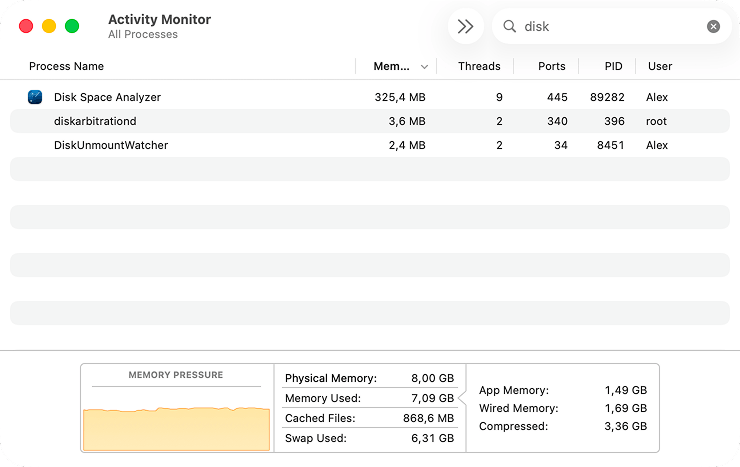
Disk Space Analyzer uses more memory, but the overhead correlates with the extra features it loads: file previews, the Biggest Files panel, and the CSV export engine. Whether the tradeoff matters depends on your Mac’s specs and what else you have running during the scan.
Neither app felt sluggish on my test Mac. Both completed scans without beach-balling, and neither caused fan noise or noticeable slowdowns in other apps.
Price and value
Both apps sit at the same price point, which makes this a real feature-for-feature decision rather than a budget question.
| Cost comparison | DaisyDisk | Disk Space Analyzer |
|---|---|---|
| One-time price | $9.99 | $19.95 |
| Yearly subscription | Not available | $9.95/year |
| Trial | Unlimited time, feature-limited | 2-day full-feature trial |
| Available on Mac App Store |
DaisyDisk has the simpler pricing: one payment, full access, done. Disk Space Analyzer offers two paths. If you only need the tool for occasional cleanups, the $9.95/year subscription costs the same as DaisyDisk after one year. If you want permanent ownership, the $19.95 one-time license costs roughly twice as much.
The value question depends on what you actually use. DaisyDisk gives you a fast visual scan and drag-and-drop deletion for $9.99. Disk Space Analyzer gives you a visual scan plus move, copy, CSV export, file preview, and granular hidden-file controls. If those extra features save you even one trip to Finder per session, the price difference pays for itself quickly.
AppStore
People like me who do videos will have tons of files that are all named the same, but one may have 20 gigs of data. Luckily Daisy Disk does that for me. I can then find the file quickly and decide if it is worth keeping or not. In the long run it pays for itself if you are the type of person who needs to do daily checks on what is taking up lots of space. It has a wonderful interface and will even do external devices too.
Which one should you choose?
The answer depends on what you do after the scan.
- Choose DaisyDisk if you want the lightest possible memory footprint, a clean visual overview, and you only need to delete files. It is a focused tool that does one job well and stays out of your way.
- Choose Disk Space Analyzer if you need to move or copy files instead of just deleting them, want CSV export for documentation, or prefer file previews and a Biggest Files panel alongside the diagram. It is the better pick for users who manage large media libraries, video projects, or backups.
- Choose either if your main goal is a quick visual scan of what is eating your disk. Both tools are fast, safe, and accurate enough for that basic job.
For creative professionals and anyone who regularly offloads files to external storage, Disk Space Analyzer’s move-and-copy workflow is the deciding feature. For users who just want to see what is big and delete it, DaisyDisk’s simplicity is hard to beat.
The bottom line
DaisyDisk and Disk Space Analyzer are both solid, well-maintained disk analyzers with similar price tags and the same core sunburst visualization. DaisyDisk is lighter on resources and simpler to use. Disk Space Analyzer is faster at scanning, more accurate in folder-size reporting, and gives you real file-management tools beyond just deletion.
If I had to reduce the choice to one sentence: pick DaisyDisk for simplicity, pick Disk Space Analyzer for control.