
February 12, 2025
Fast search in Mac: Tips & Tricks


Share


Spotlight on macOS Tahoe is more powerful than ever - but more complex too. The redesigned interface introduced four separate search modes, and a persistent indexing bug means some users find Spotlight simply stops returning results for apps or files they know are there.
This guide covers every way to find things on your Mac: how to use each Spotlight mode and its advanced tricks, how to filter searches in Finder and build Smart Folders, how to surface hidden system files, and what to do when the search index breaks. Every step was tested on macOS 26.3 Tahoe on a MacBook Pro 13″ M1.
This Article Contains
Before we start
- Open MacCleaner Pro and wait for the initial scan to complete.
- Go to the Speed Up tab in the sidebar.
- Select Reindex Spotlight and click Review to Speed Up.
- Confirm the action by clicking Speed Up.


Why finding files on macOS Tahoe can be tricky
The built-in macOS search tools are powerful but have real blind spots. Spotlight excludes the ~/Library folder and most system paths by default, so app support files, caches, and leftover data from deleted apps are usually invisible to a standard search.
macOS Tahoe also redesigned Spotlight with four separate modes - Applications, Files, Actions, and Clipboard. The core keyword search still works, but results are now split across modes. If you type a document name while Spotlight is in its default Applications mode, you may get nothing back, even though the file exists.
The indexing issues are a real problem too. Several Reddit users note that after updating to Tahoe, Spotlight stopped finding apps that are clearly installed. On the MacBook Pro M1, I reproduced this exact problem - Spotlight returned zero results for an app that was sitting in the Applications folder.
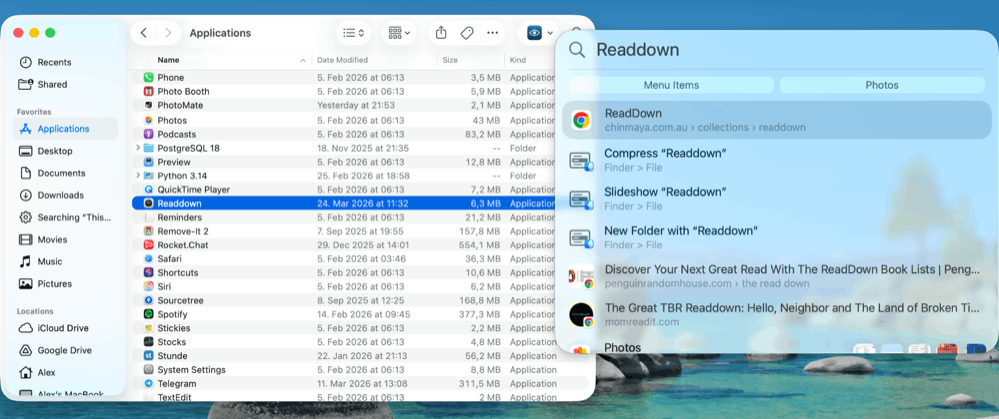
If you have run into the same wall, the troubleshooting section at the end of this guide covers how to fix it.
How to search using Spotlight
The four Spotlight modes in macOS Tahoe
Open Spotlight with ⌘+Space. In macOS Tahoe, the interface shows four mode icons across the top: Applications, Files, Actions, and Clipboard. Each mode has a dedicated keyboard shortcut so you can jump directly to the right one.

| Action | Shortcut |
|---|---|
| Open Spotlight | ⌘+Space |
| Applications mode | ⌘+Space, then 1 |
| Files mode | ⌘+Space, then 2 |
| Actions mode | ⌘+Space, then 3 |
| Clipboard history | ⌘+Space, then 4 |
| Show file path | Select a result, then hold ⌘ |
| Browse search history | ↑ arrow in an open Spotlight window |
| Return to mode overview | Hover the mode icon → click ← |
Note:
If you type a file name and Spotlight returns nothing, press ⌘+Space, then 2 to switch to Files mode. The default Applications mode does not search your documents.
Advanced search techniques in Spotlight
Beyond typing a file name, Spotlight understands several operators that narrow results without switching to Files mode.
Search by file type using /
- Press ⌘+Space to open Spotlight.
- Type followed by a file type, such as PDF.
/Copy
- Press Return, then type your search term.

Search within a location or app using Tab
- Type a location like and press Tab.
iCloud DriveCopy
- Enter your search term - Spotlight will look only inside that location.

Notes
Copy
Quick calculations and unit conversions
Spotlight doubles as a calculator. Type any of the following directly into the search bar:
- - arithmetic result
145 * 12Copy
- - currency conversion
100 USD in EURCopy
- - temperature conversion
32 fahrenheitCopy

Metadata search syntax
Spotlight also accepts metadata operators typed directly into the search bar:
- - show all PDFs
kind:pdfCopy
- - images created since January 2025
kind:images created:1/1/25Copy

Finding files with Spotlight’s Files mode
Files mode gives Spotlight a dedicated document search view with filter bubbles for file type and date.
- Press ⌘+Space, then 2 to enter Files mode.
- Type the file name - filter bubbles appear below the search bar.

To search inside a specific folder, find and select the folder in Files mode, press Tab to scope the search to that folder, then type your query.

From the results, press Space to Quick Look a file without opening it. To reveal a file in Finder, right-click the result and choose Show in Finder.
Spotlight Actions mode
10 minutes.
Copy

You can also create notes, set reminders, and run other system actions from this mode. To assign a Quick Key to any action, click Add quick key next to it and press the key you want to assign - that key then triggers the action directly from the Actions list.
Clipboard history
Clipboard mode (⌘+Space, then 4) shows everything you have copied recently. Select any item and press Return to paste it.

To control how long clipboard history is retained, go to System Settings → Spotlight, scroll to the bottom, and find the Clipboard section. You can disable Results from Clipboard or change how long the history is stored.
How to use Finder and Smart Folders
Basic Finder search
Finder’s search bar accepts the same metadata operators as Spotlight and adds a visual filter builder that is easier to use for complex queries.
- Open Finder and press ⌘+F (or click the search bar in the top-right corner).
- Type your search term.

After typing, two scope buttons appear below the bar: This Mac searches the entire drive, while the current folder name limits results to where you are.

Click the + button below the search bar to add a filter row. Select Kind from the first dropdown, then choose the file type.
OR logic with Option+Plus
By default, Finder combines all conditions with AND logic. To find files matching any one condition (OR logic), hold Option and click +. A new block with an Any/All toggle appears, letting you build conditions where Finder returns results that satisfy any one of them.

kind:pdf
Copy
tag:red
Copy
created:>=2024-01-01
Copy
Search using Smart Folders
A Smart Folder is a saved search that updates automatically whenever new files match its criteria. It looks like a folder in Finder but always shows current results - no need to repeat the same search manually.
- In Finder, choose File → New Smart Folder.
- Click + in the top-right corner to add a criterion, for example, Kind: Archive.
- Click + again to add a second criterion, such as Last modified date: within last 30 days.
- Click Save, check Add to Sidebar, give the folder a name like , and click Save.
Recent ArchivesCopy
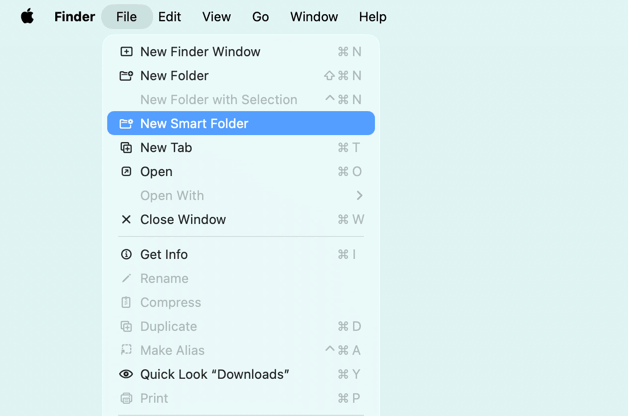

Useful criteria to combine in Smart Folders:
| Criterion | Example use |
|---|---|
| Kind | All PDFs, all images |
| Last modified | Files changed in the last 7 days |
| Created date | Files created in a specific period |
| File size | Files larger than 100 MB |
| Tag | Files with a red tag |


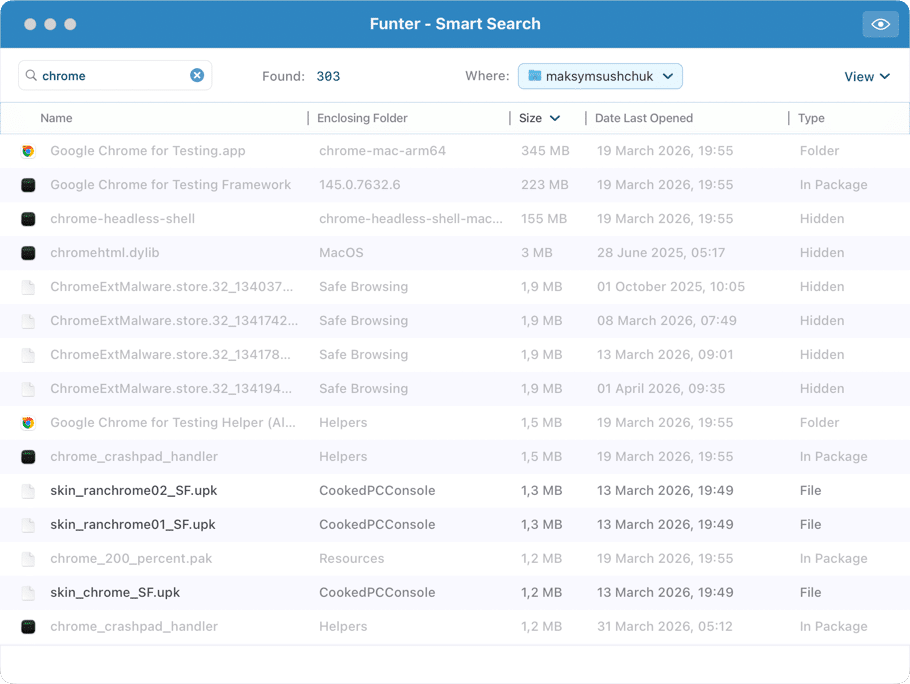
What to do if Spotlight search is broken
Check for excluded folders first
The most common cause of Spotlight not finding files is an accidental exclusion. A drive or home folder in the privacy list will be skipped entirely during indexing.
- Open System Settings → Spotlight, then scroll to the bottom and click Search Privacy.
- Check whether Macintosh HD or your home folder appears in the exclusion list.
- If it does, select it and click − to remove it.
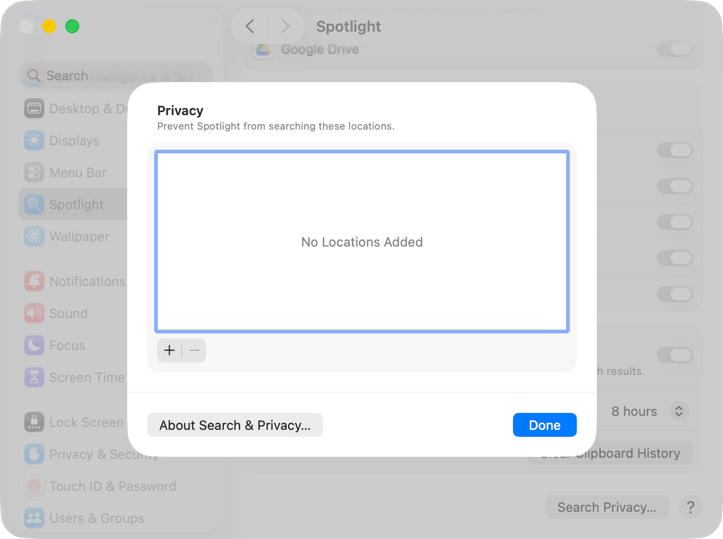
Force a reindex through System Settings
This is the gentlest reindex method - it nudges Spotlight to rebuild its index without touching Terminal.
- Go to System Settings → Spotlight → Search Privacy.
- Drag Macintosh HD from a Finder window into the exclusion list (or click + and select it).
- Wait 5–10 seconds.
- Select the drive and click − to remove it from the list.
- Spotlight will start reindexing automatically.

Reindex from Terminal
For a full forced reindex, use Terminal. This is more thorough but takes longer.
- Open Terminal (Applications → Utilities → Terminal).
- Type the following command and press Return:
sudo mdutil -E /Copy
- Enter your administrator password when prompted.
- Wait for indexing to complete - it can take 30 minutes to several hours depending on drive size.

Note:
During indexing, Spotlight search results will be incomplete - this is expected. Your Mac may also run warm while the process is running.
Restart Spotlight through Activity Monitor
A quicker fix when Spotlight is sluggish or frozen rather than completely broken:
- Open Activity Monitor (Applications → Utilities).
- Type in the Activity Monitor search bar.
mds_storesCopy
- Select the process and click the ✕ (Force Quit) button.
mds_storesCopy
- Confirm - the process will restart automatically.

Check which categories Spotlight searches
If Spotlight finds some things but not others, the relevant category may be turned off. Go to System Settings → Spotlight and review the Results from Apps list. Make sure every category you want to search is checked.
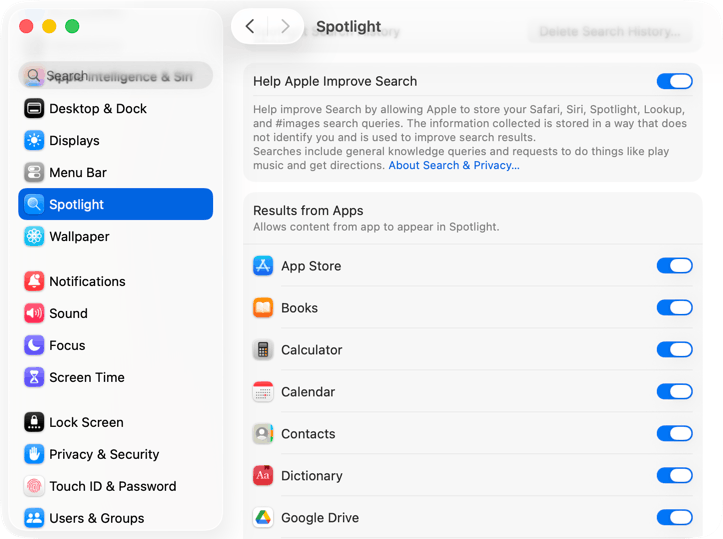
The bottom line
kind:pdf
Copy
sudo mdutil -E /
Copy
For files that macOS hides by default, ⌘+Shift+. in Finder reveals hidden files instantly, and Funter handles deeper searches without requiring any Terminal commands.