





December 19, 2025
How to uninstall PostgreSQL on Mac


Share


With the rise of AI, robust data management has become critical. That’s why I recently dove into PostgreSQL to later experiment with Supabase and its vectorization capabilities for organizing AI data. However, as I prepared to move from my “lab” environment to a clean production server, I hit a roadblock: getting rid of my local PostgreSQL instance on Mac.
Unlike an App Store app, you can’t just drag a database server to the Trash because it creates system users, installs background daemons, and scatters data clusters across your drive. This guide covers how to remove PostgreSQL completely, whether you installed it via Homebrew, the EDB installer, or the Postgres app.
This Article Contains
Instead of digging through system folders...

Why uninstall PostgreSQL?
Ideally, you should not touch a running database unless absolutely necessary. However, PostgreSQL is a complex beast, and there are several scenarios where a clean slate is the only option:
- Version Conflicts: You need to install a newer version (e.g., upgrading from v14 to v16), and the old data clusters are causing compatibility errors.
- Disk Space: Database clusters can silently grow to consume gigabytes of storage, even if you are no longer working on those projects.
- Broken Configuration: You might have tweaked the file or messed up the port settings (5432) to the point where the server refuses to start.
pg_hba.confCopy
- Migration: You are moving your workflow to Docker or a cloud solution, and the local server is just eating up system resources.
Check how PostgreSQL was installed
Before you start dragging things to the Trash, it is critical to know exactly what you are trying to uninstall. On macOS, PostgreSQL can be installed in several completely different ways.
Postgres vs. PostgreSQL: What’s the difference?
While they run the same database engine, they behave like different species on your Mac:
- PostgreSQL (Standard/EDB/Homebrew): This is the “industrial” version. It runs as a background system service (daemon), creates a hidden system user named , and buries its data deep in system folders like
postgresCopy
or/LibraryCopy
. So it doesn’t have a dock icon or a window. Instead, it just runs silently in the background./usr/localCopy

- Postgres.app: This is a Mac-friendly wrapper. It runs like a normal application in your Applications folder, has a graphical user interface (GUI) with a little elephant icon in your menu bar, and keeps its data in your personal user library (typically ). It is much easier to manage but still leaves “digital dust” if simply deleted.
~/Library/Application Support/PostgresCopy
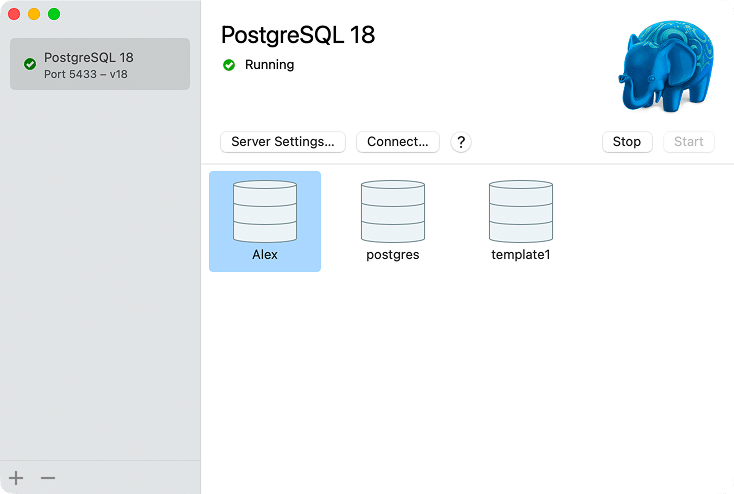
How to identify your version of PostgreSQL
To check which version is currently active on your system, open Terminal and run this command:
which postgresCopy
- If it returns /usr/local/bin/postgres or /opt/homebrew/…: You likely installed it via Homebrew.
- If it returns /Library/PostgreSQL/…: You used the EnterpriseDB (EDB) Installer.
- If it returns /Applications/Postgres.app/…: You are using the Postgres.app GUI.
Ways to uninstall PostgreSQL
Depending on your specific installation, the “best” removal method varies. For each installation, we have broken this down into comparison tables so you can find the right path for your setup.
For Homebrew Users
If you used the command line to install PostgreSQL, there is really only one robust path – Terminal Commands.
For EnterpriseDB (EDB) Users
If you installed PostgreSQL via the command line or the official installer, you are dealing with system-level services.
| Method | Simplicity | Completeness |
|---|---|---|
| Provided Uninstaller | ★★☆ | ★☆☆ |
| Manual | ★☆☆ | ★★★ |
| App Cleaner & Uninstaller | ★★★ | ★★★ |
For Postgres.app Users (GUI Version)
If you have the elephant icon in your Applications folder, you have two main options.
| Method | Simplicity | Completeness |
|---|---|---|
| Manual | ★★☆ | ★★★ |
| App Cleaner & Uninstaller | ★★★ | ★★★ |
Now that you have the full spectrum of PostgreSQL uninstallation ways, feel free to choose the one you like most and scroll to it.
They all have been tested on macOS 26 Tahoe and PostgreSQL 18, but should work with other up-to-date setups, so you don’t need to scroll through endless and often outdated discussions on the best ways to uninstall it.
Important: Backup your data first
Before we delete anything, put on your “sysadmin” hat for a moment. Uninstalling PostgreSQL will completely erase your databases. If you have any critical data, school projects, or dev environments you might need later, you must export them first.
pg_dump
Copy
pg_dumpall
Copy
How to uninstall Homebrew’s PostgreSQL: The only way
If you installed PostgreSQL as a Homebrew package, the removal process is done entirely through Terminal.
This method takes about a minute. And since the standard uninstall command typically leaves the data directory behind, we will also remove that separately.
- Launch Terminal.
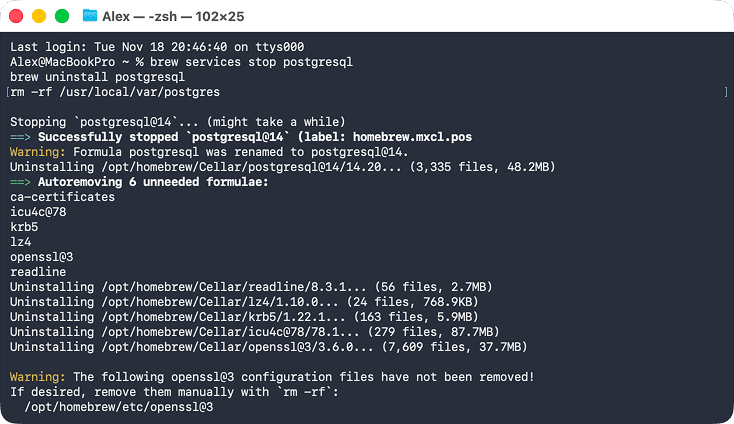
- Stop the background service with this command:
brew services stop postgresqlCopy

- Uninstall the package:
brew uninstall postgresqlCopy
- Remove the data directory to complete the cleanup:
rm -rf /usr/local/var/postgresCopy
- Press Enter and wait for the process to finish.
- Restart your Mac.
How to uninstall EDB’s PostgreSQL
The EnterpriseDB uninstaller way
This version is more complex because it runs deep system processes.
The installer includes a removal script, but we found it works best when launched via Terminal to ensure permissions are correct. Even then, it requires some manual cleanup afterward.
- Stop Processes: Open Activity Monitor, search for and
PostgreSQLCopy
. Select all processes, click Stop (X), and choose Force Quit.pgAdminCopy
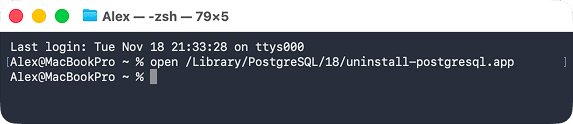
- Run Uninstaller: Open Terminal and run the following command to launch the uninstaller (replace * with your version number, e.g., 16 or 18):
open /Library/PostgreSQL/*/uninstall-postgresql.appCopy

Note:
If Terminal says “this file does not exist,” use this fallback command as per the official guide:
sudo /Library/PostgreSQL/*/uninstall-postgresql.app/Contents/MacOS/installbuilder.shCopy
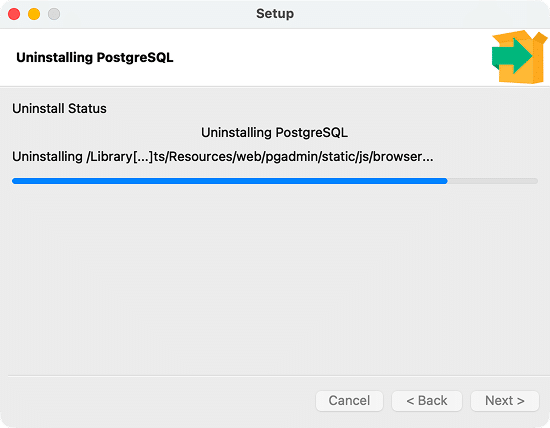
- Follow the instructions in the uninstaller window that pops up.

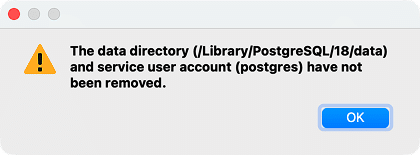
- Clean Leftovers: The uninstaller often admits that not everything was removed.

sudo rm /etc/postgres-reg.iniCopy
sudo rm -rf /Library/PostgreSQLCopy
- Remove User: Go to System Settings → Users & Groups. If you see a PostgreSQL user, select it and delete it.
The manual way
If the uninstaller fails or you prefer to do it by hand, you have to hunt down the files yourself. This takes about 6-7 minutes.
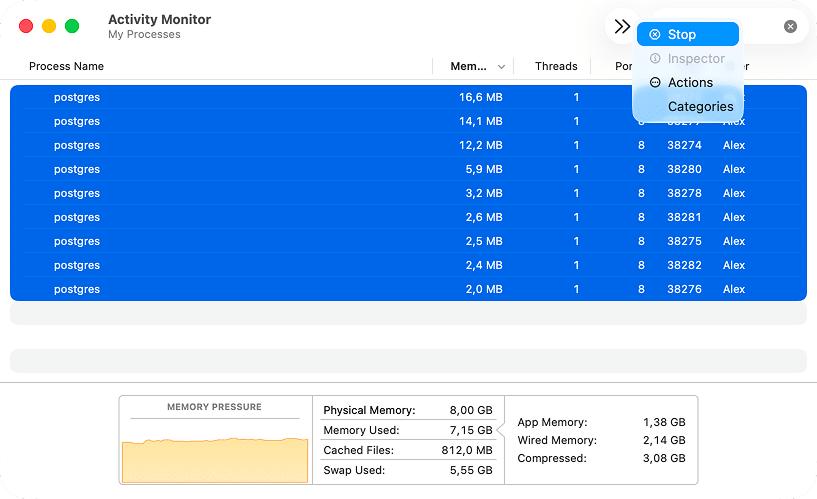
- Open Activity Monitor and search for . Select all processes and click Stop (X).
PostgresCopy

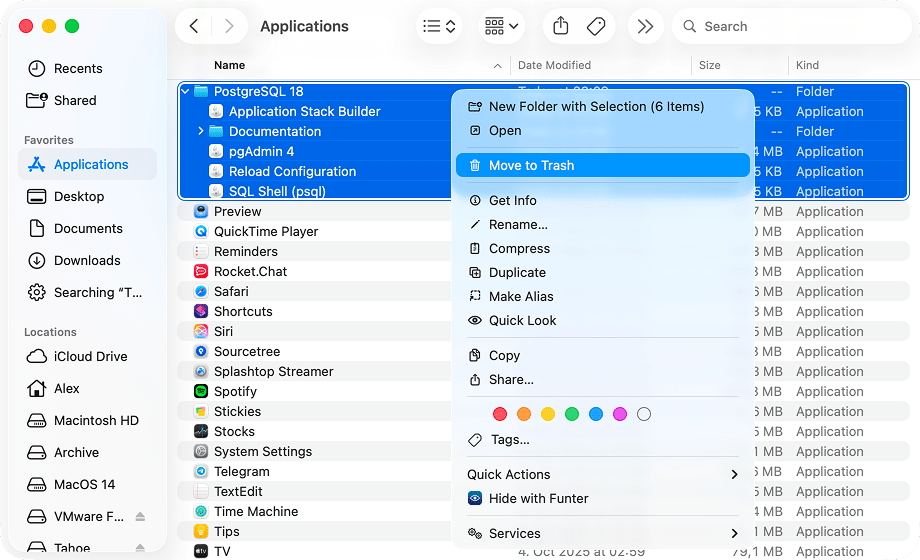
- Open Finder and go to the Applications folder. Find the PostgreSQL folder and move it to the Trash.

- Navigate to your Library folders to find the hidden service files.
Go to and
~/LibraryCopy
./LibraryCopy
Note:
To get to any folder on your Mac in Finder, click Go in the menu bar and select Go to Folder. Then, type the desired path, e.g., and then hit Enter. Your desired path will be opened, and you will see the contents of the requested folder.~/LibraryCopy
- In each of two folders, search for . (Tip: Use the “Name matches” filter for better results.)
PostgresCopy
- Select all found files and move them to the Trash.
- In each of two folders, search for
- Empty the Trash and restart your Mac.
The automatic way
This method is much faster and helps identify the service files automatically.
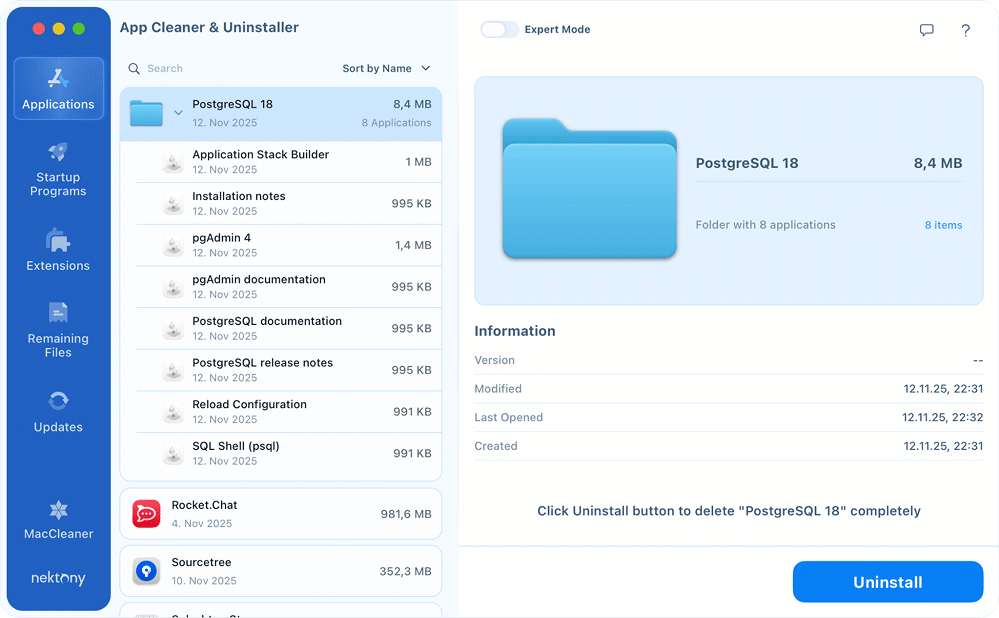
- Download and launch App Cleaner & Uninstaller.
- Find the PostgreSQL folder in the list and click it.
- Click Uninstall and confirm the deletion.

- Once done, empty the Trash and restart your Mac.
How to uninstall Postgres.app (GUI Version)
The manual way
This is the Mac-friendly version of PostgreSQL, but “friendly” doesn’t mean it cleans up after itself.
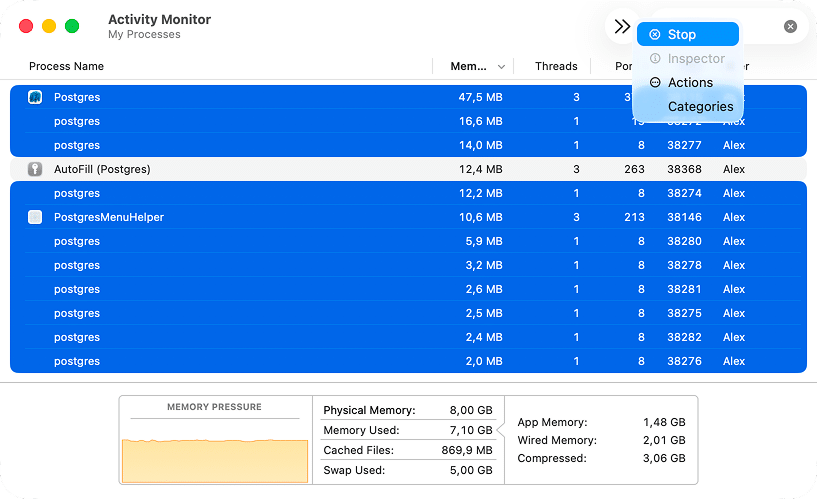
- Open Activity Monitor and search for .
PostgresCopy
- Select all Postgres-related processes and click Stop (X).
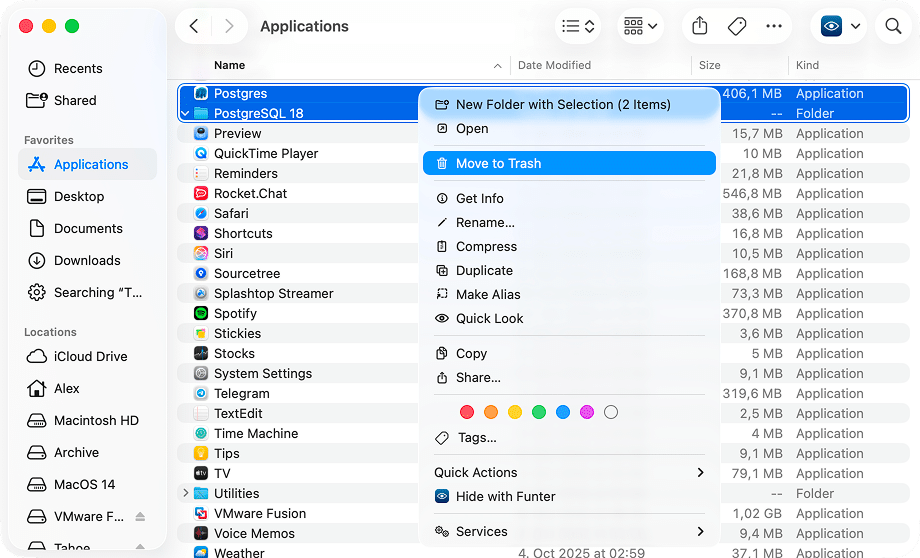
- Go to Finder → Applications, right-click Postgres.app, and move it to the Trash.

Remove the leftovers:
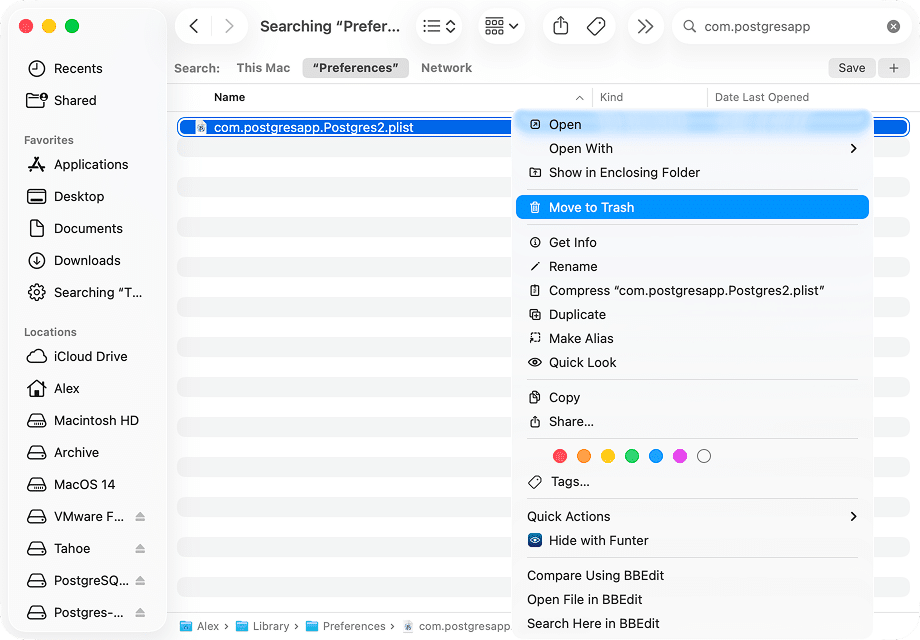
- Go to in Finder. For that, click Go in the menu bar and select Go to Folder. Then, type
~/LibraryCopy
and hit Enter.~/LibraryCopy
- In the opened folder, search for and
PostgresCopy
com.postgresappCopy
- Select the files you’ll find (especially the data cluster folders) and move them to the Trash.

- Go to
- Empty Trash and restart.
The automatic way
That’s the method we suggest when it comes to deleting any app completely: it’s quick, simple, and completely transparent. (And its effectiveness increases tenfold when you want to uninstall several apps in bulk.)
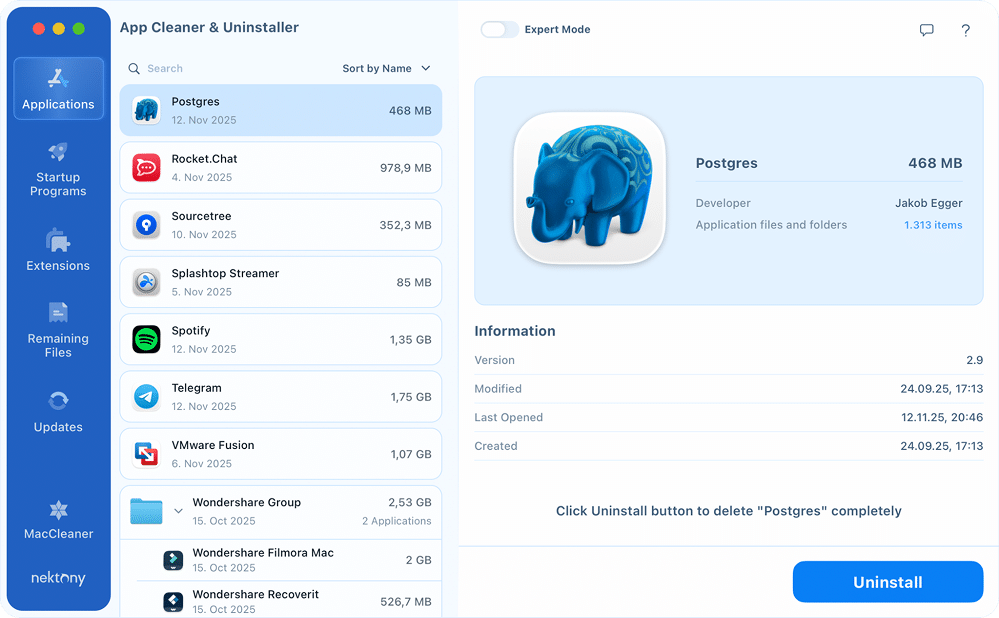
- Launch App Cleaner & Uninstaller.
- Find Postgres in the list and select it.
- Click Uninstall and confirm the intention by clicking Remove.
- Once done, empty Trash and restart.
Troubleshooting common issues
If you want to fix an issue with PostgreSQL by reinstalling it, here are a few common issues that might be addressed a bit quicker.
“Address already in use” (Port 5432)
If you try to start a new server and get this error, it means the old PostgreSQL daemon is still alive and hugging port 5432.

To fix, you need to kill the process manually.
Open Terminal and run:
sudo lsof -i :5432Copy
Find the PID (Process ID) and run:
sudo kill -9 [PID].Copy
Version incompatibility
If you upgraded macOS or Homebrew and now your database won’t start, it’s often because the old data directory isn’t compatible with the new server binaries. You usually fix this by running pg_upgrade to migrate your data.
Permission denied / Role “username” does not exist
To fix it, ensure the data directory is owned by the user running the server:
chown -R $(whoami) /usr/local/var/postgres.Copy
Autostart issues (The “zombie” server)
Sometimes PostgreSQL refuses to launch after a reboot.
.plist
Copy
/Library/LaunchDaemons
Copy
~/Library/LaunchAgents
Copy
postgresql.plist
Copy
Duplicate installations
It is very common to accidentally have both the Homebrew version and Postgres.app installed, leading to all kinds of conflicts. In such cases, I recommend uninstalling all versions completely using the guides above and then reinstalling only the one you prefer to use.
Personal note
Despite the myriad of ways to install and remove PostgreSQL on macOS, the process usually isn’t too complicated once you know where to look.
Personally, I’m a fan of the Homebrew experience. It feels very similar to package management in Linux, and uninstalling it in three quick Terminal commands was “smooth as butter” during my testing.
However, for all other cases, I’d prefer to use App Cleaner & Uninstaller. I keep it at hand for exactly these tasks. When I want to get rid of an app, I want to forget about it immediately, not spend 15 minutes figuring out its directory structure.