May 1, 2026
Free methods to find duplicate files on a Mac


Share


Data duplication can cost you more than just space. It slows things down, turns folders into digital clutter, and makes simple searches feel frustrating. Plus, your Mac isn’t a fan of a full drive. A good baseline is to leave at least 10% of your disk space unused.
Then you guess what to clean up to free up storage. Duplicates are the easiest win here. They are just copies, downloads, backups, or similar files you don’t need anymore. But the thing is: macOS doesn’t give you one clear button to fix it all. That’s why I tried my best to make it clear what your options are, how they work, and how to use them.
Below are five free ways to find and remove duplicates on your Mac, from quick tools to more hands-on methods, so you can deal with duplicates without overthinking it.
| Category | Method | Time | Complexity | What it finds |
|---|---|---|---|---|
| Tool | Duplicate File Finder | Minutes | Easy | All file types |
| Terminal | MD5 script | Minutes to hours | Advanced | Exact duplicates by content |
| Manual | Smart Folder in Finder | Hours | Mid-level | Files by filters (name, size, type), not by content |
| Photos (built-in) | Minutes to hours | Easy | Duplicate photos & videos in Photos Library | |
| Music app | Minutes to hours | Easy | Duplicate songs in Music Library |
What duplicate files are there on your Mac?
Most duplicates don’t show up as obvious copy 1 files. They blend in. Same name, same icon, sometimes even different folders, and that’s where things get messy.
The thing is, duplicates come from everyday actions. You download the same file twice, export edits, back things up, sync across apps, and suddenly there are multiple versions of the same thing sitting around. Not a big deal at first, but it adds up in an unexpected way. Here’s what you’re usually up against:
- Exact duplicates: Same file, same size, same content.
- Similar photos: Edited, cropped, resized photos, or photo bursts from iPhone saved in your Photos Library.
- Duplicate photos: Photos copied from imports or AirDrop transfers.
- Downloaded duplicates: PDFs, installers, images you grabbed more than once.
- Duplicate music/videos: Same track or movie saved in different formats or from different sources.
- Imported files: Imported multiple times or synced from iPhone.
- Duplicate folders: Full copies of projects or directories.
- Documents: Copies you made just in case, files saved to Desktop and Downloads, and old versions of the same spreadsheet.
- iCloud and backup duplicates: Files synced, then downloaded again locally, or backed up twice across Time Machine and iCloud, which leads to extra copies.
- Mail attachments: saved automatically when you open them.
- Screenshots and screen recordings: Easy to forget about. Especially when you take several versions to get it right.
- App leftovers and copied data: Apps may create duplicate service files/caches.
Way 1: Duplicate File Finder to find duplicates easy and quickly
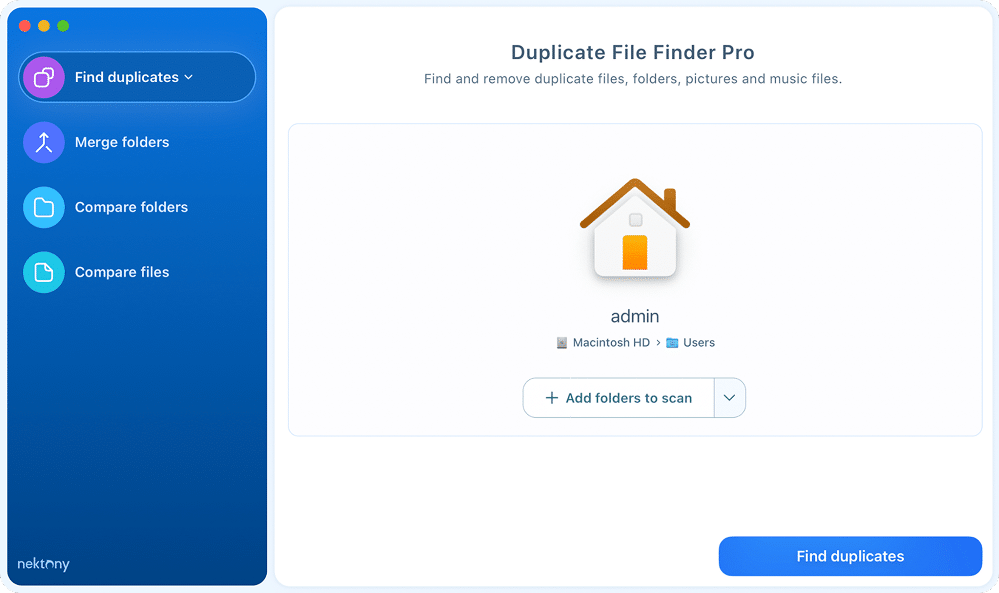
Duplicate File Finder is the most complete free option, which covers the full workflow, from scan to cleanup. It’s the only method here that handles all file types across all locations in a single pass, including external drives, iCloud, and Photos Libraries.
Where to get it: search Duplicate File Finder Remover on the Mac App Store, or visit Nektony’s website. Duplicate scan and deletion are free. Pro features like Smart Select, Merge Folders, Select by Folders, and Similar Folders cleanup are optional upgrades.
After you get it, finding and deleting duplicates takes minimal effort.
Watch a demo on how to use Duplicate File Finder
- Click + or drag folders into the scan area and click Find Duplicates.

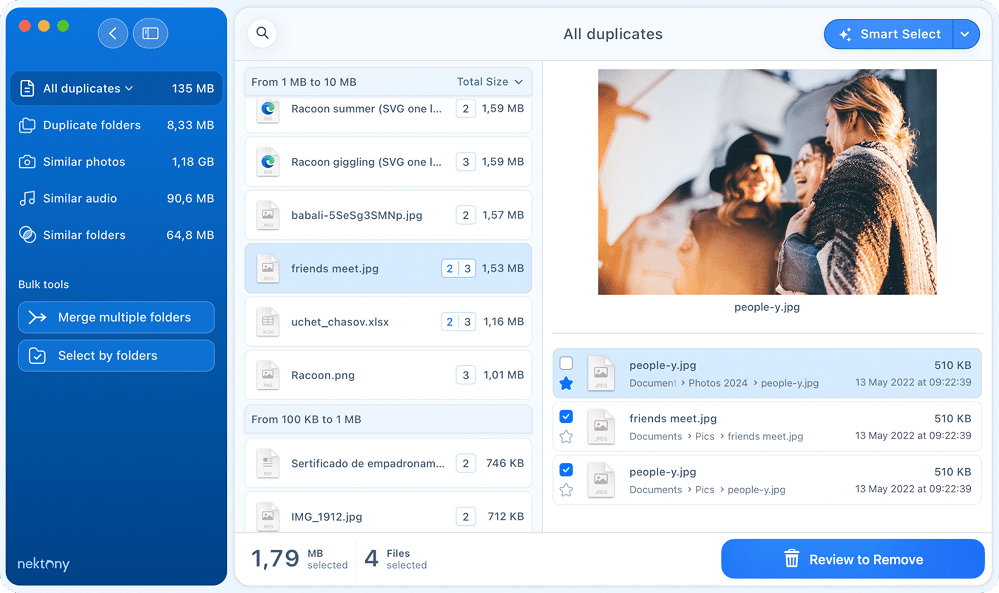
- All duplicates: every exact copy of any file type
- Duplicate folders: folders with 100% identical contents
- Similar photos: visually similar images (not necessarily identical)
- Similar audio: audio files with similar content
- Similar folders: folders with a mix of duplicate and unique files
- Select files to be deleted.
Alternative
In the Pro version, you can use Smart Select, which auto-picks files based on rules, pre-set or customizable (set your rules by keeping the file in a specific folder, selecting by filters like date, nesting level, or name, etc., and the app will automatically check the copies you’d want to remove while leaving one original per group).
- Click Review to Remove → confirm your selection by clicking Remove.

Way 2: Terminal (MD5 script) to find duplicates on Mac
This method uses a shell script that scans a folder recursively, calculates an MD5 hash for every file, groups files with identical hashes (which means identical content, byte for byte), and saves the results to a text file:
~/Documents/DuplicatesIn_{FolderName}_Folder.txt
Copy
MD5 hashing means the script compares actual file content, not names or dates, so it catches duplicates that Smart Folder would miss entirely. But here’s the catch: reviewing and deleting still happen manually. One wrong command in Terminal can remove files you didn’t intend to touch, and there’s no Removal History to fall back on.
Warning
- Terminal needs Full Disk Access. Add it in System Settings → Privacy & Security → Full Disk Access. Without it, Desktop, Documents, and Downloads won’t be scanned.
- This method is not beginner-friendly. Review results before deleting anything. There’s no undo if you delete the wrong file directly from Terminal.
- Hashing thousands of files takes time. For very large folders, expect to wait.
Steps
- Download the duplicate-finder script and unzip the archive.
- Open Terminal: go to Applications → Utilities, or use Spotlight and type Terminal.
- Choose which shell command you’ll type:
- If you’re scanning your home folder, Downloads, Desktop, or Documents, this command runs the script with your current user permissions, which is enough.
shCopy
- If you need to scan system folders or locations outside your home directory, this command runs the script with full system access (admin level) and requires your administrator password.
sudo shCopy
sudois safe here, but always double-check what you’re running before using it.
- Type or
shCopy
followed by a space. Do NOT press Return yet.sudo shCopy
- Drag the script file from Finder into the Terminal window window.
The file path will appear after the command automatically. Make sure there’s one space between the command and the path.
- Press Return → enter admin password if required.

- The script will ask you to enter the folder path to be scanned. You shall either:
- Type the full folder path yourself, or
- Drag the folder from Finder directly into the Terminal window (dragging is the safer option since it handles spaces in folder names and paths automatically)
- Press Return to start scanning duplicate files.
- When the scan finishes, Terminal will show the path to the results file:
~/Documents/DuplicatesIn_{FolderName}_Folder.txtCopy

- In Finder, navigate to and open the file.

- Review the list of paths to files grouped by MD5 hash. Each group is a set of exact duplicates.

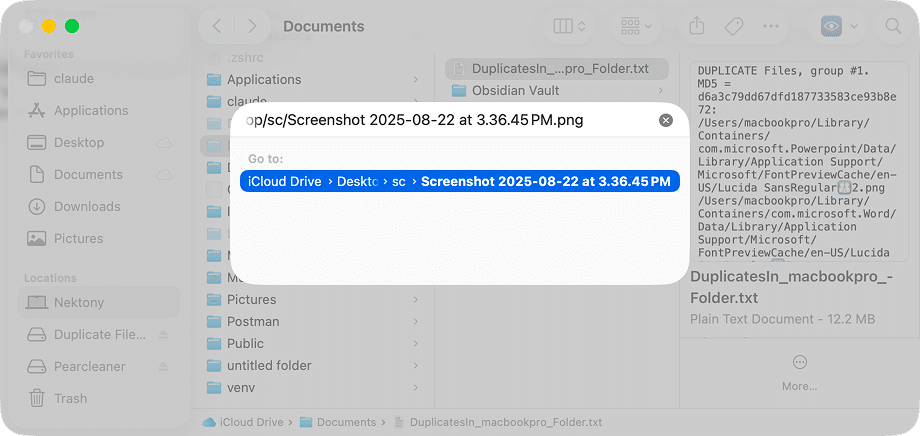
- Delete the unneeded copies manually. To navigate to any listed file path quickly, use Finder’s Go to Folder → press Cmd+Shift+G, paste the path, and press Return. Review each file before deleting it.


Way 3: Smart Folder in Finder to locate duplicate files
Smart Folder is a built-in Finder feature that filters files by criteria: name, kind, size, date, and views them all in there, regardless of their location on your disk. It doesn’t detect duplicate content. It groups files so spotting potential duplicates becomes easier visually.
The thing is, this method works best when duplicates have the same or similar names. It won’t flag files with identical content but different names. You’ll be comparing all the files yourself, so be ready for that.
Note:
- Smart Folder can’t compare file contents, which means you can’t see two files with different names but identical data as related.
- For a large folder collection, this can take hours. There’s no reliable time estimate; it depends on how many files you’re working through and how carefully you compare them.
Steps
- Open Finder.
- In the menu bar, go to File → New Smart Folder.

- Click the + button in the top-right corner to add search filters. You can filter by Kind, Date Modified, Name, or File Size and combine multiple filters to narrow down results.

- In the menu bar, go to View → Sort By → Size. This puts the largest files at the top and groups files of the same size, which makes duplicates easier to spot.

- Open each suspect file manually and compare the contents.
- To delete a file, right-click → Move to Trash, or press Cmd+Delete.


Tip
To unlock more search parameters, you can use helpful combos in the filter dropdown:
- Kind → Image + Extension → .jpg, .png, .tiff to focus on photos only
- Kind → Document + File Size → greater than X MB to catch large duplicates
- Name → contains […] + Date Modified → within last 30 days for recent files
Way 4: Photos app and built-in Duplicates feature
Duplicates pile up in Photos for a common reason: when you import photos from a Mac folder, Photos copies them into its own library while the originals stay in the source folder. One import, two copies. Do that a few times and it adds up fast.
Luckily, the Photos app has a dedicated Duplicates section, which is in the sidebar, and the app runs analysis in the background automatically. This is a convenient option for photo duplicates specifically. No third-party app needed, and the workflow is simple.
Note:
- Only works for files inside the Photos Library. You can’t scan photos outside it.
- It’s available on macOS Ventura (13) and later only.
- If the Duplicates aren’t visible in the Utilities, give the Photos app some time to finish scanning your library, especially after a macOS update or first-time setup.
- If you use iCloud Shared Library, the Duplicates section is only visible in Both Libraries mode.
- If your library has “Unable to upload” errors, background duplicate analysis may stall. Fix the upload errors first, then let Photos rescan.
Steps
- Run the Photos.
- In the left sidebar, click Duplicates from the Utilities list.
- Wait for the scan. For a small library, it takes seconds. For a large one, thousands of photos, it could take several minutes or more. Once it’s done, duplicates appear side by side in pairs or groups.

- To delete duplicate photos, you have two options:
- Merge N Items: Photos picks the best version automatically based on the highest resolution, largest file size, original (not an edited copy), most complete metadata (EXIF data, geolocation), and if everything else is equal, the one added earliest. Click this, and you’re done.
- Manual review: makes sense if one copy has edits you want to keep, or if you’re comparing Live Photos where the motion clip in one version is better than the other.
- After merging or deleting, click Recently Deleted in the sidebar and empty it. Photos holds deleted items for 30 days before removing them permanently.

Way 5: Music app and duplicate songs
Since iTunes no longer exists on macOS Ventura and later, it’s Music all the way now.
And there’s a real chance it has duplicate tracks - same song added twice, synced from multiple sources, or re-imported after a migration. Fortunately, the Music app has a built-in duplicate finder that’s easy to miss.
Note:
The Music app has two duplicate views, and the difference matters:
- File → Show Duplicate Items: finds tracks that share the same title and artist. This can surface different versions of the same song: lossless vs. AAC, live vs. studio, remaster vs. original. Not all of those are actual duplicates.
- File → Show Exact Duplicate Items: finds tracks that match on title, artist, and album. A much tighter match — actual duplicates, not just different versions of the same song. Hidden by default, accessed by holding Option while clicking File.
Steps
- Open the Music app.
- In the menu bar, click File → Library → Show Duplicate Items. This lists every track where the title and artist match another track in your library. You may see false positives here, a live version and a studio version of the same song, for instance. That’s expected behavior.

- For a more accurate result: hold the Option key and click File in the menu bar. The option now reads Show Exact Duplicate Items. That’s the one to use when you want real duplicates, not just similar-looking entries.

- Review the list carefully. Don’t select all and delete; go through the results and identify tracks that are redundant copies, not just the same song in different versions or qualities.

- Identify the one you don’t need, right-click it → Delete from Library.


Final method on how to find duplicate files on Mac
| What you need | Best method | Where it finds |
|---|---|---|
| Clean up all file types at once | Duplicate File Finder | Any location on your Mac, including external drives, iCloud (local copies) |
| Remove duplicate photos | Photos app (built-in) | Inside Photos Library only |
| Remove duplicate music | Music app (built-in) | Inside Music Library only |
| Stay without third-party tools | Smart Folder | All indexed locations on your Mac |
| Terminal | Any folder you point it to, including system folders with sudo |