
September 22, 2026
Everything about Duplicate File Finder


Share


A reliable duplicate file finder has a few things to prove before it’s worth trusting with files:
- It has to find actual duplicates, files that are identical in content, not just similarly named, so it catches identical files a Finder search would miss and no renamed copy slips through.
- It has to show you every match before anything gets deleted, not decide on its own. Letting a tool loose on years of photos and docs works if you see the list before anything’s gone.
- It’s worth more if it goes beyond flat files entirely: duplicate folders, near-identical photos, whole folder structures that need merging, not just one exact copy sitting next to another.
If that’s what you expect from a tool, the next question is whether Duplicate File Finder delivers it. Measured against a documented testing methodology, not a first impression and backed by user reviews, you’ll find out if this utility works for you.
This post includes every detail of what you need to know about Duplicate File Finder: what it is, how it can help you, how each of its modules actually works, who it fits and who it doesn’t, how secure it is, what changes between the free version and Pro, how it holds up against two alternatives, and honest answers to the questions users raise before running a tool like this.
| Attribute | Details |
|---|---|
| Developed by | Nektony (Ukraine) |
| Released first on | March 5, 2015 |
| Upgraded to version | 9.2.2 (Aug 2026) |
| Supported on | macOS 11 – 27 |
| Positioned as | Duplicate file management utility |
| Comparison engine | Byte-to-byte content comparison, not filename matching |
| Pricing | Free, plus Pro as a one-time purchase or subscription |
| Unique devices | 800,000+ |
This Article Contains
- What Duplicate File Finder is
- Values Duplicate File Finder brings
- How Duplicate File Finder works
- Who Duplicate File Finder is for
- Who Duplicate File Finder is not for
- Is Duplicate File Finder safe?
- Reviews and user feedback
- Free and paid options
- What's free and what's paid
- Duplicate File Finder vs Gemini 2 vs dupeGuru
- How to try Duplicate File Finder
- FAQs
What Duplicate File Finder is
 |
Priced at: Free, Pro from $14.99/year, $7.99/month, $34.99 one-time |
|---|---|
| Compatible with: Intel and Apple Silicon, macOS 11 Big Sur or later | |
| Rated at: 4.6 on the App Store | |
| Notarized by: Apple |
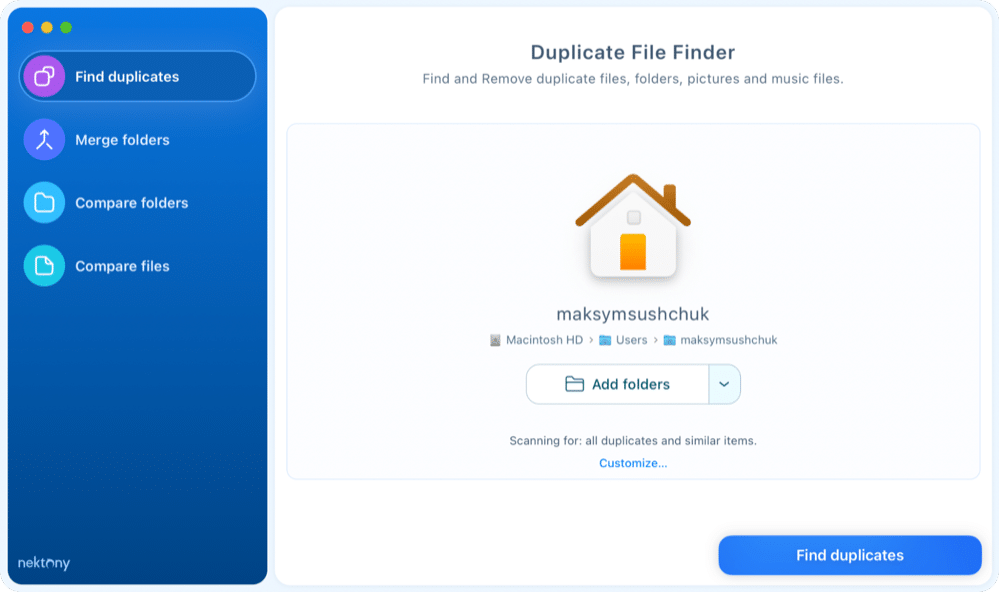
Duplicate File Finder is a Mac duplicate manager from Nektony, a Ukrainian dev team that’s been on the macOS software market since 2011.
- The app launched on the Mac App Store in 2015 as a content-based duplicate scanner, and has expanded into a multi-module tool for file and folder deduplication.
- It scans folders and drives for exact copies, near-identical photos and audio, overlapping or repeated folders, then lets you clear out what you don’t need in a reviewed batch.
- The tool processes all file types, from images and videos to documents and audio.
Values Duplicate File Finder brings
Using a dedicated tool built to find and remove duplicate files provides the following benefits:
- A clean Mac after removing duplicates that have piled up for years without you noticing.
- Real storage back after clearing out identical copies sitting across various directories.
- An organized photo library after sorting through duplicate photos and near-identical shots.
- A decluttered music library after deleting duplicate audio tracks.
- A lighter backup or external drive after clearing overlapping copies.
- Tidy, non-duplicated folders after merging what should’ve been one folder.
- More room in cloud storage after clearing duplicates from folders that sync locally.
- One clear version of each file instead of scattered variants with different names.
- Peace of mind after every deletion, since nothing important gets removed without you reviewing the match first.
- A faster, more predictable Finder after years of quiet duplication finally gets sorted out.
Use cases Duplicate File Finder covers
- You want to find duplicates on Mac without manually comparing file sizes and timestamps in Finder.
- The time has come to sort out duplicates piled up on your Mac through years of downloads, exports, and re-saves, which have become a storage problem.
- You’d like to consolidate several scattered folders into one without manually checking what’s already duplicated between them.
- You’re not confident enough in a Finder search or your own memory to manually track down every copy yourself.
- Two hard drives’ worth of photos got merged into one folder, and half of them are the same shots saved twice under different names.
- An external backup drive has years of overlapping copies from multiple past backups, and you can’t tell what’s actually unique.
- A project folder got duplicated ‘just in case’ months ago, and now nobody remembers which copy is current.
- A music or photo library has near-duplicates: the same shot edited twice, the same track ripped at two different bitrates, that a plain duplicate search won’t catch because the files aren’t identical, only similar.
How Duplicate File Finder works
Duplicate File Finder reads the actual bytes; it catches copies that survived a rename, a re-save, or a folder move, the exact cases a Finder search or a name-matching tool misses.
Its engine is pretty fast on libraries of various sizes: in testing, scanning a 5 GB, 1,000-item set took about 5 seconds, and a 45 GB, 10,000-file set took about 18 seconds.
It scans any directory or drive type you point it at. Add the folders or drives you want checked, and the app sorts what it finds into modules; each one is about a specific kind of overlap. Here’s how each module works in practice:
Find duplicates FREE
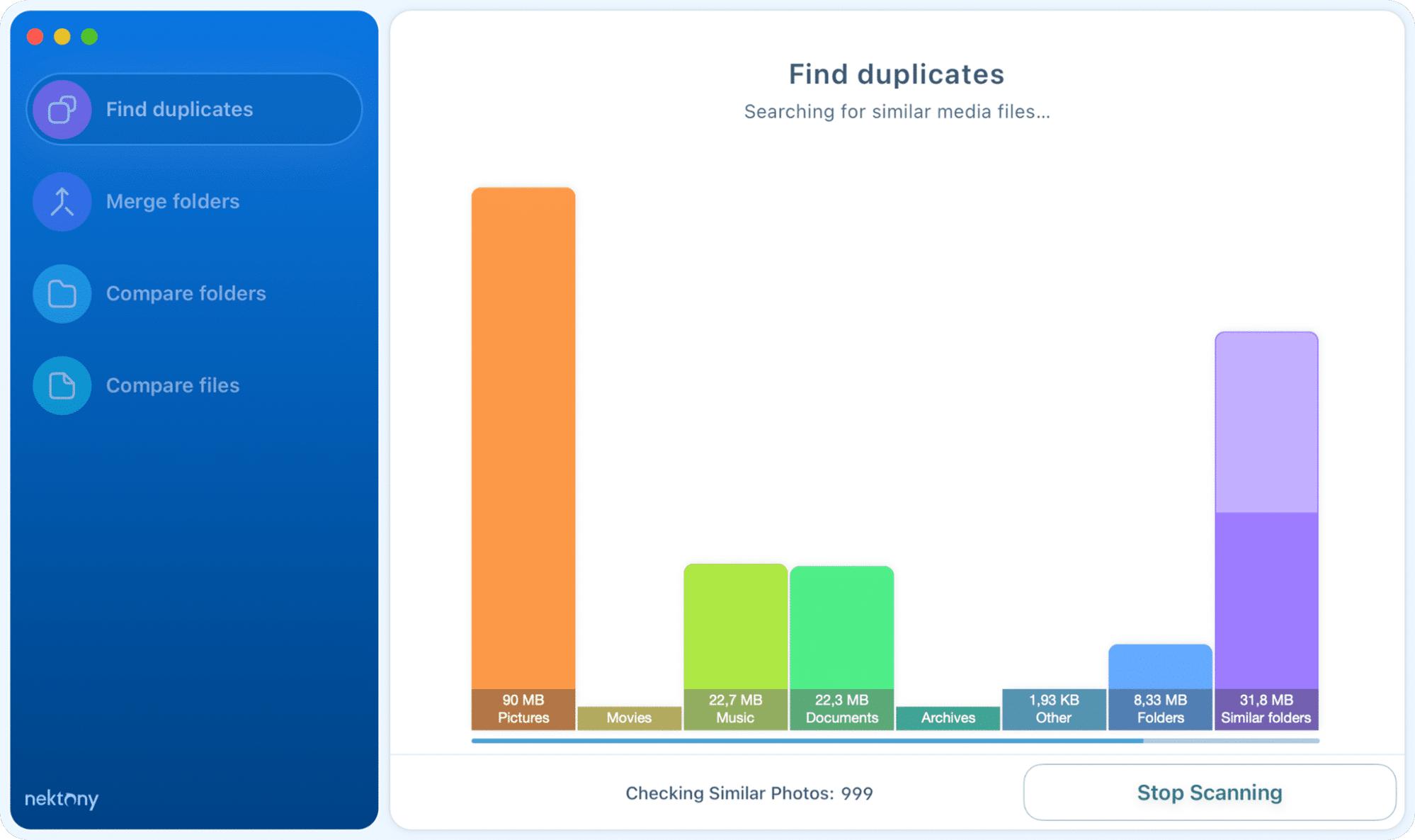
This is the entry point, which refers to scanning. It checks the folders and drives you add and scans for exact file copies, duplicate folders, similar photos, and similar folders in one action, before you choose what to act on.
Here, you are supposed to select or add a directory you’d like to work with. After you do so and click the Find duplicates button, a chart will appear, divided to duplicate types.

All duplicates FREE
When scanning is done, you will move to the next level, called All duplicates. It lists every exact copy found and lets you filter by file size, date, name, and type.
The tool shows all the file categories here, from .dmg files and documents to audio and video files. To list items by file category, such as pictures, movies, music, documents, and archives, just open the All duplicates dropdown.

It’s like a quick result page, where you can delete duplicates easily. By ‘easily,’ I mean you are free to select files out of duplicates found in your added directory without digging in the Library folders on your own. For more convenience, there is also an auto-selection option.

Smart Select PRO
This is a paid Pro feature, which stands for bulk selection. You can customize it with rules:
- Always Select for named folders,
- Never Select for protected ones, and
- Deep Select rules based on path, date, files, name, and other criteria.
It’s usable in the following three modules: Duplicate folders, Similar photos, Similar audio. It only pre-ticks checkboxes for you to review; it never deletes any file on its own.


Duplicate folders Free view Removal: Pro
If you have identical folders, the tool will flag them. This applies to folders whose contents match another folder’s, even when the files inside have different names.
Viewing results and redirecting to a directory is free; removing duplicate folders requires Pro.

Similar photos FREE
In this section, you’ll see similar images of different formats: jpg, heic, etc. The main idea is to catch look-alike or edited images, burst shots, re-exports, and slightly cropped versions. The mechanism involves a similarity slider, set to Medium by default.
Since this is judgment-based rather than an exact match, review these results more carefully than a plain duplicate.

Similar audio FREE
This feature finds and lets you remove the same track saved at different quality levels or bitrates, files that are audibly the same song but not byte-identical. Before removing, you can listen to the tracks without leaving the tool.

Similar folders Free view Removal: Pro
This module identifies folders that share some duplicates with another folder but also contain unique files, requiring at least two shared duplicates to trigger a match.
When you select similar folders, they appear in the right panel with their paths. From there, you can see the duplicate and different files and folders side by side. After reviewing, the Pro version lets you select and remove unnecessary items.

Merge folders PRO
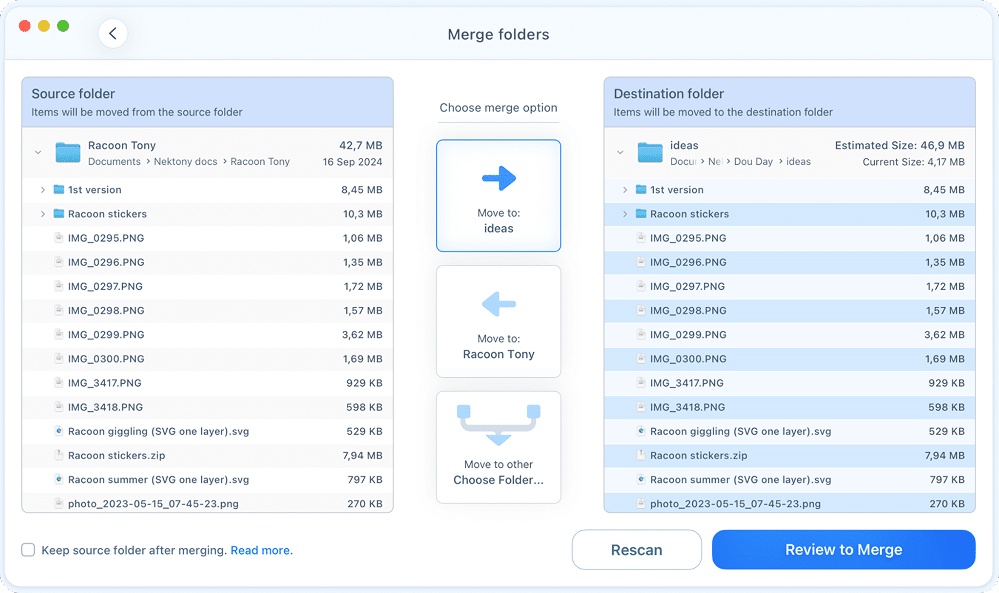
By using this functionality, you may consolidate folder contents three ways:
- two folders into one,
- a set of similar folders together, or
- several scanned folders at once.
Unique files are copied over; files that already exist in both locations aren’t duplicated. The action is simple: you choose the source and destination folder (or another folder), then you see a preview and confirm.

Select by folders PRO
This window breaks results down per folder, showing cross-folder duplicates, in-folder duplicates, and unique files for each one. Starring a folder protects its copies and targets the matching duplicates elsewhere for removal.
The figures next to each folder mean the number of duplicates present in other folders. By clicking a folder, it’s possible to review duplicates with their paths and remove duplicates from a folder you choose.

Compare folders Free view Removal: Pro
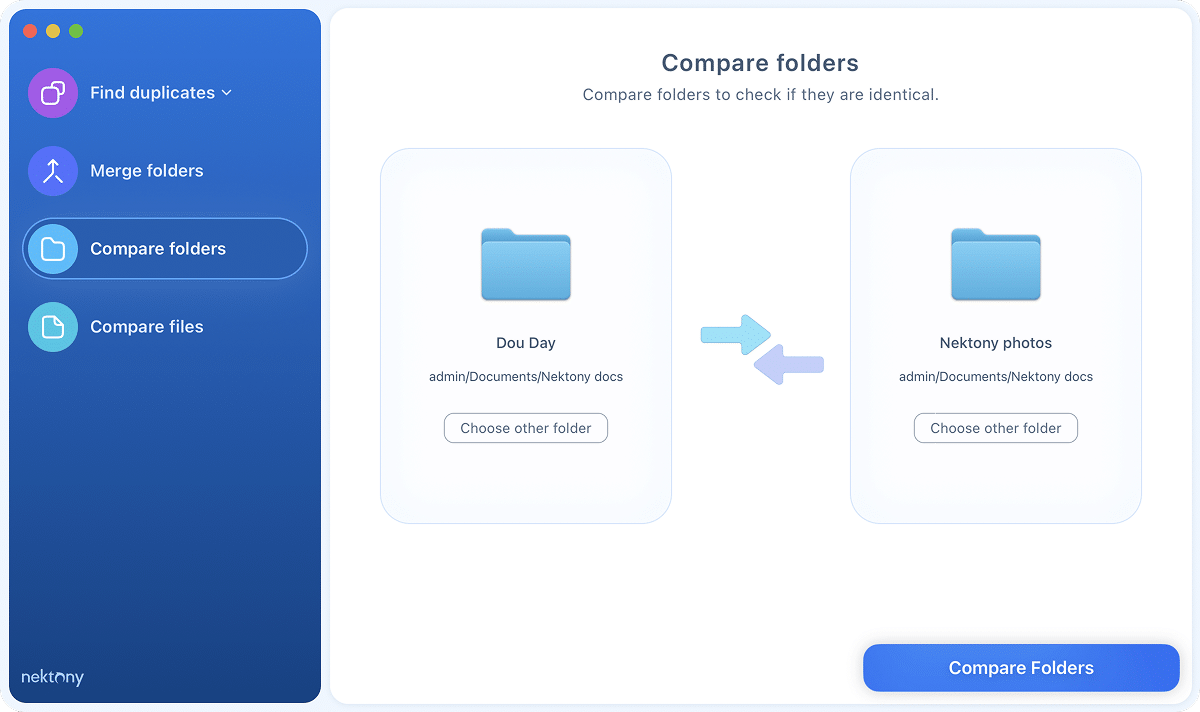
Here, you can compare two specific folders and split the results into shared duplicates and files unique to each side, which is useful for deciding which of two similarly named project or backup folders to keep.

Compare files FREE
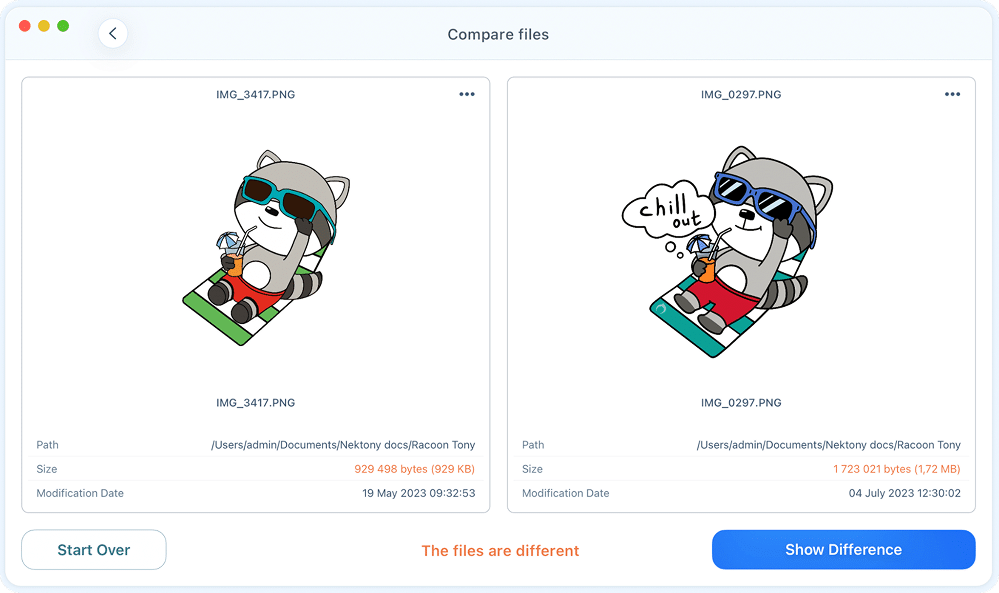
The last one is a narrower tool to check whether two specific files are byte-identical in size and content, not just by name or file size. The verdict will be that the files are different or duplicates, with no option to remove.

What Duplicate File Finder can’t do
To get the most from the tool, it’s important to know where it stops being the right fit:
- It doesn’t download cloud-only files to check them. iCloud or Dropbox files that haven’t synced locally aren’t part of the scan. It reads what’s on the drive.
- It isn’t a general Mac cleaner. No junk-file, cache, or large-file cleanup beyond duplicates specifically.
- It can’t identify a [em]’true original'[/em] among exact copies. Byte-identical files are, by definition, indistinguishable to the app: you choose which to keep, or set a rule to decide for you.
- Single-photo review runs one image at a time, not side by side, which slows down a large photo cleanup session.
- It can take longer with terabyte-scale libraries; a folder-by-folder scan works better than pointing it at an entire media server at once.
Who Duplicate File Finder is for
- The casual user whose Downloads or Desktop folder has filled up with copies of the same files, and wants a free scan that actually removes stuff, not a locked preview.
- The photographer or content creator with a large messy library full of burst and near-duplicate shots, where an exact-match tool wouldn’t catch half of the actually redundant files.
- The freelancer or small team with project folders that got copied ‘as a backup’ one too many times and now need consolidating rather than just deleting.
- The backup hoarder juggling an external drive, a Time Machine backup, and a cloud sync folder, all of which now overlap heavily with the internal drive.
- Anyone who wants to free up disk space without buying a full-suite Mac cleaner to deal with duplicate files specifically.
- Anyone merging two Macs, two backups, or two overlapping folder trees.
- Power users who want rules, not repetition. Smart Select’s path/date/name logic means you don’t have to redo a recurring cleanup job by hand every time.
Who Duplicate File Finder is not for
- Anyone who wants a general-purpose Mac cleaner for caches, logs, or large-file cleanup; that’s outside this tool’s job.
- Anyone managing multi-terabyte media libraries or a file server; the app is built for typical personal-Mac scale, not that volume.
- Anyone reviewing hundreds of similar photos who needs side-by-side comparison; the current review flow is one image at a time.
- Anyone who wants their cloud-only files scanned automatically, since the tool doesn’t process cloud files that haven’t been downloaded locally; the app only checks what’s actually on disk.
Is Duplicate File Finder safe?
- Yes, Duplicate File Finder is Apple-notarized and safe to use.
- It has also met the App Store’s privacy and security requirements.
- No file gets deleted without a confirmation step you control directly.
Does the tool remove files automatically?
- No, Duplicate File Finder’s Auto Select and Smart Select features only pre-tick checkboxes based on rules you set.
- The Review to Remove screen is mandatory and lists every file before the removal step, and by default the app won’t let a single action remove every copy of a file.
- By default, deleted files go to Trash, so you can restore them from there if needed.
Does the app touch personal files?
- It scans only the folders and drives you intentionally select.
- It doesn’t reach into Desktop, Documents, or any other personal location unless you point it there yourself.
Does Duplicate File Finder require special permissions?
- Not Full Disk Access as a blanket grant.
- It scans only what you add, and macOS prompts for access to protected locations like Desktop, Documents, or an external drive one at a time, as needed.
- With FDA on, the tool scans and delivers better results.
Does Duplicate File Finder restore deleted files?
- Removed files go to the Trash by default so that you can recover any file until you empty the Trash.
- Turning on ‘Log removed duplicates’ in Settings lets the app’s own Restore command bring them back directly.
- Settings can also switch removal to permanent deletion or moving files to a folder instead; both are opt-in, not the default.
Does Duplicate File Finder collect or share personal data?
- No, Duplicate File Finder doesn’t collect, store, or share your personal data.
- The tool does the scanning locally on your Mac.
- The files it finds never leave your device. Data collection is limited to basic technical data, including crash reports and anonymous analytics used solely to make the product better.
- See our Privacy Policy for details.
Reviews and user feedback
- In the App Store, Duplicate File Finder has a 4.6 star rating.
- Trustpilot gives Nektony an overall score of 4.9 stars.
- iLounge listed it as one of the top duplicate file finders for Mac in 2026, citing its folder-level modules and free removal plan as standout features.
- Reddit threads recommend Duplicate File Finder for its broad file-format support and folder-level tools, especially Similar Folders, as the reason people pick it over simpler scanners.
Reddit threads


App Store reviews


Free and paid options
The free version isn’t a locked demo: it finds duplicate files and actually removes them, with no time, size, or number limit.
The Pro version adds advanced features, including auto-select, folder merging, and other pro capabilities.
For a single Mac, Pro runs:
- $7.99/month or $14.99/year as a subscription, or
- $34.99 one-time (App Store license covers 1 Apple ID plus Family Sharing up to six family members)
What’s free and what’s paid in Duplicate File Finder
| Feature | Free | Pro |
|---|---|---|
| Find and view all duplicate files, folders | Yes | Yes |
| Remove duplicate files | Yes | Yes |
| Remove duplicate folders | View only | Yes |
| Compare folders | View only | Yes |
| Similar audio removal | Yes | Yes |
| Similar photos removal | Yes | Yes |
| Similar folders | No | Yes |
| Merge folders | No | Yes |
| Select by folders | No | Yes |
| Smart Select | No | Yes |
| Restore removed duplicates | No | Yes |
| Support | Yes | Yes |
Duplicate File Finder vs Gemini 2 vs dupeGuru
The following three names appear in nearly every thread about Mac duplicate finders.
Test environment:
- MacBook Pro M3, macOS Tahoe.
- Duplicate File Finder Pro, Gemini 2, and dupeGuru run head-to-head on identical file sets, using their free plans.
| Criterion | Duplicate File Finder | Gemini 2 | dupeGuru |
|---|---|---|---|
| Price | Free; Pro $14.99/yr | $19.99/yr | Free, open source |
| Rating | 4.6 App Store | 3.7 App Store | 7.8K stars GitHub |
| Scan time (5 GB / 45 GB test sets) | ~5 sec / ~18 sec | ~5 sec / ~34 sec | ~3 sec |
| File type coverage | All file types | Almost all types | Simple file types |
| Duplicate / Similar / Merge folders | Yes / Yes / Yes | Yes / No / No | No / No / No |
| Auto-select rules | Detailed rules | A few default rules | No |
| Free plan removes files | Yes | No (scan/view only) | Yes (fully free) |
| macOS requirement | 11.0+ | 10.13+ | 10.12+ |
Gemini 2: For casual automated duplicate cleanup with library support
- Its trial requires a card upfront and starts charging after 3 days.
- A Duplicate Monitor watches a chosen folder for new duplicates over time.
- A deletion option that replaces a file with a hard link instead of removing it outright.
- It deals with almost all file types, organized by tab, similar to Duplicate File Finder’s layout.
- In testing, it found about 3.76 GB fewer duplicates than Duplicate File Finder on the same test set and missed several file types, including .docx, .gif, .txt, .zip, and .png.
- There is a duplicate folder tab, but with no folder merging or similar folder spotting.
- Settings are complete, with a Skip List and multiple deletion methods, but with fewer default automation rules than Duplicate File Finder.

dupeGuru: For technical users to handle more complicated scenarios
- Free and open-source app, aimed at technically confident users who don’t mind a more hands-on process.
- Results display as one flat list with no grouping; there’s no preview, and the Mac build hasn’t been released since July 2022.
- Fast: the large set scanned in about 3 seconds, ahead of both other tools on raw speed.
- Deletion options vary: Trash or permanent delete, plus the option to replace a duplicate with a hard link or symbolic link instead, or copy/move it elsewhere.
- Settings run deep: a similarity threshold, minimum/maximum size filters, regex-based filtering, and a custom command field.
- It can’t add a Photos Library from its interface; dragging one in gets treated as a plain folder, and deleting from it risks breaking the library.
- Doesn’t really have auto-select in the way the other two define it.
- It has no equivalent for duplicate folders, similar folders, or folder merging.
- It lacks the file preview, and its overall design is obsolete.

Duplicate File Finder: For all-purpose duplicate and folder organizing
- The free version removes duplicates, not only finding them, so it’s the one that doesn’t ask you to pay before proving it works.
- Beyond file duplicates, exact files, similar photos, and similar audio, the tool also organizes: in-folder duplicates, whole duplicate folders, and folder merging.
- It processes all file types, from docs and archives to images and tracks in any format.
- It offers deep settings: scan scope, scan parameters, auto-select flexibility, a Skip List, choice of deletion method, and file-type limits.
- Duplicate findings are 3.87 GB, which is the most solid.
- Performance drops on multi-terabyte libraries.
How to try Duplicate File Finder
- Download the app from the official website or App Store.
- Open the downloaded file.
- Drag Duplicate File Finder to the Applications folder.
- Open Duplicate File Finder and use it for free to remove duplicates.
For the first-run setup, see the Duplicate File Finder help page.
Frequently asked questions
Why use Duplicate File Finder on your Mac?
- It reclaims disk space taken up by duplicate and near-duplicate copies sitting quietly across your drive.
- It tidies libraries and project folders by detecting duplicate files, duplicate folders, similar photos, and similar audio.
- It brings order to a sprawling photo library, cutting through years of repeated imports.
- It simplifies a messy folder structure by merging duplicate folders.
- It saves you the time and guesswork of hunting down dupes manually, folder by folder.
- Its free version deletes duplicates, not just a scan-only preview locked behind a paywall.
How is Duplicate File Finder supported?
- Nektony has built macOS utilities since 2011 and updates this app regularly.
- Users of both free and paid versions of this tool get support.
- You can reach out at support@nektony.com, via WhatsApp, or through the feedback form.
Is Duplicate File Finder free?
- Yes, Duplicate File Finder has a free version.
- By using a free Duplicate File Finder, you can find and preview all duplicate files, folders, and similar photos, scan any drive type, and remove duplicate files, with no time limit.
- Pro, from $14.99/year or $34.99 one-time, adds the folder-level tools: removing files in duplicate folders, Merge Folders, Compare Folders, Smart Select option, and Restore.
Can I get a file back if I remove it by mistake?
- Yes, you can recover deleted files.
- Removed files go to Trash by default and can be restored until you empty it.
- Turning on [em]’Log removed duplicates'[/em] lets the app’s own Restore command bring them back directly.
Does Duplicate File Finder delete anything on its own?
- No, Duplicate File Finder doesn’t delete a thing without you previewing it first.
- Smart Select only pre-ticks checkboxes; it doesn’t remove any file until you open Review to Remove and confirm.
- The app also won’t let you delete every copy of a file in one action unless you deliberately enable that setting. In Settings, you can switch removal to permanent deletion or move it to folder instead.