


June 29, 2026
Switching from Windows to Mac: How to get started with macOS


Share


- just bought your first Mac for the first time,
- made the move from Windows to macOS,
- are looking for Mac equivalents of Windows apps and features,
- want to learn the Mac way of doing things instead of fighting old Windows habits,
- are setting up a MacBook for work or everyday use,
- are past setup, but still feel slower on Mac than you did on Windows, or
- want to expand your existing knowledge base on Mac.
Keep reading, and you’ll find the transition tips, the mental map from Windows to Mac, the shortcuts you’ll use every day, the apps worth installing, and the setup decisions that matter, so you can stop fighting the macOS and start using it the easy way.
This Article Contains
- Before you switch to Mac: Prepare your Windows PC
- How to transfer your files from Windows to Mac
- Your mental map: Windows to Mac
- 12 macOS tips for Windows users
- macOS keyboard shortcuts: Windows to Mac
- Windows to Mac app equivalents
- Some freemium or free apps to install first on Mac
- How to install and uninstall apps
- Day-one setup checklist
- FAQs
Keep your Mac clean from the start
Before you switch to Mac: Prepare your Windows PC
If you haven’t made the move yet, ten minutes of prep work on your ex-machine will save you hours of frustration afterward.
- Back up everything first. Use an external drive, OneDrive, or Google Drive, even if you’re planning to use Migration Assistant (more on that below).
- Export your browser bookmarks. Importing them into Safari, Chrome, or Firefox on your Mac takes only a few clicks.
- Export or sync your passwords. Make sure your password manager or browser passwords are available on the Mac before you need them.
- Move your files to a cloud service or external drive. Store documents, photos, videos, and downloads somewhere accessible from both computers.
- Make a list of the apps you use regularly. You’ll need to reinstall Mac versions of most applications after the switch.
- Check which apps are Mac-compatible. Some Windows-only software may require alternatives or virtualization tools (see the list below).
- Save software license keys and account credentials. You’ll likely need them when reinstalling paid applications.
- Clean up files you no longer need. There’s no reason to migrate years-old downloads, duplicate files, or temporary data.
- Sync your email accounts. If you use Outlook, Gmail, or another cloud-based service, verify everything is syncing correctly.
- Migrate your files to the Mac. Once the Mac is set up, transfer your documents, photos, and other personal data before installing and configuring apps.
How to transfer your files from Windows to Mac
You have three options, and the right one depends on how many files you’re moving and how they’re stored.
Option 1: Migration Assistant
Migration Assistant is Apple’s built-in transfer tool. It moves documents, photos, music, contacts, email, calendar events, and some apps over Wi-Fi or Ethernet, no cables or formatting required. It’s the fastest path for most people.
To use Migration Assistant:
- On your Windows PC, download and run the Windows Migration Assistant from Apple’s website.
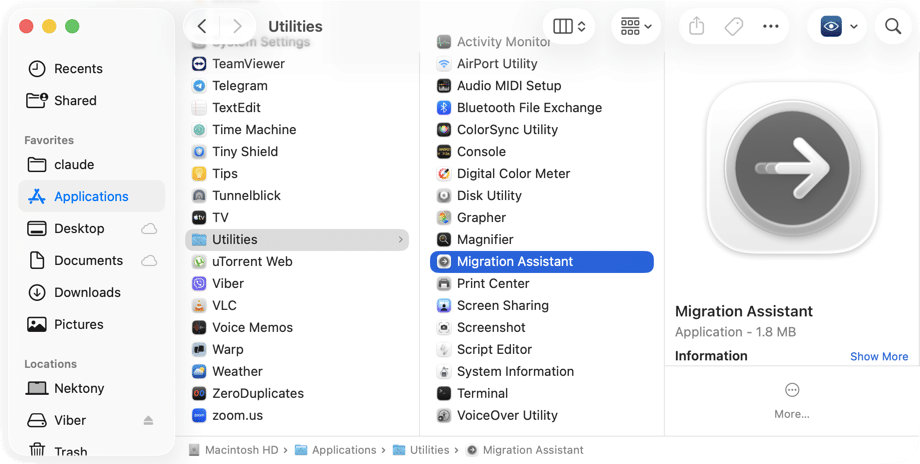
- On your Mac, open Migration Assistant (Applications → Utilities → Migration Assistant).
- Both devices should be on the same network. Follow the prompts.
What it won’t transfer: Windows-only apps. .exe files don’t run on macOS, and Migration Assistant knows this; it will skip them. So, don’t be surprised when your Windows apps don’t appear on the other side.

Option 2: External Drive
- Format the drive as exFAT (it’s readable by both Windows and Mac: NTFS drives are read-only on Mac by default).
- Copy your files on Windows, plug the drive into your Mac, drag everything to your Home folder.
- This approach works well for selective transfers (photos, documents, music) when you don’t need to migrate app settings or email.
Option 3: Cloud Storage
If your files are already in OneDrive, Google Drive, or Dropbox, sign in on your Mac, and they’ll sync automatically. This is the easiest path if your files are already cloud-based.
Your mental map: Windows to Mac
Once you are done with pre-switch steps, you’ll need a calm Mac onboarding. The biggest source of confusion isn’t that macOS lacks features; it’s that everything is in a different place with a different name. Here’s the mental map:
| Windows | macOS equivalent | Notes |
|---|---|---|
| Start menu | Spotlight (⌘+Space) | Does more: app launch, math, unit conversion, web search, files, emails |
| Taskbar | Dock | At the bottom of the screen by default; drag apps in/out to customize |
| All Apps list | Apps | Open Apps from the Dock and start typing the app name to find it |
| File Explorer | Finder | Add Quick Look (Spacebar) for instant file preview |
| Task Manager (Ctrl+Alt+Del) | Activity Monitor + Force Quit | Activity Monitor is more detailed; Force Quit (⌘+⌥+Esc) good for stuck apps |
| Control Panel | System Settings | Apple menu → System Settings; use the search bar inside to find any pane |
| Alt+Tab | ⌘+Tab | Same behavior; add ⌘+` to cycle windows within the same app |
| Ctrl+shortcuts | ⌘+shortcuts | Same actions: Copy, Paste, Undo, Save, Find, swap Ctrl for ⌘ |
| PrintScreen/Snipping Tool | ⌘+Shift+3/4/5 | 3=full screen, 4=selection, 5=screen recording |
| Right-click | Control+click or two-finger tap | Works everywhere. Set it in System Settings → Trackpad |
Note:
Closing a window does not quit the app. The red X closes the window; ⌘+Q quits the app. A running app with all its windows closed still appears in the Dock with a small dot underneath, which may confuse. Right-click any Dock icon → Quit to close it completely.
12 macOS tips: How to switch to Mac from Windows easily
1. There is no Control Panel. It’s System Settings on Mac

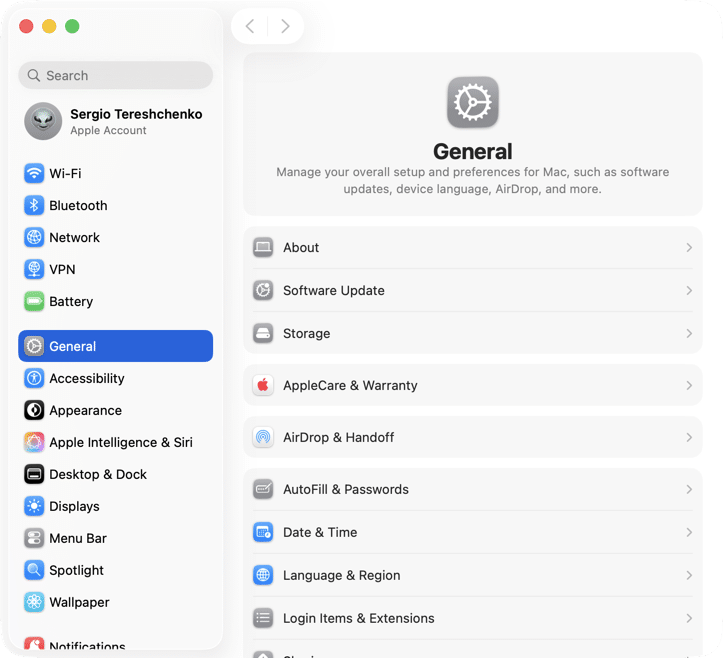
Apple menu → System Settings is where all settings are located. The layout changed in macOS Ventura and changed again in Tahoe, so if a tutorial shows settings in a different location, that’s why. Use the search bar inside System Settings to find any option without navigating the sidebar manually.
2. Spotlight replaces the Start menu, Search, and Calculator

Press ⌘+Space, which opens Spotlight, and type anything. Spotlight will:
- open apps
- search files
- looks up definitions
- do math (type ‘15% of 340’),
- converts units (‘100 USD in EUR’),
- show weather,
- search emails, and more.
This is the one shortcut worth learning on day one. Once it’s in muscle memory, you stop touching the mouse to open anything. Type the first letters of an app name → hit Return.
3. Finder works differently from File Explorer
- Finder doesn’t have a type-in address bar by default.
- Press ⌘+Shift+G to open a ‘Go to folder’ box where you can type a path.
- Column view (⌘+3) lets you navigate folders without losing context.
- Quick Look gives Finder a preview that File Explorer doesn’t have.
4. Spacebar is instant file preview (Quick Look)
Select any file in Finder and press Space. Quick Look opens a full-size preview of PDFs, images, videos, Office files, and code files, without opening any app. Press Space again to close it. This is the Finder feature that Windows File Explorer doesn’t have, and the one most switchers miss when they go back.
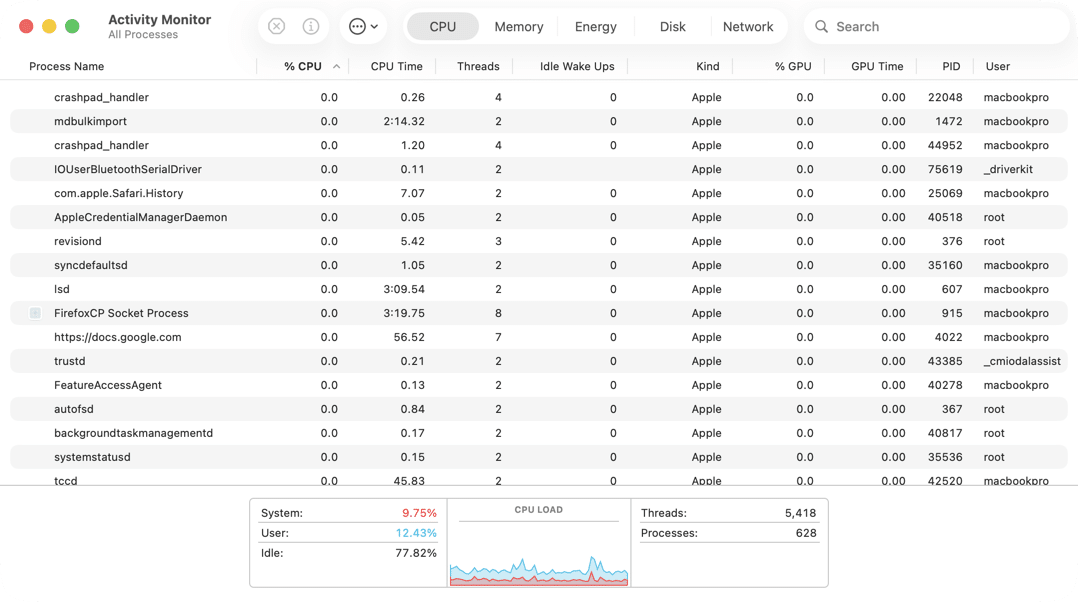
5. Force Quit and Activity Monitor = Ctrl+Alt+Delete (Task Manager)
- When something freezes, press ⌘+⌥+Esc to open Force Quit and end the stuck app.
- For a full system view: CPU usage, memory pressure, running processes, open Activity Monitor (Finder → Applications → Utilities → Activity Monitor). It works like Task Manager, with more detail by default.

6. Your Mac and iPhone work together
- AirDrop lets you send photos, documents, videos, and other files between your devices wirelessly.
- Universal Clipboard lets you copy text, links, images, and files on your iPhone and paste them on your Mac and vice versa. To do so, Bluetooth shall be on.
- Handoff allows you to start writing an email, browsing a webpage, or editing a document on one device and continue on the other.
- iCloud keeps photos, documents, notes, passwords, and other data synced automatically across devices.
- You can also make and receive phone calls and text messages directly from your Mac.
7. Trackpad gestures replace a lot of mouse movement
- Two-finger click: Right-click (secondary click)
- Two-finger scroll: Scroll in any direction
- Three-finger swipe up: Mission Control (see all open windows at once)
- Three-finger swipe left/right: Switch between Spaces
- Pinch with thumb + three fingers: Show the Desktop
Go to System Settings → Trackpad to see gestures with a live demo. Most Windows users who arrive with an external mouse switch to the trackpad within the first week.

8. Time Machine handles backups
Connect an external drive, go to System Settings → General → Time Machine → select the drive. After that, Time Machine backs up automatically and keeps versioned copies. You can restore a single file from three weeks ago. Set this up before you need it.
9. Terminal can be another control panel
On Windows, many system tweaks require registry edits or third-party tools. On macOS, a lot of that you can do through Terminal commands. But be careful, Terminal is not for everyone. You can open it via Applications → Utilities → Terminal or with Spotlight. Once Terminal is opened, you can:
- Install and remove apps,
- Manage system files more efficiently,
- Run built-in macOS maintenance tools,
- Troubleshoot network or permission issues,
- Run maintenance, cleanup, and diagnostic commands, and more.
10. Screenshots are built into Mac
- ⌘+Shift+3: Full screen screenshot
- ⌘+Shift+4: Drag to select an area
- ⌘+Shift+4 → Spacebar: Click to capture a specific window (clean, with shadow)
- ⌘+Shift+5: Screen recording and options panel
Hold Control with any of these to copy to the clipboard instead of saving to the Desktop.
11. Command (⌘) is your new Ctrl
⌘ replaces Ctrl for almost every shortcut:
| Action | Windows | Mac |
|---|---|---|
| Copy | Ctrl+C | ⌘+C |
| Paste | Ctrl+V | ⌘+V |
| Undo | Ctrl+Z | ⌘+Z |
| Redo | Ctrl+Y | ⌘+Shift+Z |
| Save | Ctrl+S | ⌘+S |
| Select all | Ctrl+A | ⌘+A |
| Find | Ctrl+F | ⌘+F |
The one exception: Terminal still uses Ctrl+C to interrupt a running process.
12. ⌘+Tab switches apps; ⌘+` switches windows within an app
- ⌘+Tab is macOS’s version of Alt+Tab; it switches between open apps.
- The part some users miss: ⌘+` (backtick, the key above Tab) cycles between open windows of the same app.
- For example, if you have three Safari windows open and press ⌘+Tab to switch to Safari, it takes you to Safari but doesn’t let you pick which window.
- Both shortcuts together replace what Alt+Tab handled on Windows.
More Mac keyboard shortcuts: Windows to Mac
The pattern is consistent: where Windows uses Ctrl, Mac uses ⌘. The exceptions are the edge cases, not the rule.
| Action | Windows | Mac |
|---|---|---|
| New window | Ctrl+N | ⌘+N |
| New tab | Ctrl+T | ⌘+T |
| Close app | Alt+F4 | ⌘+Q |
| Switch apps | Alt+Tab | ⌘+Tab |
| Switch windows (same app) | – | ⌘+` |
| Screenshot | PrintScreen | ⌘+Shift+3/4/5 |
| App launcher/search | Win key | ⌘+Space |
| Force quit | Ctrl+Alt+Delete | ⌘+⌥+Esc |
| Lock screen | Win+L | ⌘+Ctrl+Q |
| Forward delete | Delete | Fn+Delete |
| Go to start/end of line | Home/End | ⌘+← / ⌘+→ |
| Rename file | F2 | Return |
Windows to Mac app equivalents
Most of the apps you use have either a Mac version or a direct equivalent.
| Windows app | Mac equivalent | Notes |
|---|---|---|
| WinRAR/7-Zip | Keka, Archive Utility | Archive Utility handles ZIP files; Keka supports 7z, RAR, TAR, and more |
| Adobe Acrobat | Preview | Preview handles most PDF viewing, annotation, and signing tasks |
| Notepad | TextEdit/Notes | TextEdit supports plain text and rich text; Notes syncs across Apple devices |
| Excel | Numbers | Free spreadsheet app from Apple; opens and exports Excel files |
| PowerPoint | Keynote | Free presentation app from Apple; supports PowerPoint files |
| Paint | Preview+Markup | Preview handles cropping, annotation, and basic edits |
| WordPad/Word | Pages | Free; compatible with .docx files |
| Internet Explorer/Edge | Safari | Default browser; Chrome and Firefox are also available to download |
| Windows Defender | Built-in XProtect | macOS has built-in malware protection; No separate antivirus needed for most users |
| Windows Media Player | QuickTime Player/IINA | VLC and IINA handle more formats |
| Disk Cleanup/Defrag | MacCleaner Pro | APFS on SSDs doesn’t need defrag; cache cleanup is periodic |
| OneDrive | iCloud Drive | Both available; iCloud integrates deeper with macOS |
| Command Prompt | Terminal | Access Unix command-line tools and shell environments |
| Bitwarden/1Password | Passwords (Keychain) | Keychain is built-in and stores passwords, passkeys, Wi-Fi logins, and autofill data. |
| VS Code/Notepad++ | VS Code | Available for Mac with native Apple Silicon support |
Apps available on both Windows and Mac
| Windows/Mac app | Notes |
|---|---|
| Microsoft 365 | Same subscription, native Mac apps |
| Google Chrome | Syncs bookmarks, passwords, and tabs |
| Firefox | Available on macOS with account sync |
| Adobe Acrobat Reader | Same PDF viewer across platforms |
| Adobe Photoshop | Native Apple Silicon support |
| Adobe Premiere Pro | Same Creative Cloud subscription |
| VLC | Same media player on both platforms |
| Spotify | Same app and account |
| Zoom | Same features across platforms |
| VS Code | Native Apple Silicon version available |
| OneDrive | Works alongside iCloud Drive |
| Bitwarden/1Password | Syncs passwords across devices |
Some freemium or free apps to install first on Mac
These cover the gaps that macOS doesn’t fill out of the box:
- Keka: archive tool for ZIP, RAR, 7z, and other compressed formats
- VLC/IINA: video players for formats that QuickTime doesn’t support
- Rectangle: window snapping and keyboard-driven window management
- Duplicate File Finder: helps locate and remove duplicate files to free up storage
- Alfred: faster Spotlight alternative with workflows, clipboard history, and automation
- Disk Space Analyzer: visual storage breakdown that helps you quickly find large files, hidden folders, and disk usage spikes
- Homebrew: package manager for developers; install via Terminal to manage apps and CLI tools
How to install and uninstall Mac apps
Installing apps on Mac
There are three ways to install an app on macOS:
- App Store: safest option, handles updates automatically.
- DMG file: download from the developer’s website. Open the DMG, drag the app icon to the Applications folder. That’s it.
- Homebrew: command-line package manager for devs. Not needed unless you’re writing code.
Uninstalling apps on Mac: The one thing Windows users get wrong
On Windows, you go to Control Panel → Programs → Uninstall. It’s explicit and complete.
On Mac, the instinct is to drag the app to the Trash. But by doing so, you only remove the main app file. Service files, caches, launch agents, saved state, and preferences remain scattered across the system Library – hidden folders that most users never see.
Over time, especially in the first month, when new Mac owners install and try many apps, these leftover files accumulate. The system doesn’t slow down dramatically, but the disk fills up in ways that don’t seem to match what you’ve ‘deleted.’
Uninstalling apps completely on Mac
You’ve got three main options to remove an app on Mac completely:
- Finder: Drag the app to Trash, then manually remove leftover files in ~/Library (Application Support, Caches, Preferences). This is the most manual method and easy to miss hidden files.
- Terminal: Use command-line removal for apps installed via Homebrew or scripts.
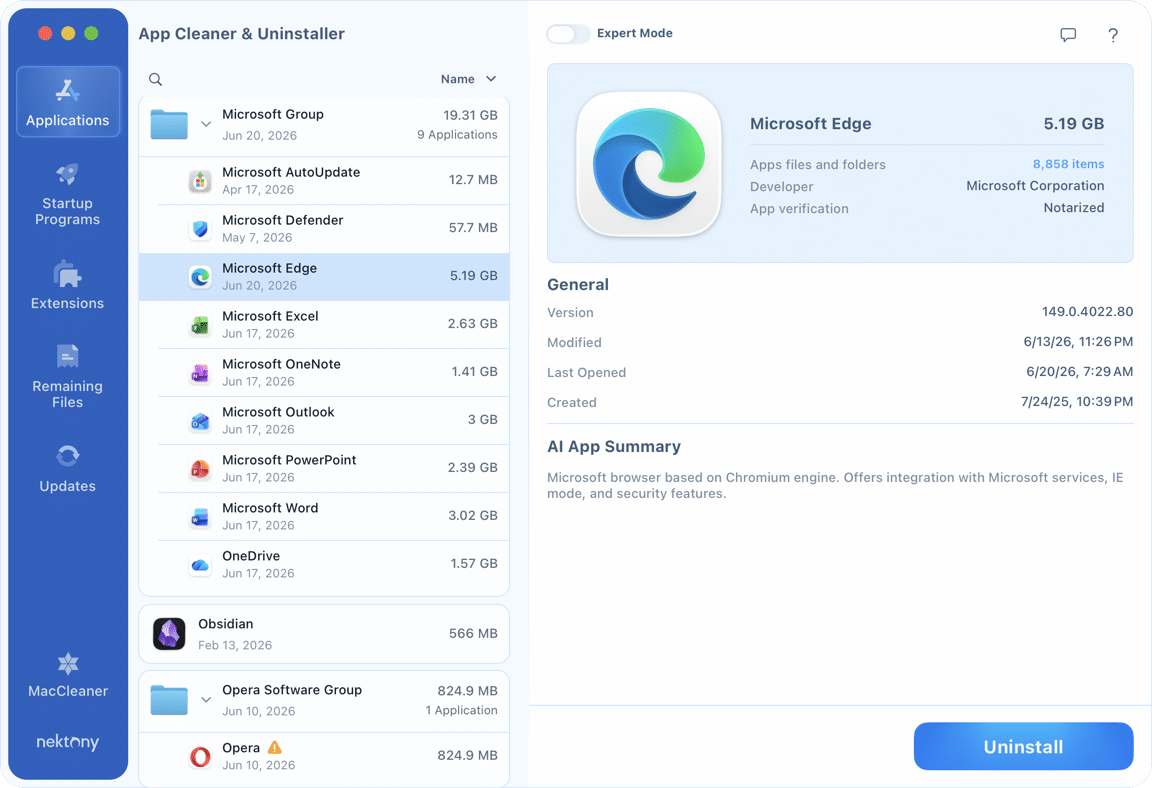
- Uninstaller: The easiest and most reliable method. Dedicated third-party utilities or built-in uninstallers (for some apps like Adobe or Microsoft Office) remove the app + all associated system files in one step.
Note:
Use App Cleaner & Uninstaller to remove apps and all their associated files in a click:
- Open App Cleaner & Uninstaller.
- Select the app you want to remove from the list.
- Click Uninstall → confirm the app to be removed.
Day-one setup checklist
Run through this list in the first 30 minutes:
- Sign in with your Apple ID (System Settings → Sign in with Apple ID) to enable iCloud, Handoff, iMessage, and FaceTime across your devices.
- Enable iCloud Drive + Desktop & Documents sync (System Settings → [Your Name] → iCloud → iCloud Drive → Options). Your Desktop and Documents folders will sync automatically across Apple devices.
- Set up Time Machine (System Settings → General → Time Machine) to enable automatic backups and easy file recovery.
- Configure the Trackpad (System Settings → Trackpad). Enable Tap to Click, set the secondary click to Two-Finger Click, and adjust scroll direction if ‘natural’ scrolling feels backwards to you.
- Set up Touch ID (System Settings → Touch ID & Password) to unlock your Mac, authenticate with the App Store, and use Apple Pay with your fingerprint.
- Clean up the Dock: right-click any default app you won’t use → Options → uncheck Keep in Dock.
- Customize widgets for daily use: add Calendar, Weather, Battery, or Notes widgets to quickly access key information from the desktop or Notification Center.
- Set your default browser and email app in System Settings → General → Default Web Browser.
- Enable the built-in macOS Firewall (System Settings → Network → Firewall) to add an extra layer of protection against unwanted incoming connections.
- Create a new Space via Mission Control (three-finger swipe up → click + in the top-right corner) to separate work, browsing, and personal workflows.
- Run Software Update (System Settings → General → Software Update) to ensure you’re on the latest macOS version with security and performance fixes.
Final switch to Mac
Switching from Windows to Mac is less about learning new features and more about unlearning old habits. So, stop trying to use a Mac like a Windows PC. It has its own vibe. You may not even need a mouse here. The faster your mindset adapts to Mac, the quicker it all starts to feel natural.
Frequently asked questions
How to switch Keychron from Windows to Mac?
To switch Keychron between Windows and Mac mode:
- Locate the Mac/Windows toggle in the top-left corner of the keyboard.
- Move the switch to match your computer's operating system:
- Mac for macOS
- Windows for Windows
- The keyboard will automatically activate the corresponding key layout:
- Layers 0 and 1 stand for Mac mode
- Layers 2 and 3 stand for Windows mode
- When customizing keys, make sure you're editing the layers associated with the active operating system.
How to run Windows on a Mac?
You can run Windows on a Mac using virtualization software:
- Parallels Desktop runs a full Windows environment alongside macOS in a virtual machine. It's the easiest and most popular option for Apple Silicon Macs.
- VMware Fusion is the alternative. It also creates a virtual machine where Windows runs as an app within macOS, where you can switch between operating systems instantly.
How to create a new user on a Mac?
- Open System Settings.
- Go to Users & Groups.
- Click Add User.
- Enter your admin password.
- Choose account type (Administrator, Standard, or Sharing Only).
- Fill out user details (full name, account name, password)
- Click Create User.